Retention Center - Navigation & Training
Modified on: Mon, 11 May, 2026 at 5:39 PM
TABLE OF CONTENTS
 |  |  |
Renewal, Expiration, & Expired Lists
After a policy renewal is downloaded or manually entered, EZLynx Retention Center adds it to the Renewal List. A Retention Center Admin configured settings that automatically add policies to the Expiration List once they are a specified number of days from expired. These policies have not received a renewal in EZLynx yet. Once the policy’s expiration date passes, the policy appears on the Expired List, but we consider it best practice to never allow a policy to reach this status.
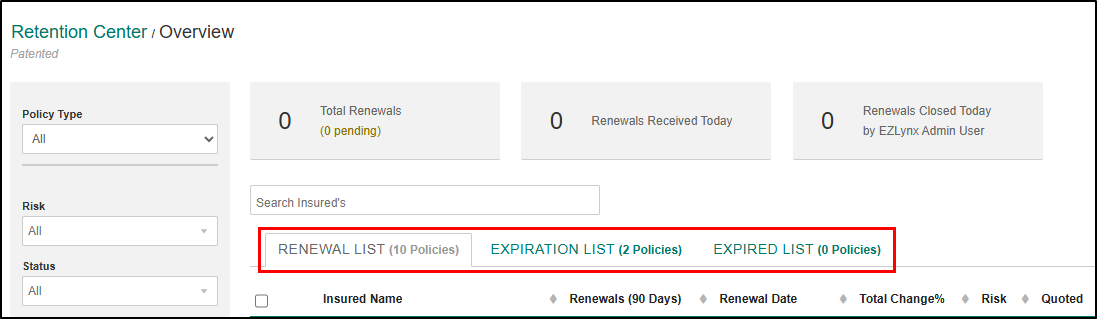
You can find policies quickly by setting the filter criteria on the left. While most filter options are the same regardless of which List tab you are on there are a few differences. For example, Total Change % and Change Reason filters are only available for the Renewal List since these are based on the downloaded or manually entered renewal transaction. Let's take a look at what's the same across the board and what's different.
Filters available on all Retention Center Lists
- Status – While this filter is available on all the lists, the options are dynamic based on the currently set statuses for the page.
- Agencies - The filter is only available if your agency has sub-branch locations. It allows you to filter based on Agency location.
- Carrier – Each policy displays a carrier name. Refine to one carrier or a group of carriers by typing the name into the Search field. A list of potential results appears to choose from and can be repeated to add multiple carriers.
- Line of Business – To restrict results to one or multiple lines of business, type the LOB in the search field and select the applicable item. Repeat for all desired LOBs.
- Assigned Producer – This refers to the applicant’s Assigned To user. Simply select one or more from the drop down, and the data updates automatically.
- Renewal Manager – This is an EZLynx Retention Center user that has been assigned to review the renewal.
Filters available on certain Retention Center Lists
| Renewal List | Expiration List | Expired List |
|---|---|---|
| Risk – Choose from High or Low. During setup, an admin decided what percentage or premium dollar increase was considered high. Total Change % - Use the ruler to narrow the results to a specific change ratio. Only available for the Renewal List. Change Reason – The cause of the premium increase or decrease can be selected, such as added drivers or coverage updates. Only available for the Renewal List. | View - This filter allows you to view policies based on if their source meaning whether they were manually entered or downloaded. - Manual Only: If you want to see Applicants that only have Manually entered policies choose Manual Only. - Download Only: If you want to see Applicants that only have Downloaded policies select Download Only. - Any Manual: If you want to see Applicants that contain at least one manual policy, choose Any Manual. | Change Reason – The cause of the premium increase or decrease can be selected, such as added drivers or coverage updates. Only available for the Renewal List. |
Difference Report
Each applicant line can be expanded to view all policies and to run the Difference Report.
To view more details:
- Click on the arrow to the far right of the desired applicant.
- Notice the Total Active Policies Count and Premium Amount
- On the right, there are options to send an Email or Text Message to the applicant.
- Next, each policy is listed with the Change Premium amount and percentage color coded to indicate risk level.

Change Reason Thumbnails
EZLynx automatically detects the main differences between the renewal and previous version of the policy. For convenience, these are added as thumbnails on the right in the expanded view.
Quote Submission Details
Under the policy, EZLynx displays the most recent quote submission, including the carrier name, premium quoted, and change dollar amount and percent compared to the current policy version.
EZTip: Click the blue View Quotes link on the far right to be taken to the customer's Quotes screen in a new tab.
Applicant & Retention Center Activity
The bottom of the expanded applicant details shows the applicant Activity and System Log, as well as the Retention Center Activity and System Log.
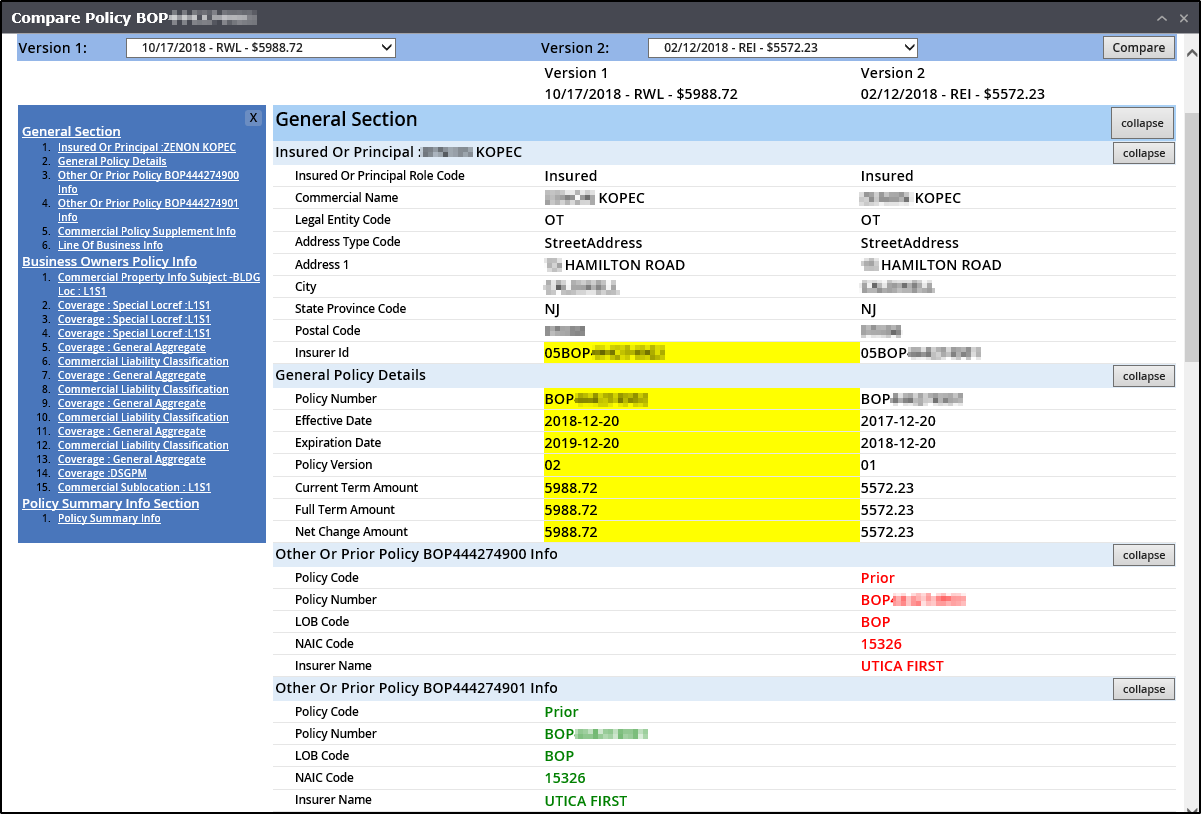
The Compare Policy window appears:
- The Renewal is prefilled as Version 1, and Version 2 prefills based on the Retention Center Admin’s preference settings.
- To change Version 2 to a different transaction, simply click the drop down and select a new one.
- EZTip: Use the menu links on the left to jump to specific areas with ease. Items highlighted in yellow indicate that both versions have a value, but they are different.
- Items with green text indicate an addition was made to the new version.
- Items with red text have been removed from the previous version.
Add Note & Send Email Campaign
One of the best features of EZLynx Retention Center is the ability to manage multiple accounts at once, while still adding a personal touch for your agency’s customers. Users can add a note or task, send an email campaign, or close one or multiple accounts from the Renewal List all at once.
For each option below:
- Check one or multiple boxes next to each applicant name on the left to apply the same action.
- At the top right, click the blue Actions menu, and select the desired option.

- Add a Note or Task for applicants that are at a higher risk of cancelling, a user can quickly delegate remarketing tasks to other EZLynx Users.
- Send an Email Campaign - It's a good idea to send every customer an email, regardless of their risk level. Contact reinforces the agent-client relationship, and users can create Email Campaigns that cater to both risk levels.
- Close an Account from the Renewal List - If an account is at a low risk level, then we recommend closing them from the Renewal List to focus more energy on those at a higher risk. This can be done while performing an action above or at any time from the Actions menu.
 | Note! - The Bulk Actions has a limit of closing only 50 Retention Center Opportunities at a time! |
Did you find it helpful? Yes No
Send feedback