Agency Performance Goals
Modified on: Thu, 15 Jan, 2026 at 7:04 PM
Agency Performance Goals allows admin users to set clear, compelling goals and measure progress so their team's focus is naturally directed towards next steps. This value offering not only empowers agencies to plan precisely, but also keeps them highly focused on achieving their business goals. Agency Performance Goals enables you to gain unprecedented visibility into your path towards scalability and growth. With Agency Performance Goals, you can mobilize their focus towards actionable behavior.
TABLE OF CONTENTS
| Check out our video if you want to watch and follow along!  |
 | Did you know? - You can click on the images in our article to zoom in! |
Home Page Performance Goals Widget
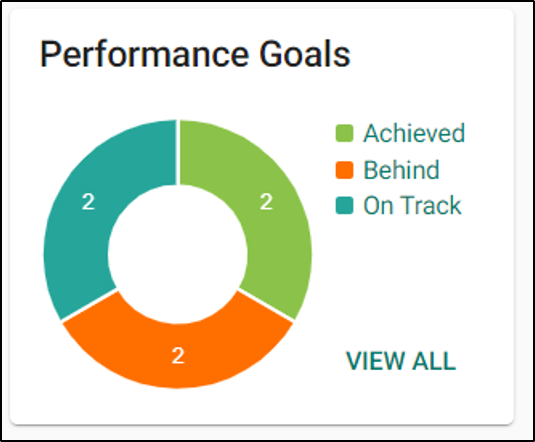
The Performance Goals widget is located on the Home Page of EZLynx and gives agencies a quick view of whether they are behind or on track with goals they have created or been assigned. Using the widget, the agent can access a specific goal by clicking on the goals track or selecting View All. For Non-Admin users, they will only see the widget with goals assigned to them. If the user does not have goals assigned to them and is not an admin, they will not see the widget on their home page.
How to Access Agency Performance Dashboard
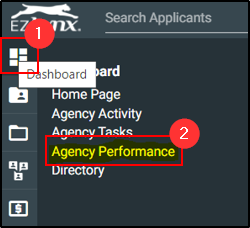
Locate this dashboard using the left menu hover over the first icon and select Agency Performance.
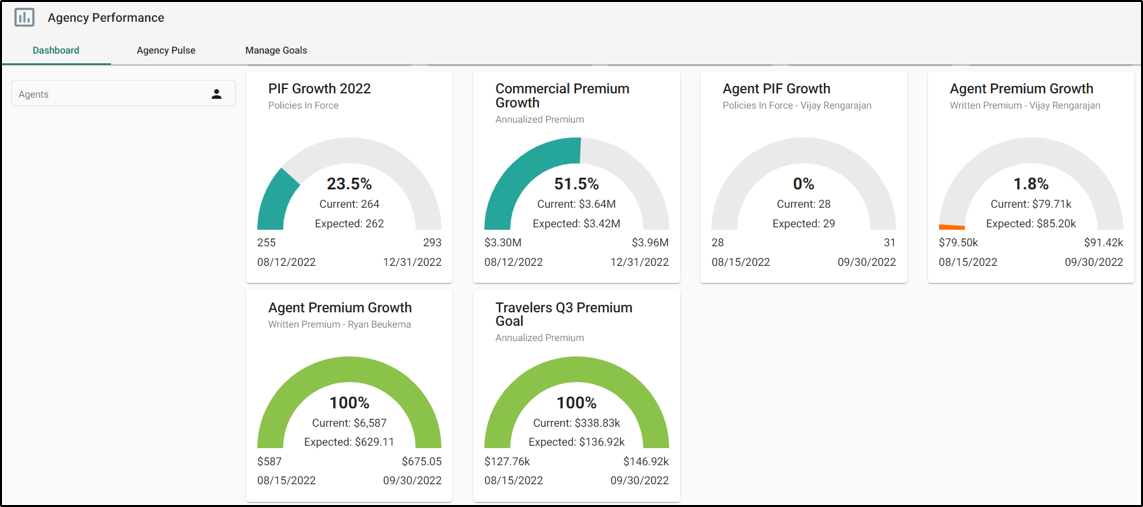
From the Dashboard agents can filter by Goal Type, Status or Assigned Agents. The agent will be able to see the various statuses of all goals assigned to that agent or if the user is an admin, it will show the goals at that agency.
How to Create a New Goal
To create a new goal, you must be an Agency Admin.
1. Hover over the Dashboard icon (four blocks) to the left menu bar.
2. Choose Agency Performance. This will take you to the Agency Performance page.
3. Select the Manage Goals tab.
4. Select the Create New Goal button. This will take you to the Performance Goals Workflow page.

Select Metric
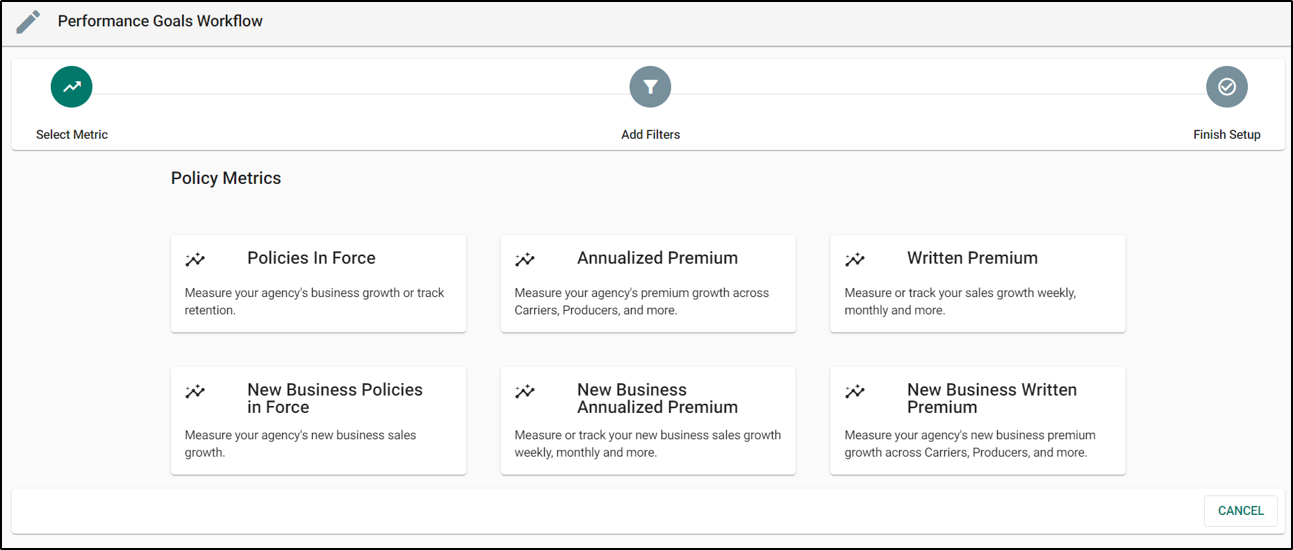
Next, select the Metric you would like to track. The following metrics are currently available:
- Policies in Force - This will track the number of (active) policies in force. Agencies can use this metric to measure the overall growth of their book size from a policies standpoint.
- Annualized Premium - This will track your annualized premium. You Can use this to measure your premium growth across your agency. For example, you could measure the premium growth for commercial lines utilizing the 'Policy Type' filter.
- Written Premium - This metric will look at the actual written (non-annualized) premium. This will be valuable when you want to measure the growth in your agency's written premium across any carrier.
- New Business Policies in Force - This will help agencies track the new business growth in their agency. Agency admins can measure the sales performance of their agents by setting them new business policies in force goals.
- New Business Annualized Premium - This metric can be leveraged by agencies when there is a need to measure sales growth from annualized premium perspective.
- New Business Written Premium - Often times, carriers set production goals for agencies as part of their compensation plans. So, when your agency needs to measure and track the production goals across carriers, this new business written premium metric will be very valuable.
Add Filters
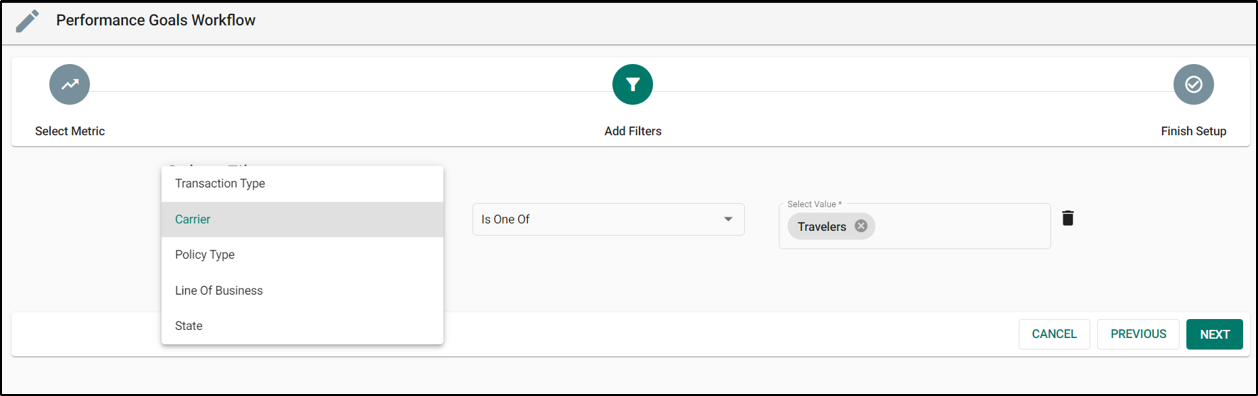
Next you can add filters. To add a filter, select the Add Filter button. In the Filter Type drop down, you can select one or more of the following:
- Transaction Type
- Carrier
- Policy Type
- Line of Business
- State
Please note, you can have multiple values in the same filter and if you add a filter by mistake you can click the Delete icon to remove a filter. Once you've added all your filters, select the Next button.
Finish Setup
Under the Finish Setup section, enter a name for the goal and decide how the goal will be assigned. The following options are currently available:
- My Agency - If you are an independent agency with no locations or branches, you can use the "My Agency" option if you are setting up an agency level goal.
- Agencies - If you are a parent agency that has multiple branch agencies under you, you can set goals for those branch agencies as well. The branch admin will be able to see all the goals set for that branch. To set a goal for a branch agency or agencies, use the "Agencies" option.
- Producers - While setting goals for individual agents, you can go with the "Producers" option. This will allow you to set goals for individual agents working for your agency.
No Branch Location Example 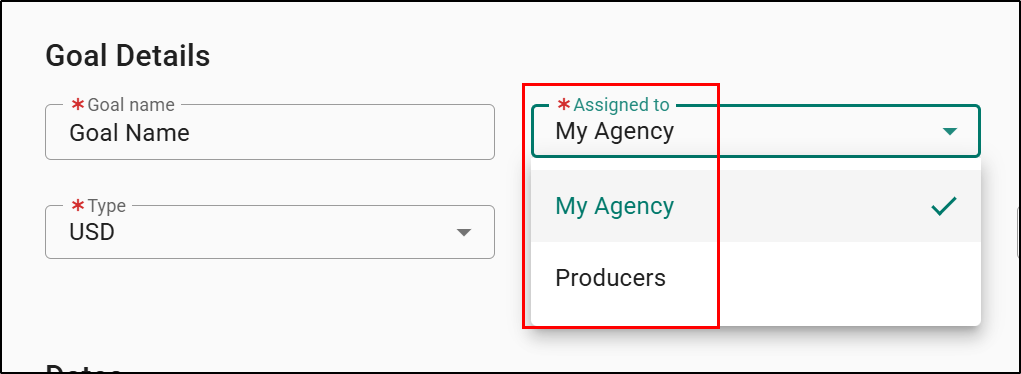 | Branch Location Example 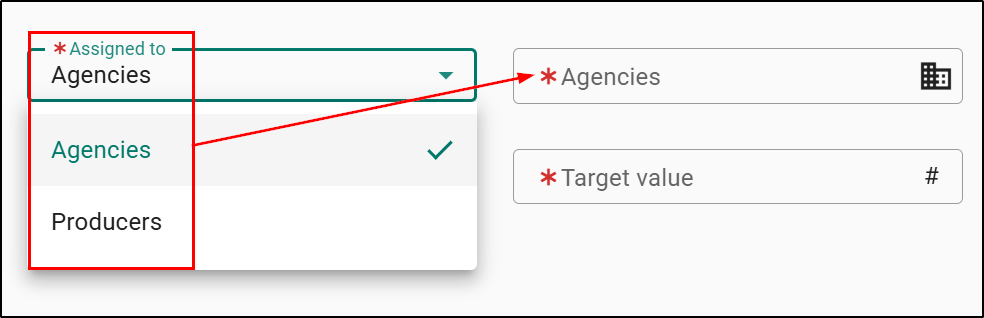 |
Next, choose the type, comparison type, and enter target value for the goal. The following type options are currently available:
- Percent - If you choose the type as Percent, you will have an option to choose how you would want to measure your growth.
- Increase By: We recommend Increase By as it is common to set a growth goal.
- Decrease By: There are cases where agencies aim to reduce their exposure to a particular line of business or with a carrier. In those instances, we recommend the Decrease By option.
- Count - If you choose the measurement type as Count, there are multiple options available to measure the goal.
- Is Exactly/Increase To/Decrease To: You can set an exact target value to reach by using exactly or increase/decrease to.
- Increase By: You can aim to increase the current value by a certain number by using increase by.
- Decrease By: You can also look at decrease by if the strategy is to reduce the exposure to a particular line of business or limit writing premiums with a particular carrier.
For example, let's say you wanted to increase your goal by 10%. You could choose:
- Type = Percent
- Comparison Type = Increase By
- Target Value = 10
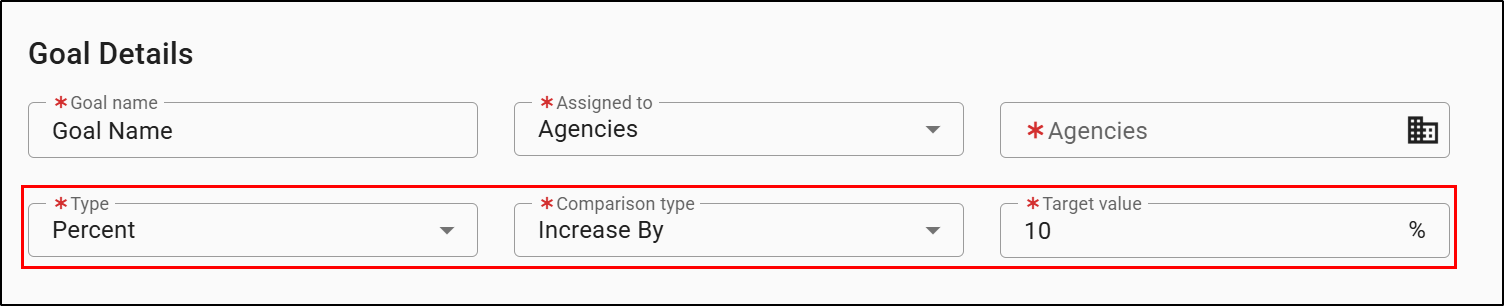
Finally, we want to set a start and target date for the goal. The start date is when the goal will begin tracking. The target date is the date the goal should be achieved by. We can do this two ways.
- Specific Date Range: This option lets you choose a specific start and target date using the date picker.
- Time frame: This option allows you to set a specific start date and the target date will be determined based on the duration and count you input.
- For example, if we put the start date as Jan. 1st. and set the duration to Month and input the count as 1, we are asking it to make the target date 1 month from the start date. Which means the Target date will be Jan. 31st.
Specific Date Range Example 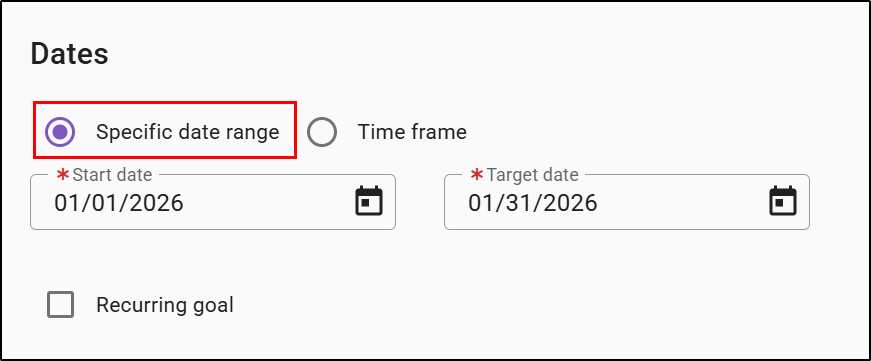 | Time frame Example 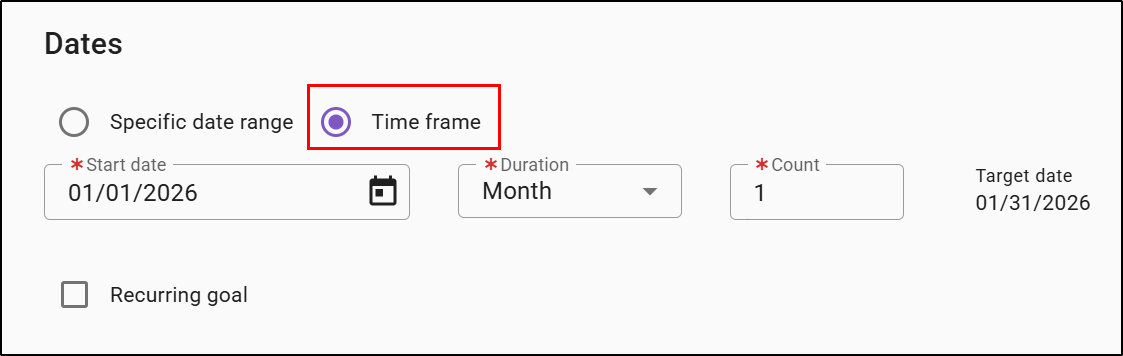 |
We can also set the goal to be recurring meaning it will repeat itself. To make a goal recurring, check the box next to the "Recurring goal" option. This will display the Repeat dropdown.
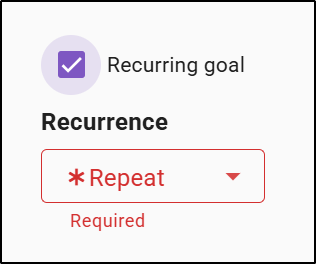
Using the Repeat dropdown, choose how many times you want your new goal to repeat. This will display the dates your recurring goals will have for a start and target date. This allows you to see what the dates will be prior to saving your goal.
For example, if we wanted to set a goal for every month of the year, you could choose:
- Time frame
- Start date = First day of the year
- Duration = Month
- Count = 1
- Recurrence/Repeat = 11 times
This will give you 12 different dates (one every month) with the first being the start date you defined earlier in the Start Date field.
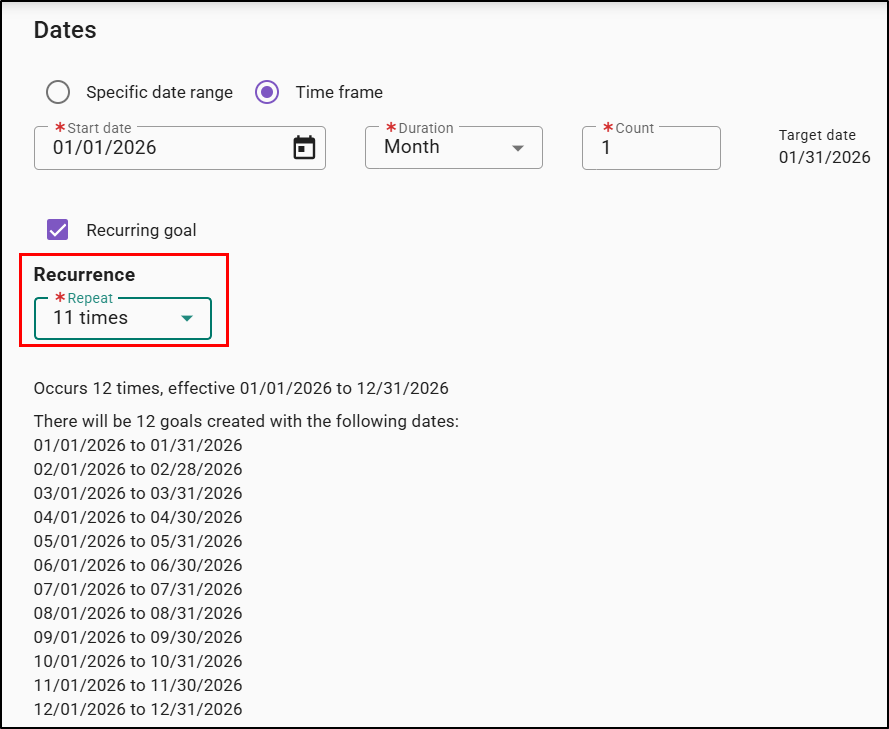
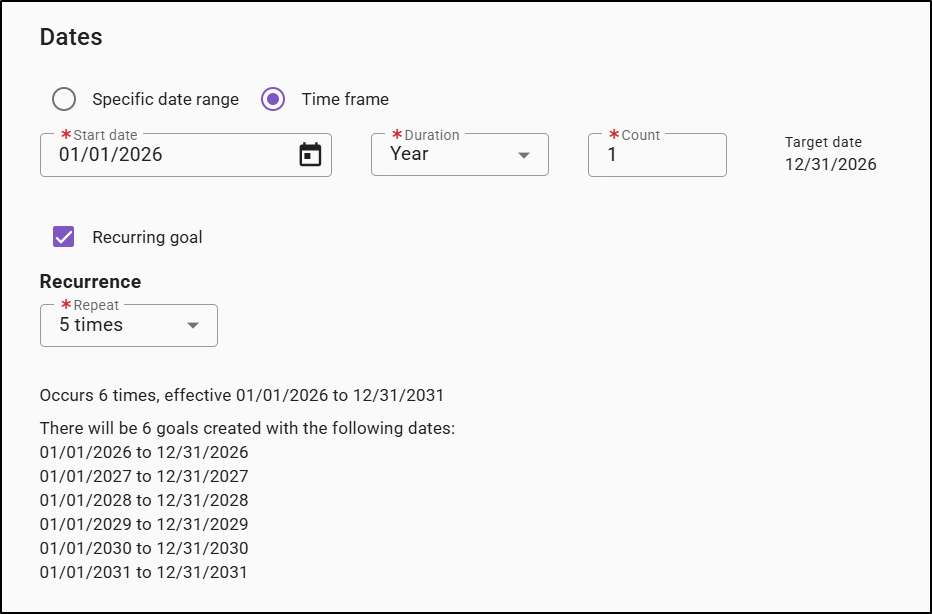
Another example could be a yearly goal for the next five years which would means you could choose:
- Time frame
- Start date = first day of the year
- Duration = Year
- Count = 1
- Recurrence/Repeat = 5
This will give you 5 different dates (one for every year) with the first being the start date you defined earlier in the Start field.
Once you've set the start and target date, select the Finish button in the bottom-right to create the goal.
 | Please note: The Agency Performance Dashboard will display the newly created goals the next day. |
How to Manage Goals
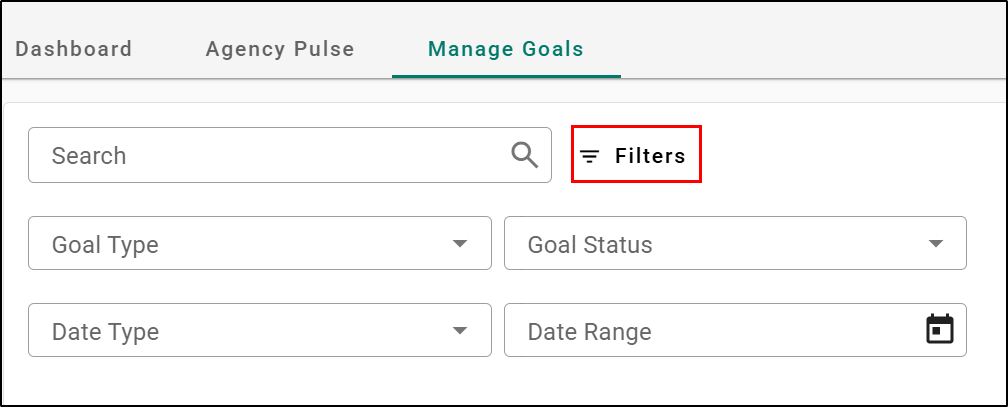
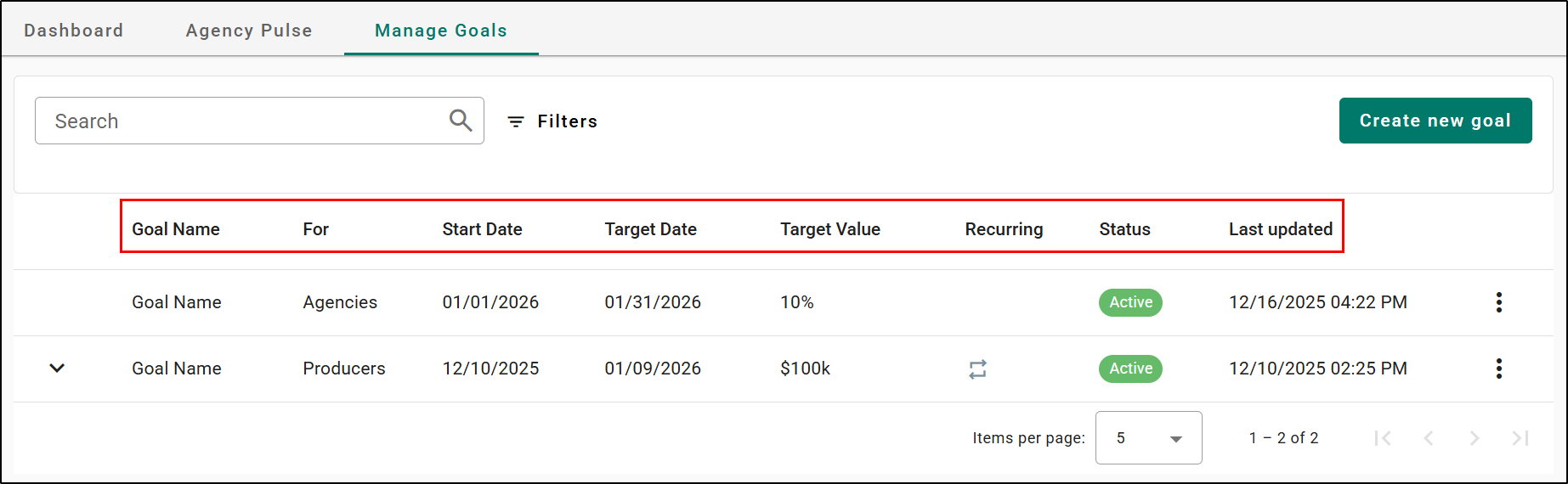
The Manage Goals tab is used to manage existing goals. You can use the search to find a specific goal or you can use the following filters:
- Goal Type
- Goal Status
- Date Type
- Date Range
You'll be able to find the following information on the Manage Goals tab:
- Goal Name: Name of the goal.
- For: Whether the goal is assigned to an agency or producers.
- Start Date: The date the goal started tracking.
- Target Date: The date the goal should be achieved by.
- Target Value: The amount either in percentage or USD the goal needs to meet.
- Recurring: Whether the goal is recurring or not.
- Status: Whether the goal is Active, Expiring Soon, or Expired.
- Expiring Soon Status Criteria:
- If a goal is within seven days of the Target date and does not have any recurrences, it will display as Expiring soon.
- If a goal has recurrences, it will display as Expiring soon when it is on the last occurrence.
- Last Updated: The date the goal was last edited.
All of the column headers except for the Recurring column can be sorted by selecting the column header.
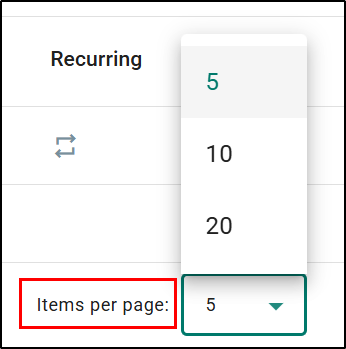
By default, the items per page are set to 5 goals per page. However, you can increase this to 10 or even 20 if needed.
Edit Goals
You can always edit a goal if it is Active, In Progress, or Upcoming. You cannot edit a goal that has expired. If your goal uses the Recurring feature, you will only be able to edit certain fields depending on if the goal is Upcoming or In progress.
To edit a goal:
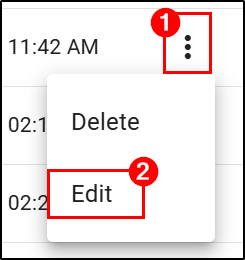
1. Select the Actions icon (vertical ellipses).
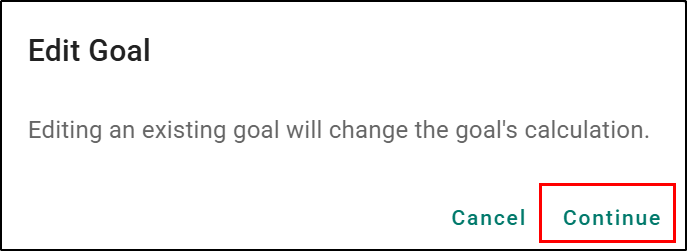
2. Choose the Edit option. This will open the Edit Goal confirmation window.
3. Select Continue. This will open the either full-version of the Edit Goal page or the limited version depending on if the goal has occurrences or not.
- If your goal has occurrences, it will open the limited-version.
- If your goal does not have occurrences, it will open the full-version.
 |  |
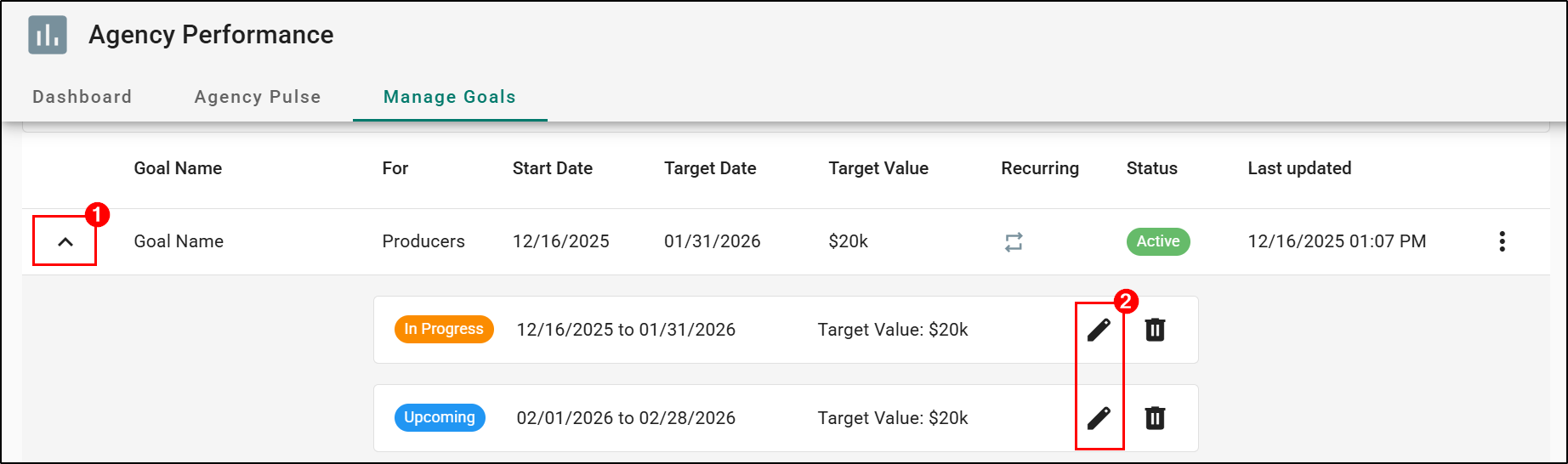
If your goal uses the Recurring feature, you can also edit an individual occurrence.
To edit an individual occurrence:
1. Select the down arrow next to the goal to expand it.
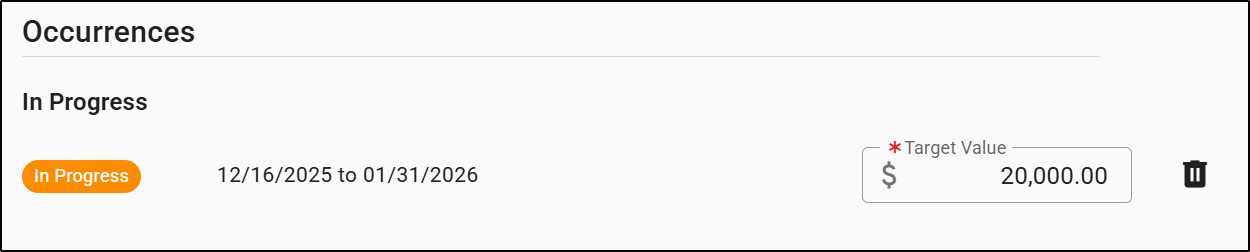
2. Select the Edit icon (pencil). This will take you to the limited version of the Goal Edit page where only certain fields are editable.
For occurrences that are In Progress, only the Target Value can be updated.
For occurrences that are Upcoming, only the Start date, Target date and Target Value can be updated.

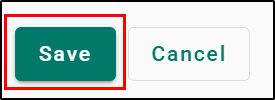
Once you are done editing the goal, make sure to select the Save button on the bottom-left to save your changes.
 Delete Goals
You can only delete goals that are Active, In Progress, or Upcoming. You cannot delete goals that are expired. If your goal uses the Recurring feature, you will need to delete each occurrence for the entire goal to be deleted.
To delete a goal that does not use the Recurring feature:
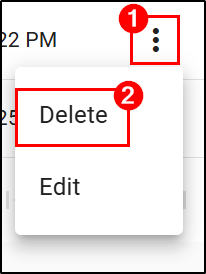
1. Select the Actions icon (vertical ellipses).
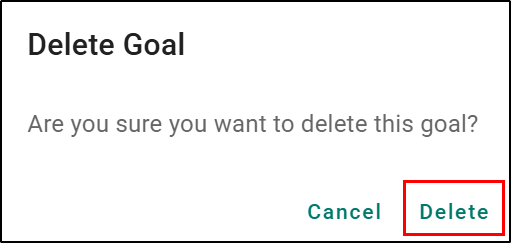
2. Choose the Delete option. This will open the Delete Goal confirmation window.
3. Select Delete. This will permanently delete the goal. Please note, this is not reversible.
 |  |
To delete a goal that uses the Recurring feature:
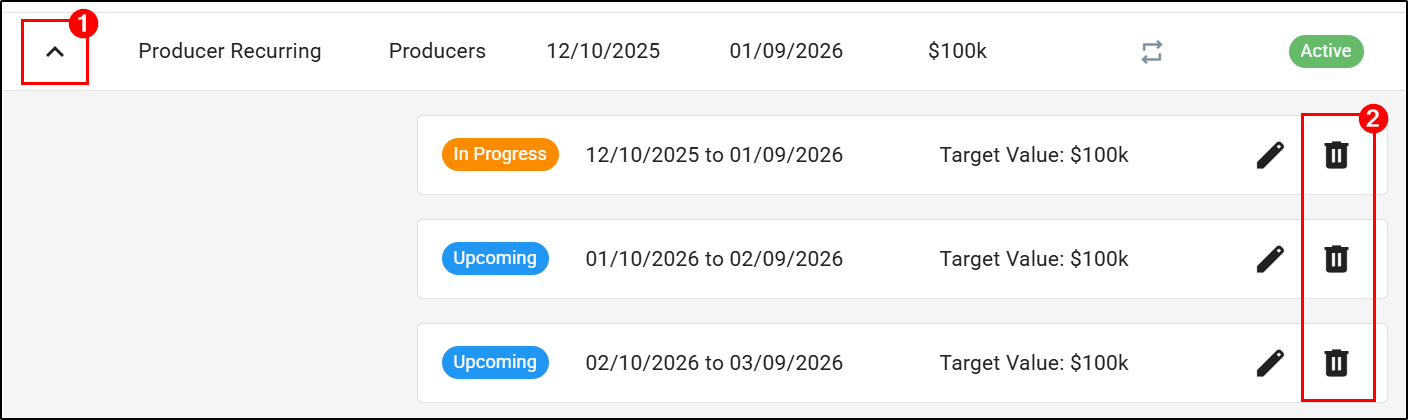
1. Select the down arrow next to the goal to expand it.
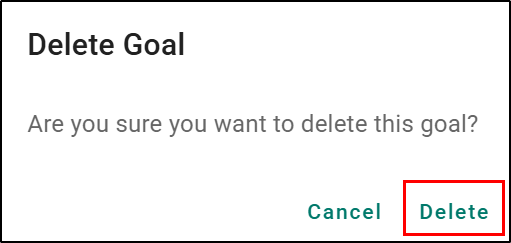
2. Select the Delete icon (trashcan). This will open the Delete Goal confirmation window.
3. Select Delete. This will permanently delete the goal. Please note, this is not reversible.
4. Repeat steps 2-3 for every occurrence to delete the entire goal.
 |  |
View Expired Goals
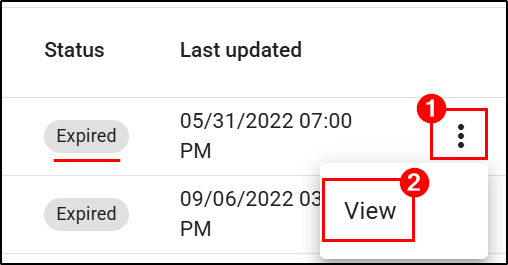
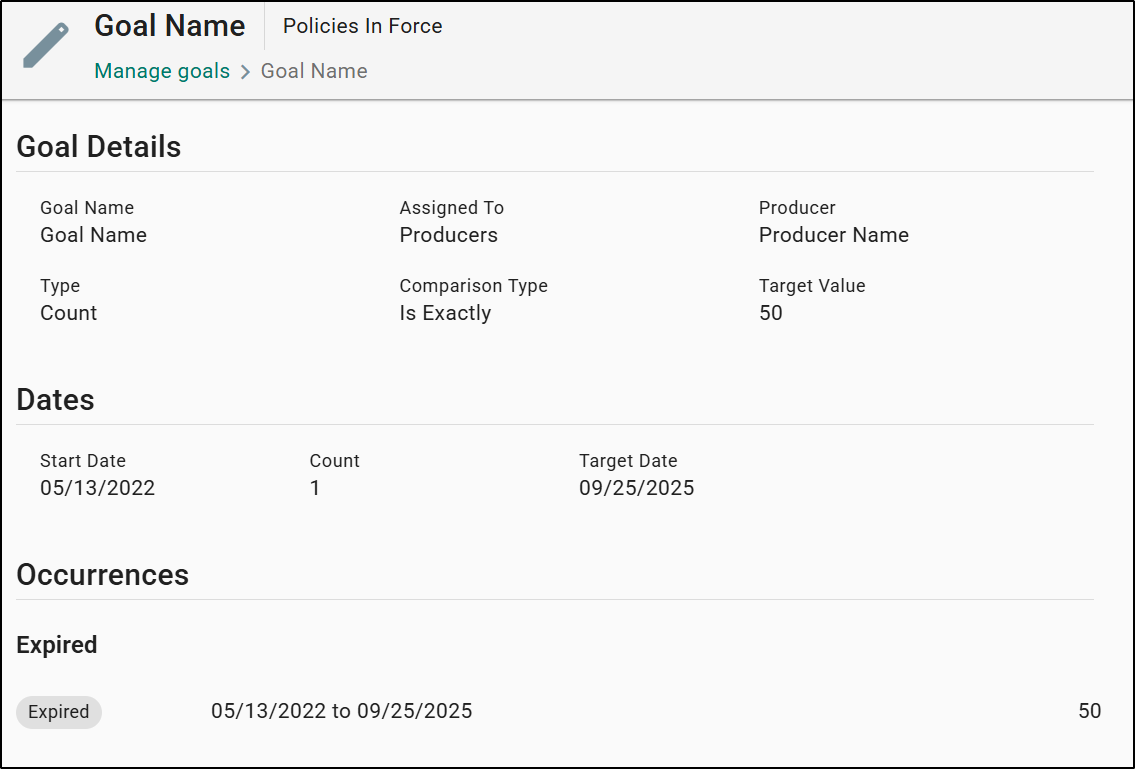
If a goal has passed the target date, can view the details of the expired goal by selecting View in the action menu.
 |  |
We hope this training article was helpful in learning how to create and mange Agency Performance Goals. Please let us know if this article was helpful by answering the question below. Check out our related training articles on the right-side to learn more about how to master EZLynx!
Did you find it helpful? Yes No
Send feedback