Personal Quote Proposals
Modified on: Thu, 10 Sep, 2026 at 6:15 PM
Personal Quotes Proposals allows you to create a proposal directly from the Quote Results or Quotes page. Simply, select the quotes results you wish to show on the proposal, and select how the customer will be informed. Then, a proposal is ready to be viewed in Client Center.
- You can add a personal touch to your proposals by writing a custom message to the customer and embedding videos, leading to a more personalized and effective interaction.
- You can choose to send a message to the customer, informing them that a proposal is ready to view within their customer portal, including a link directly to the proposal. Within the Client Center, the customer will be able to interact with the proposal and you'll will be informed when they do via task in EZLynx.
TABLE OF CONTENTS | Check out our videos if you'd rather watch and follow along! 
|
 | Did you know? - You can click on the images in our articles to make them bigger! |
Setup & Settings
Personal Quote Proposals is bundled into the Client Center product. Because of this, there is no setup required for Client Center Admins. However, there are settings for task scheduling and email notification preferences around proposals. You can either leave these settings at their defaults or customize them to your agency's needs.
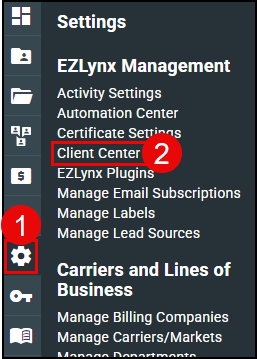
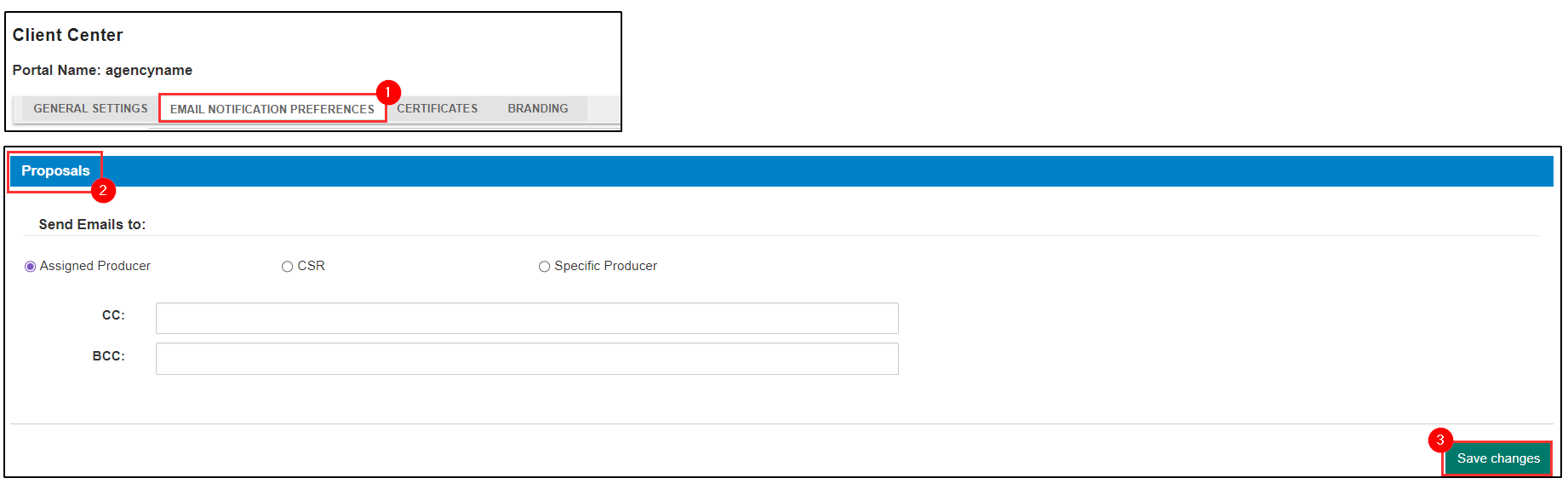
If you are a Client Center Admin, you can find both Task assignment and Email Notification settings for Proposals under the Client Center General Settings & Email Notification Preferences tabs.
1. Hover over the Settings icon and choose Client Center. This will take you the Client Center Settings page.
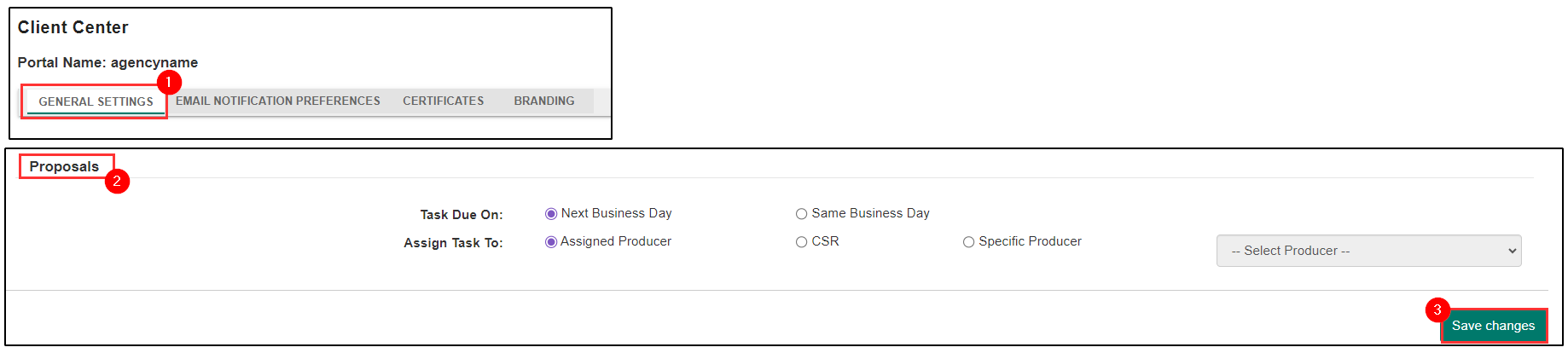
2. On the General Settings tab, scroll down and you will find the Proposal section where you can make adjustments to fit your agency's needs.
3. Make sure to select the Save Changes button on the bottom-right before navigating away from this tab or you'll lose your changes!
4. On the Email Notification Preferences tab, scroll down and you'll find the Proposal section where you can make adjustments to fit your agency's needs.
5. Again, make sure to select the Save Changes button on the bottom-right before navigating away from this tab or you'll lose your changes!
How to access
To access the Personal Quotes Proposal, navigate to a Personal Lines Account.
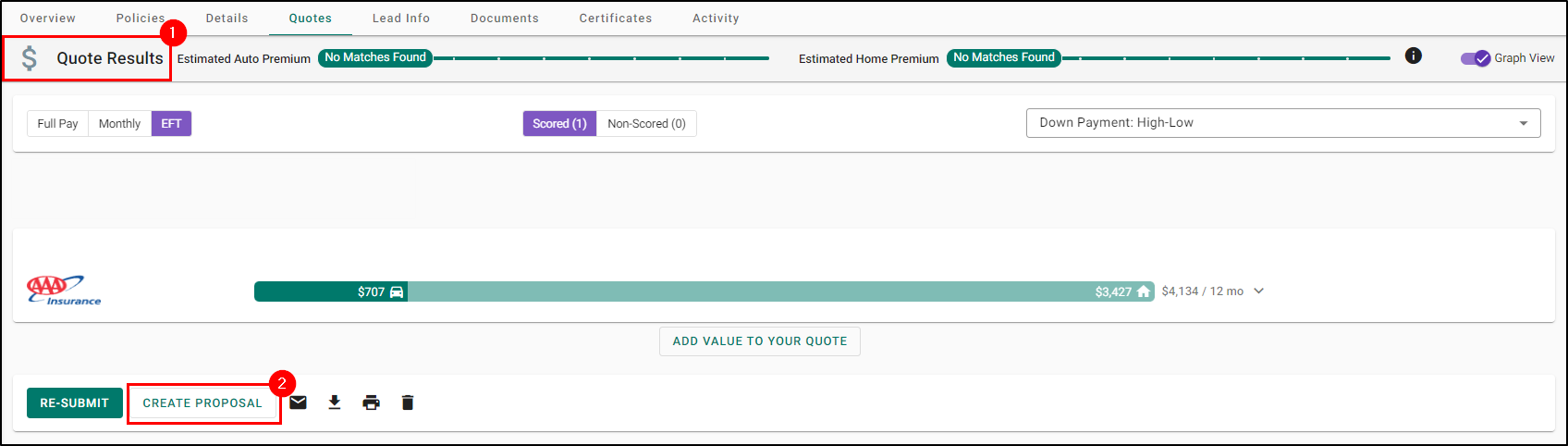
On the Quote Results page, scroll to the bottom and select the Create Proposal button. This will take you to the Create Proposal page.
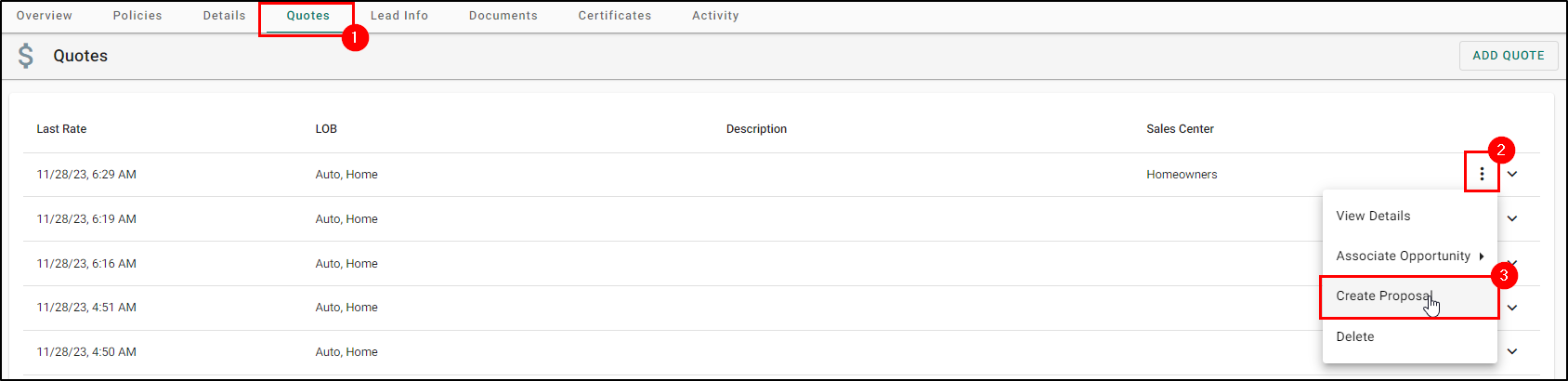
Alternatively, in the Quotes tab, select the Actions icon and choose the Create Proposal option. This will also take you to the Create Proposal page.
Creating a Personal Quote Proposal
Once on the Create Proposal page, you can begin creating the proposal for your customer.
Step 1: Getting Started
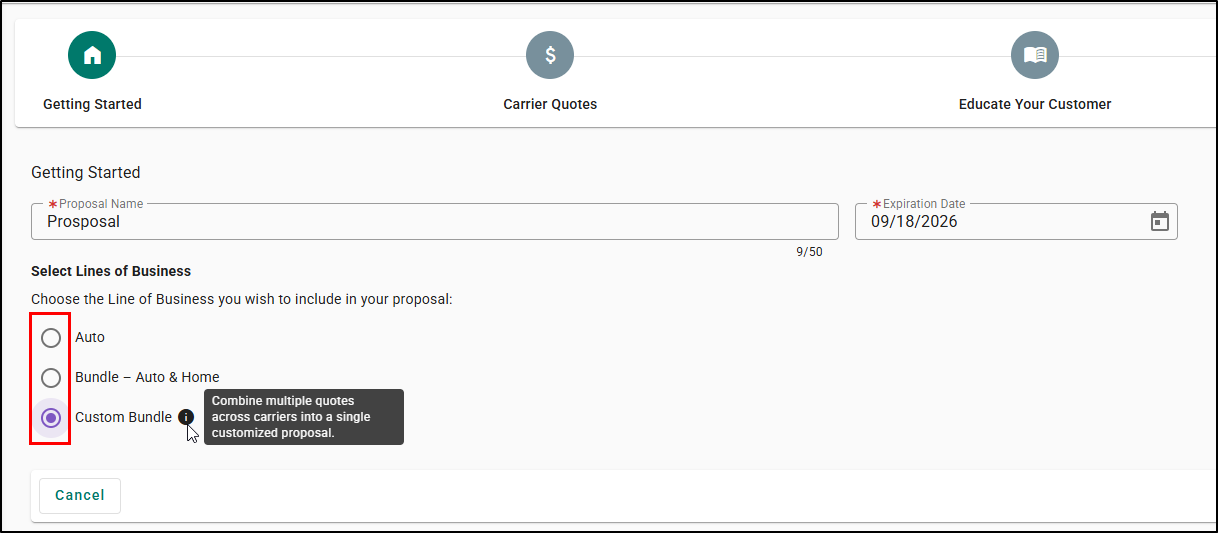
On the Getting Started step, you can input the Proposal Name, Expiration Date, and choose which Line(s) of Business to include on the proposal.
Currently, the following lines of business are supported for Personal Quote Proposals:
Rater Quotes
- Auto Personal, Dwelling Fire, Homeowners
Manual Quotes:
- Auto Personal, Canine Liability, Computers (EDP), Condo, Crop Insurance, Dwelling Fire, Earthquake, Equine, Equine Liability, Excess Flood, Excess Liability, Farm Fire, Farm Liability, Farm Umbrella, Farm Wind, Farmowner, Fine Arts, Flood, Homeowners, Inland Marine (Personal), Jewelry, Mobile Home, Modular Home, Motorcycle, Personal Liability, Pet Insurance, Recreational Vehicle, Renters, Roadside Assistance, Snowmobile, Travel, Travel Trailer, Umbrella (Personal), Vacant Property, Vacation Property, Watercraft (small boat), Wind Policies, Yacht.
- Bundle - Auto & Home = means there is both a successful auto and home quote on the result to choose from
There are two bundle options available as well.
- Bundle - Auto & Home: This option is for Rater Quotes and will display if there is at least one successful quote for both Auto & Home for the same carrier.
- Custom Bundle: This option is always available and works with manual quotes too. Custom Bundle allows you to combine multiple LOBs across different carriers, including both rater and manual quotes into one proposal.
Select Continue when ready to move to the next step.
Step 2: Carrier Quotes
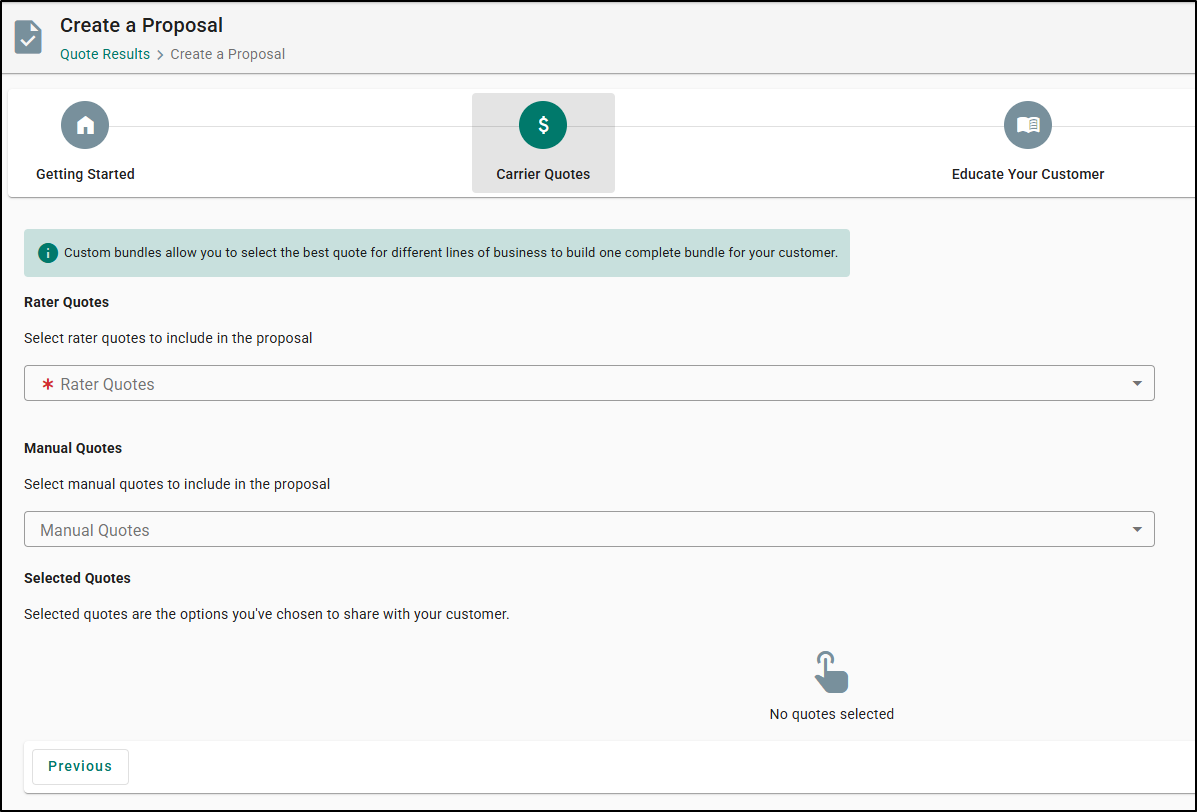
On the Carrier Quotes step, you'll use the Rater and/or Manual Quotes dropdown(s) to select the quote results you want to include on the proposal. Selecting the results will automatically update the bottom sections of this page.
How many you can select will depend on the Line of Business option you choose on the previous step.
Custom Bundle
If you chose Custom Bundle, you'll see separate sections for Rater Quote and Manual Quotes. You can select one or more quotes from either or both sections.
Some things to consider:
- If a manual quote was created, or last edited, more than 30 days ago, it will not be in the list.
- If creating a Custom Bundle from a manual quote, the rater quote section will not be present. Only the manual quotes section will be available.
- If no manual quote has been created, currently, you will need to exit the workflow, enter the manual quote and restart the proposal. In an upcoming enhancement, we are planning to introduce an action that allows you to enter a manual quote without exiting the workflow. Commitment quarter is TBD.
Other Options
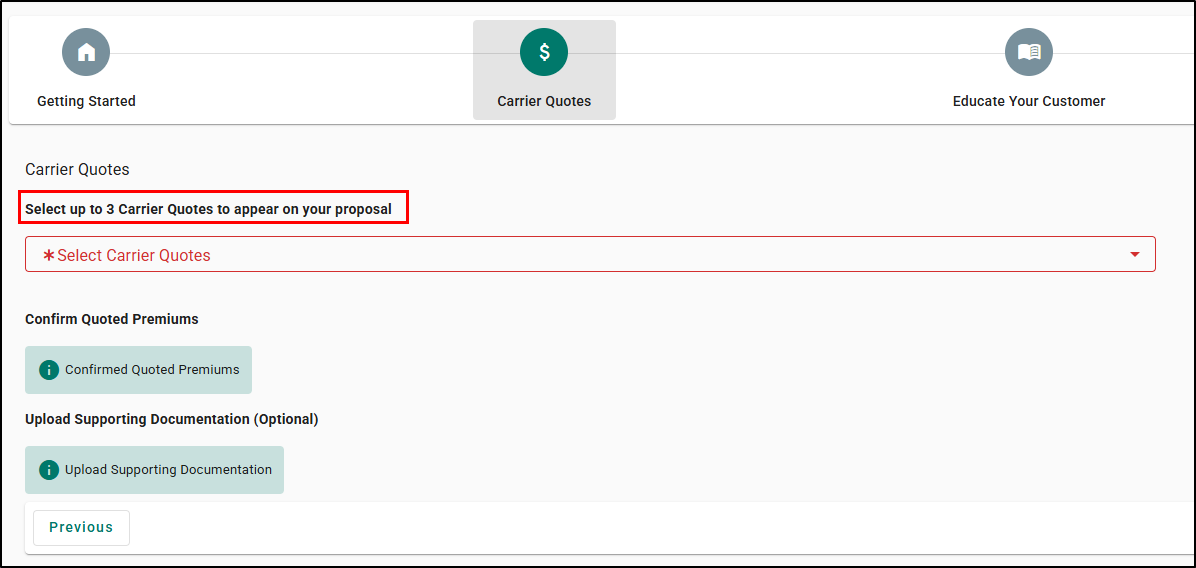
If you chose any of the other options, you'll be asked to select up to 3 Carrier quotes to be included in the proposal.
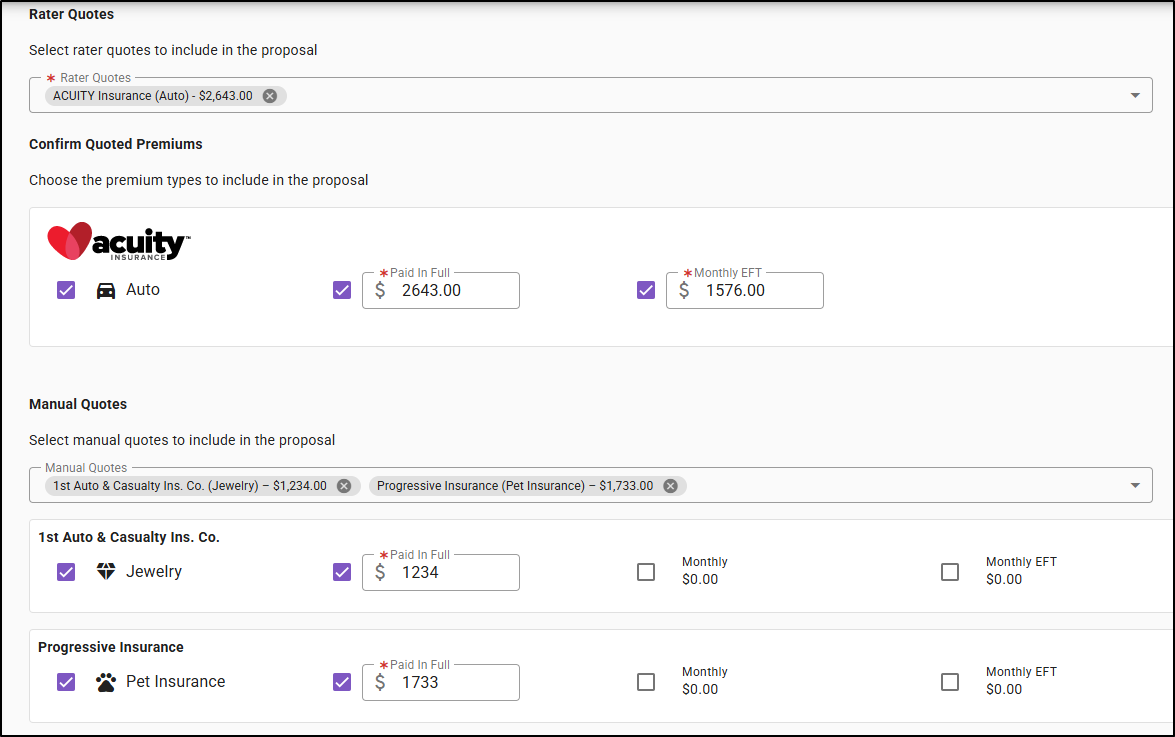
Once you have picked your carriers, you can modify the premium amounts and choose the favored carrier you want to show in your proposal.
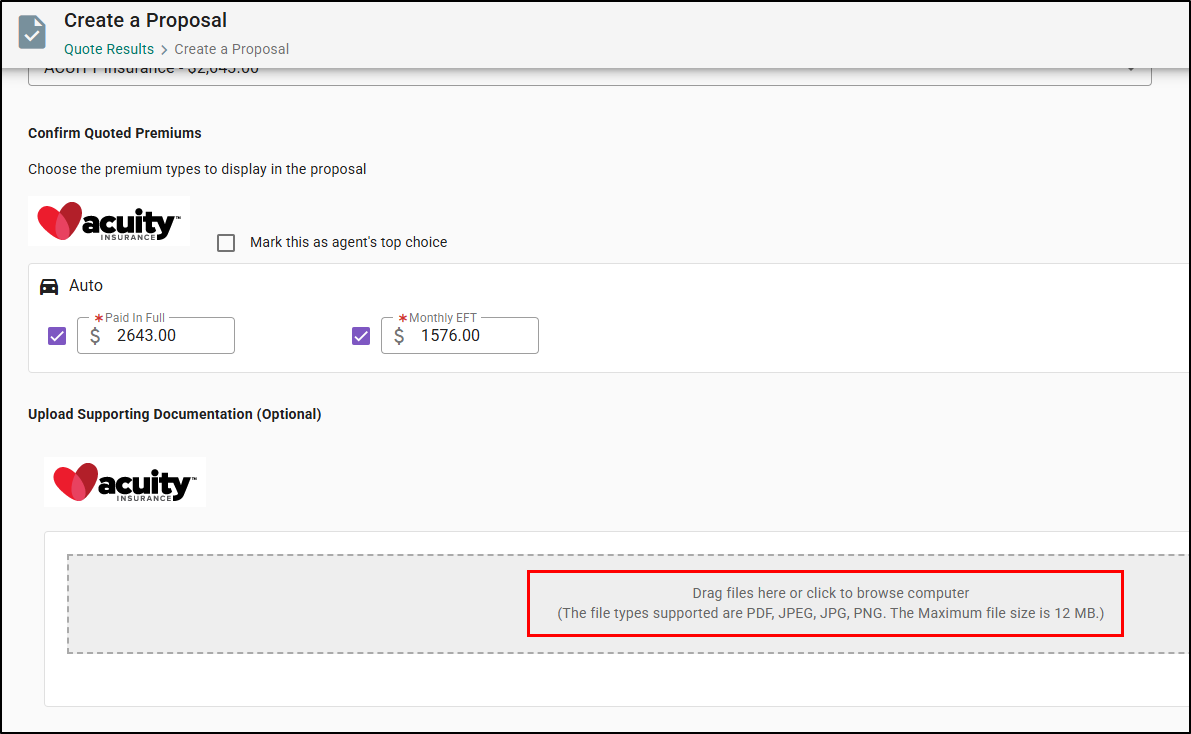
If needed, you can upload files from your computer to include in the proposal. When you are ready select the Continue button to move to the next step.
Step 3: Educate your Customer
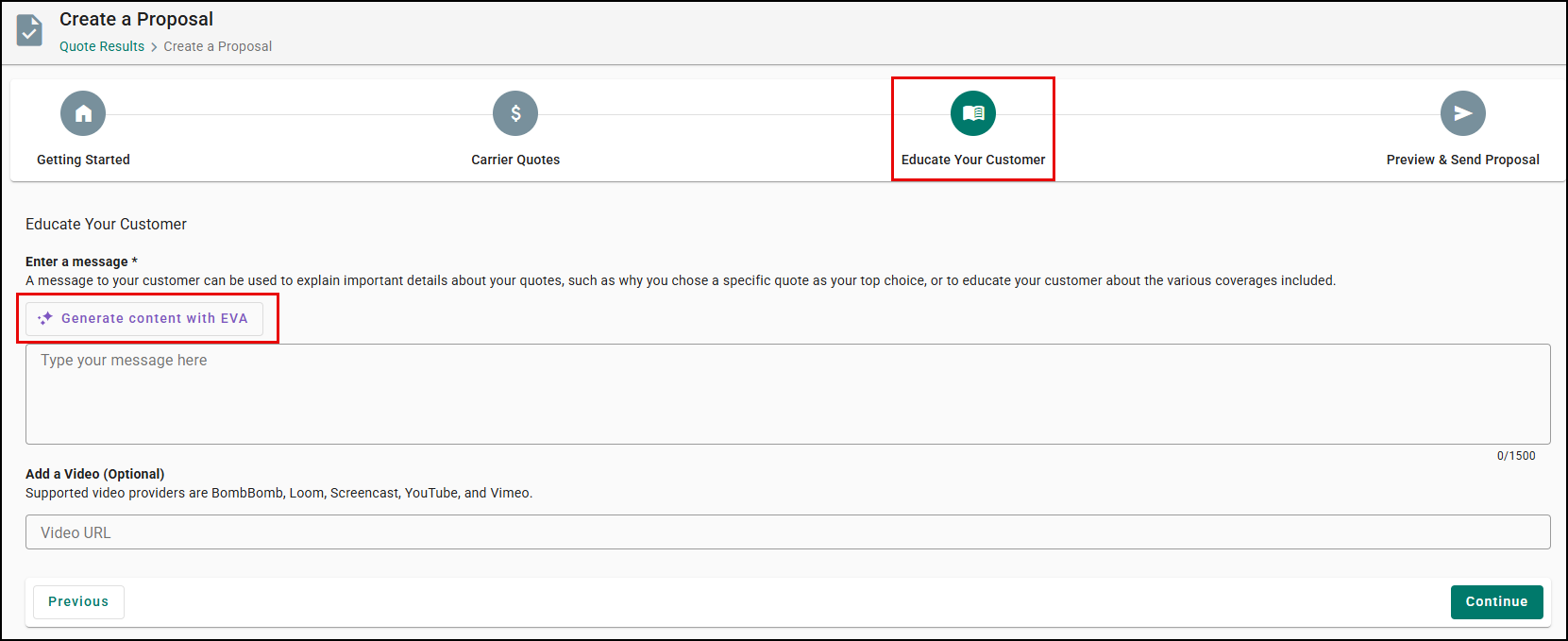
On the Educate your customer step, you can type your own message to the customer, or if you are an Advanced Package User, you can select the "Generate content with EVA" to have AI draft one for you. You can choose tone and length, enter a prompt, and select Generate. Once EVA Produces a draft, you can ask for revisions, insert it into your message field, or cancel and keep your own text.
EVA Prompt and Guidance:
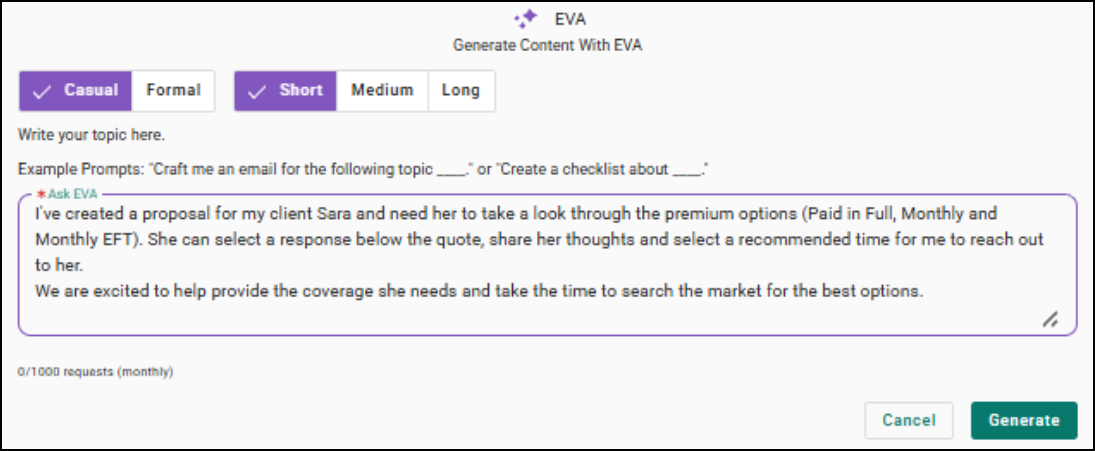
EVA generation within the 1500 character limit:

Step 4: Preview & Send Proposal
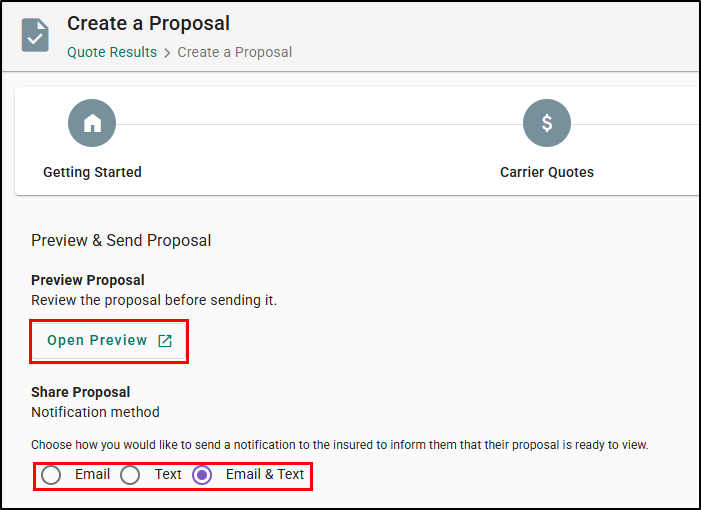
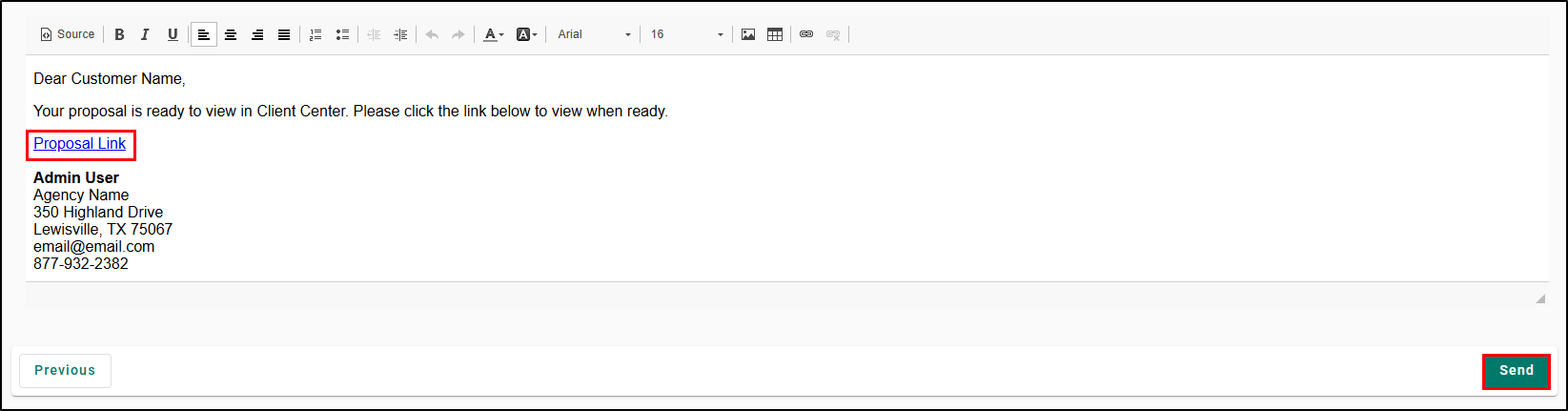
On the Preview & Send Proposal step, you can use email and/or text messages to send the proposal to the customer. Choose the preferred method and then input the message the customer will see when notified that their proposal is ready. This includes a link to the proposal directly.
Last-minute adjustments or improvements? No problem! Our preview feature allows for final tweaks before sending proposals. Select the Open Preview button to see a preview of what the proposal will look like on the customer's side.
When you are ready, select the Send button.
Customer's View Point
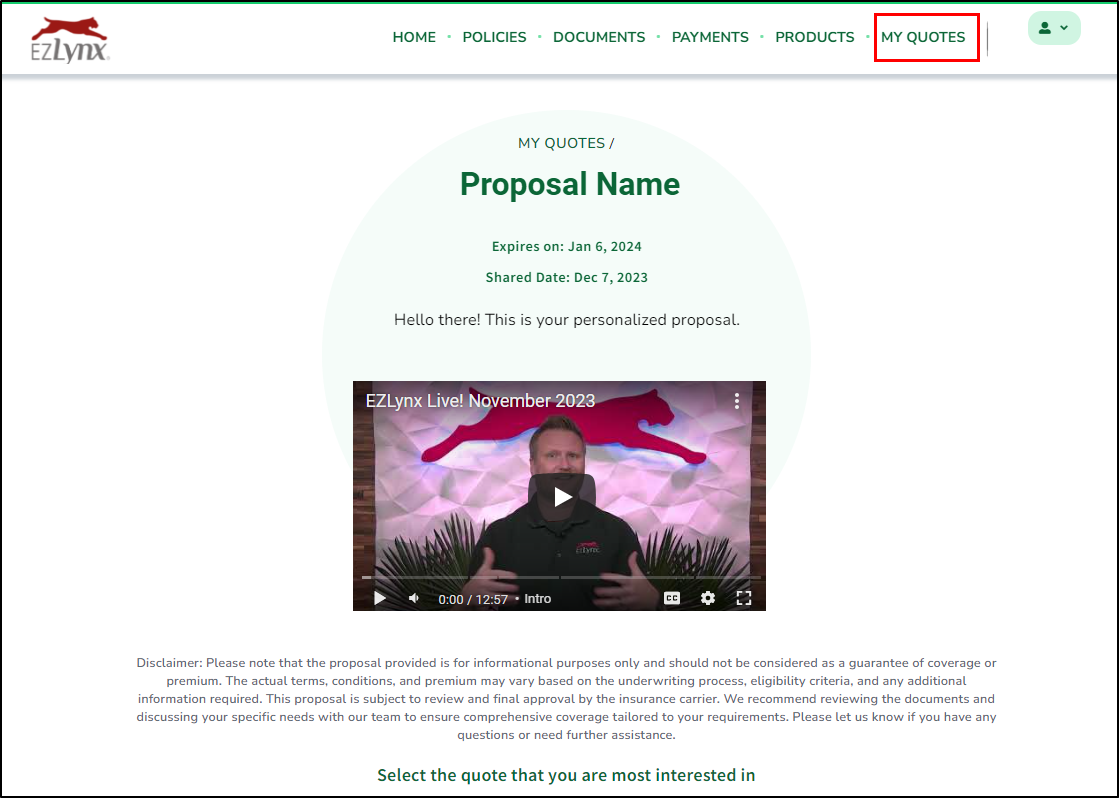
When the customer gets the message, the included link will take them to Client Center - My Quotes. Striving for a smooth, cohesive experience, the proposal page will carry the agency branding found in the Client Center. Every detail initially keyed in by you will be included in the proposal barring a disclaimer about premium and coverage guarantees.
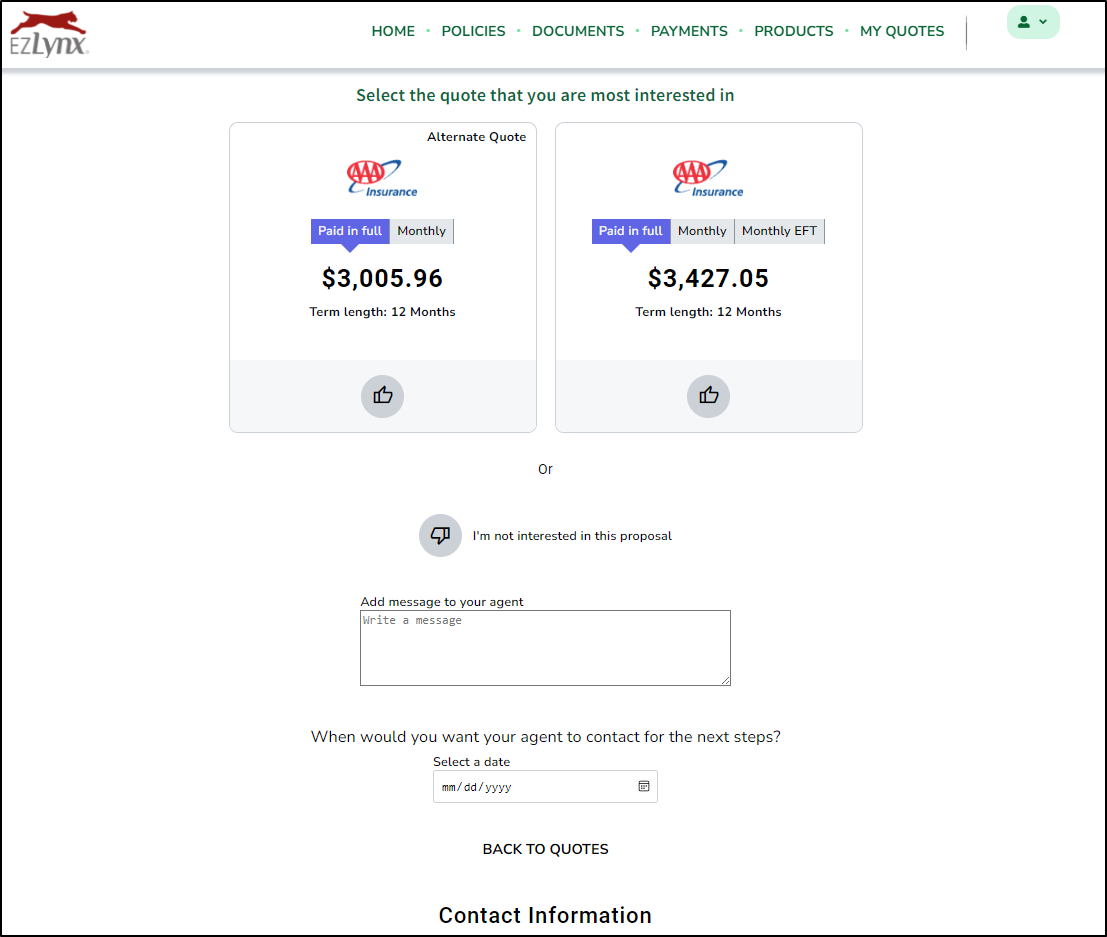
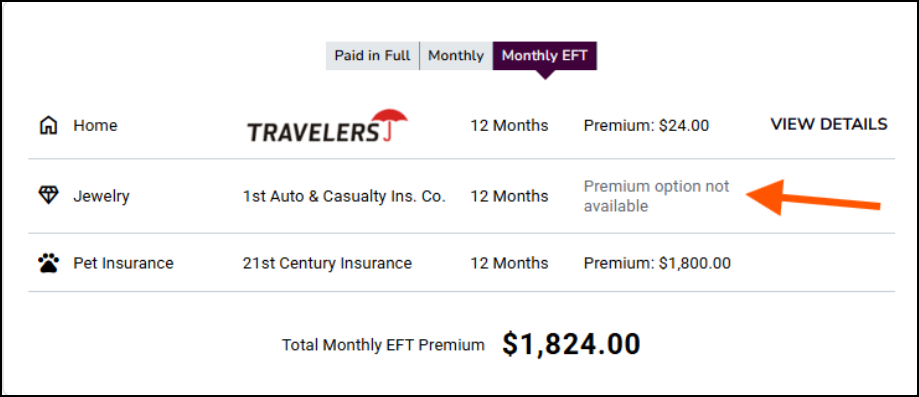
 | Please note: If a premium for a Line of Business isn't available, that's shown directly on the proposal quote view page, so your customer can see the full breakdown of Paid in Full, Monthly, and Monthly EFT for the selection being viewed. |
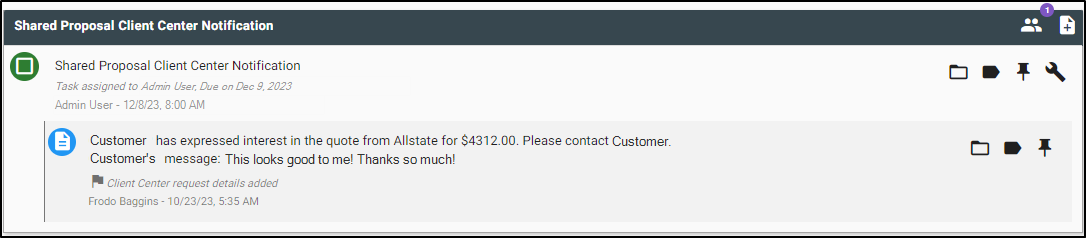
When a customer interactions with the proposal, Client Center will automatically by notifying you via a new task within EZLynx.
Viewing & Managing Proposals
You can view and manage your personal lines quote proposals from both the Quotes tab or the Documents tab of a customer's account. Let's take a look at the Quotes tab first.
Quotes tab
1. On the Quotes tab, expand the line item by selecting the down arrow on the far-right of a quote.
2. Select the Proposals sub-tab. This will display the proposal that has been shared for this quote.
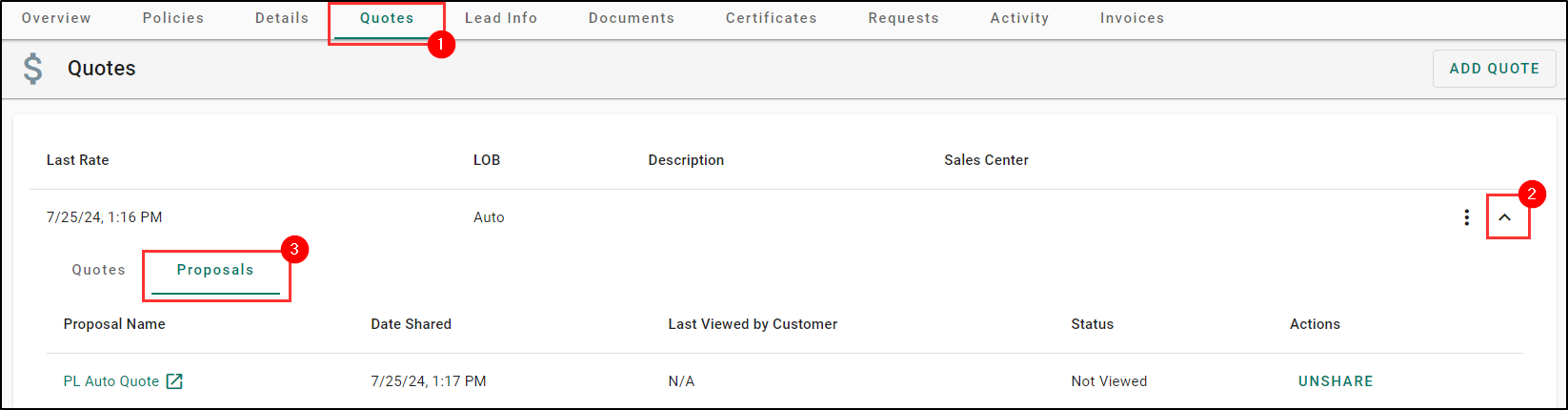
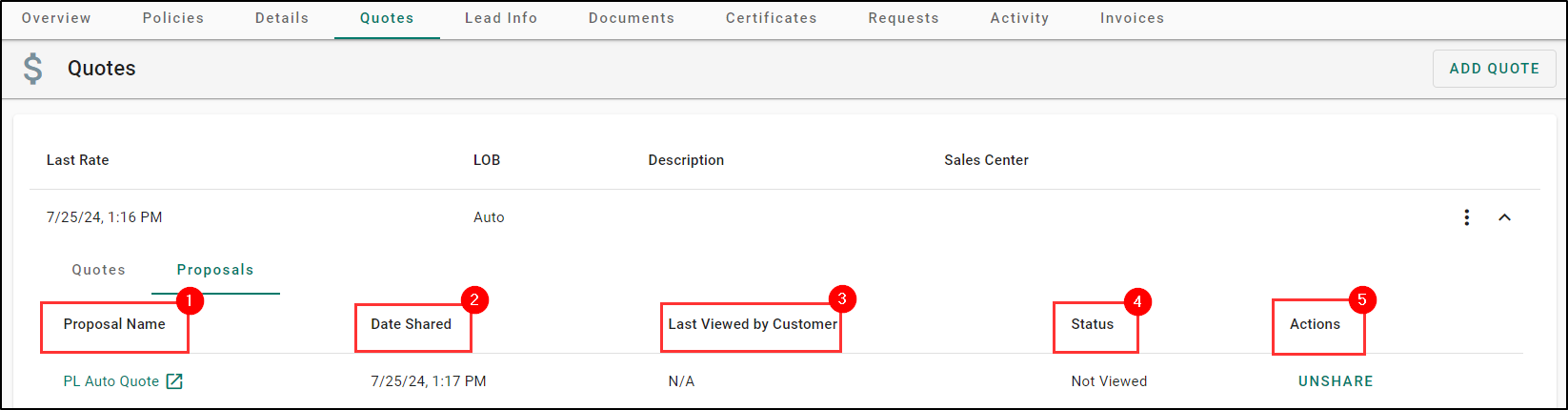
Let's cover the options displayed on the Proposals subtab.
- Proposal Name: You can view the proposal a read only mode in Client Center by clicking on the highlighted title.
- Date Shared: This column will tell you the date and time in which you shared the quote proposal with your customer.
- Last Viewed by Customer: This column will tell you the date and time the customer last viewed the proposal.
- Status: This column will tell you whether the proposal has been viewed or not.
- Actions: This gives you the ability to Unshare the proposal by selecting Unshare.
| Please note: If you decide to unshare the proposal, it will be permanently removed from Client Center, and you won't be able to share it again. In this case, you will need to create a new proposal to share to Client Center. |
Documents tab
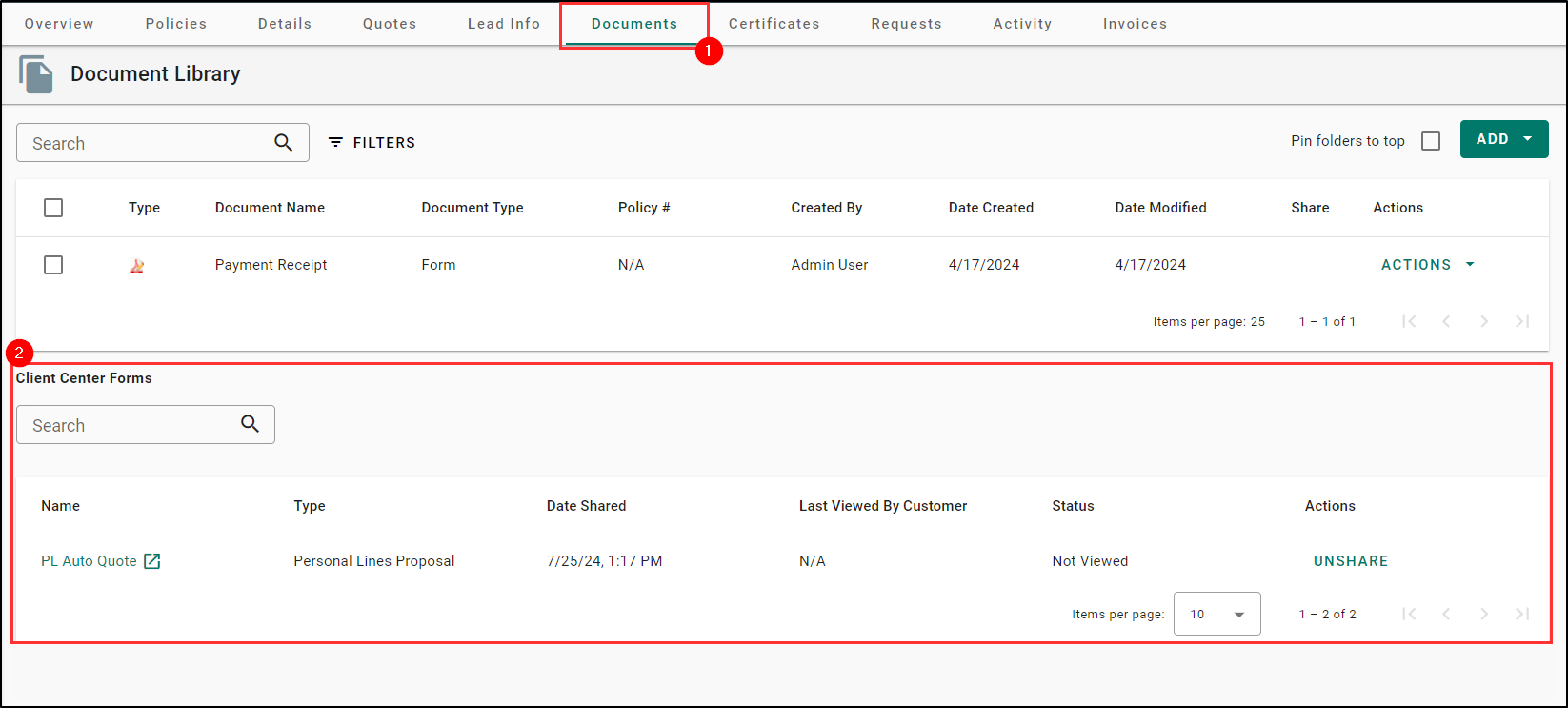
Now, let's take a look at the the Documents tab. Here, you'll find a section titled Client Center Forms. This is where you can also view and manage your personal lines quote proposals. The columns and actions here are the same that we discussed for the Quotes tab.
Upon a quote proposal's expiration date, it will be removed from Client Center and will no longer be visible to the client. However, it will remain on the Documents tab under the Client Center Forms section for you to view.
Next, we'll cover some scenarios you might run into.
Customer Responds to Proposal
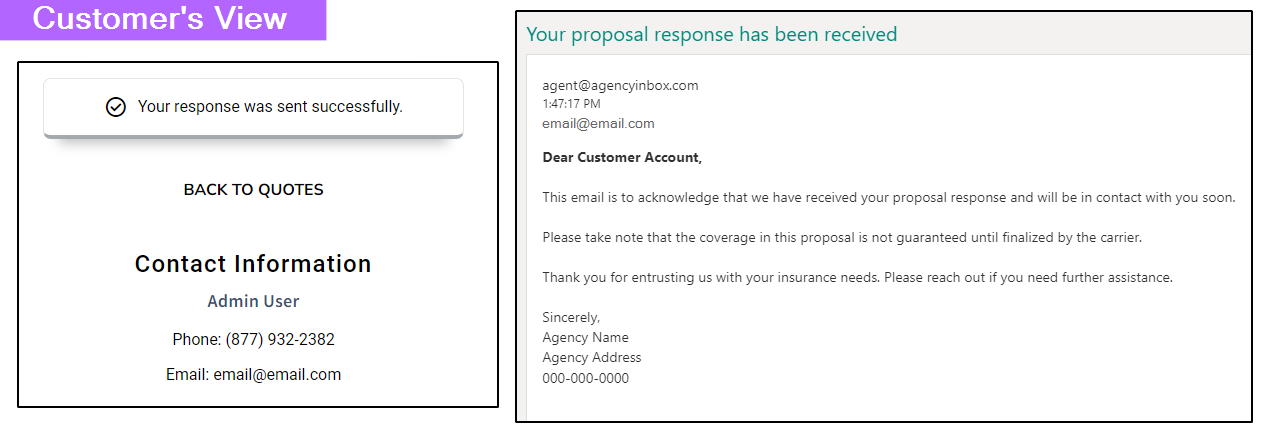
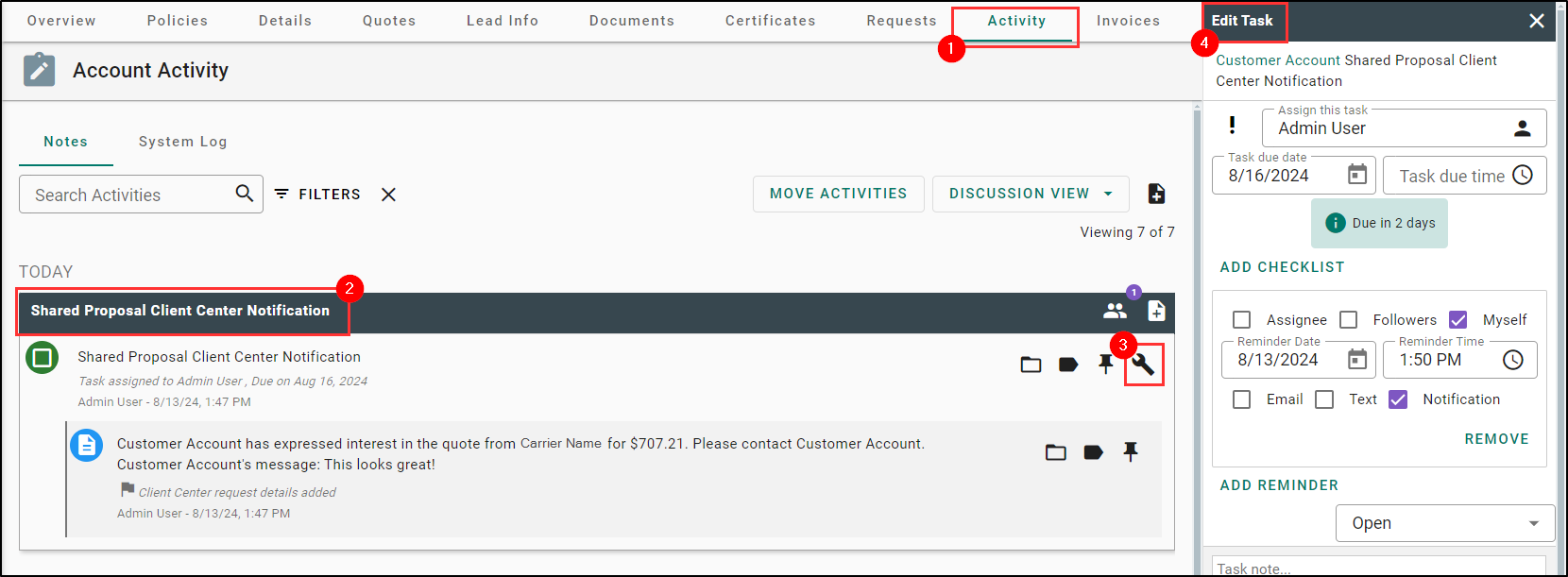
- When a customer responds to the proposal, they will see a message stating the response has been sent via Client Center. An email notification will be sent and a task will be assigned based on the Proposal Notification settings set by your agency admin which we covered at the beginning of this article.
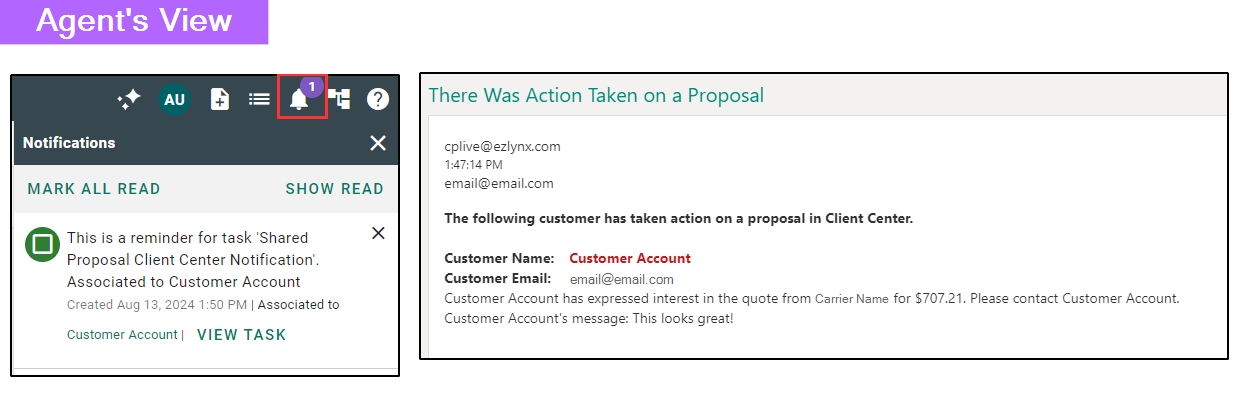
On the Activity tab of the customer's account, you can find the task with a note stating whether the customer was not satisfied with the quote or has expressed interest in the quote. Your next steps will be to follow-up with the customer using your agency's standard operating procedures.
We hope this article was helpful in learning how to use Personal Quote Proposals. If this article was helpful, please answer the question below. Check out the related articles on the right-side to learn more about EZLynx.
Did you find it helpful? Yes No
Send feedback