EVA AutoFill Commercial Lines Pilot
Modified on: Wed, 23 Sep, 2026 at 12:02 PM
We’re excited to announce the Closed Pilot for our new EVA AutoFill for Commercial Lines feature! This new workflow is currently in a Closed Pilot so we are not taking any Pilot applications for this feature at this time. Look for our future releases for updates on this feature's status, and check out our EZLynx Product Team Partner form for current open Pilot features.
Agents spend significant time on manual data entry and chasing missing information during the quoting process. This outdated, error-prone workflow slows turnaround, increases rework, and limits opportunities for cross-sell — ultimately reducing productivity, customer satisfaction, and revenue growth.
EVA AutoFill – an AI-powered intake workflow now streamlines commercial lines applicant and commercial lines application creation by automating data capture from multiple input sources. Instead of relying on manual re-entry, EVA leverages the following to pre-populate EZLynx fields:
- non-standard documents such as ACORD forms
- quote sheets, schedules, and loss runs
- line of business detection
The goal is to provide agencies with a faster, more accurate quoting process that reduces time spent on manual tasks, minimizes errors, and improves customer responsiveness while keeping you in control of what gets reviewed and applied.
TABLE OF CONTENTS
- What's in it for me
- How to access
- Upload commercial documents
- Review processing and validation guidance
- Processing Queue
- Review EVA-filled field
- Practical Applications
What's in it for me
- Save time by using AI-driven extraction to help convert commercial documents into application data.
- Reduce manual entry by letting EVA AutoFill assist with supported Commercial Lines data capture.
- Stay in control with review-focused guardrails before extracted information is used.
- Work with more confidence because AI-filled fields can be identified, reviewed, and adjusted as needed.
How to access
If you have been given access to our Closed Pilot for EVA AutoFill Commercial Lines, you can access EVA AutoFill from various entry points in EZLynx based on your workflow. Please note, this article covers the workflow for Commercial Lines applicants. Check out our EVA AutoFill Personal Lines Pilot for Personal Lines applicants.
- To access from a New Commercial Lines applicant:
- Hover over the Applicant folder.
- Choose Create Commercial Applicant.
- At the top of the page you'll see a new banner with the EVA AutoFill button.

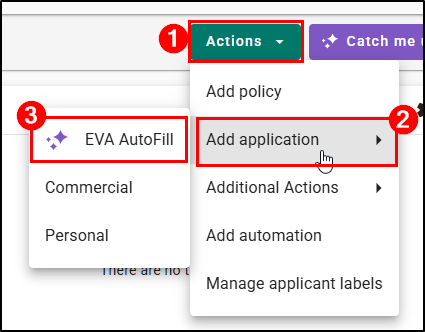
- To access from an Existing applicant:
- Navigate to the Customer's Overview page and select the Actions button to open the Actions menu.
- Hover over the Add application option.
- At the top of the menu, you'll see a new option for EVA AutoFill.
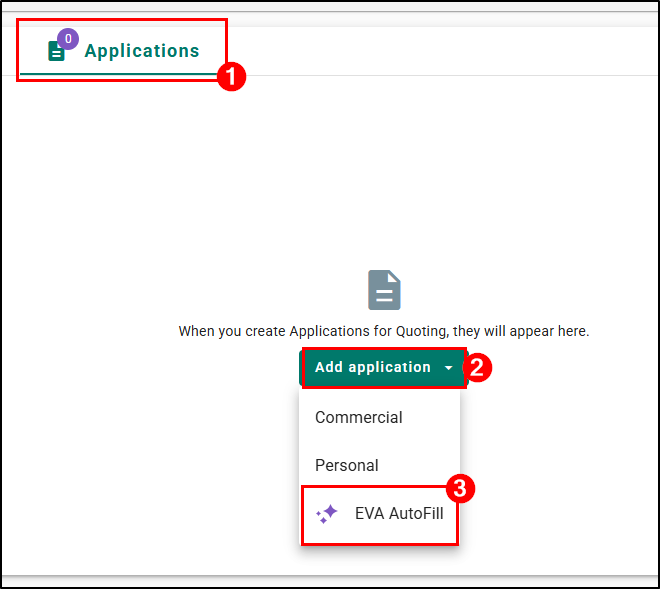
- To access from a New application:
- Navigate to a Customer's Overview page and choose the Applications widget tab.
- If there are no applications created already, you will see the Add application button that opens the application menu.
- At the bottom of the menu, you'll see a new option for EVA AutoFill.
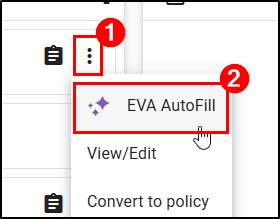
- To access from an Existing application:
- Navigate to a Customer's Overview page.
- Choose the Applications widget tab.
- On an existing application, select the Actions icon (vertical dots) to open the Actions menu.
- At the top of the menu, you'll see a new EVA AutoFill option.
New Applicant
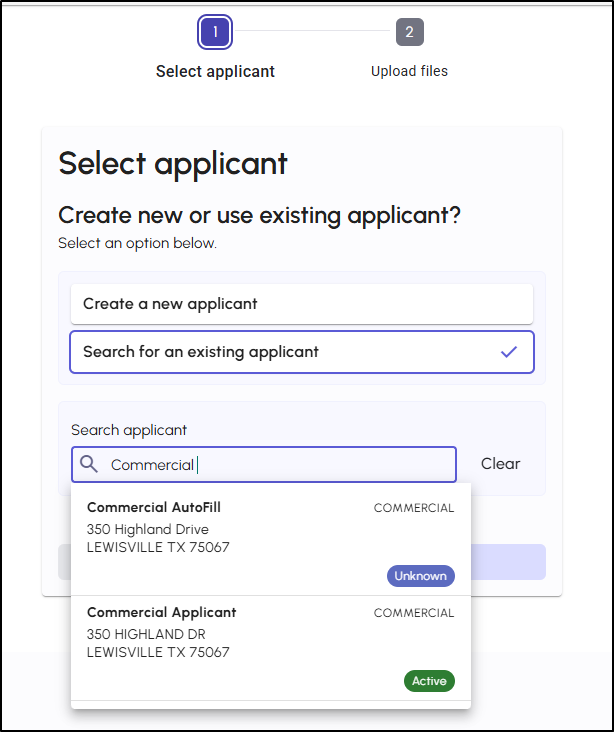
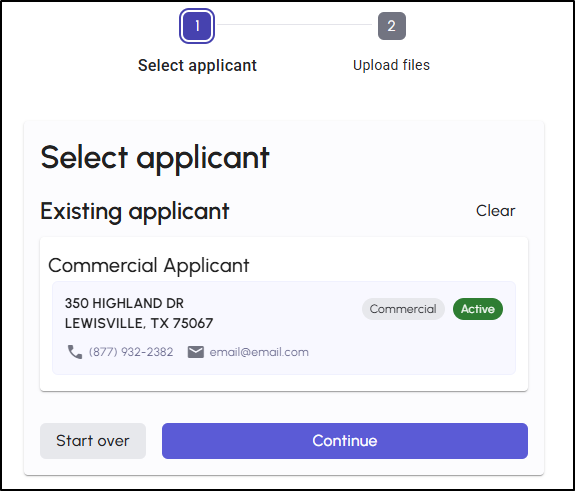
If you initiate the EVA AutoFill feature from a new Commercial Lines applicant, you will be taken to a new EVA page where you'll be provided an option to start an AutoFill for a new applicant or search for an existing applicant. You'll also be able to choose between a Personal applicant versus a Commercial applicant.
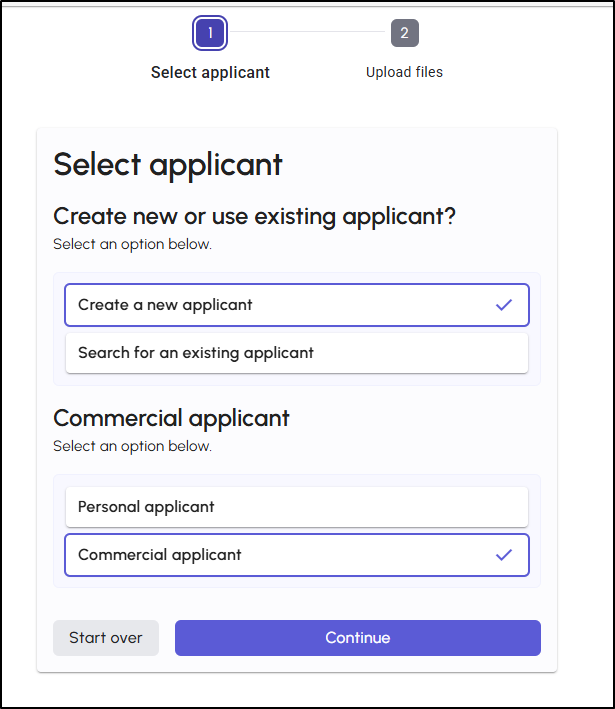
- From the new applicant workflow, you can use the "Search for an existing applicant" option to bring up a Search Applicant bar to look for an existing applicant. You'll see a list of potential matches and simply need to choose from the list.
- The Clear option will clear search result and ask you again if you want to "Create a new applicant" or "Search for an existing applicant.
 |  |
Existing Applicant
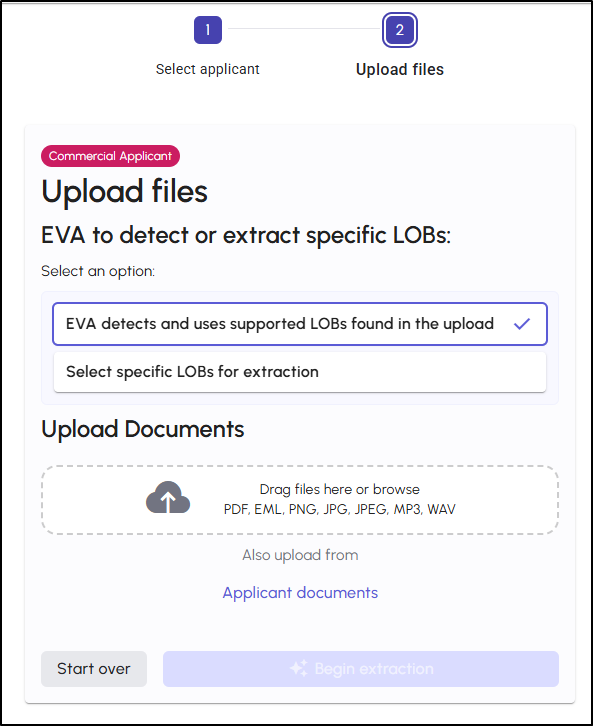
If you initiate the EVA AutoFill feature for an existing applicant, EVA AutoFill can use LOB detection or let you select specific supported LOBs for extraction. This gives you flexibility when your upload includes multiple documents or when you only want EVA to process selected commercial lines.
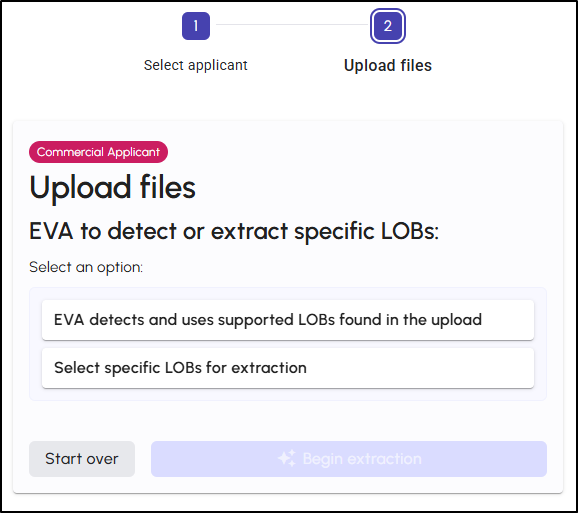
- If you choose "EVA detects and uses supported LOBs found in the upload", you'll see the Upload Documents section. More on this section later in the article.
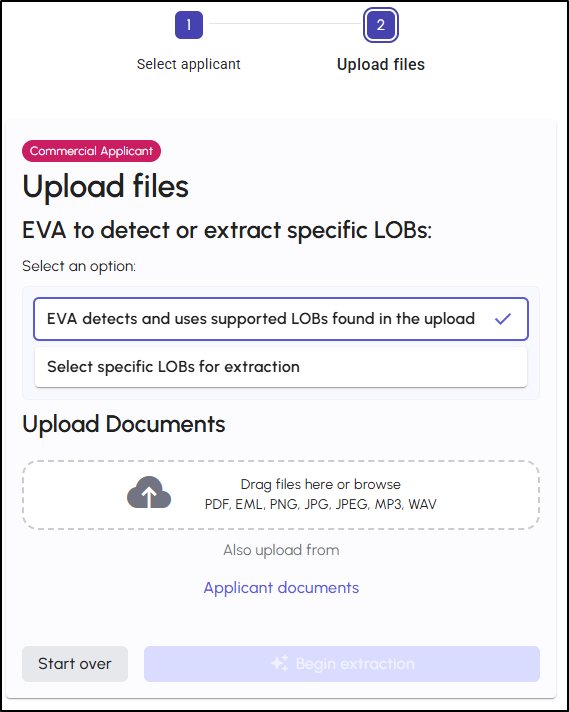
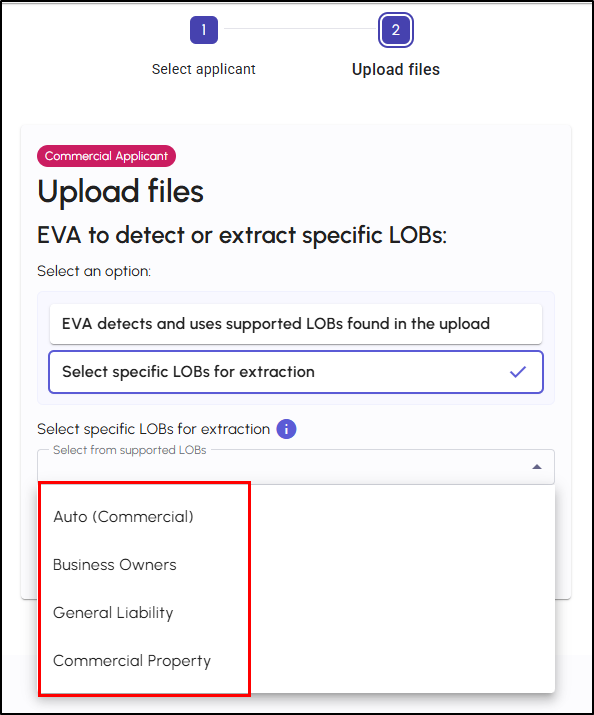
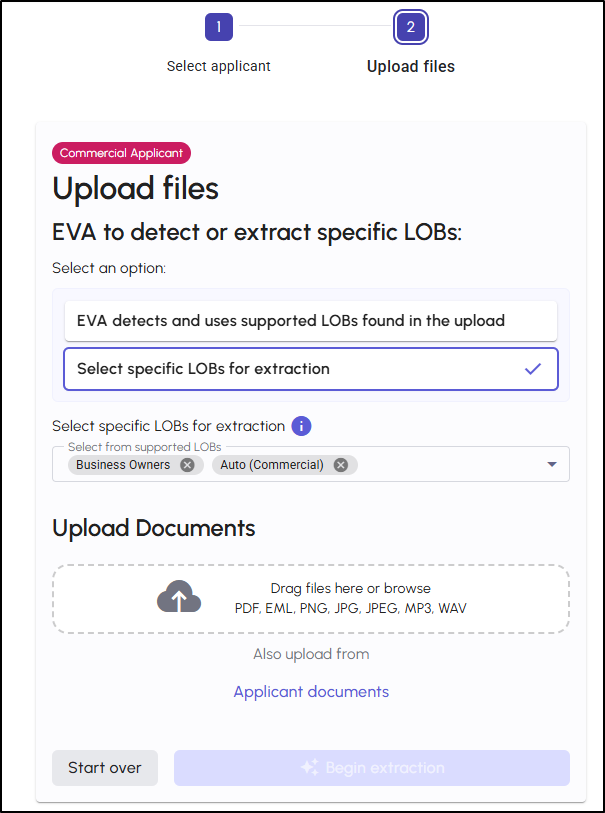
- If you choose "Select specific LOBs for extraction", you'll first need to use the dropdown to select the LOBs from the currently supported list. Right now, Auto (Commercial), Business Owners, General Liability, and Commercial Property are supported for EVA AutoFill Commercial Lines.
- Please note, while you can select multiple LOBs for extraction, Business Owners can only be combined with Auto (Commercial).
- Once you have selected the LOBs, you'll see the Upload Documents section. More on this section later in the article.
 |  |
Start over and Exit
You may restart or exit the EVA AutoFill process at any time.
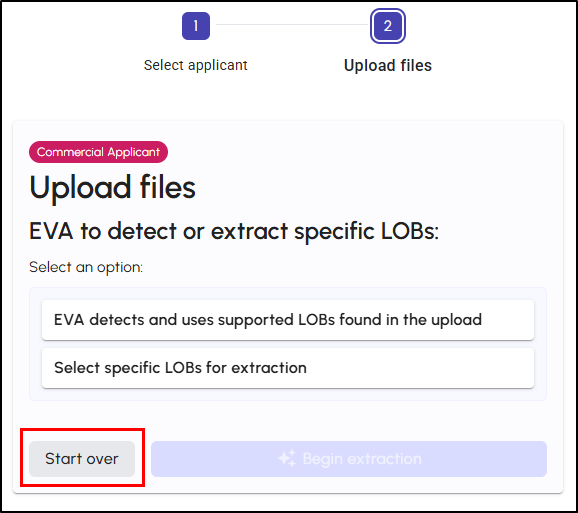
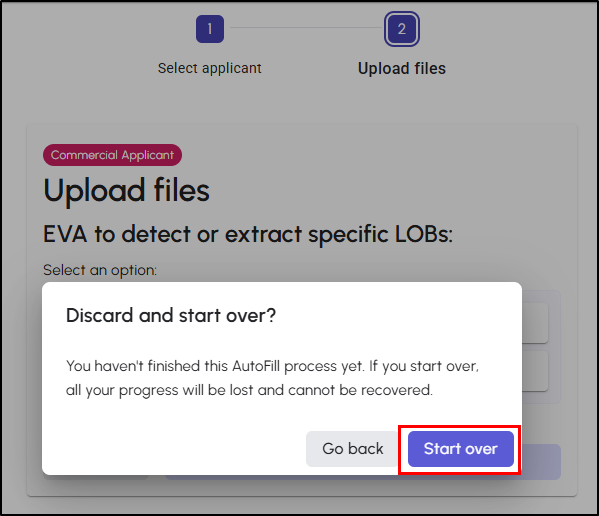
- You can find the Start over button on the bottom of the EVA AutoFill card. Starting over will take you back to the initial EVA AutoFill page after a warning message that states:
"You haven't finished this AutoFill process yet. If you start over, all your progress will be lost and cannot be recovered."
 |  |
- You can find the Exit button in the top-right. Exiting EVA AutoFill on the Select Applicant step in a new applicant workflow will take you back to the EZLynx homepage while exiting from an existing applicant will take you back to Applicant Overview page.
 General warnings and errors
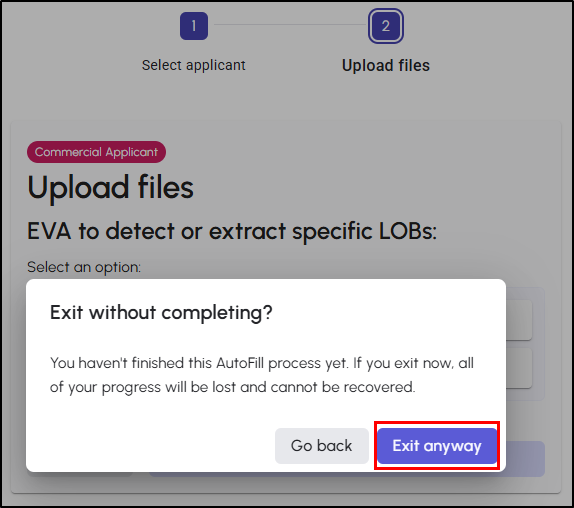
- Exiting on Upload Files: You will be provided a warning message if you exit EVA AutoFill on the Upload Files step that states:
"You haven't finished this AutoFill process yet. If you exit now, all of your progress will be lost and cannot be recovered."
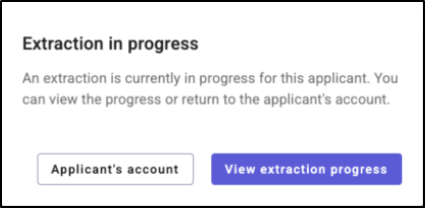
- When initiating a new EVA AutoFill, you will be provided a message if an extraction is already in progress for the selected applicant with options to go to either the Applicant Account or view the extraction progress.
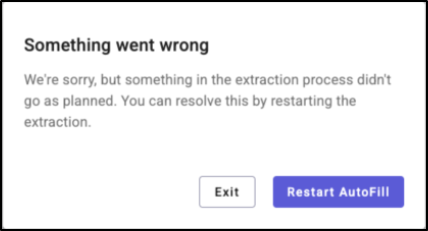
- You will see a generic error message whenever an issue occurs during the extraction process with options to exit or restart.
Upload commercial documents
You upload the documents you want EVA to review by dragging files onto the drop area or by browsing for files from you file system. EVA then analyzes the upload so the workflow can determine the applicable supported LOBs and prepare the extraction path.
The following customer files can be uploaded for extraction:
The following types of files are supported:
|  |
You will be provided the opportunity to fix any issues found after you upload your files. Extraction cannot continue until all issues have been resolved. Common issues could be:
- Unsupported file types
- Maximum number of files exceeded – up to 30 files allowed per AutoFill transaction
- Total size of files exceeded – up to 900MB allowed per AutoFill transaction
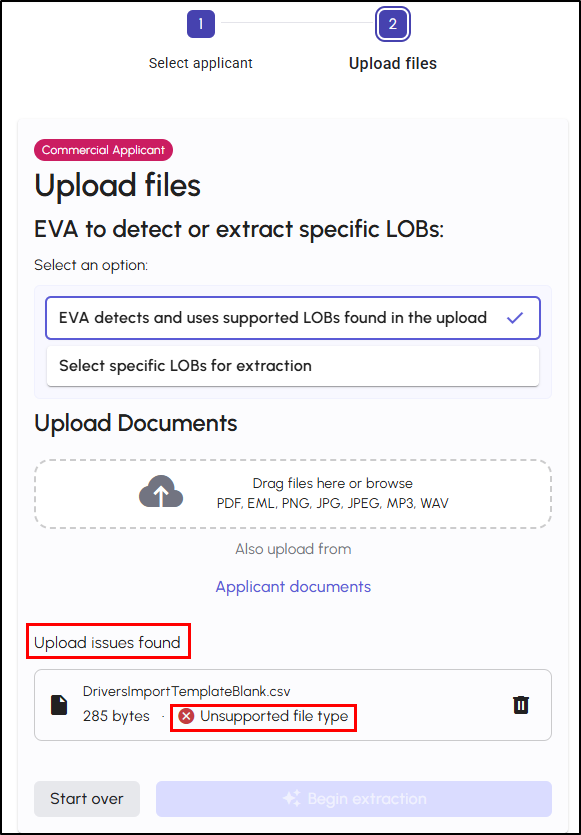
Once you've uploaded all your files, select the Begin Extraction button.
Review processing and validation guidance
After extraction begins, EVA AutoFill presents processing and review states that help you understand what is happening.
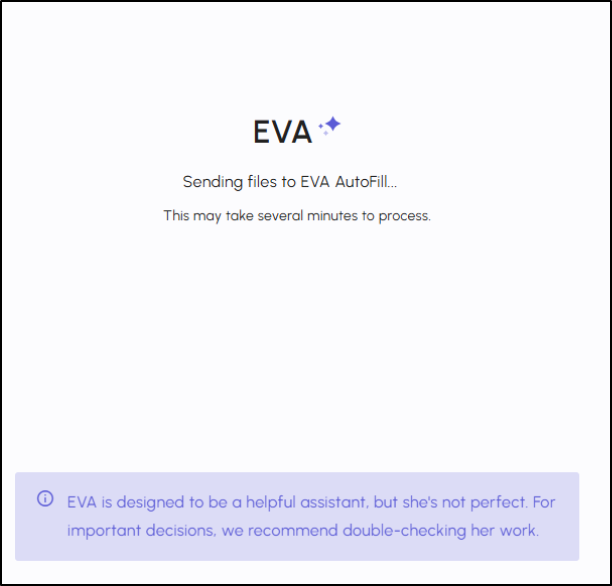
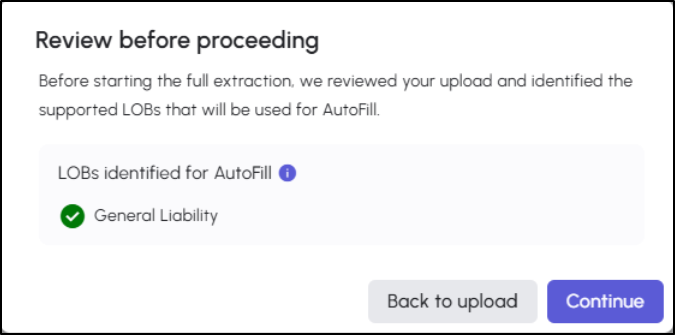
- When supported LOBs are identified, the workflow will present a review-before-proceeding experience.
- If no supported LOBs are found, the workflow will block extraction and guide you back to upload different files or change the LOB selection.
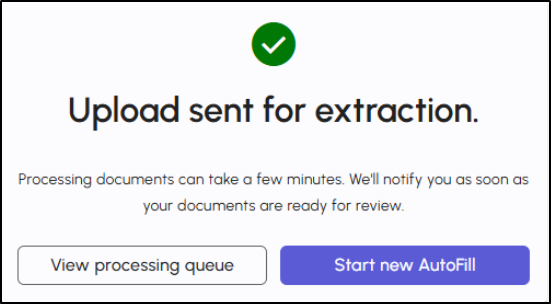
Once the file has been uploaded for extraction, you can choose between starting a new AutoFill or viewing the processing queue.
 |  |
Processing Queue
The processing queue lists all active extractions sent to EVA AutoFill. You can access it as soon as you finish an upload, or at any time from the new EVA AutoFill Processing Queue link under Applicants menu on the left navigation bar.
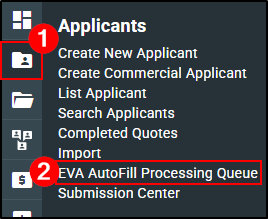
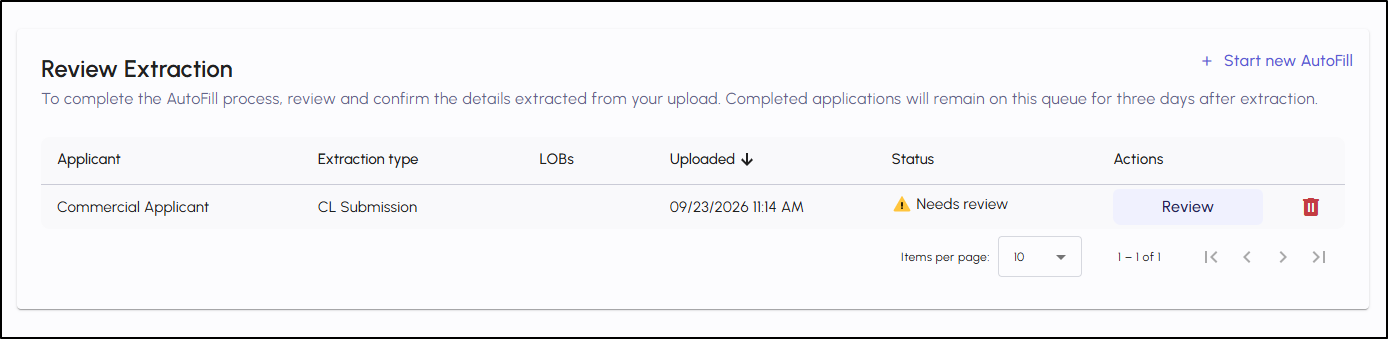
On this page, you'll find the following information:
- Applicant - the applicant name for an existing applicant, or the extraction type for a new applicant
- Extraction type / LOBs - which lines of business the extraction covers
- Uploaded - the date/ time when file(s) were uploaded
- Status, which now reflects one of four outcomes:
- Needs review — the extracted data is missing information needed to create the applicant/application, or there's a conflict that needs your input.
- Partial failure — EVA successfully filled one line of business but not another (say, Auto succeeded but Home didn't).
- Extraction failed — the extraction couldn't be completed.
- Actions, now depend on status: you have two options:
- Review (Needs review) takes you to the human-in-the-loop (HITL) screen to confirm or correct issues before the applicant/application is created.
- Learn more (Partial failure) explains exactly what succeeded and what didn't, so you know whether to re-upload.
- Remove deleted the item from the queue and frees up the applicant for a new AutoFill.
After you finish reviewing an extraction, it will be removed from the processing queue.
Review EVA-filled field
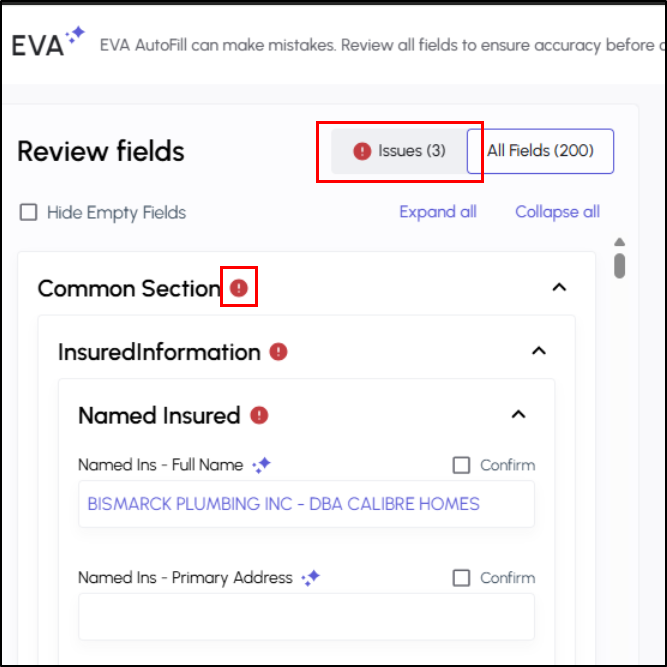
Clicking Review from the processing queue will take you to a page to validate the extraction details and complete the AutoFill process. Fields that were filled by EVA are will show a unique indicator so you can quickly identify extracted values.
A preview of the uploaded document will be displayed.
- The left side panel will contain the field list and the corresponding values that were obtained from the extraction.
- The All Fields tab will display the complete list of all fields that were extracted while the Issues tab will list all extraction issues that need to be resolved.
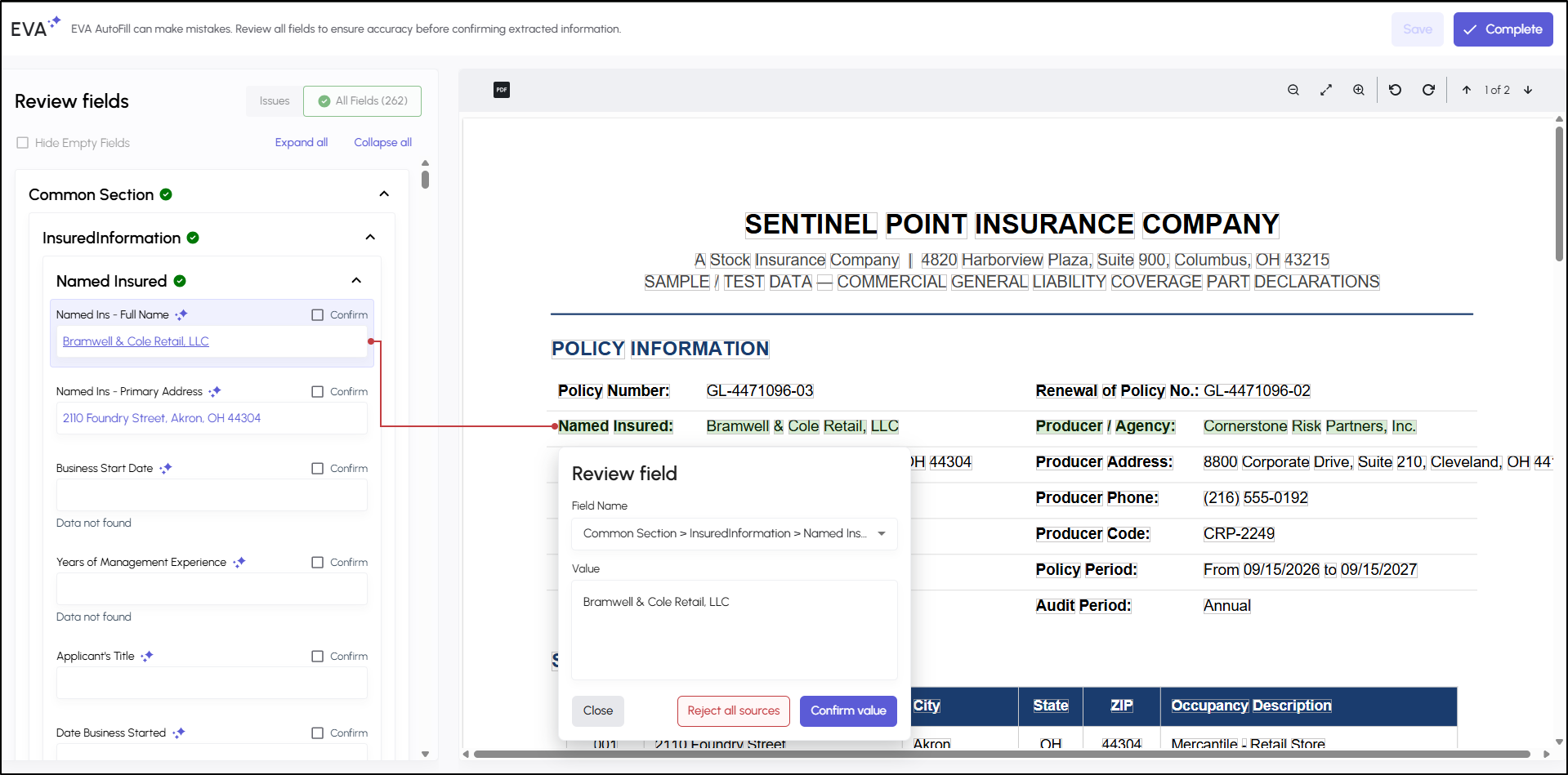
You will need to resolve all extraction issues that are listed under the Issues tab as the Complete button will be unavailable until all extraction issues have been resolved.
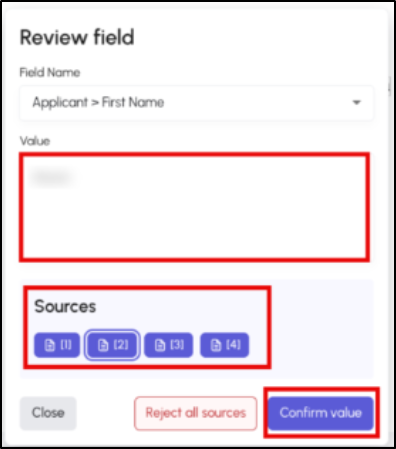
Clicking in a particular field displays a Review field window where the field value can be edited if needed. All sources where this field is referenced will be listed – you may see several if multiple files were uploaded. If you change a field away from the AutoFill value, the EVA indicator is removed. If you change it back to the original AutoFill value, the indicator appears again.
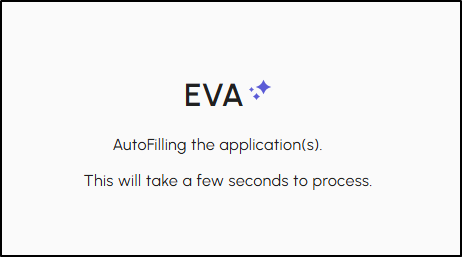
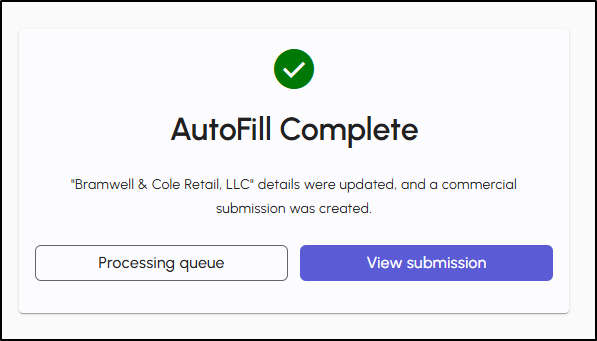
When you click on Complete on the review page, the EVA AutoFill process will continue to intermediate pages and then a final confirmation page notifying you that the applicant and/or applications were created in EZLynx.
 |  |
Practical Applications
Here are 3 ways your agency can make the most out of these enhancements:
- Faster intake for complex commercial submissions: When a producer receives ACORD forms, schedules, and quote sheets from a prospect, EVA AutoFill can help convert those documents into application data so the team spends less time rekeying and more time validating.
- More consistent review across supported LOBs: When documents include several commercial lines, LOB detection and selected LOB extraction help guide the workflow so teams can focus on the relevant application data.
- Cleaner handoff between quoting and servicing: AI indicators make it easier for users to identify which values came from AutoFill and confirm or adjust them before the submission moves forward.
We hope you are excited for this new feature and look forward to our futures releases. Please let us know if this article was helpful in learning about the new feature by answering the question below. Check out our related articles on the right-side of the page to learn more about EZLynx!
Did you find it helpful? Yes No
Send feedback