EVA AutoFill Beta
Modified on: Thu, 10 Sep, 2026 at 6:38 PM
We’re excited to announce that with this release, we have begun a Closed Beta for a new EVA Autofill feature! This new workflow is currently in a Closed Beta so we are not taking any Beta applications for this feature at this time. Look for our future releases for updates on this feature's status, and check out our EZLynx Product Team Partner form for current open Beta features.
Agents spend significant time on manual data entry and chasing missing information during the quoting process. This outdated, error-prone workflow slows turnaround, increases rework, and limits opportunities for cross-sell — ultimately reducing productivity, customer satisfaction, and revenue growth.
EVA AutoFill – an AI-powered intake workflow now streamlines personal lines applicant and personal lines application creation by automating data capture from multiple input sources. Instead of relying on manual re-entry, EVA leverages the following to pre-populate EZLynx fields:
- Voice transcription
- Quote sheet parsing
- Document extraction
The goal is to provide agencies with a faster, more accurate quoting process that reduces time spent on manual tasks, minimizes errors, and improves customer responsiveness.
Update Log
2026 Q3 Update: Since EVA AutoFill's pilot back in 2026 Q1, you've told us that the extra confirmation screens and review steps sometimes slowed things down more than they helped, and it wasn't always clear which fields EVA had filled in versus which you had entered yourself.
This release closes both gaps: when EVA's extraction is clean, you go straight from upload to a quote-ready applicant with no review screen in the way. When something does need a second look, you'll see it flagged clearly, and every AI-filled field in EZLynx now carries a visible indicator so you always know what to double-check.
Check out the sections labeled as "Updated" or "New" to see what's changed based on your feedback.
TABLE OF CONTENTS
- What's in it for me?
- How to access
- Upload files
- UPDATED: Processing queue
- Review and Validate Extraction
- NEW: AI-Filled Field Indicators
- Practical Applications
 | Did you know? - You can click on the images/gifs in our articles to zoom in. |
What's in it for me?
- Eliminating manual entry reduces errors and accelerates quoting, enabling faster responses to prospects.
- Automation frees you to focus on higher-value activities such as upselling, cross-selling, and customer service.
- AI-powered intake creates a unified digital workflow that improves data consistency, reduces lost sales, and drives conversion rates.
2026 Q3 Updates:
- Skip the review when there's nothing to review: if EVA's extraction comes back clean, you go straight from upload to your quote-ready applicant — no extra confirmation screens or review steps in between.
- Know exactly what EVA filled in: every AI-filled field on the Applicant Details, Auto, and Home rating pages now shows a clear indicator, so you always know what came from AutoFill versus what you entered yourself.
- Completed work stays put: finished extractions stick around in your processing queue for three days after completion, so you can still find and open a recently AutoFilled applicant without hunting for it.
How to access
If you have been given access to our Closed Beta for EVA Autofill, you can access EVA AutoFill from various entry points in EZLynx based on your workflow. Please note, this feature is only for Personal Lines applicants.
- To access from a New Personal Lines Applicant:
- Hover over the Applicant Folder.
- Under the Applicants section, choose Create New Applicant.
- At the top of the page, you'll see a new banner with an EVA AutoFill button.

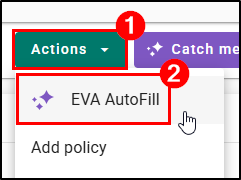
- To access from an Existing applicant:
- Navigate to a Customer's Overview page.
- Select the Actions button to open the Actions menu.
- At the top of the menu, you'll see a new option for EVA AutoFill.
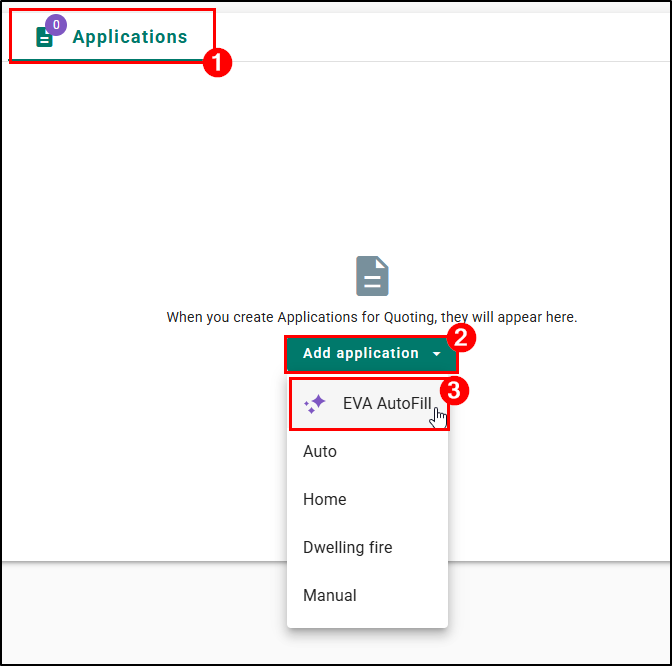
- To access from a New application:
- Navigate to a Customer's Overview page.
- Choose the Applications widget tab.
- If there are no applications created already, you will see the Add application button that opens the application menu.
- At the top of the menu, you'll see a new option for EVA AutoFill.
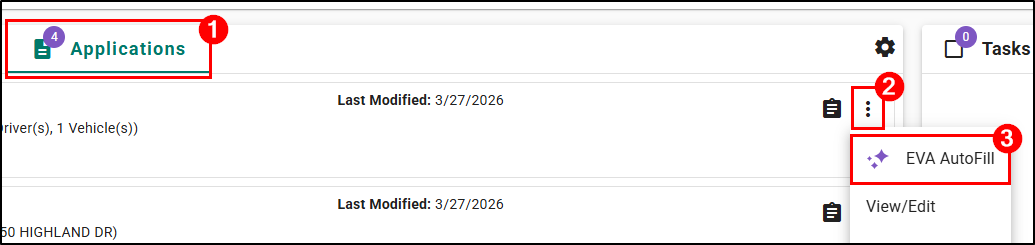
- To access from an Existing application:
- Navigate to a Customer's Overview page.
- Choose the Applications widget tab.
- On an existing application, select the Actions icon (vertical ellipsis) to open the Actions menu.
- At the top of the menu, you'll see a new EVA Autofill option.
New Applicant
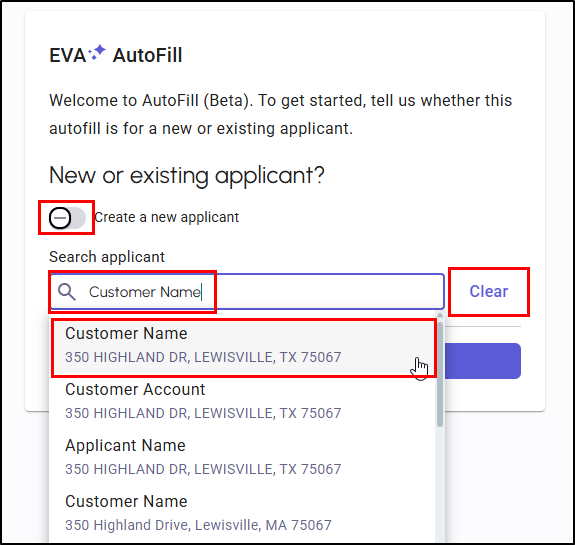
If you initiate the EVA Autofill feature from a new applicant, you will be taken to a new EVA page where you'll be provided an option to start an AutoFill for a new applicant or an existing applicant.
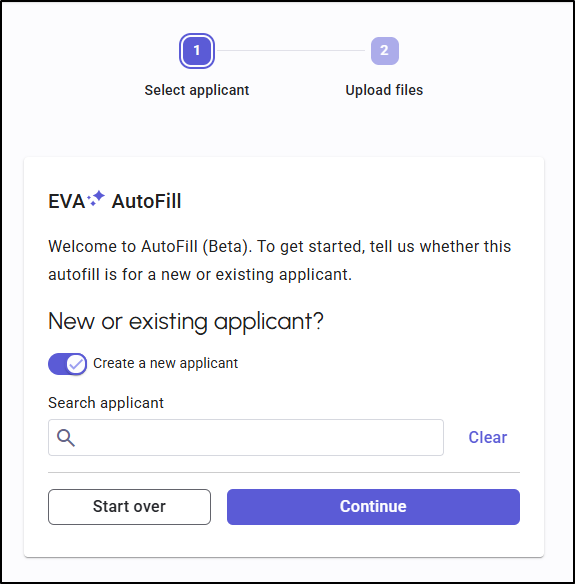
- From the new applicant workflow, you can use the Search Applicant bar to look for an existing applicant. Typing in the Search applicant will automatically turn off the Create a new applicant toggle. You'll see a list of potential matches and simply need to choose from the list.
- The Clear option will clear the search and automatically turn back on the Create a new applicant toggle.
Existing Applicant
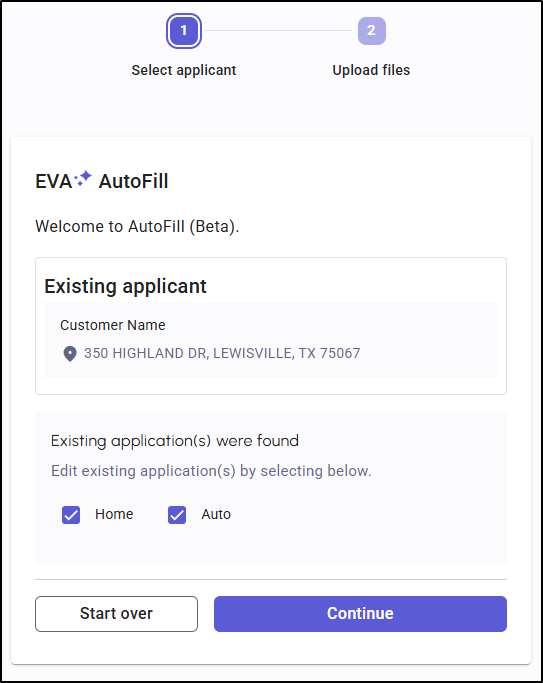
If you initiate the EVA AutoFill feature for an existing applicant, you will be informed if existing applications are found for Home or Auto lines of business.
Here you can choose to include the existing applications or not. By default, any found existing applications are checked to be included.
- If existing applications remain selected, EVA AutoFill will attempt to merge newly extracted data with existing application data.
- If any of the existing applications are deselected, EVA AutoFill will overwrite existing application data with the newly extracted data.
Start over and Exit
You may restart or exit the EVA AutoFill process at any time.
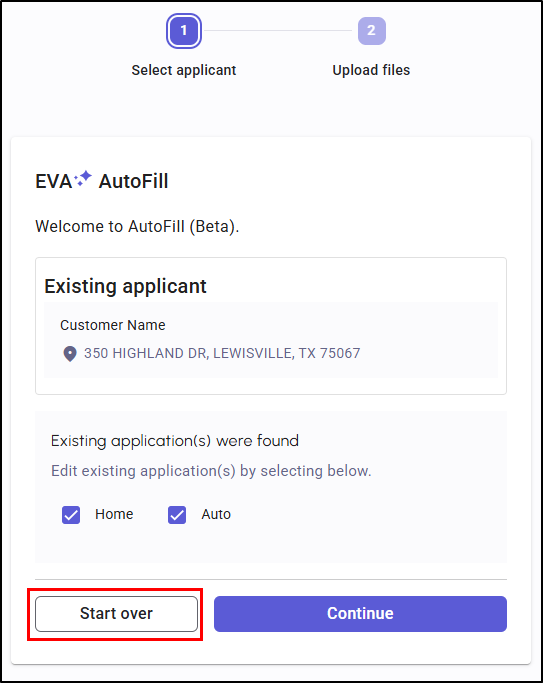
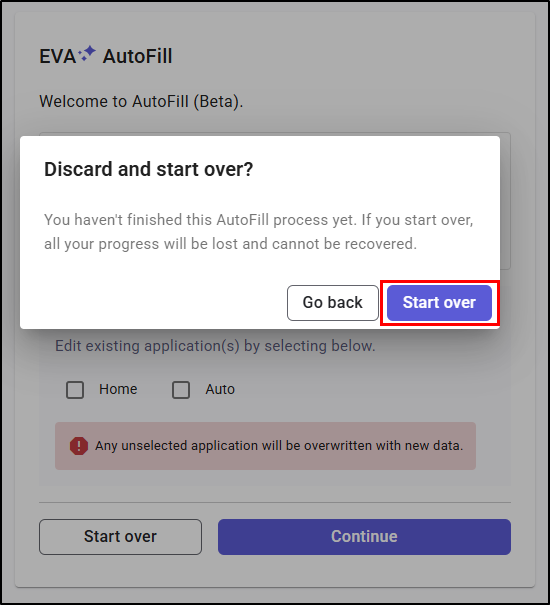
- You can find the Start over button on the bottom of the EVA AutoFill card. Starting over will take you back to the initial EVA AutoFill page after a warning message that states:
"You haven't finished this AutoFill process yet. If you start over, all your progress will be lost and cannot be recovered."
 |  |
- You can find the Exit button in the top-right. Exiting EVA AutoFill on the Select Applicant step in a new applicant workflow will take you back to the EZLynx homepage while exiting from an existing applicant will take you back to Applicant Overview page.

General warnings and errors
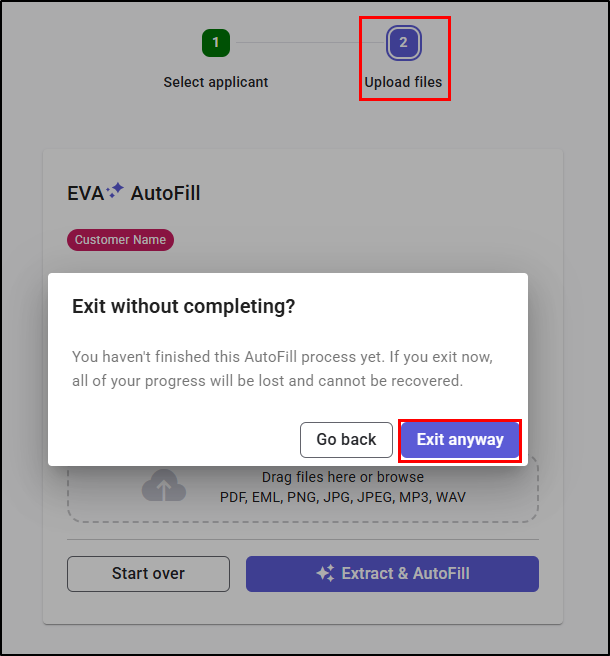
- Exiting on Upload Files: You will be provided a warning message if you exit EVA AutoFill on the Upload Files step that states:
"You haven't finished this AutoFill process yet. If you exit now, all of your progress will be lost and cannot be recovered."
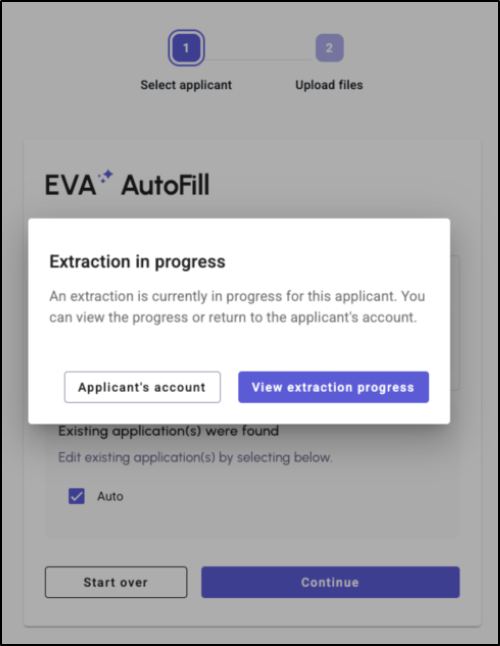
- When initiating a new EVA AutoFill, you will be provided a message if an extraction is already in progress for the selected applicant with options to go to either the Applicant Account or view the extraction progress.
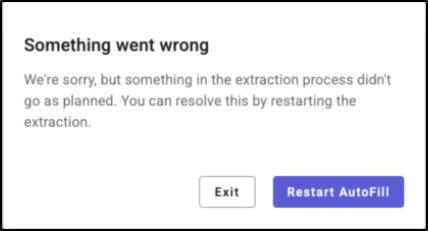
- You will see a generic error message whenever an issue occurs during the extraction process with options to exit or restart.
Upload files
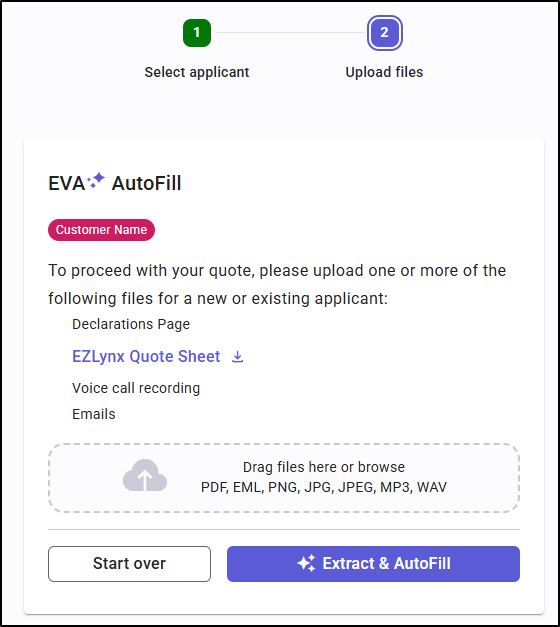
You can upload files to EVA AutoFill by dragging files onto the drop area or by browsing for files from your file system.
The following customer files can be uploaded for extraction.
The following types of files are supported.
|  |
You will be provided the opportunity to fix any issues found after you upload your files. Extraction cannot continue until all issues have been resolved. Common issues could be:
- Unsupported file types
- Maximum number of files exceeded – up to 30 files allowed per AutoFill transaction
- Total size of files exceeded – up to 900MB allowed per AutoFill transaction
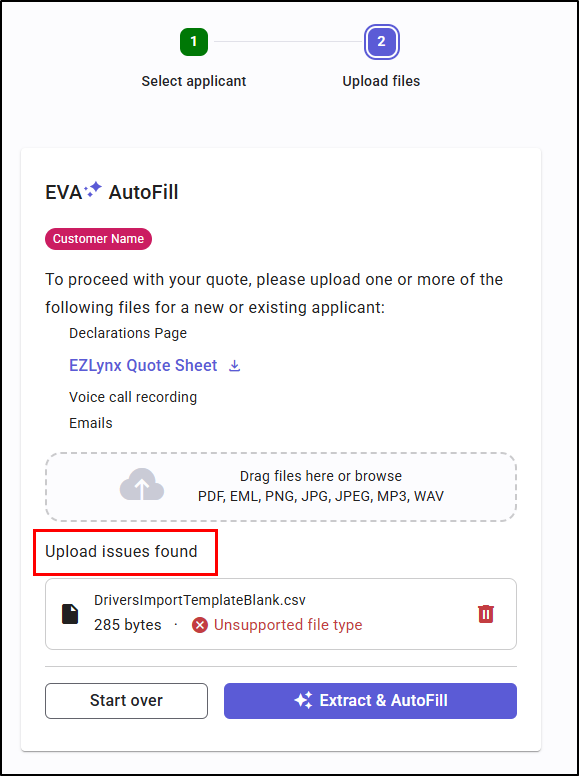
UPDATED: If EVA's extraction has no low-confidence issues or conflicts, you skip the human-in-the-loop (HITL) review screen entirely. Instead, you're taken straight to the processing queue. The extra "upload confirmation" screen was removed, so you can get back to work immediately instead of choosing between viewing the queue or starting a new Autofill. You still receive a notification when the extraction is complete and ready for review.
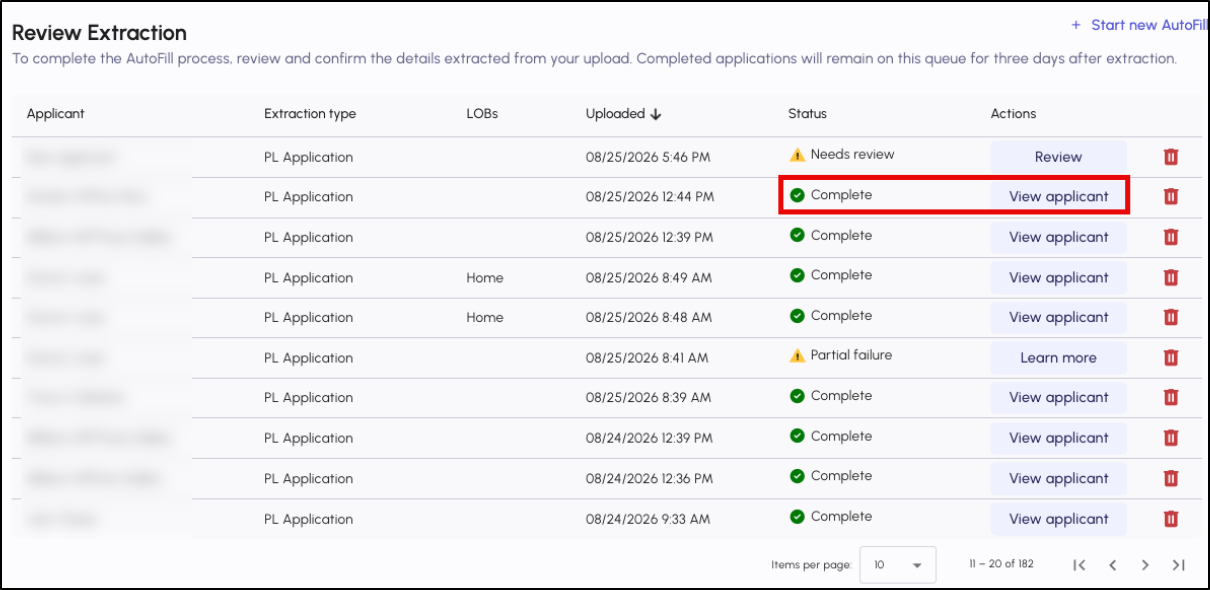
UPDATED: Processing queue
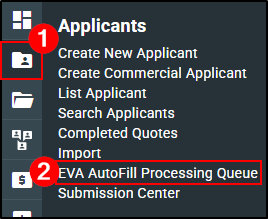
The processing queue lists all active and now recently completed extractions sent to EVA AutoFill. You can access it as soon as you finish an upload, or at any time from the new EVA AutoFill Processing Queue link under Applicants menu on the left navigation bar.
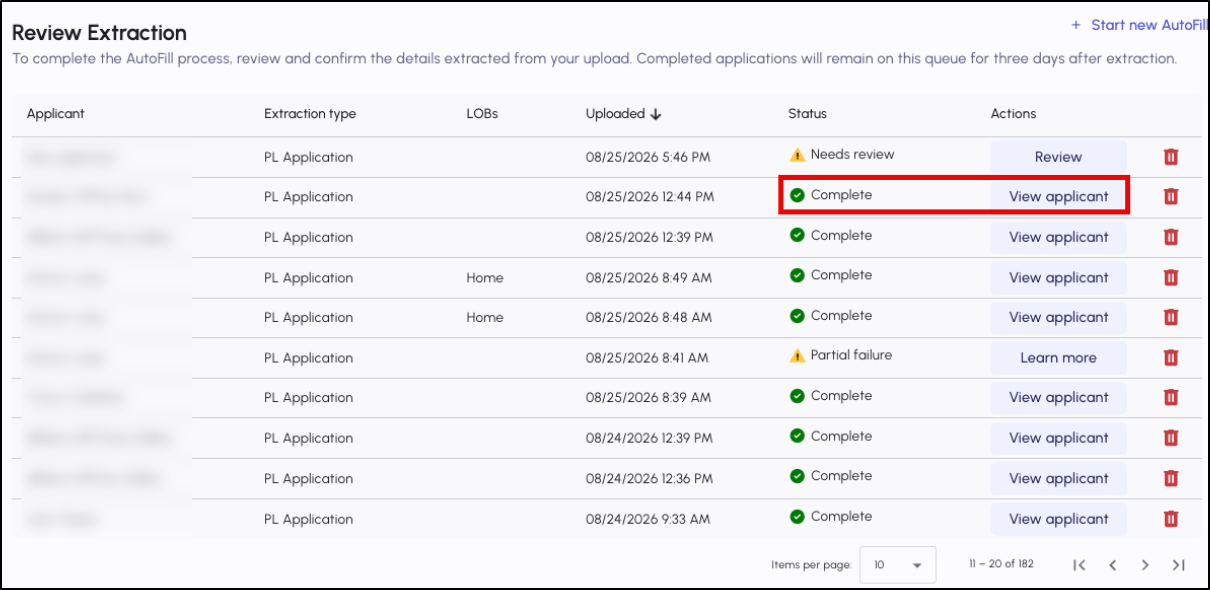
On this page, you'll find the following information:
- Applicant - the applicant name for an existing applicant, or the extraction type for a new applicant
- Extraction type / LOBs - which lines of business the extraction covers
- Uploaded - the date/ time when file(s) were uploaded
- Status, which now reflects one of four outcomes:
- Complete — EVA's extraction had no low-confidence issues or conflicts, so it skipped the review screen entirely and created the applicant/application automatically.
- Needs review — the extracted data is missing information needed to create the applicant/application, or there's a conflict that needs your input.
- Partial failure — EVA successfully filled one line of business but not another (say, Auto succeeded but Home didn't).
- Extraction failed — the extraction couldn't be completed.
- Actions, now depend on status: you have two options:
- View applicant (Complete) takes you straight to the applicant record EVA created - no review needed.
- Review (Needs review) takes you to the human-in-the-loop (HITL) screen to confirm or correct issues before the applicant/application is created.
- Learn more (Partial failure) explains exactly what succeeded and what didn't, so you know whether to re-upload.
- Remove deleted the item from the queue and frees up the applicant for a new AutoFill.
Completed AutoFill jobs remain visible in your processing queue for three days after completion, even after you've already opened the applicant once - so you don't have to search for a recently quoted file. You can still sort the list as you wish by clicking any column header.
Review and Validate Extraction
UPDATED: The review screen is no longer a required stop for every extraction. You'll only land here when the queue shows a "Needs review" status.
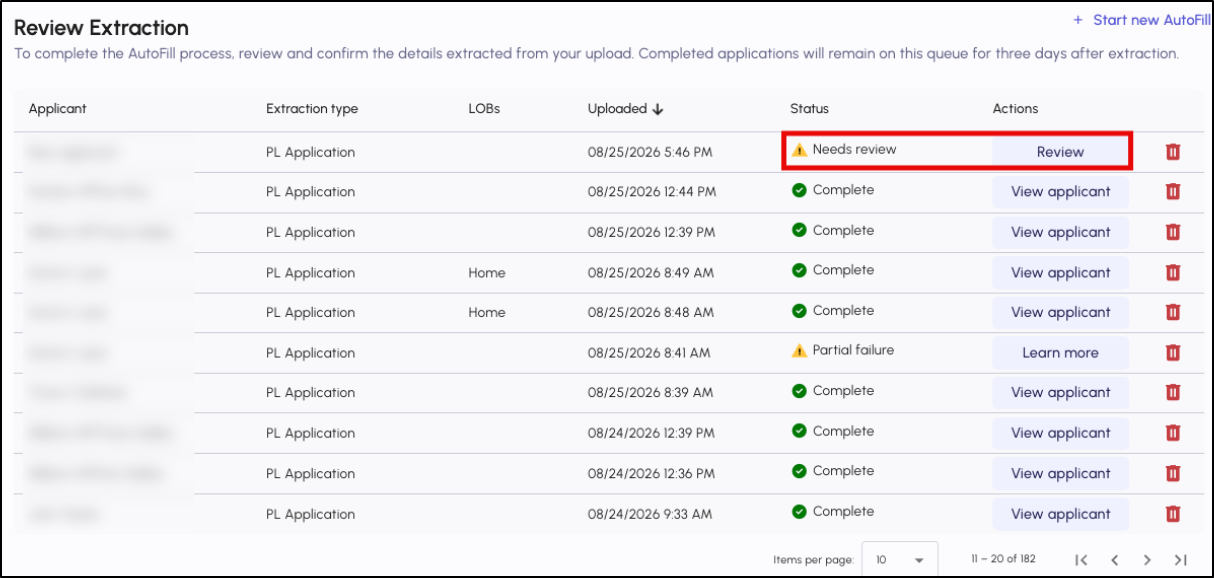
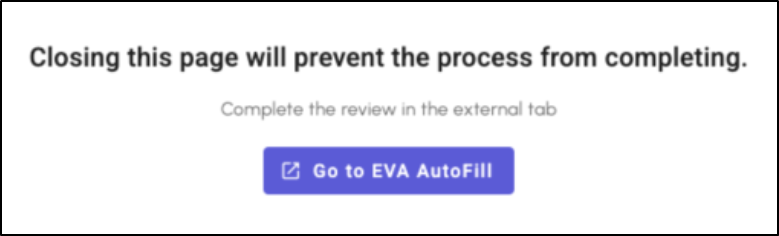
Clicking Review from the processing queue will take you to a page to validate the extraction details and complete the AutoFill process. The review page will open in a new browser tab and a warning message will display on the previous tab stating:
"Closing this page will prevent the process from completing. Complete the review in the external tab."
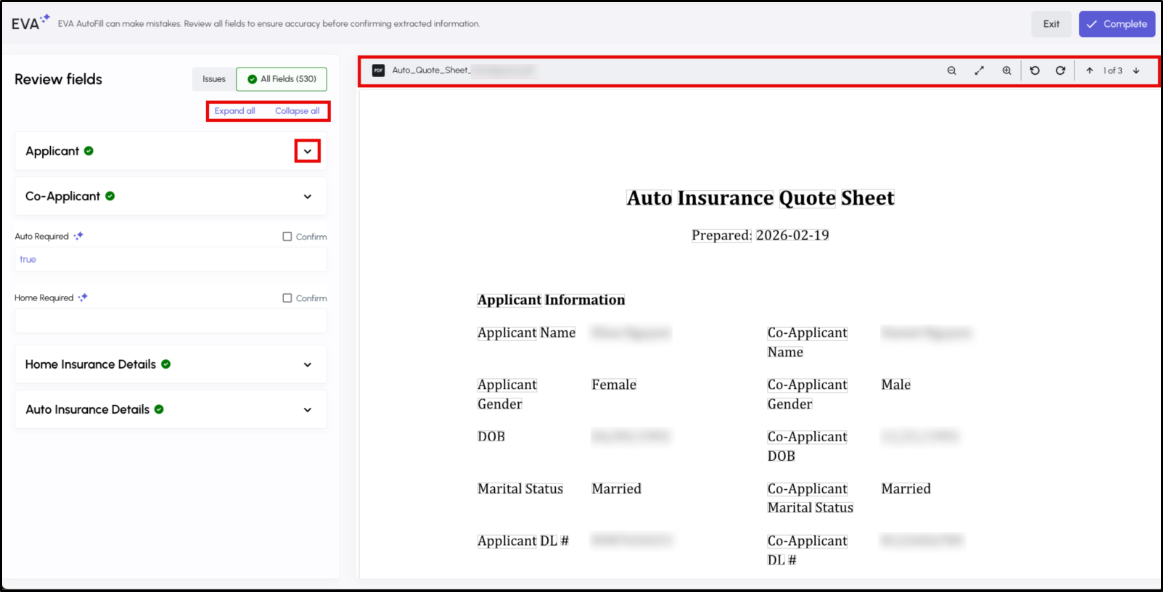
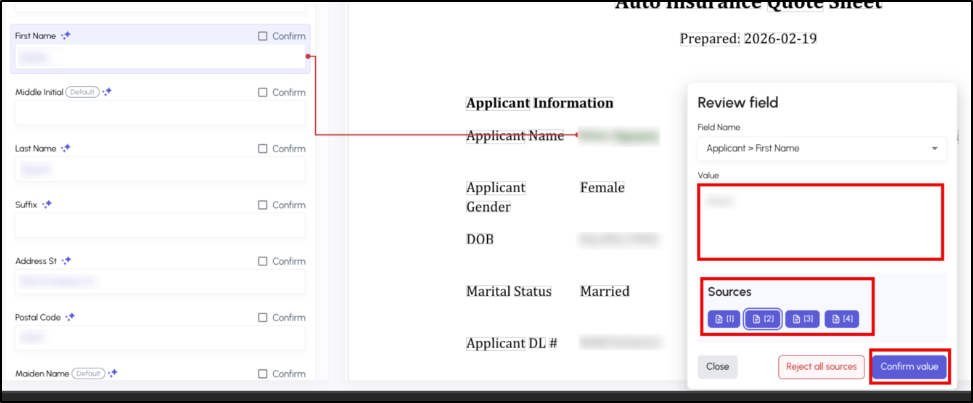
A preview of the uploaded document will be displayed.
- The left side panel will contain the field list and the corresponding values that were obtained from the extraction.
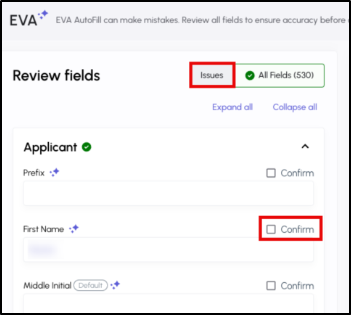
- The All Fields tab will display the complete list of all fields that were extracted while the Issues tab will list all extraction issues that need to be resolved.
You will need to resolve all extraction issues that are listed under the Issues tab as the Complete button will be unavailable until all extraction issues have been resolved.
Clicking in a particular field displays a Review field window where the field value can be edited if needed. All sources where this field is referenced will be listed – you may see several if multiple files were uploaded.
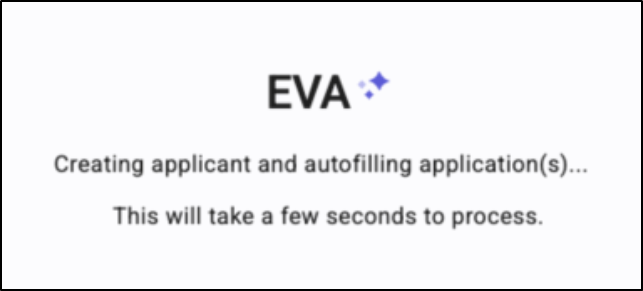
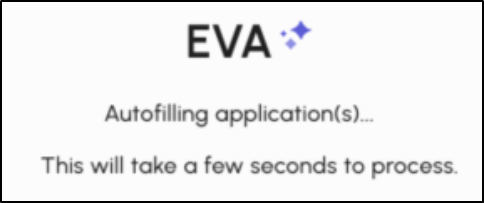
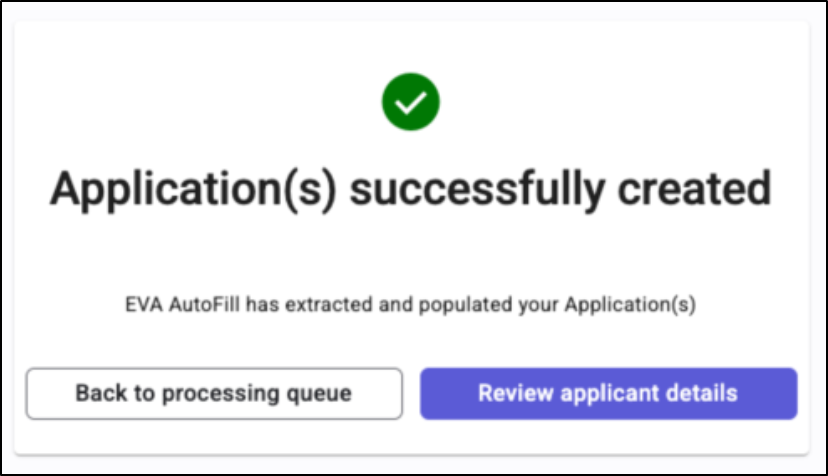
When you click on Complete on the review page, the EVA AutoFill process will continue to intermediate pages and then a final confirmation page notifying you that the applicant and/or applications were created in EZLynx.
 |  |  |
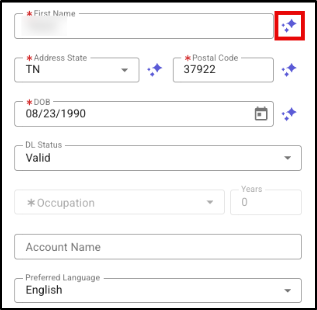
NEW: AI-Filled Field Indicators
Once you land on the applicant or rating pages, every field EVA AutoFill populated now carries a visible indicator so you always know what came from AutoFill versus what you entered yourself. This applies across the Applicant Details, Auto, and Home rating pages.
If you edit a field, it's indicator clears, letting you track what's original AutoFill data versus what you've since changed.
This is especially useful when double-checking a quote before it goes out to carriers - you can scan for the indicators and re-verify just those values instead of re-checking every field from scratch.
Practical Applications
- Quoting a clean, straightforward risk: An agent uploads a dec page for a new Auto applicant with no data conflicts. Instead of stopping at a review screen, EVA takes them straight to a completed, quote-ready applicant - turning what used to be a multi-step process into a single upload.
- Renewing an exiting client with updated details: An agent uploads a new quote sheet or a dec page for an existing applicant whose address has changed since their last policy. EVA Flags the conflict with a clear Needs Review status, and the agent resolves it in seconds on the HITL screen instead of missing the discrepancy entirely.
- Double-checking a quote before it goes out: Before submitting a quote to carriers, an agent scans the Auto rating page for the AI-filled indicators to quickly confirm which values came from AutoFill and re-verify just those, rather than re-checking every field from scratch.
We hope you are excited for this new feature and look forward to our future releases. Please let us know if this article was helpful in learning about the new feature by answering the question below. Check out our related articles on the right-side of the page to learn more about EZLynx!
Did you find it helpful? Yes No
Send feedback