Carrier Rebranded? Here's what you need to know!
Modified on: Thu, 7 May, 2026 at 5:25 PM
Requirements:
|
Sometimes a Carrier goes through a rebranding process. This can be several years after an acquisition or merger to bring all Carriers under the same name, or it can simply be a fresh look for the Carrier. If you hear from your Carrier that they are rebranding and there will be a Carrier name change, you can check out this article to see what if anything you need to do in EZLynx to make the transition smooth for your agency.
TABLE OF CONTENTS
 | Did you know? - You can click on the images in our articles to zoom in. |
What is a rebranding?
When an insurance carrier rebrands, it means the company is intentionally changing its name, logo, tagline, or overall brand identity to better reflect its current strategy, market position, or customer focus.
When carriers acquire other carriers or merge, they often inherit multiple brands. Rebranding can consolidate these into a single, unified identity, reducing marketing costs, simplifying customer communication, and presenting a larger, more cohesive market presence.
What does this mean for me?
When a carrier rebrands they work with partners like EZLynx to let us know what needs to change in the back-end, so we can make sure the system is up to date for your quoting and policy management needs.
- For Rating Engine, if you already had the prior carrier setup with Carrier Logins and Producer Codes in EZLynx then you are good to go, as we normally update the carrier name on the back-end so that on the Carrier Quoting Setup page it reflects the name change (e.g. Active Carrier Name (Formally Prior Carrier Name)).
- For Management System, you will want to update the Master Company List so that your policies will come in with the correct name as new policy transactions download to your system. You'll also want to hide the prior carrier, so it can no longer be selected in the future. We'll cover how an Agency Admin can handle these tasks and more down below!
What do I need to do?
If you want to update your policies so that they reflect the name of the rebranded carrier, your Agency Admin simply needs to update the Master Company List in the Management System so that the underwriters under the Prior Carrier are now under the Active/Moving Forward Carrier. They will then want to hide the Prior Carrier from the Master Company List so it can't be selected in the future.
Update the Master Company List
To update the Master Company List:
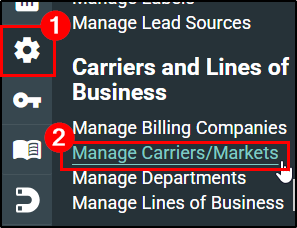
1. Hover over the Settings (gear) icon. This will open the Settings menu.
2. Choose Manage Carriers/Markets under Carriers and Lines of Business. This will open the Manage Carrier List page.
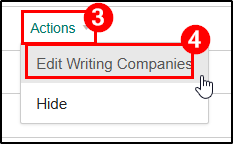
3. Navigate to the Prior Carrier and select Actions. This will open the Actions menu for the respective carrier.
4. Choose Edit Writing Companies. This will open the Edit Master Company window.
 |  |
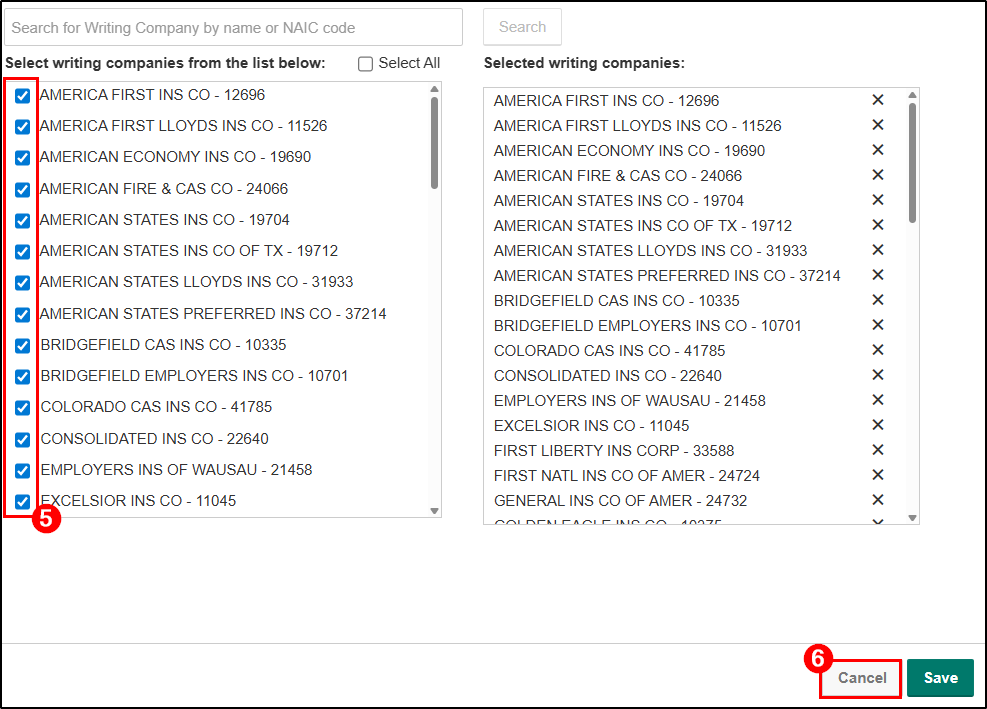
5. Make note of which underwriters you have checked the box next to.
6. Then, click Cancel on the bottom-right of the window to close it.
 | Quick Tip: If you have any uncertainty around which Writing Companies are a part of the rebranding, please contact the carrier for confirmation. |
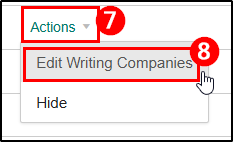
7. Now, navigate to the Active/Moving Forward Carrier and select Actions to open it's respective Action menu.
8. Choose Edit Writing Companies to open the Active/Moving Forward Carrier's Edit Master Company window.
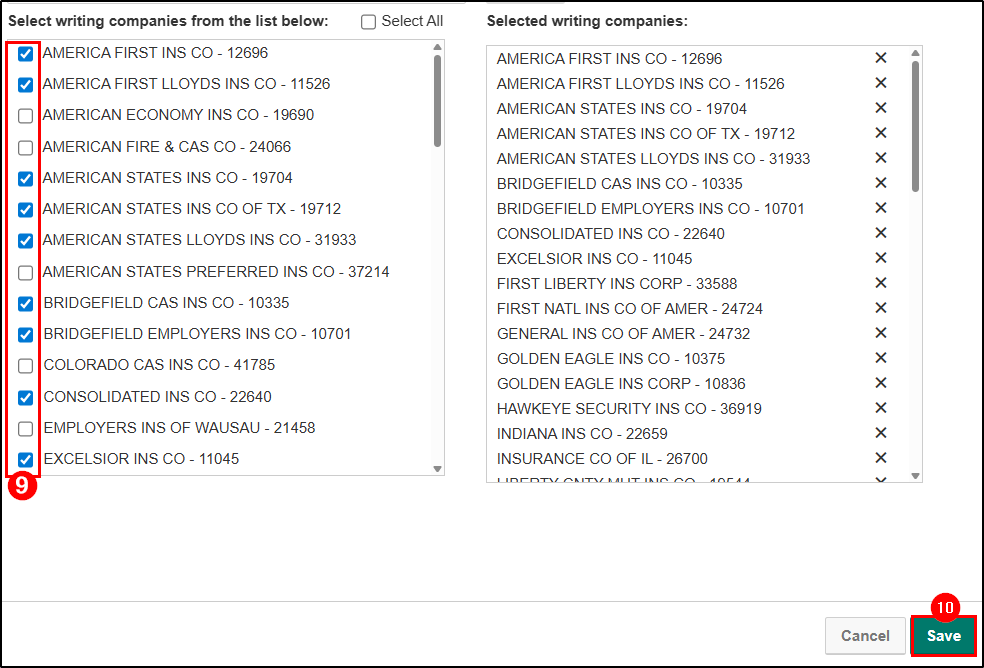
9. In the Active/Moving Forward Carrier's Edit Master Company window, check the boxes next to the underwriters you had under the Prior Carrier.
10. Once all are checked, click the Save button on the bottom-right of the window.
Hide Prior Carrier
Now that we've updated the Underwriters to be under the Active/Moving Forward carrier, we need to hide the Prior Carrier so it isn't selected by mistake in the future.
To hide a carrier from the list:
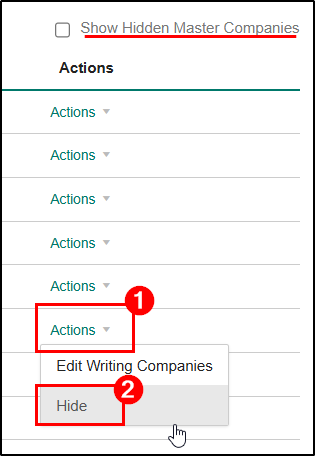
1. On the Prior Carrier, select Actions to open the Actions menu.
2. Choose Hide. This will move the prior carrier to the Hidden Master Company list which you can always see by checking the Show Hidden Master Companies box near the top of the list if you ever hide a carrier by mistake.
Update the Policy (optional)
Now that the Master Company List is updated, the next time a policy transaction is downloaded for the policies labeled with the Prior Carrier name, the policy will update to the Active/Moving Forward Carrier name.
If you do not want to wait for the next download, you can manually update the policies one at a time using the following steps:
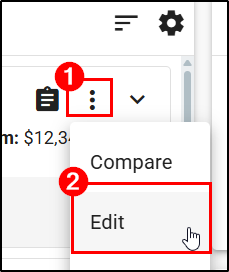
1. On either the Overview or Policies tab, select the Actions (vertical ellipsis) icon on the policy in question. This will open the Actions menu.
2. Choose Edit. This will open the Edit Policy page.
3. Use the Master Company dropdown to update the prior carrier to the Active/Moving Forward Carrier. You can also use this time to update the Writing Company if needed.
4. When ready, select the Save Policy button on the bottom-right of the page.
 |  |  |
You can do these quick steps as you come across the policies while servicing, or you can use our Reports find them all and work them one at a time.
If you want to run a report and work them one at a time, we recommend using the Book of Business Detail report and using the Policy Data Master Company dropdown to add in the Prior Carrier before running the report.
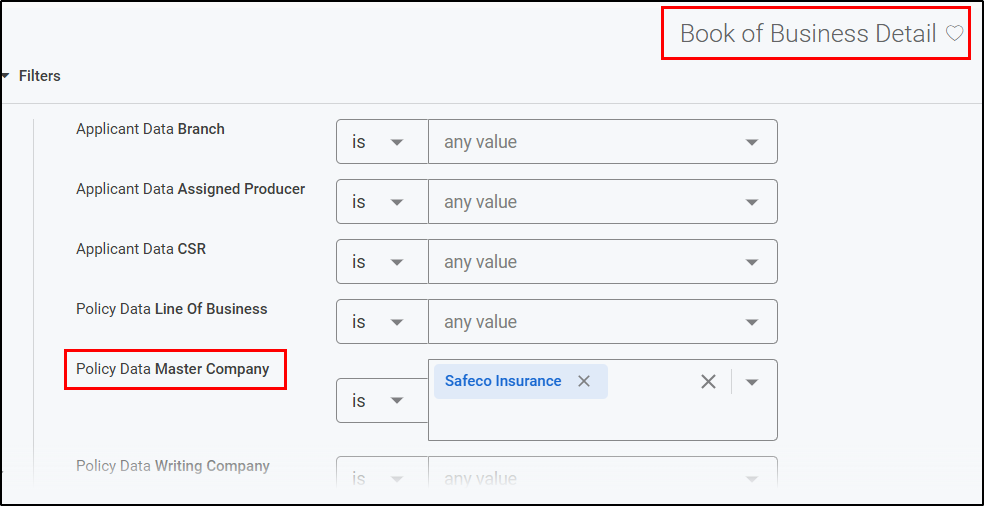
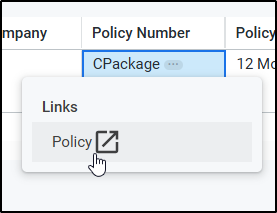
Then, you can use the click-able policy number link to navigate straight to the policy. From there, you can use the Actions > Edit steps we talked about above.
Update Direct Bill Commission Rules (optional)
If you use our Direct Bill Commission Rules and have rules based on the prior carrier, you may want to update the Commission Rules to reflect the Active/Moving Forward Carrier.
You can use the Carrier filter and the Master Company column on the Commission Rules page to find any rules that have the Prior Carrier as part of the rule.
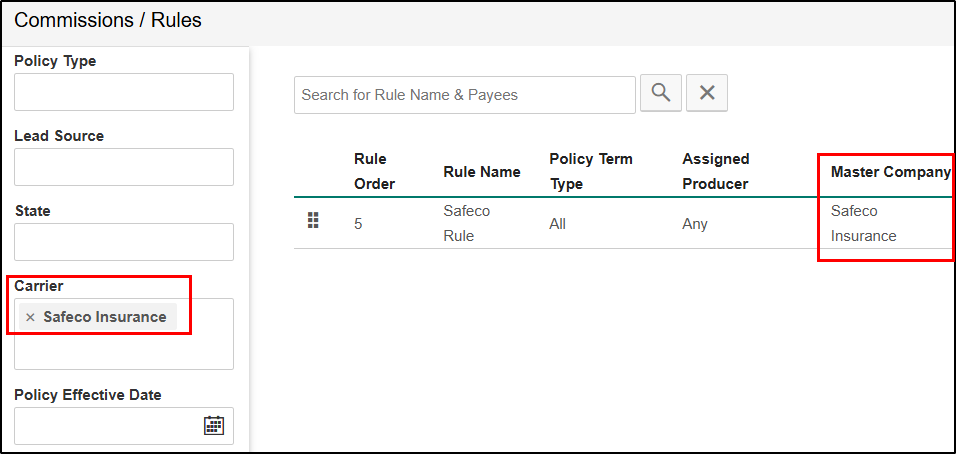
From there, you can use the Actions menu to Edit or Delete the rule depending on you situation:
- Edit if you don't have a rule with the Active/Moving Forward carrier and need to update an existing rule to reflect the rebranding.
- Delete if you already have a rule with the Active/Moving Forward carrier and simply need to remove any existing rules with the prior carrier.

Commission Statements (optional)
If you use our Direct Bill Commission Rules, you may want to update your Commissions Statements to reflect the Active/Moving Forward Carrier.
To manually change the Carrier on a Commission Statement:
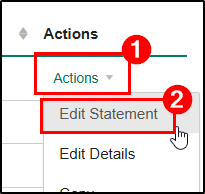
1. Select Actions next to the statement in question. This will open the Actions menu.
2. Choose Edit Statement. This will open the Edit Commission Statement window.
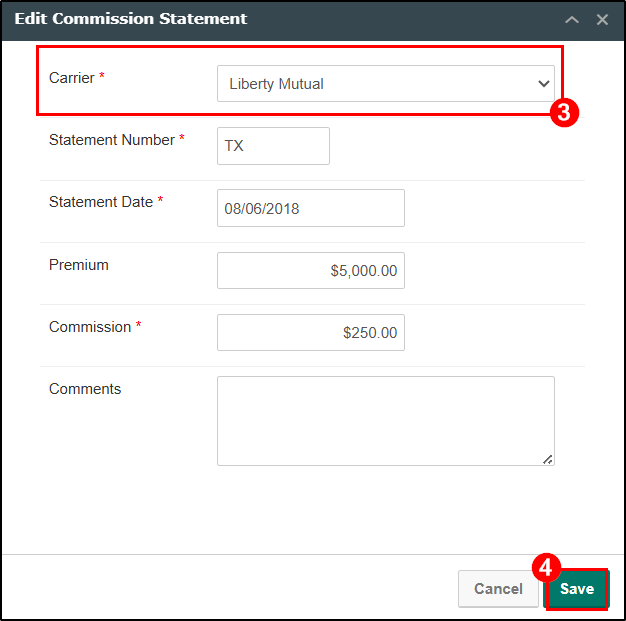
3. Use the Carrier dropdown to change the Carrier to the Active/Moving Forward Carrier name.
4. Select the Save button on the bottom-right of the window.
 |  |
FAQs
What happens if I don't update the Master Company List?
- Then the policy will continue to say either the Prior Carrier's name or an unexpected carrier name.
Will the policy number change? If so, what happens?
- This depends on how the carrier wants to handle the rebranding. Carriers may provide their partners like EZLynx with ACORD-standard coding within the download file to support policy number format updates for proper policy matching.
- If this happens, then we update the back-end, so that we can match the policies properly for you.
- If this coding is not provided by the carrier, a duplicate policy may be created if the policy number format changes. In these cases, you may choose to merge the policies together to preserve historical data.
What happens when a renewal comes in?
- If you have updated the Master Company list with the prior carrier's underwriters, then the renewal will come in with the Active/Moving Forward carrier.
- If you have not updated the Master Company list, then the renewal will come in with either the Prior Carrier's name or an unexpected carrier name. If this happens and you'd like to change it, you can manually update the Carrier on the policy details.
We hope this article was helpful in learning how to handle carrier rebranding situations. Please let us know if this article was helpful by answering the question below. Check out our related articles on the right-side of the page to learn more about EZLynx!
Did you find it helpful? Yes No
Send feedback