Submission Center with Instant Quoting Setup Tasks
Modified on: Thu, 24 Sep, 2026 at 11:53 AM
Requirements:
|
Submission Center with Instant Quotes enables agencies to receive real-time commercial insurance quotes directly from supported carriers. This guide walks through the setup tasks needed to get Submission Center with Instant Quoting "Rating Ready!" Check out our in-depth workflow article to learn how to adopt the workflow after setup or check out our overview article to see a high-level of both setup tasks and workflow together.
TABLE OF CONTENTS | Check out our videos if you want to watch and follow along!  |
 | Did you know? - You can click on the images/gifs in our articles to zoom in. |
Setup Task Overview
Before you can start receiving instant quotes, you need to "plug in" to the carriers. We’ve designed a streamlined configuration experience to get your agency "Rating Ready". Please note, only one of these tasks is for everyone at the agency. The rest of the tasks, the Agency Admin must complete.
- Setting up your management system carriers - Agency Admin Only
- Adding your commercial rating carriers - Agency Admin Only
- Entering your logins - Everyone at the Agency UNLESS you use Shared Carrier Logins
- If your agency uses Shared Logins, then the Agency Admin will need to handle this step too.
- Entering your producer codes - Everyone at the Agency
- Submission Center Carrier Management - Agency Admin Only
Setting up your management system carriers
The first setup task requires Agency Admin permissions. The Agency Admin needs to confirm that all Commercial Lines Carriers you plan to quote with are added to the Manage Carriers/Markets list. This list tells the Submission Center what carriers are available for Commercial Lines Quoting manual or instant.
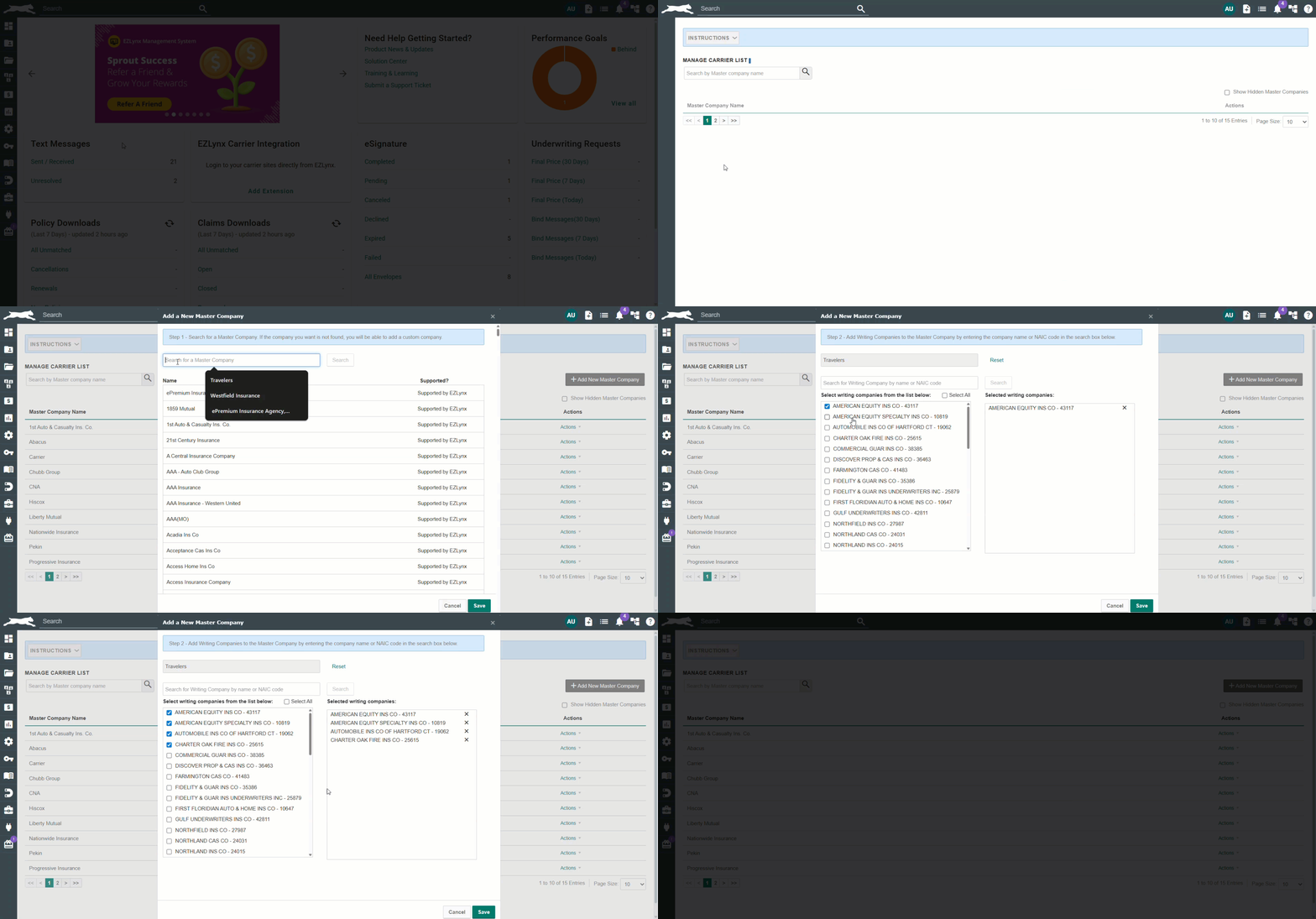
1. Hover over the Settings (gear) icon and choose Manage Carrier/Markets.
2. Ensure that the carriers you do business with are enabled in your Management System. If they aren't, continue to step 3.
3. Click the Add New Master company button.
4. Input the carrier's name and click the Search button.
5. Choose the carrier from the list.
- Supported by EZLynx means that this carrier has gone through our certification process to make sure their downloads come in accurately.
- Click View additional known carriers to view carriers that have not gone through our certification process.
- If you don't see your carrier here, or need to add a brokerage, choose Other - Add a custom Company.
6. Check the boxes next to the underwriting companies you write business with. If you are not sure which to check, check the documentation provided by your carrier.
7. Finally, click the Save button.
Repeat steps 3-7 for all carriers you write business with.
Adding your commercial rating carriers
The second setup task requires Agency Admin permissions. The Agency Admin needs to add the Commercial Lines Carriers you plan to instant quote with by adding them to the Carrier Quoting Setup Commercial Lines tab. This list will tell Submission Center which carriers are available for Commercial Lines Instant Quoting.
If you want to know which carriers are available for Submission Center Commercial Instant Quoting, check out our Available Carriers for Rating webpage.
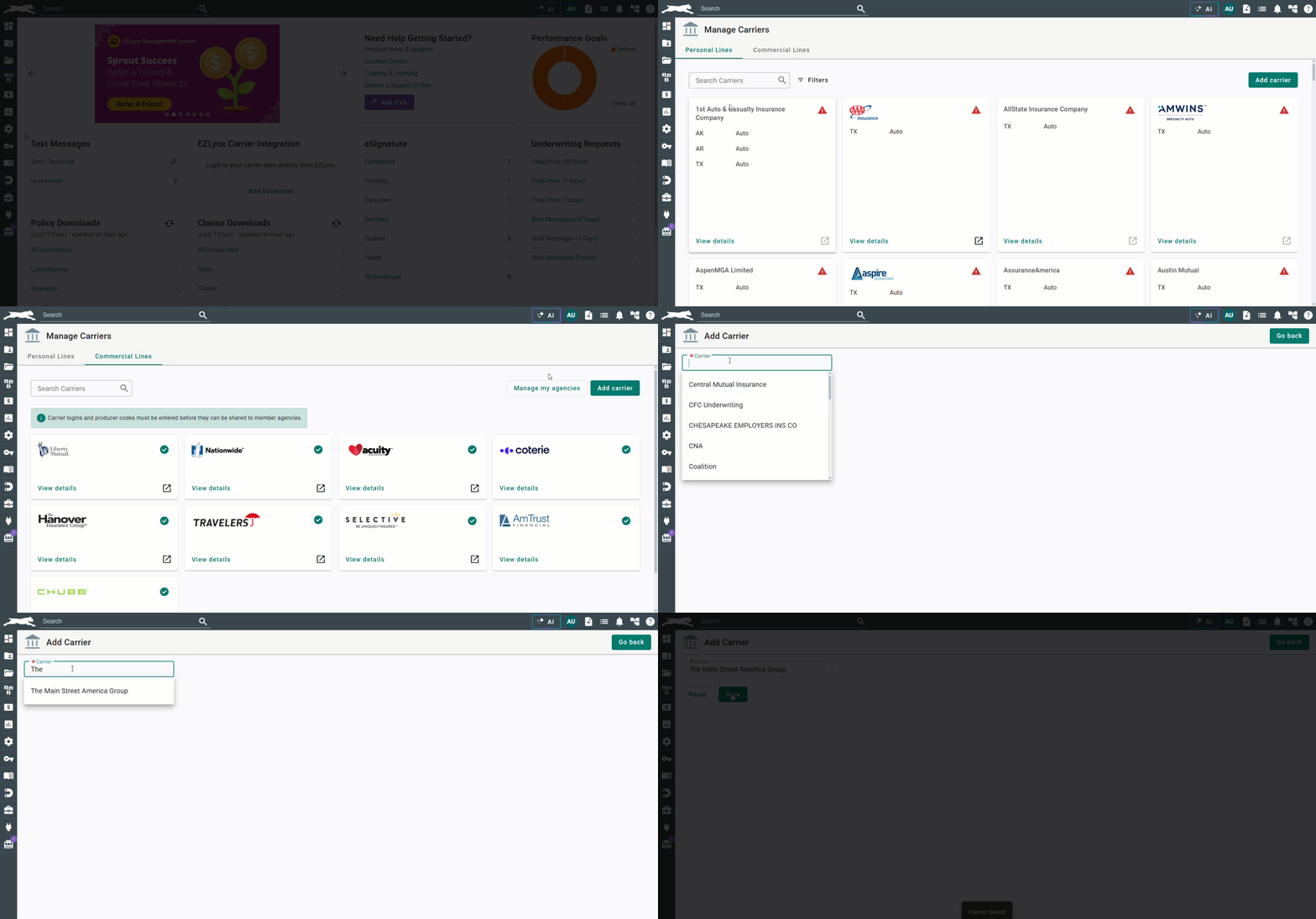
1. Hover over the Settings (gear) icon and choose Carrier Quoting Setup.
2. Choose the Commercial Lines tab and select the Add carrier button.
- Please note, the Commercial Lines tab will only be visible to agencies enabled for Submission Center Commercial Instant Quoting.
3. Type in the Carrier name in the Carrier field and choose from the list.
4. Select the Save button to finish adding them.
If you need to add another carrier, click the Reset button and repeat steps 3-4 until all your carriers have been added.
Entering your logins & producer codes
The third setup task is for everyone at the agency, unless your agency uses Shared Carrier Logins.
- If your agency uses Shared Logins for all or certain carriers, the Agency Admin will need to handle the setup of this task. If this is the case for your agency, Agency Admins, skip down to the Setting up shared carrier logins section.
- If your agency does not use Shared Logins, then everyone at the agency will need to input their own carrier logins and producer codes for the carriers they plan to Instant Commercial Quote with. Keep reading for more details!
Inputting your carrier logins and producer codes for Submission Center Instant Commercial Quoting, works just like our Personal Lines Rater setup if you use that feature. If you don't, we'll walk you through the steps. The logins and producer codes are needed so that when you submit the application to the carrier for a rate, the Instant Commercial Quote product make sure the quote is logged under your carrier account. If logins and producer codes are not setup, you will not get a quote back.
Input Carrier Logins
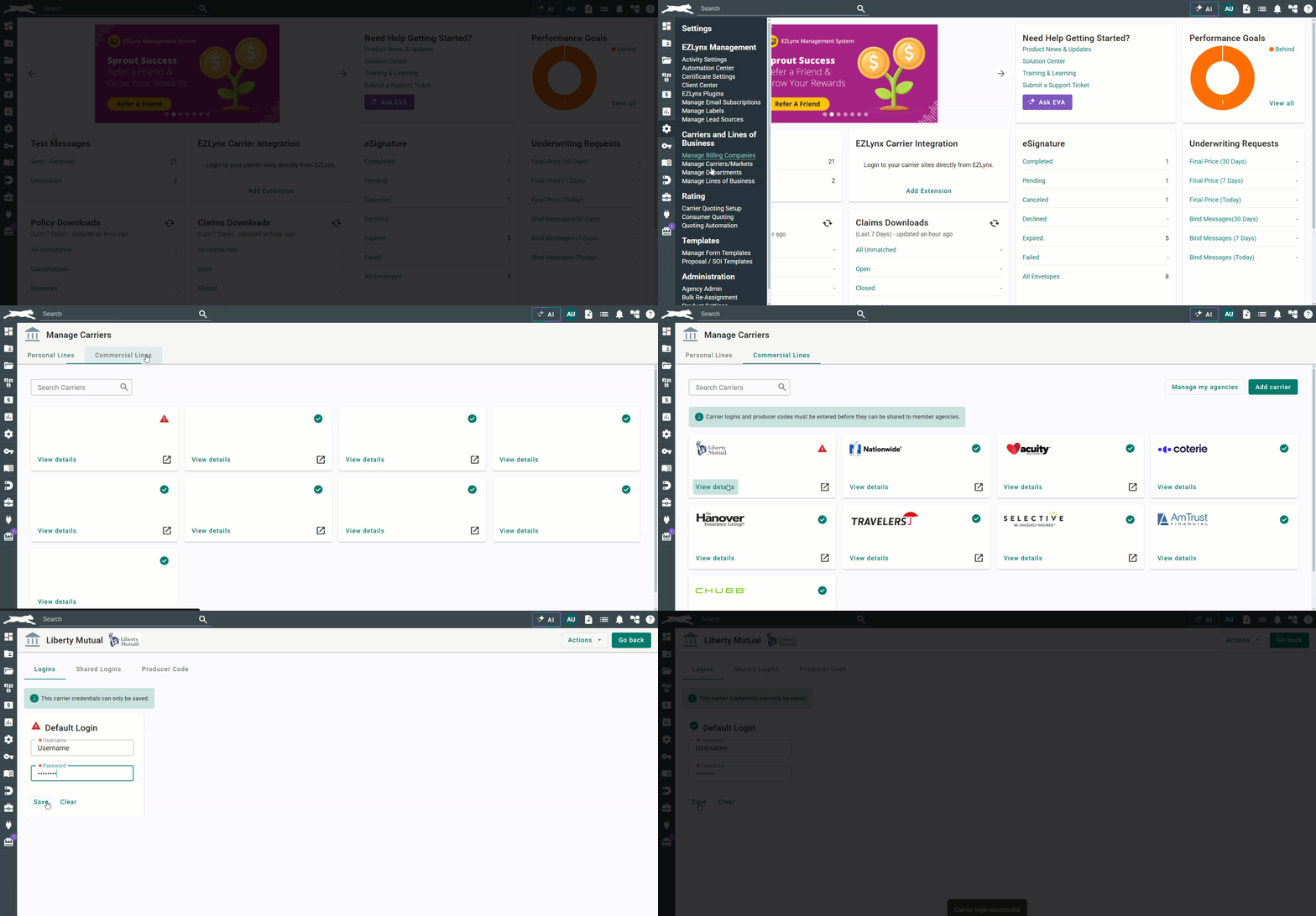
1. Hover over the Settings (gear) icon and choose Carrier Quoting Setup.
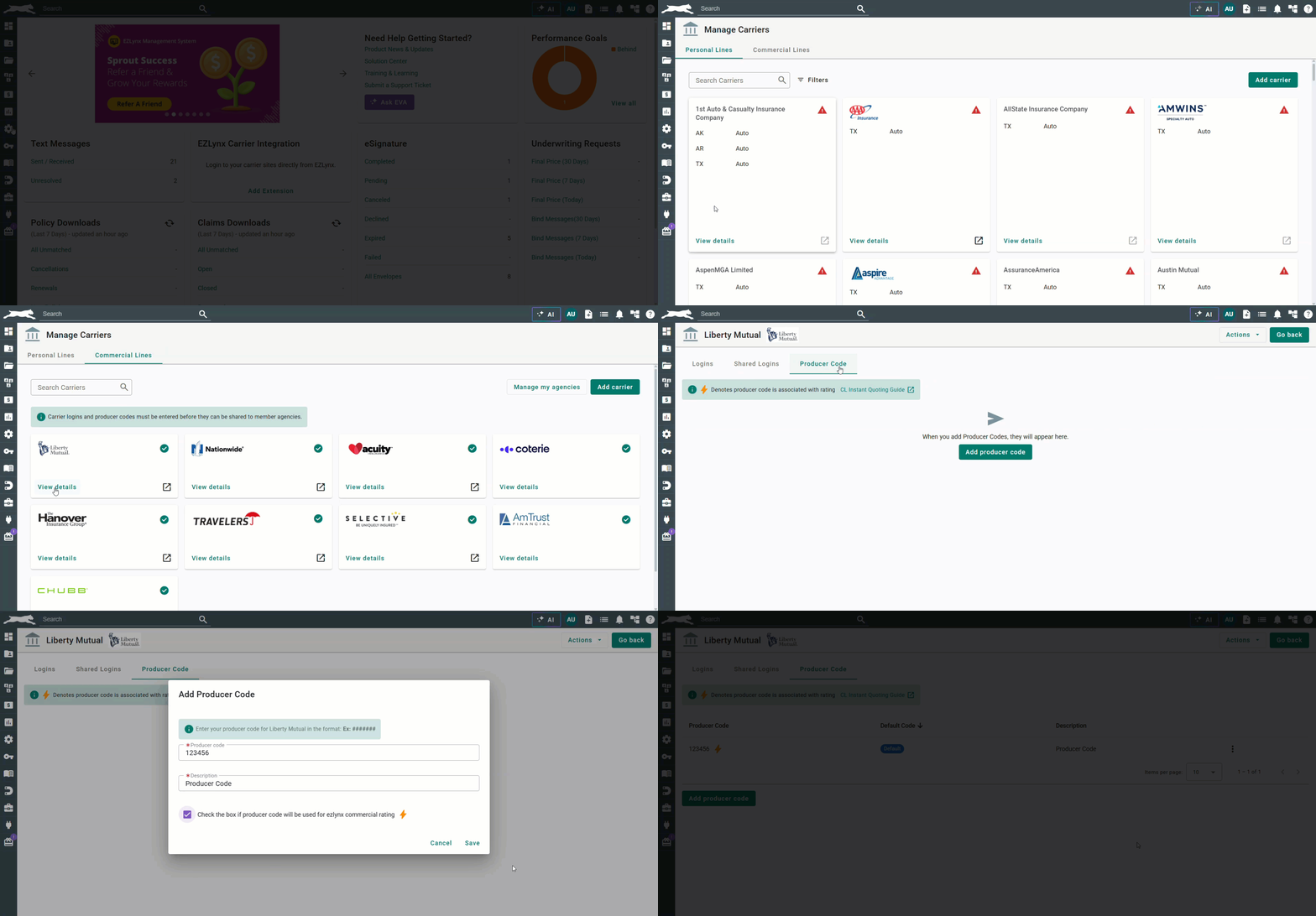
2. Choose the Commercial Lines tab and select the View details on the carrier you want to setup the logins for.
- Please note, the Commercial Lines tab will only be visible to agencies enabled for Submission Center Commercial Instant Quoting.
3. On the Logins tab, input your Username and Password and click Save.
- For select carriers, when entering logins, you can instantly validate them against the carrier's website. No more guessing - the system will confirm you connection! If this is available, you'll see a Save and test option instead of just Save.
Input Producer Codes
1. Hover over the Settings (gear) icon and choose Carrier Quoting Setup.
2. Choose the Commercial Lines tab and select the View details on the carrier you want to setup the logins for.
- Please note, the Commercial Lines tab will only be visible to agencies enabled for Submission Center Commercial Instant Quoting.
3. Choose the Producer Code tab and click the Add producer code button.
4. Input your Producer Code based on the format example provided in the Info Panel. The format is different for each carrier so pay close attention to how you are inputting the code.
5. Provide a description and check the box if the producer code will be used for Instant Commercial Rating.
6. Click Save.
Additionally, you you may notice that some carriers show "Not Required" for Instant Commercial Quoting or have special configuration requirements. To learn more, check out the Appendix at the bottom of this article.
- To quote with Chubb, they require an additional step from EZLynx to activate. Email support@ezlynx.com with your producer code for us to complete this step.
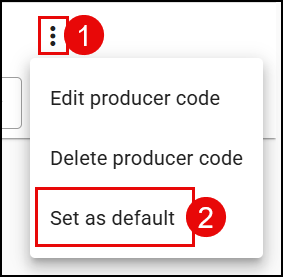
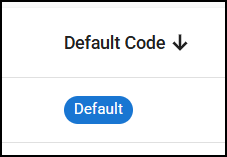
You can set a particular Producer Code as the default code by selecting the Actions (vertical dots) icon and choosing Set as default. This will add a Default chip next to the code under the Default Code column.
 |  |
Shared Carrier Logins
If your agency uses Shared Carrier Logins for some of your carriers, the Agency Admin can setup Shared Logins on the Shared Logins tab within a carrier card.
1. Hover over the Settings (gear) icon and choose Carrier Quoting Setup.
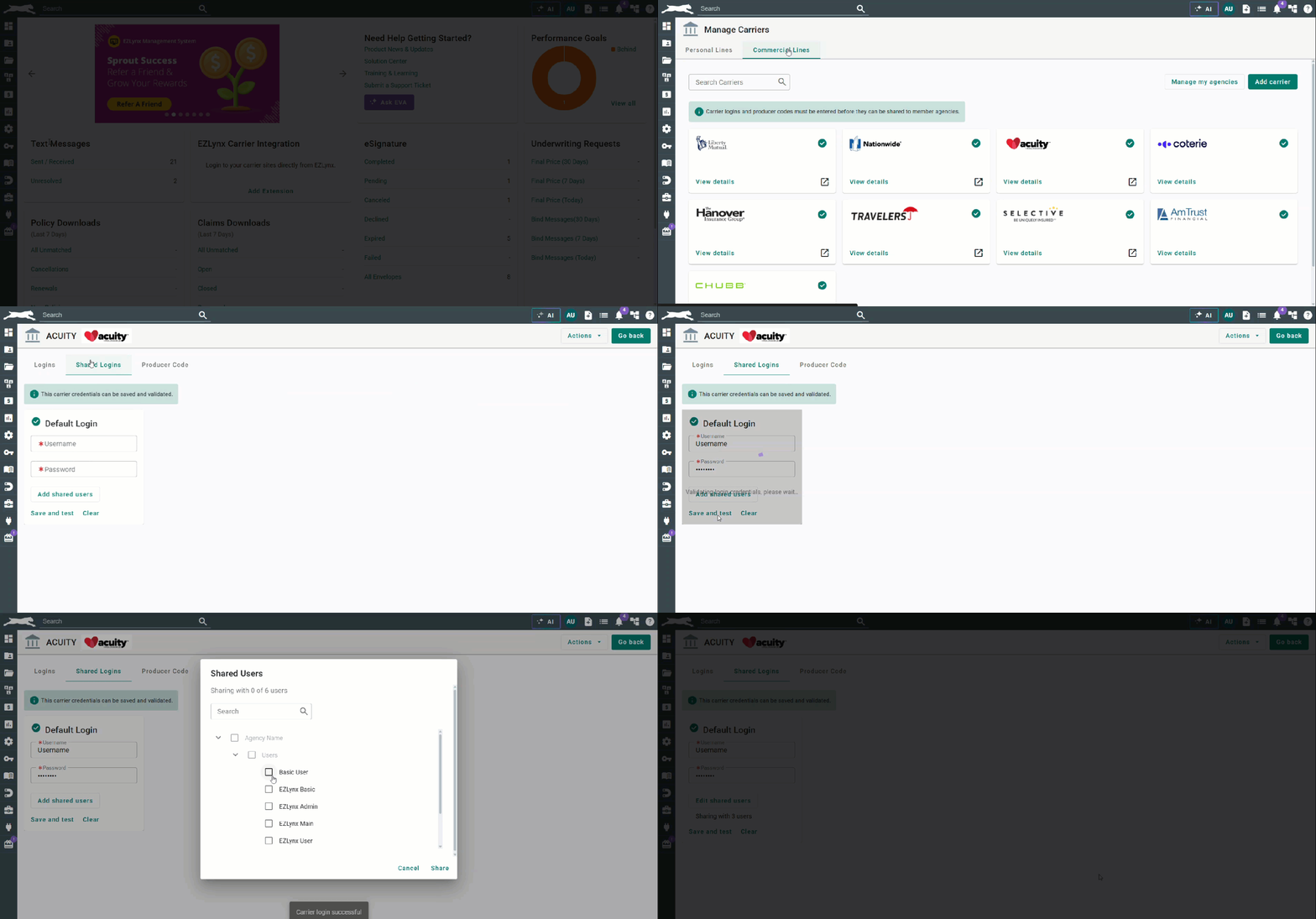
2. Choose the Commercial Lines tab and select the View details on the carrier you want to setup the logins for.
- Please note, the Commercial Lines tab will only be visible to agencies enabled for Submission Center Commercial Instant Quoting.
3. Select the Shared Logins tab and input the shared carrier credentials in the Username and Password fields. Then click Save or Save and test (which ever is available for that particular carrier).
4. Once the logins are entered, we need to share them to your agency's users. Click the Add shared users button.
5. Expand the Users section and check the box next to the users that need to be able to use the logins for Instant Commercial Quoting. Then, click Share to save the selection.
You'll see a message under the "Edit shared users" button that shows how many users you are sharing this login with at your agency.
Submission Center Carrier Management
The last setup task requires Agency Admin permissions. The Agency Admin needs to check the Submission Center Carriers tab for Submission Center preferences. These preferences can help make the instant commercial quoting process smoother and faster for everyone at your agency and is a great place for a final check to make sure everything is setup correctly.
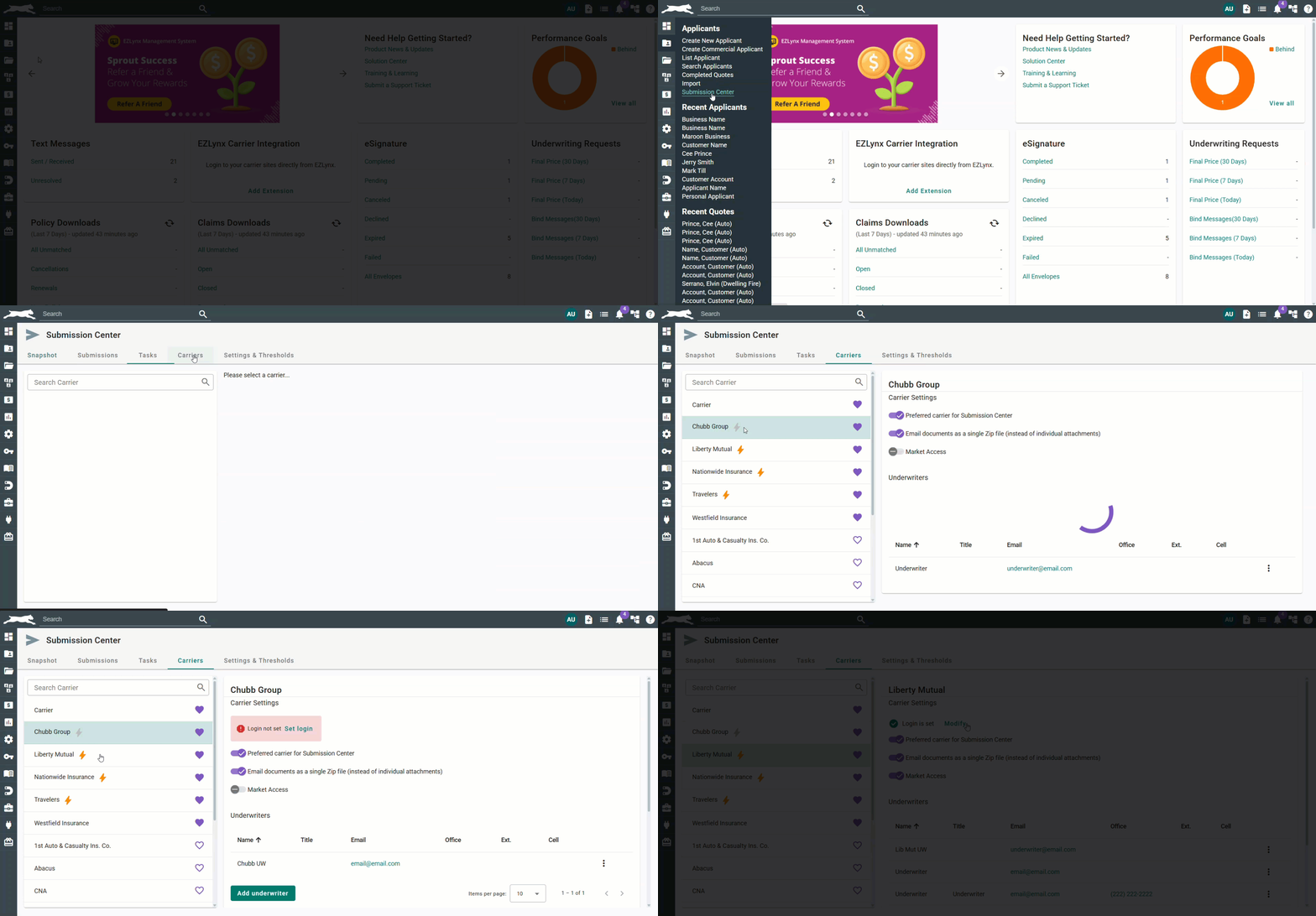
1. Hover over the Applicant folder icon and choose Submission Center.
2. Choose the Carriers tab.
On the Carriers tab, you will see all the carriers that have been added to your Submission Center. Remember, this list is populated from the first task you completed - Setting up your management system carriers.
The lightning bolt icon next to certain carriers means they've been added for Instant Commercial Quoting. Remember, this list is populated from the second task you completed - Adding your commercial rating carriers.
Confirm carriers are rating ready
The lightning bolts are also indicators that help you quickly confirm which carriers have been setup properly with Logins and Producer Codes.
- Gold Bolt → Logins are set; ready to quote!
- Gray Bolt → This carrier is enabled for quoting, but logins haven't been set yet. This is your signal to hop into settings and plug in your credentials. Click the Set login to set the logins right from the Carrier tab!
- No Bolt → No bolt means that this carrier is not currently supported for Instant Commercial Quoting.
Preferred Carriers
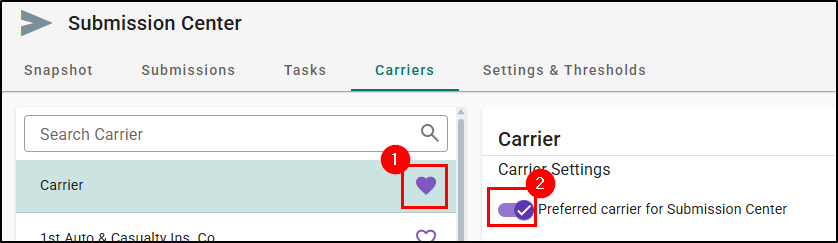
To make carrier selection easier during the Instant Commercial Quoting process, you can mark which carriers are preferred for submissions. This makes the list of carriers shorter when quoting, but don't worry. Even if a carrier is not marked as preferred, you can always still find it by checking the "Show Non-preferred Carriers" box during the quoting process.
To mark a carrier as preferred, you can either click on the Heart icon or toggle the "Preferred carrier for Submission Center".
Underwriter information
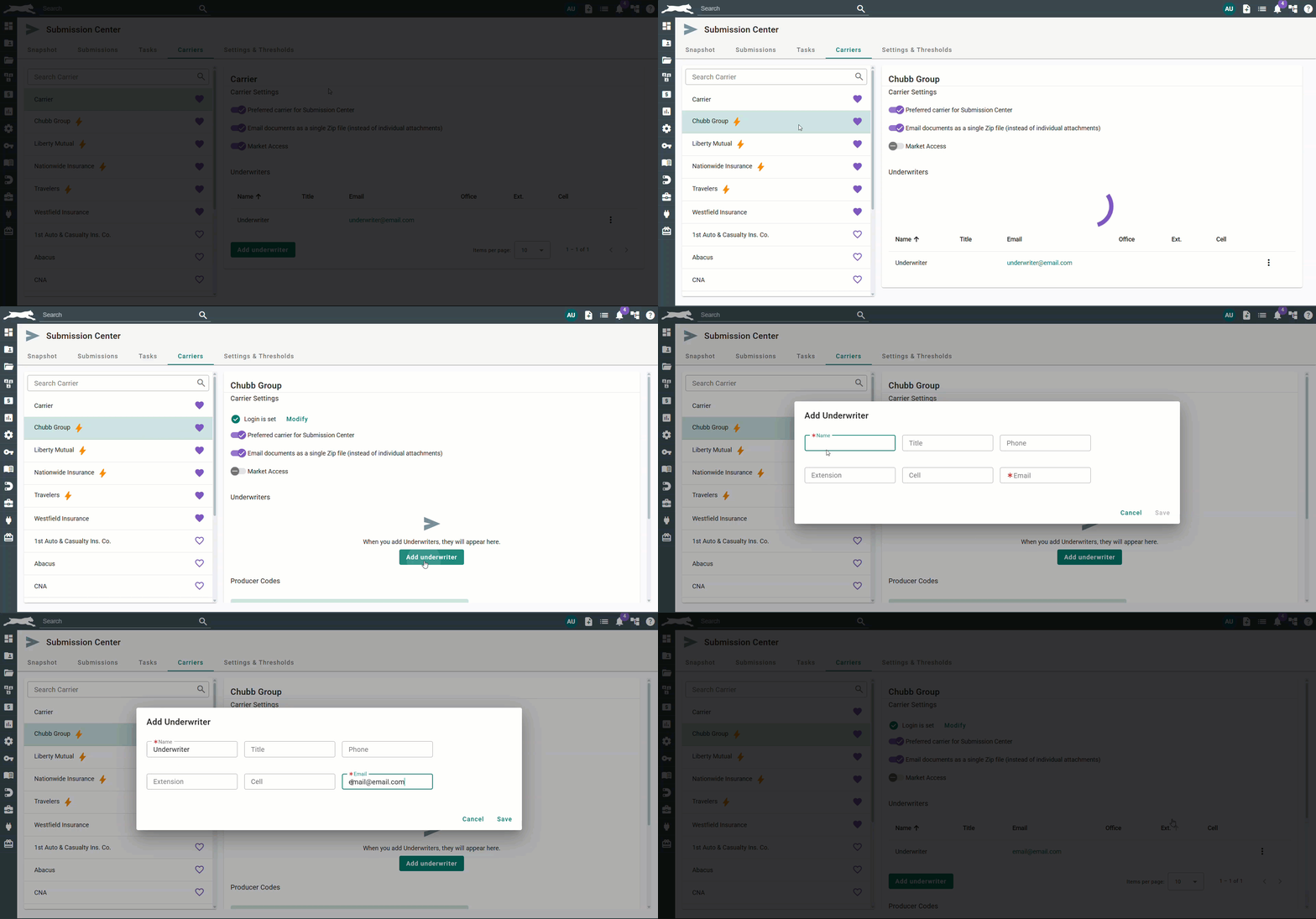
To add an Underwriter to a carrier for quick selection during the Instant Commercial Quoting process, you can add them to each carrier on this Carriers tab.
To add an Underwriter:
1. Select the carrier from the list on the left.
2. Click the Add underwriter button.
3. Fill in the required information.
4. Click Save.
You'll see the underwriter has been added to the Underwriters table.
 | Attention! - When adding a phone number or cell number on the Add Underwriter window, add only the numbers. The system will format the numbers after you Save. |
To edit or remove an underwriter:
1. Select the More Actions icon (vertical ellipses)
2. Choose Edit or Delete.
- Edit will open the Edit Underwriter window where you can edit the info.
- Delete will open a confirmation window for you to confirm you want to delete the underwriter from this carrier.

Carrier Attachment Preferences
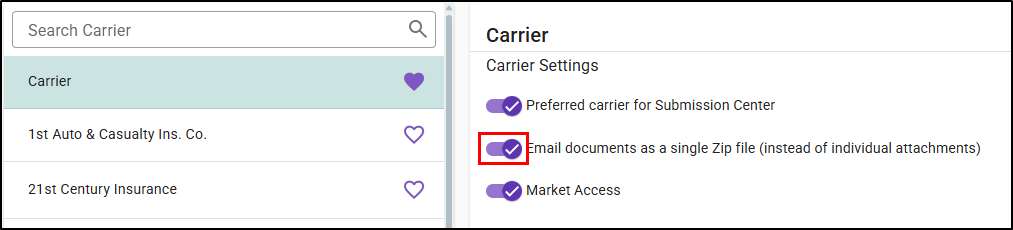
During the submission process, you'll be submitting various documents. If a carrier prefers to have all the documents emailed as a zip file rather than individual attachments you can toggle the "Email Documents as a single Zip file (instead of individual attachments)" option. If this option is off then when you submit the files to the carrier they will be attached to the email individually.
Market Access
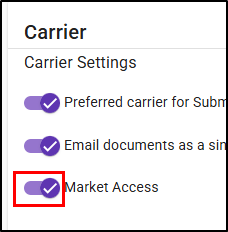
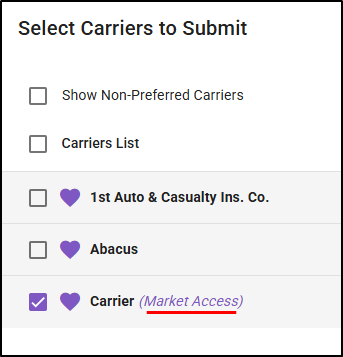
If you have certain carriers that are provided to you via Networks or Market Access Providers, you can let your agents know by toggling the "Market Access" option. When this option is on, there will be a callout next to the carrier during the submission process.
 |  |
To learn more about standard Submission Center settings, check out our Submission Center Setup and Settings article.
Appendix
| Carrier | Agency Code Format | Format Samples | Special Configuration Requirements |
|---|---|---|---|
| Coterie | Agency Code not required. | N/A | N/A |
| Hanover | 7 Digit numeric code | Format Examples: ####### | N/A |
| Liberty Mutual | 7 Digit numeric code | Format Examples: ####### | N/A |
| Nationwide Insurance | Agency Code Format is 5 digits. Please include “000” before your code. | Format Example: 000##### | N/A |
| Selective | Agency Code Format is a series of 5 digits. Please include “-00000” after your code. | Format Example: #####-00000 | N/A |
| Travelers | Agency Code Format should Start with a “0”, then series of numbers and letters | Format Examples: 0ABC##, 0AB###, 0A#### | N/A |
We hope this setup article was helpful in learning how to get your agency "Rating Ready" for Instant Commercial Quoting. Please let us know if this article was helpful by answering the question below. Check out our related articles on the right-side of the page to learn more about EZLynx!
Did you find it helpful? Yes No
Send feedback