Submission Center with Instant Quoting Workflow
Modified on: Thu, 10 Sep, 2026 at 11:41 AM
Requirements:
|
Submission Center with Instant Quotes enables agencies to receive real-time commercial insurance quotes directly from supported carriers. This guide walks through the quoting workflow in-depth so you can adopt this time-saving feature into your day-to-day. Check out our in-depth setup task article to make sure you are "Rating Ready" before attempting this workflow or check out our high-level overview article to see both setup tasks and workflow together.
TABLE OF CONTENTS | Check out our videos if you want to watch and follow along!  |
 | Did you know? - You can click on the images/gifs in our articles to zoom in. |
Instant Commercial Quotes Workflow
Before attempting this workflow, please make sure you have completed all setup tasks for Submission Center with Instant Quoting. Check out our Submission Center with Instant Quoting Setup Tasks article if you have not completed these tasks.
Once you've got everything setup, you are "Rating Ready"! Let's get quoting!
Creating a new commercial applicant
First we need to make a commercial applicant.
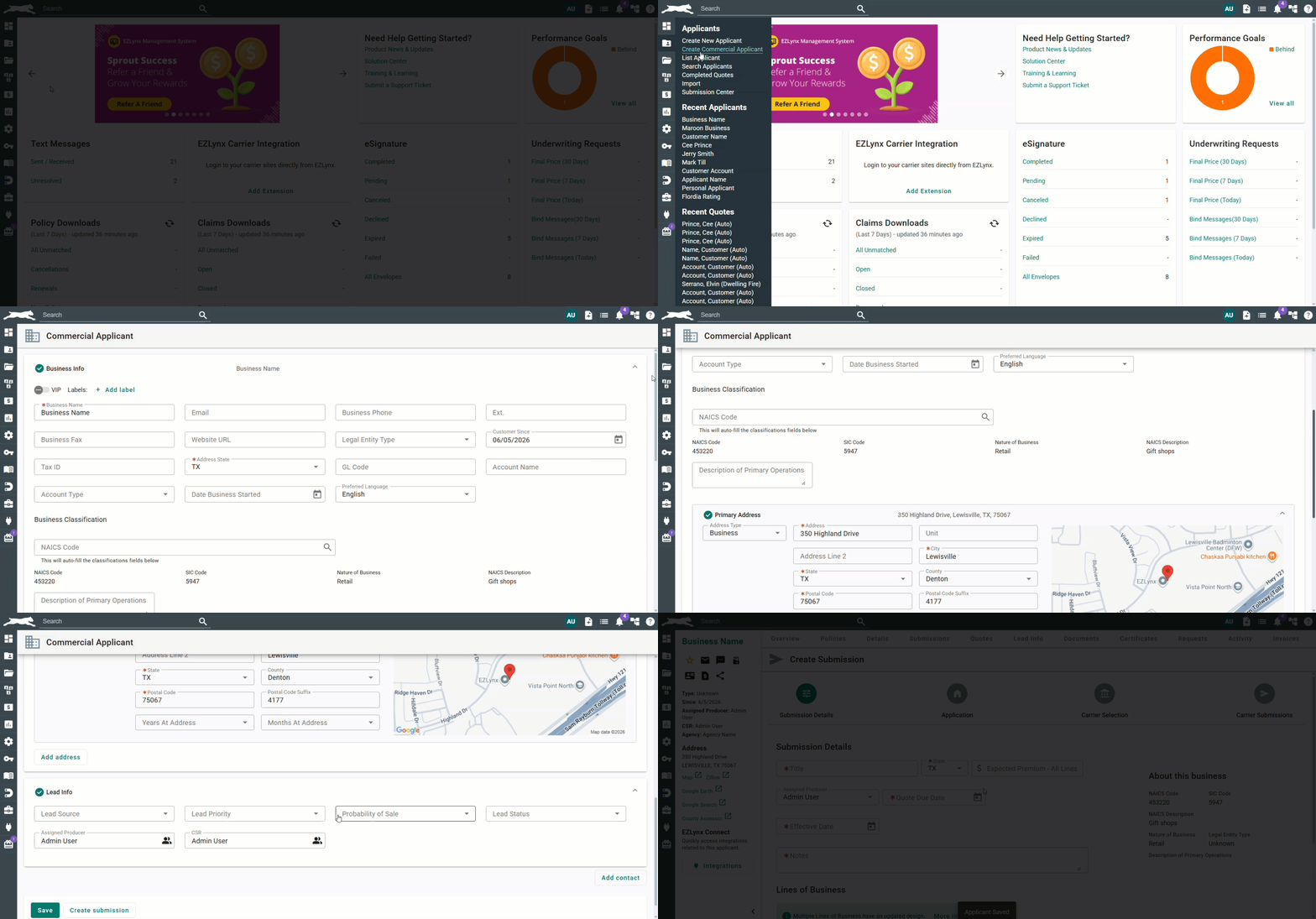
1. Hover over the Applicant icon (folder with a person).
2. Choose Create Commercial Applicant.
3. Fill out all required fields. The more information you input the better but anything with a red asterisk must be filled out to move to the next step.
4. Once all required fields are filled out, scroll to the bottom of the page and click the Create submission button. This will take you straight into the submission workflow.
Starting a new submission and application(s)
Now that you've created a submission your submission journey begins! Let's go over each step in the submission workflow.
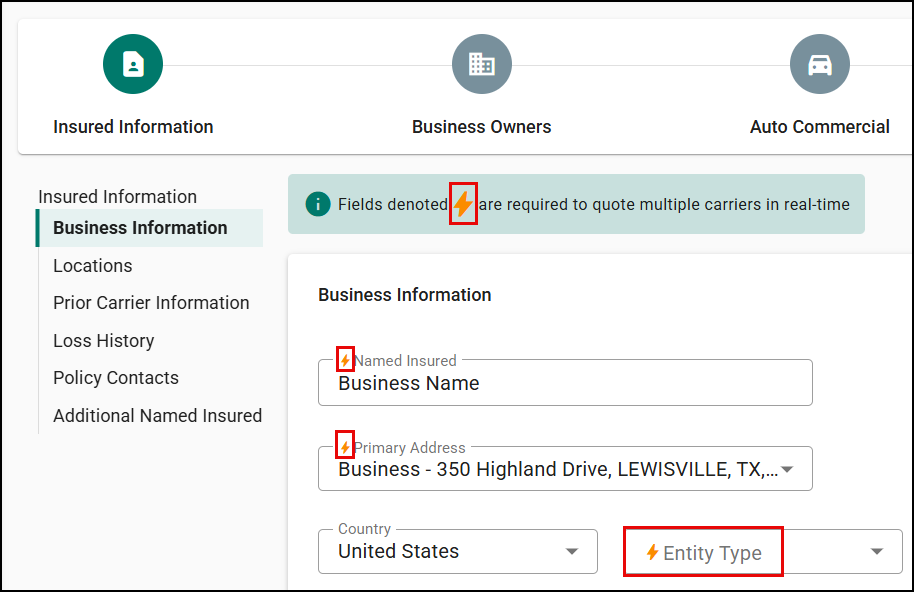
To help make your instant quoting journey quick and efficient keep an eye out for the gold bolt icons. This icon is the equivalent of an asterisk for instant commercial quoting. This provides you with a guided data entry journey to make the quoting process fast if instant quotes are your main goal.
Submission Details
The first step is the Submission Details. Here you'll fill out the standard submission details such as quote due date and what lines of businesses (LOBs) you'd like to quote. You can also prefill data from existing applications or policies if you have them.
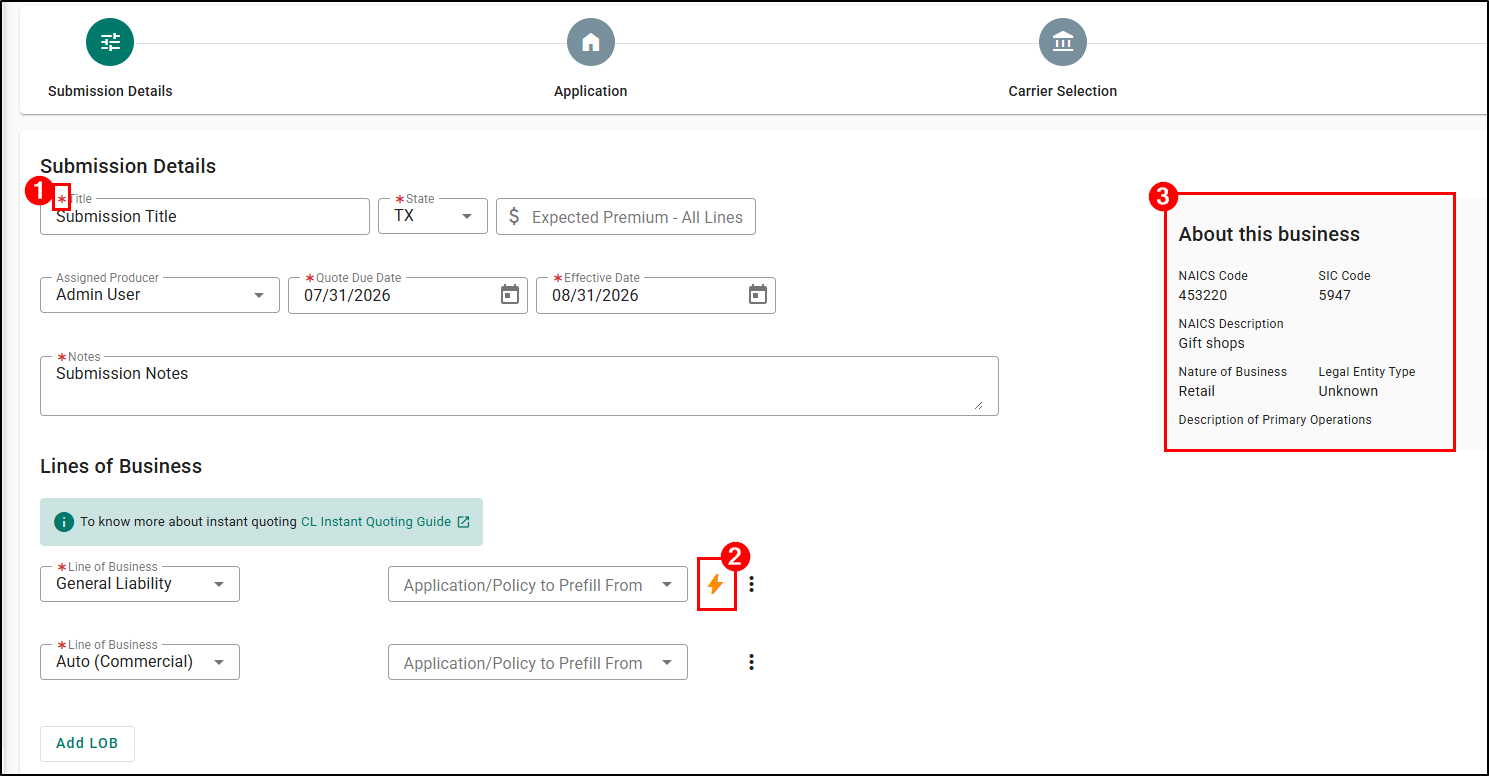
1. Fill in all the required information. The more information you input the better but anything with a red asterisk must be filled out to move to the next step.
2. When you choose the LOB(s) you'll be quoting, keep an eye out for the gold bolt. A gold bolt next to any LOB means it is supported for instant commercial quoting. Currently, the following LOBs are supported:
- Business Owners Policy (BOP)
- General Liability (GL)
3. Also note the "About this business" section on the right. This information is being prefilled from the applicant's details tab, but if you did not input it when creating the applicant you can do so here on this step.
4. Once you are ready, click the Save & Create Application button at the bottom to continue.
If you ever need to step away from this submission, you can click the Save button at the bottom of any page to save your work so you can come back to it later.
Application Data Entry
The second step is Application data entry. As you move through the application, you'll see that some fields are marked with a gold bolt. These are the fields that are required for instant commercial quoting. This guided data entry creates a "fast-track" to quoting.
Once all the instant quoting required fields are filled out, you have the option to skip ahead directly to the Carrier Selection step, bypassing other manual submission-related fields. This streamlined approach significantly cuts down on the time it takes to prepare a submission if instant quoting is your only goal.
1. Fill in all the required information by following the gold bolts throughout the application. Make sure to check the buildings under the Locations section as well.
2. Once you have filled in all the fields marked with a gold bolt, click the Save & continue button to continue.
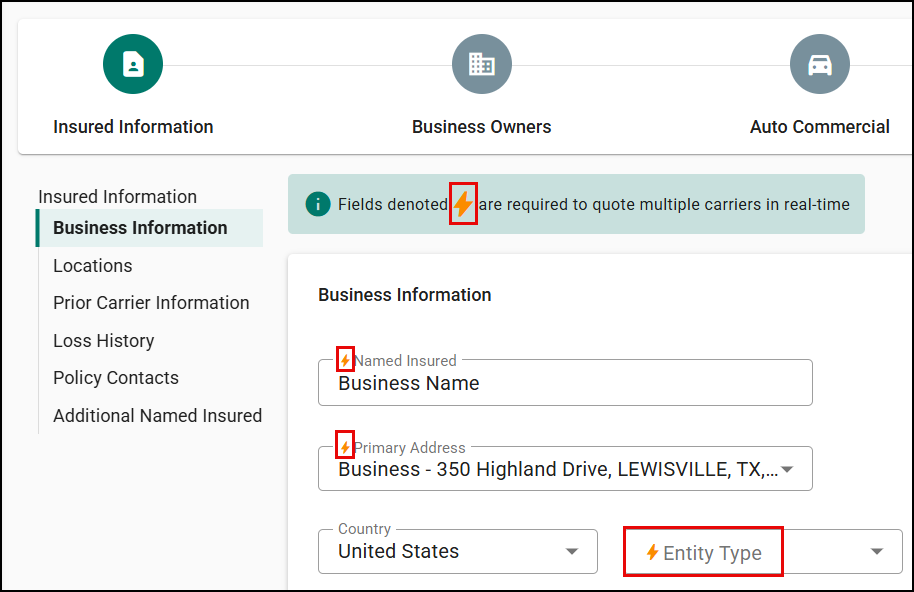
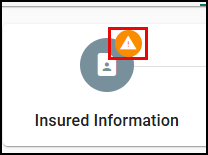
A great way to know if you missed any required information is when you move to the next section of the application, check the previous step's stepper. If there is an orange warning icon, then there is something missing. Make sure to double-check each of the buildings under Locations as this is a common miss.
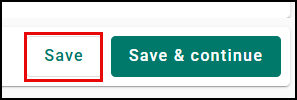
If you ever need to step away from this submission, you can click the Save button at the bottom of any page to save your work so you can come back to it later.
Selecting a carrier to quote
The third step is Carrier selection. On this page, you'll select which carriers you want to quote with. This selection will also determine what carrier supplemental questions will need to be answered on the next step.
To make choosing the carrier(s) easy, you'll see a clear distinction between carriers participating in instant commercial quoting and those that are not by looking for the lightning bolt icons.
- Gold Bolt Carriers: These carriers are in appetite for this specific business AND support instant commercial quoting.
- Gray Bolt Carriers: These carriers support instant commercial quoting but are NOT in appetite for this particular business OR the login is not setup for this carrier. This still provides valuable information as you know which carriers are technically capable of quoting even if they aren't the ideal fit for this client. However, you can still select these carriers and submit manual applications to their underwriter.
- No Bolt Carriers: These carriers are supported for tracking and manual submissions that require manual applications to be submitted to an underwriter.
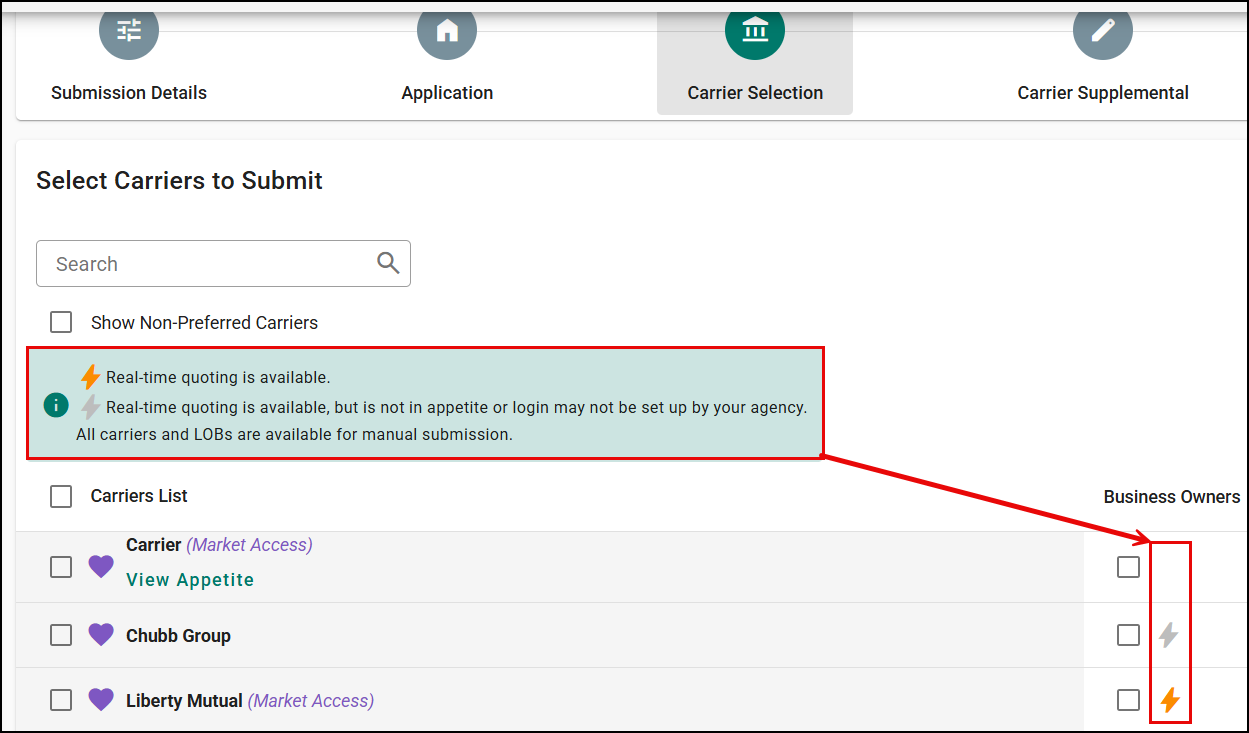
Remember the list of carriers available here are based on the setup tasks you completed.
- If you do not see a carrier here, first check the Show Non-Preferred Carriers box. By default, non-preferred carriers are not shown to make the submission process faster. Preferred vs. non-preferred is setup by your Agency Admin during setup tasks on the Submission Carriers page.
- If you still do not see a carrier after checking the Show Non-Preferred carrier, please Agency Admin check the Submission Center with Instant Quoting Setup Tasks.
1. Check the box next to the carriers you want to quote with. If your only goal is instant commercial quoting, check the carriers that have a gold bolt.
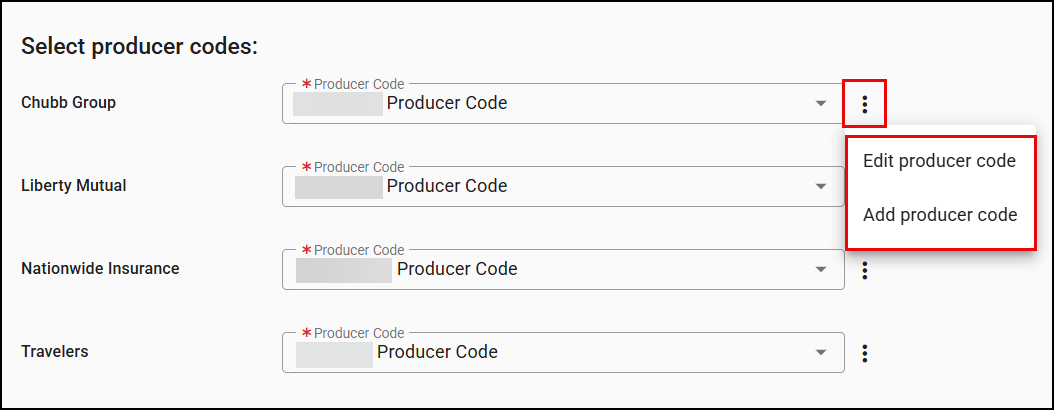
2. After selecting one or more carriers for rating, choose the producer code you want to use for the quoting process. By default the system automatically pulls the producer code you marked as "Default" and "Rating Ready" during setup tasks. If you need to edit or add a producer code, you can from this page by selecting the Actions icon (vertical dots) to open the actions menu.
3. Once all producer codes are chosen, click the Save and continue button.
Completing the carrier supplemental
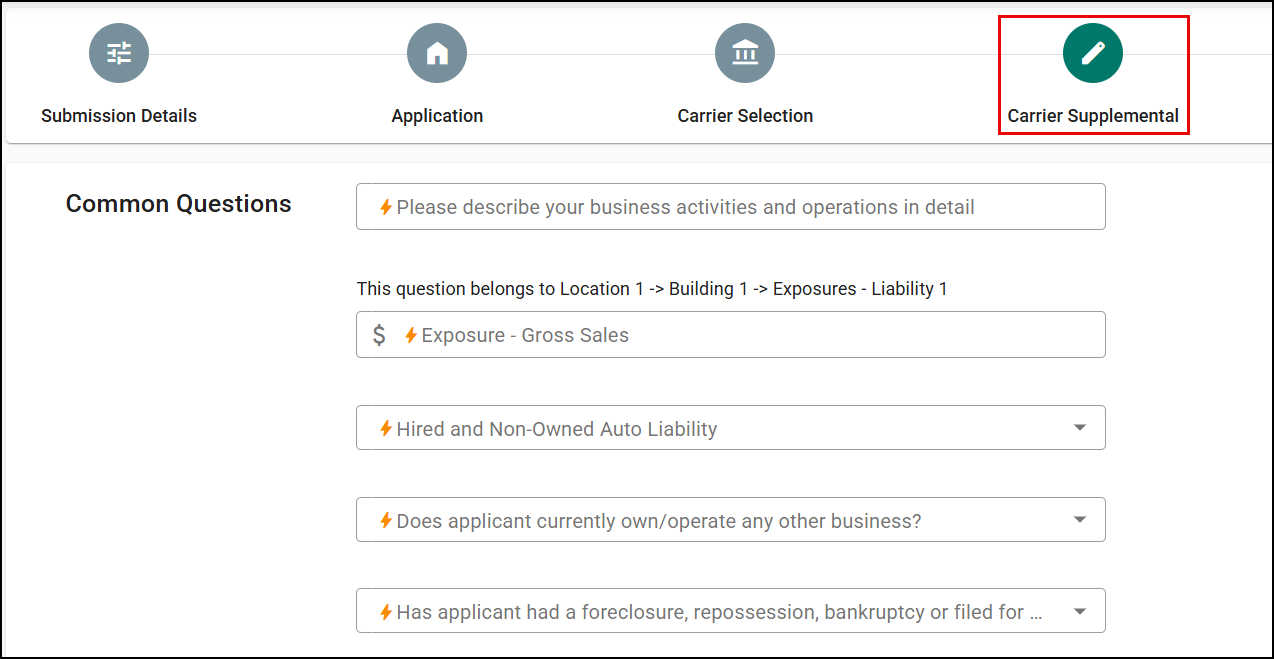
The last step before submitting is the Carrier Supplemental questions. Here you'll find all the additional questions requested by the carriers you selected on the previous step - Carrier Selection. As with the application data entry, questions that are required for instant commercial quoting are marked by a gold bolt.
We've also grouped questions that are asked by multiple carriers together meaning you only have to answer the question once eliminating redundant data entry. You can find these questions under the Common Questions section.
1. Fill in all the questions with a gold bolt.
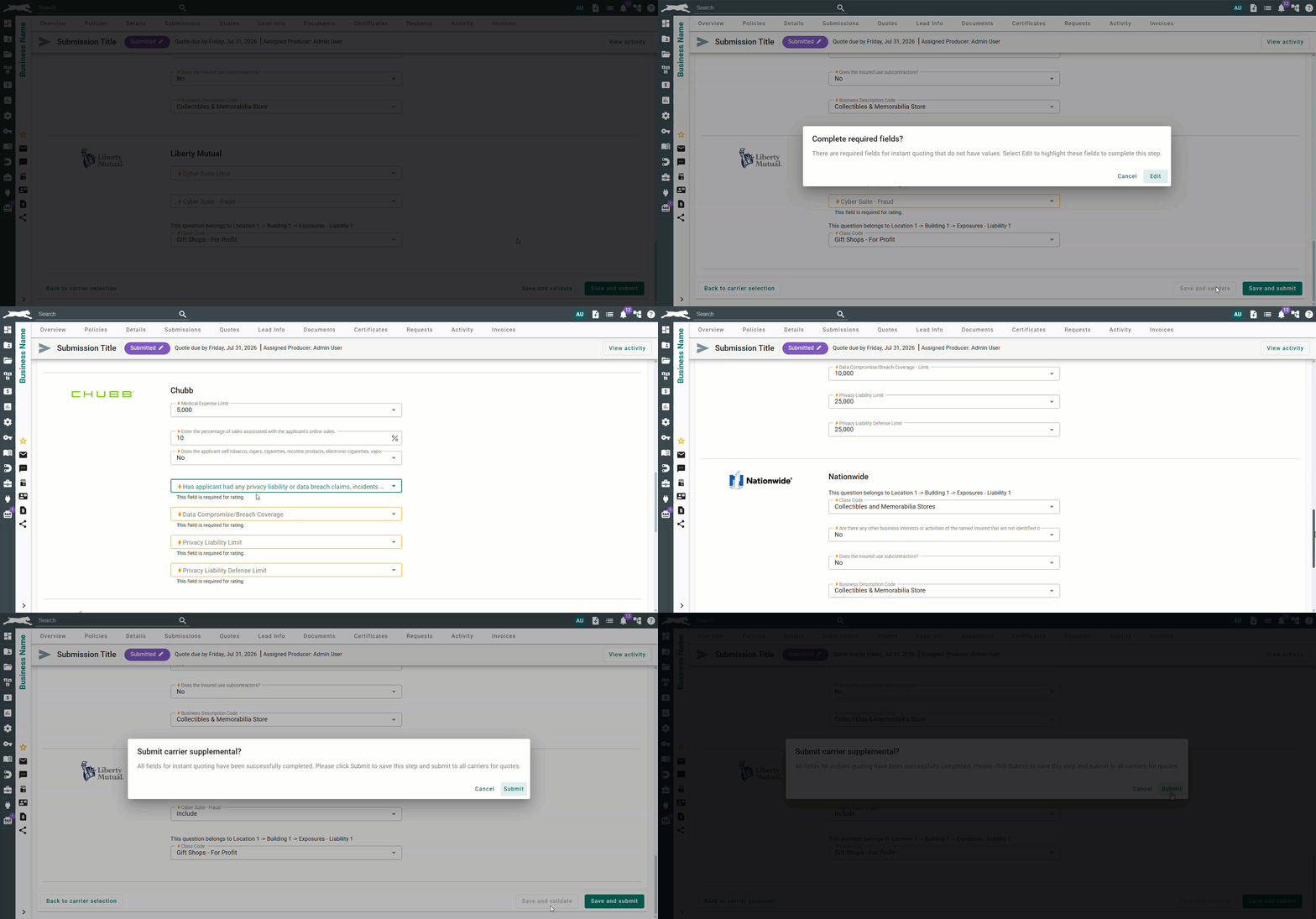
2. Before continuing to the next page click the Save and validate button.
The "Save and validate" button gives you the confidence to know your submission is complete before sending it to carriers. Clicking this button asks the system to check only the fields marked with a gold bolt.
- If fields are missing, a message will display with the following message: "There are required fields for instant quoting that do not have values. Select Edit to highlight these fields to complete this step."
- If all fields are complete, a message will display with the following message: "All fields for Instant Quoting have been successfully completed. Please click Submit to save this step and submit to all carriers for quotes."
Once all fields are complete, click the Submit button to proceed.
Reviewing the results in carrier submissions
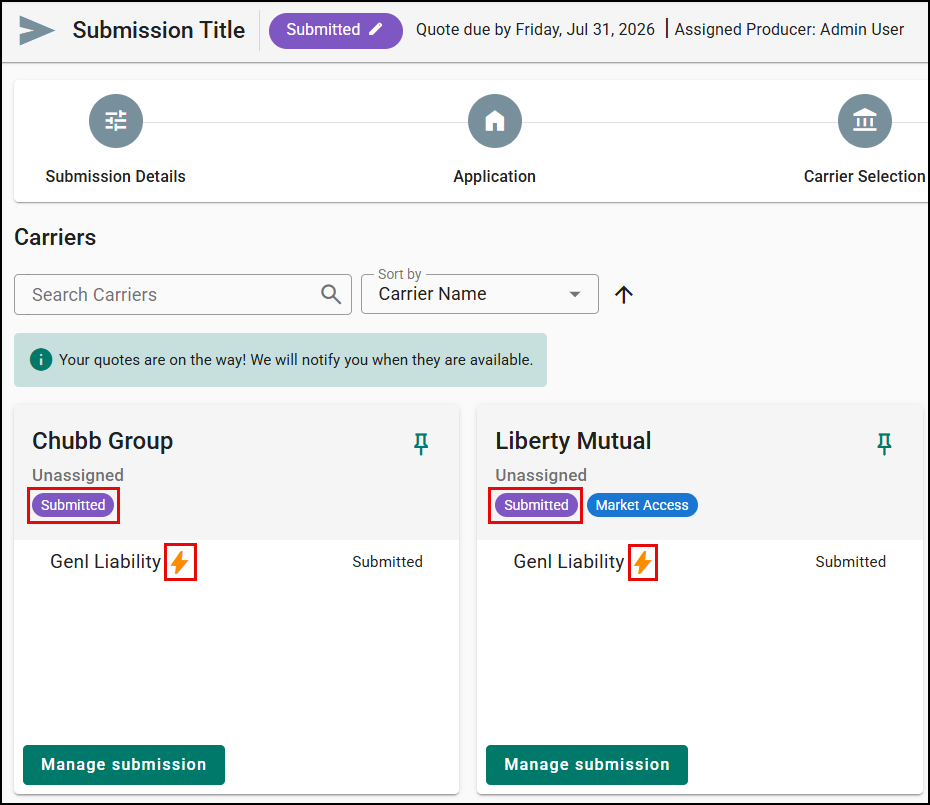
Upon submitting from the carrier supplemental step, you will be taken to the Carrier submission page. The LOB, carrier and submission status will be automatically updated to 'Submitted', indicating that the request is being processed by the carrier's system.
Additionally, the LOBs submitted via the instant commercial quoting will have a gold bolt icon next to the LOB name to provide a clear visual indicator.
Returned Quotes
Quotes can take a few moments to return and do not return all at once. However, you don't need to stay on the page to wait. The system will notify you with a notification once quotes are received, and this notification includes a direct link that take you to the specific submission for quick access.
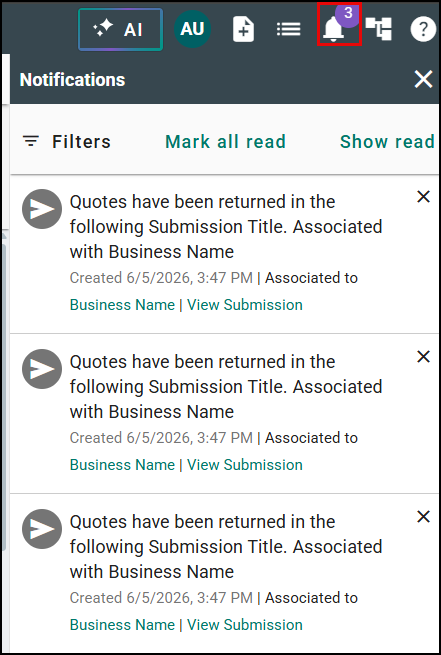
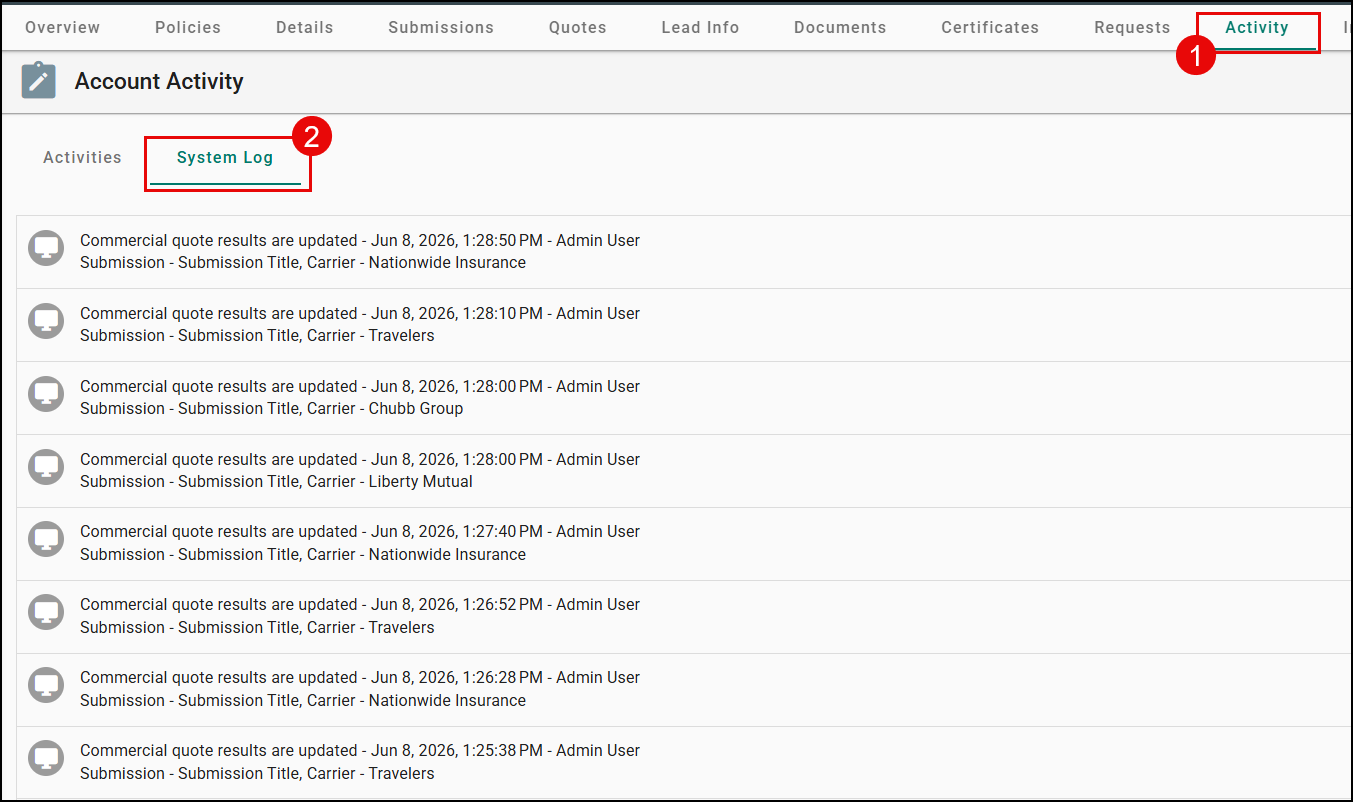
To ensure a complete audit trail and full accountability, the entire instant commercial quoting process, including the submission request and the quote return, is logged in the system. When a quote is successfully received, the LOB and carrier status will automatically update, and the premium will also be automatically entered to the submission.
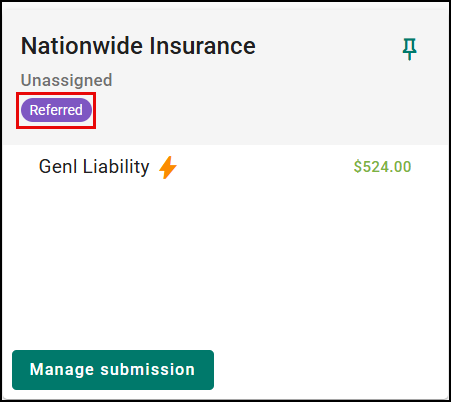
When quotes return, you can find a quote link in the carrier card view by clicking on the Manage submission button for the carrier. This will take you directly to the carrier's site allowing you to take further actions on the received quotes.

Premium Visibility for Referred Submissions
When a carrier returns a Referred status, premium information is visible directly on the carrier submission detail page:
- The same premium fields shown for Quoted status (Premium, MEP, Fees, Taxes) also appear when the LOB status is Referred.
- The premium field is optional for Referred status - you can save with or without a value.
- When a premium is returned from instant commercial quoting with a Referred status, it is automatically populated without manual entry.
Quoting Errors
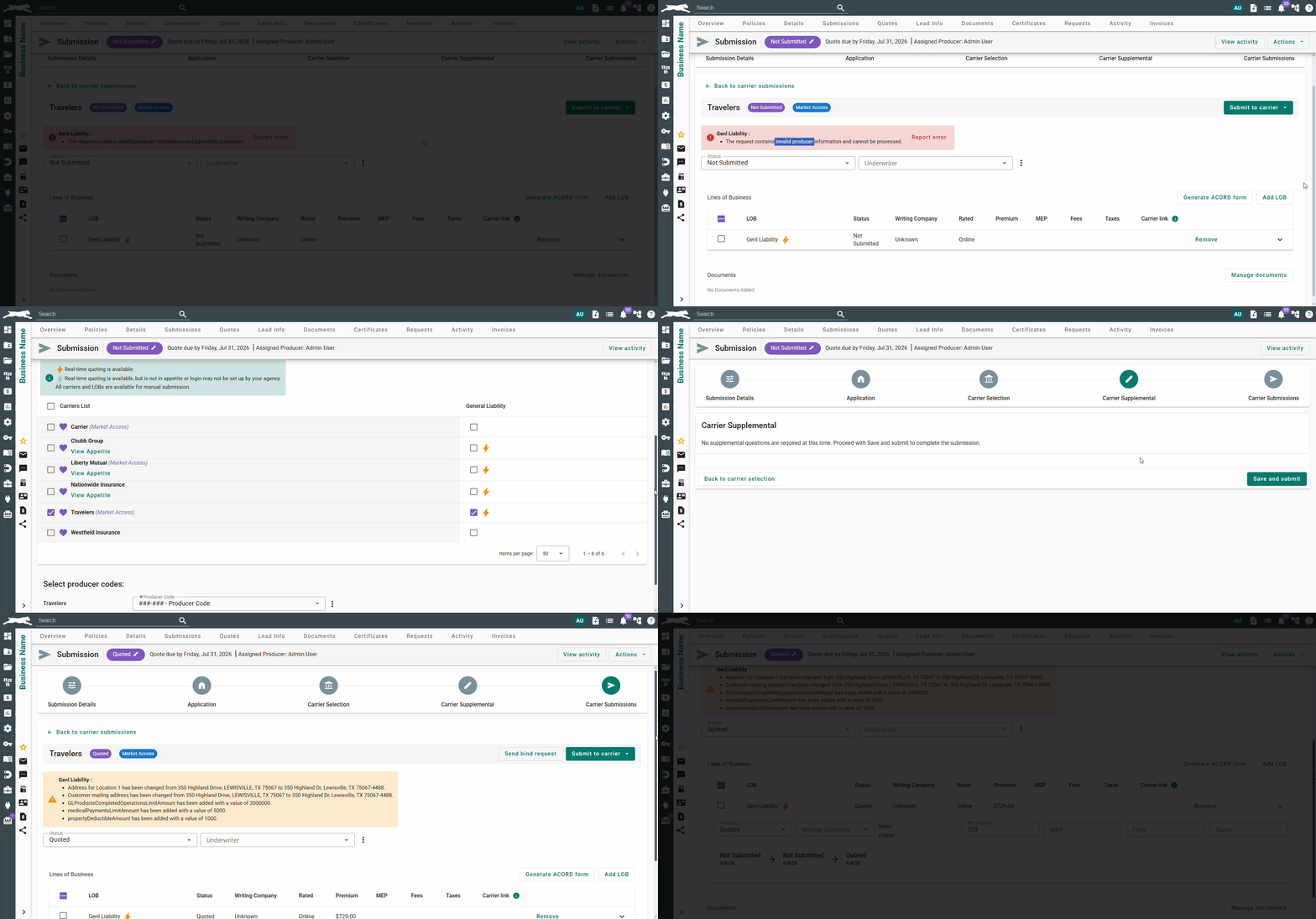
Sometimes, a submission may fail to reach a carrier for real-time quoting. If a carrier transaction fails, an error message will be displayed within the carrier card.
Some errors are recoverable which means you can fix the issues within the application or settings within EZLynx and resubmit the quote to try again. These errors are commonly associated with Producer Codes. If you get an error that mentions an invalid producer or agency code, you can try a different one and resubmit the quote.
Fix Invalid Producer Code Error
To change the producer code and resubmit the quote:
1. Navigate back to the Carrier Selection step and scroll to the bottom of the page.
2. For the carrier in question, use the dropdown to select a different producer code, or use the Actions (vertical dots) to edit the existing producer code or add a new producer code.
3. Once you have the new producer code, click the Save & continue button to navigate back to the Carrier Supplemental step and scroll to the bottom.
4. Click the Save and submit button to resubmit the quote. Once you get the notification that the quote came back, you can see the updated information from the carrier.
Unable to Submit Error
If the failure originates from EZLynx, the carrier will be in the "Not Submitted" status, and the error message will say "Unable to get carrier result" or "Carrier transaction did not submit for Instant Quoting". If this happens, you can try resubmitting the quote once by following the steps below.
1. Navigate back to the Carrier Supplemental step and scroll down.
2. Click the Save and submit button to resubmit the quote.
Report Error workflow
If an issue persists, then you will want to follow the Report Error workflow. Just like our Personal Lines Rater, we provide the ability to report errors without having to pick up the phone when a carrier's submission fails.
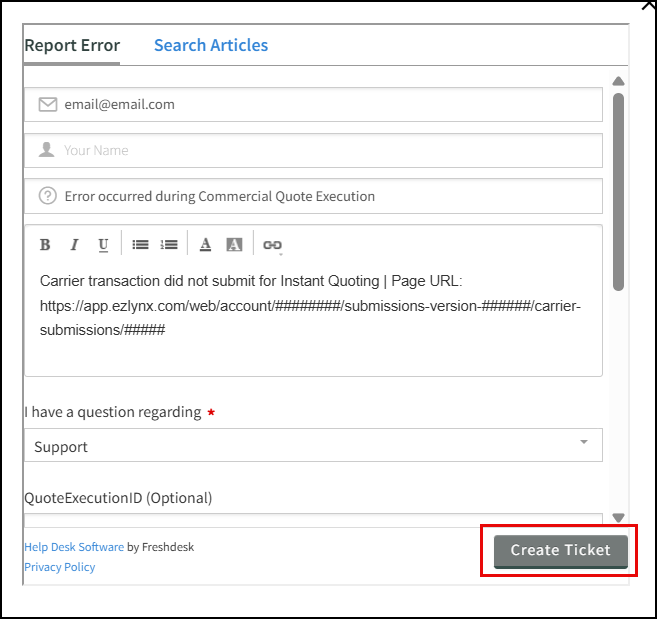
1. On the error in question, select Report error. This will open a new window, that will prefill your email, the title, and log the carrier error message and submission link in the description.
2. You can add additional context if you'd like, and when you are ready click the Create ticket button to submit directly to our Support team.
Reporting an error does not change any submission status, LOB status, or carrier status. It is simply creates a support ticket for investigation without triggering any resubmission. Please note, the Report error button remains active after the initial creation of a support ticket incase you want to report additional context.
 |
 |
Manual Submission After Declination
In the event that a carrier returns a declination or you require the ability to submit a manual application to your underwriter, you have the flexibility to manually submit to that same carrier without creating a duplicate submission. This streamlines your workflow and keeps all the data in one place.
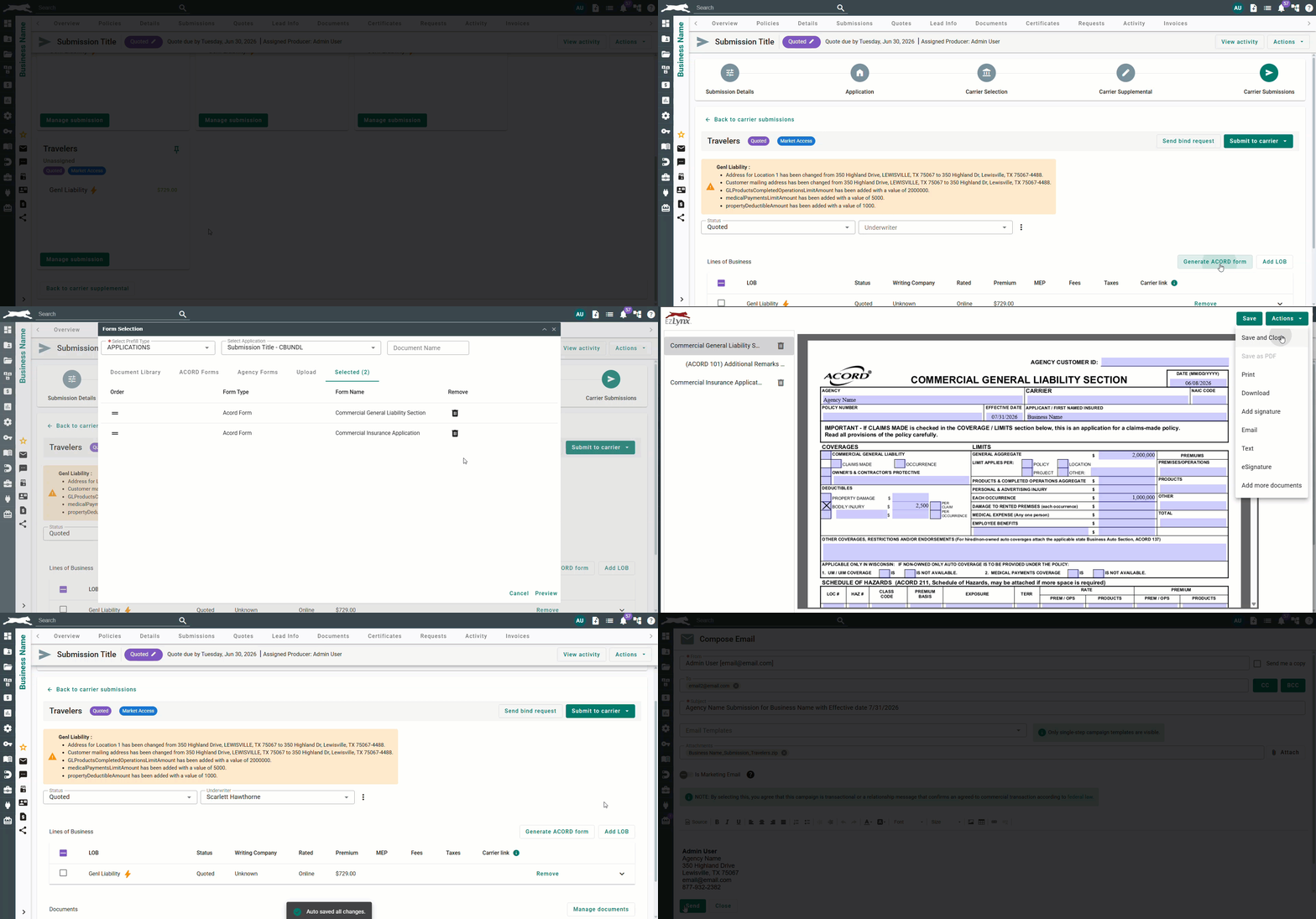
1. Click the Manage Submission button on the carrier card.
2. Select the Generate ACORD Form button.
3. Choose your documents, and select Preview.
4. Then, click Actions and choose Save and Close.
5. Make sure you have an Underwriter selected.
6. If you plan to submit only select LObs, check the box next to the LOB(s) you want to submit.
7. Select Submit to carrier, and choose either "All LOBs and documents" or "Selected LOBs and Documents".
Once you've manually submitted to a carrier, the gold bolt icon, which represents the instant commercial quoting workflow, will be removed from that submission's history. This helps distinguish between instant quoting and manual efforts to prevent any confusion.
Real world example
Expediting quotes for a standard business
You receive a request from a new client, a small consulting firm. Since General Liability is supported of instant commercial quoting, you see the gold bolt icon and this LOB could be used for a quick turnaround.
Guided by the gold bolt-marked fields in the application, you quickly enter the necessary details and skip directly to the Carrier Selection step. You select a carrier with a gold bolt icon, and within minutes, you are notified that a quote has returned.
The premium is already in the system, and you can click the quote link to go to the carrier's portal to finalize the details and bind the policy, all in a fraction of the time a traditional submission would take.
We hope this workflow article was helpful in learning how to quickly quote commercial lines of business using the Submission Center with Instant Quoting product. Please let us know if this article was helpful by answering the question below. Check out our related articles on the right-side of the page to learn more about EZLynx!
Did you find it helpful? Yes No
Send feedback