Submission Center with Instant Quoting is here!
Modified on: Wed, 12 Aug, 2026 at 12:31 PM
Requirements:
|
We are thrilled to announce Submission Center with Instant Quoting which re-imagines how commercial rating is done by integrating the application, rating, and submission processes into one powerful, unified system. This groundbreaking functionality is designed to save you an incredible amount of time by allowing you to get instant commercial quotes for supported lines of business without ever leaving the platform. This is a game-changer that will give you a significant competitive edge and allow you to focus more on your clients and less on administrative tasks.
This release article introduces all the new cool features for instant commercial quoting. Also check out our new how-to articles to see a high-level overview of both setup and workflow together, or in-depth guides for both setup and workflow adoption.
- Submission Center with Instant Quotes Overview
- Submission Center with Instant Quoting Setup Tasks
- Submission Center with Instant Quoting Workflow
If you want to know which carriers are available for Submission Center with Instant Quotes, check out our Available Carriers for Rating webpage.
 | Did you know? - You can click on the images/gifs in our articles to make them bigger! |
What's in it for me?
This new feature provides significant value by streamlining the entire commercial quoting and submission experience:
- Unprecedented Efficiency and Time Savings: The integrated rating system allows users to get commercial quotes instantly without leaving the platform, eliminating the need to manually navigate to external carrier sites or re-enter data. The guided data entry, marked by the gold bolt icons, helps users quickly identify and complete the fields essential for a quote, drastically reducing the time spent on a submission.
- Improved Accuracy and Quote Success: The new workflow is designed to ensure accuracy from the start. By highlighting required rating fields, the system helps users avoid delays caused by missing information. It also provides clear indicators (gold vs. gray bolts) on the Carrier Selection page to show which carriers are in-appetite, increasing the likelihood of a successful and relevant quote.
- Complete Visibility and Peace of Mind: The system provides a transparent audit trail for every action. From the moment a submission is sent via the rater, its status is automatically updated, and a log is created. Users are proactively notified when a quote returns, and the premium is automatically populated, ensuring that no critical information is ever missed.
- Flexibility and Control: The workflow gives users flexibility, such as the option to skip manual fields after completing rating-required information. It also provides a crucial safety net: if a rater-based submission results in a declination, the user can easily execute a manual submission for the same carrier and LOB without having to start a new submission from scratch.
Powering Up (The Setup)
Before you can start receiving instant quotes, you need to "plug in" to the carriers. We’ve designed a streamlined configuration experience to get your agency "Rating Ready" in minutes.
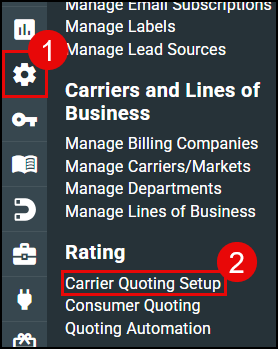
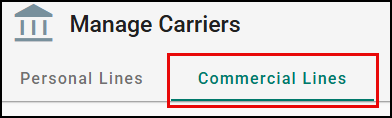
- Your New Mission Control: We’ve added a dedicated Commercial Lines tab to the Carrier Quoting Setup page. This is visible exclusively to agencies enabled for instant commercial quoting, giving you a centralized workspace to manage your carrier partners.
 |  |
Adding Carriers & Validating Credentials
- Find Partners Fast: Use the 'Add Carrier' option to select from carriers already enabled for your agency. Click Reset to quickly add another carrier so you can add all available carriers that you can rate with.
- The "Save and Test" Advantage: For select carriers, when entering logins, you can instantly validate them against the carrier’s website. No more guessing—the system confirms you’re connected!
- Shared Success: Boost teamwork by using Shared Logins. You can share agency credentials with team members who don’t have their own, ensuring anyone in the office can generate a quote.
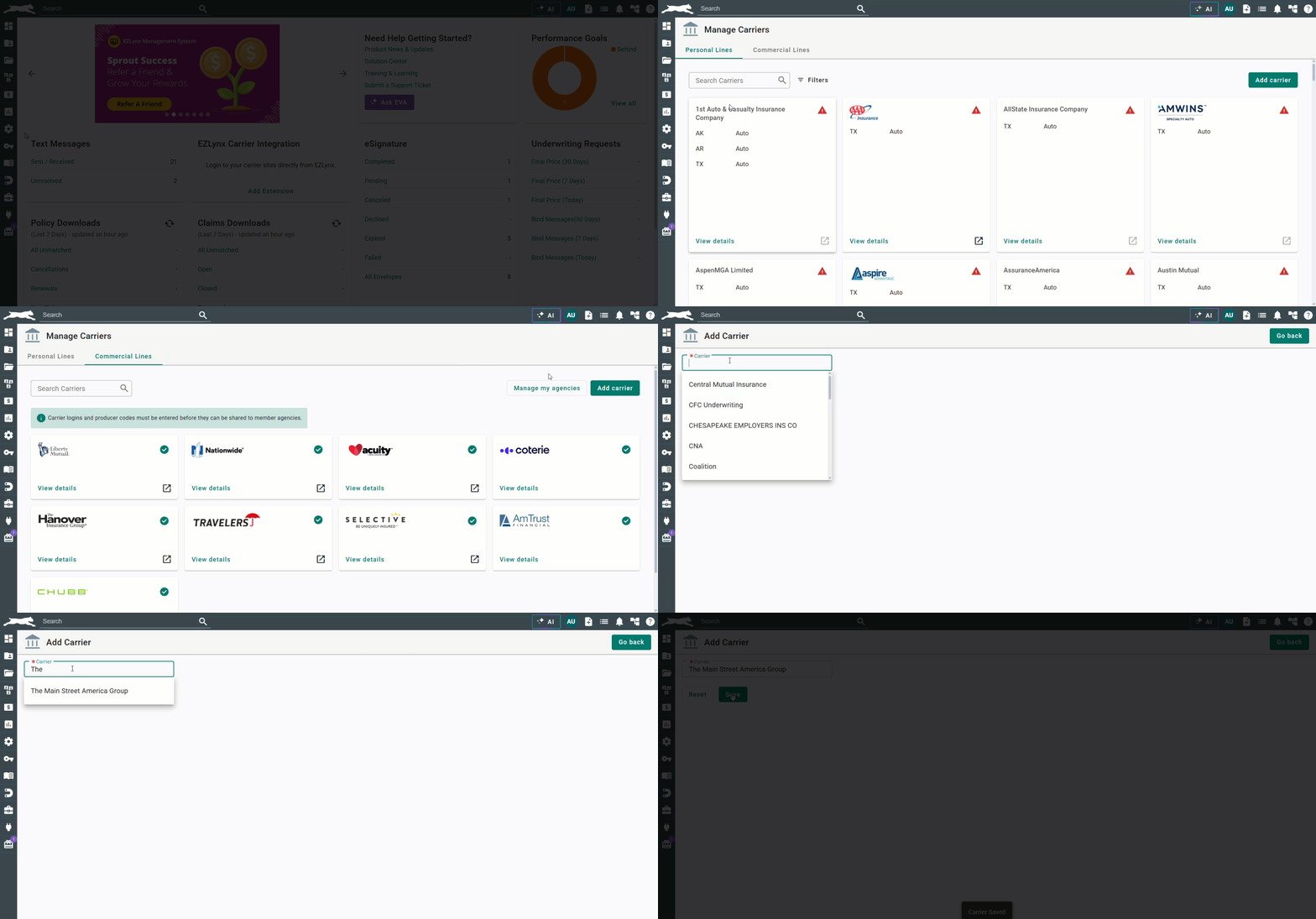
Mastering Your Producer Codes: Producer codes are the key to ensuring your ability to rate successfully. Our new Producer Code Table gives you a crystal-clear view of your setup:
- Access to a helpful guide: Click the link to learn more about how to better leverage CL Instant Quoting in your commercial flows.
- Visual Indicators: At a glance, see which codes are active, which is your Default, and which ones are officially Marked for Quoting.
- Flexible Controls: You have the power to add, edit, or delete codes. While your first code is the default, you can easily toggle which one takes the lead as you grow.
- If the producer code is going to be used for rating, we provide guidance to ensure that the code is entered correctly to successful real-time rating with that carrier.
- "Not Required" for Select Carriers: Carriers that do not require a producer code for Instant Commercial Quoting will automatically show "Not Required." This option cannot be edited or deleted, eliminating confusion about whether a code is missing.
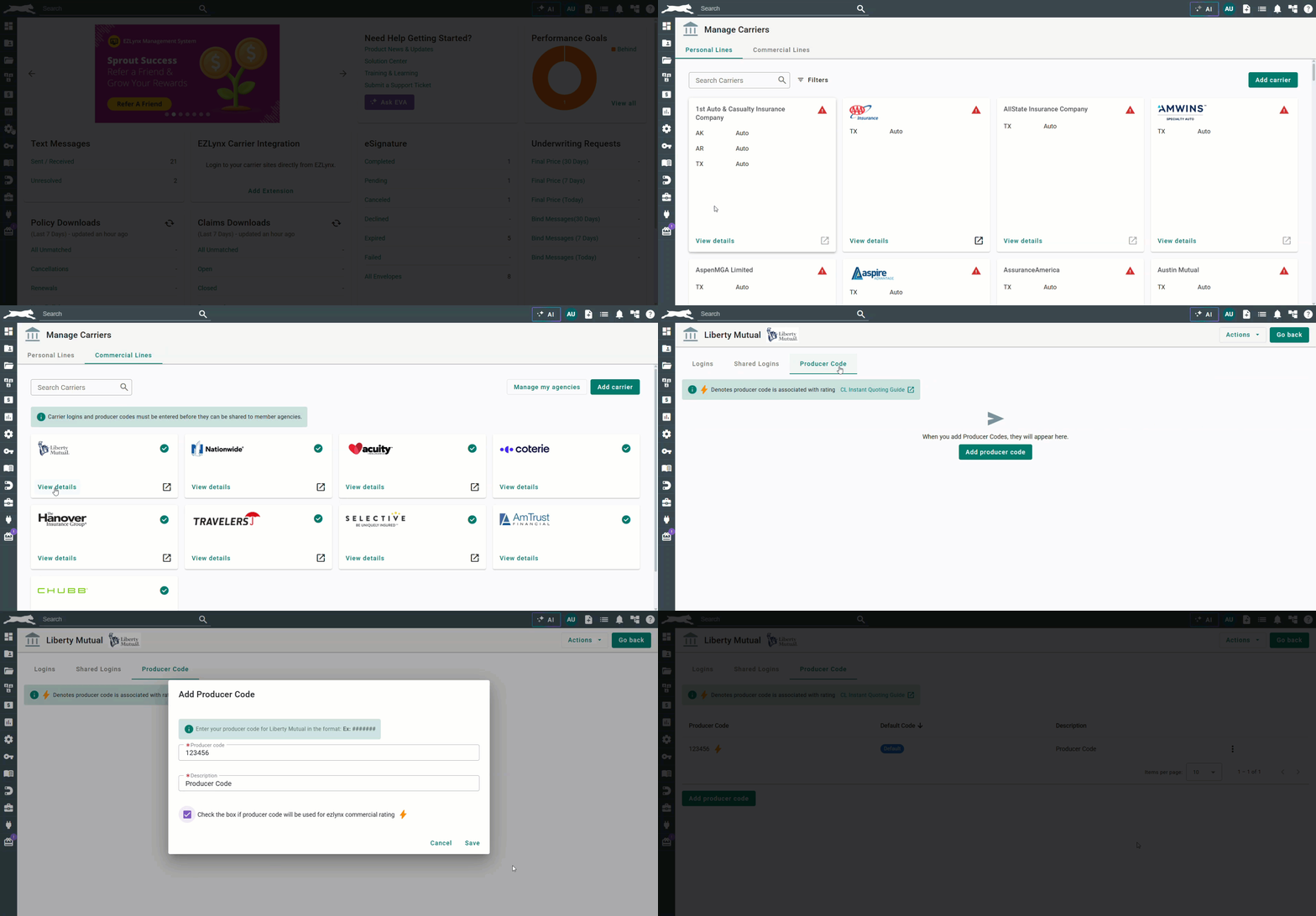
Check out our Submission Center with Instant Quoting Setup Tasks article for more details!
The Submission Center update
Once your setup is complete, the "Gold Bolt" experience begins. This smart, guided workflow creates a "fast-track" to quoting.
The Submission Center - Visibility at a Glance: We’ve introduced new indicators in the Submission Center so you always know your status:
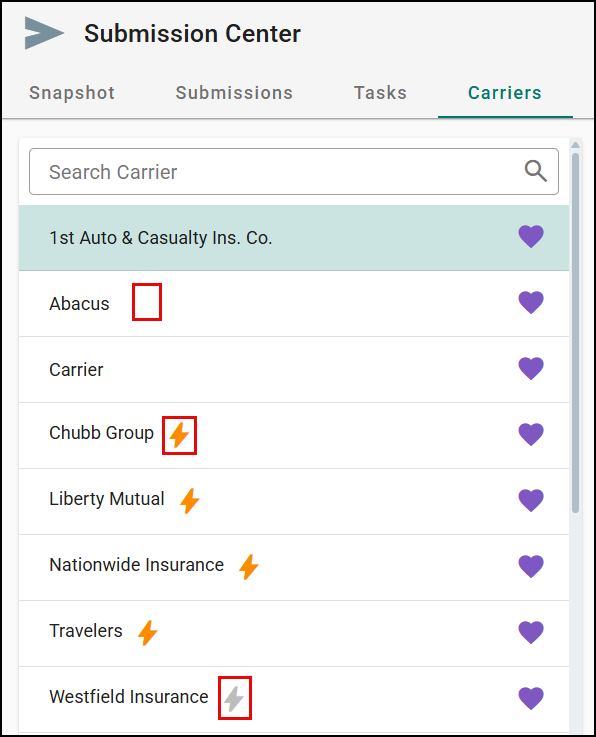
- Carrier Index Instant Commercial Quote Indicators
- Gold Indicator: Great news! Logins are set.
- Gray Indicator: This carrier is enabled for rating, but logins haven't been set yet. This is your signal to hop into settings and plug in your credentials.
- No Bolt: Indicates that this carrier is not supported for CL Instant Quoting.
- Producer Code Visibility: The producer codes section in the carrier information section is identical to the carrier quoting setup. The system automatically pulls the producer code you marked as "Default" and "Rating Ready," saving you clicks.
Submission Details: The Power of Instant Commercial Quoting Begins
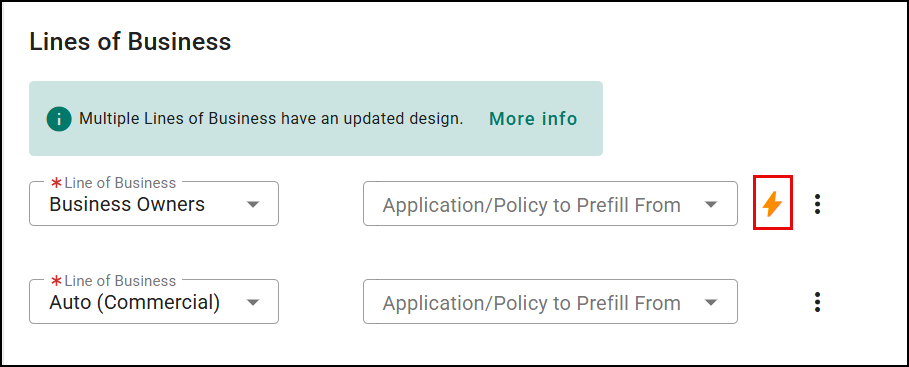
The journey begins on the new Submission Details page. Here, the first sign of our new capability will be a gold bolt icon next to any Line of Business (LOB) that is supported by our new commercial rating engine. This icon acts as a clear signal, indicating that you have the potential to receive an instant quote for that LOB. You can still input all of your standard submission details, such as effective date and expected premium, and even prefill data from an existing application or policy. auto
Our new instant commercial rating feature currently supports the following lines of business:
- Business Owners Policy
- General Liability
The Application: Filling Out Your Rating Fields
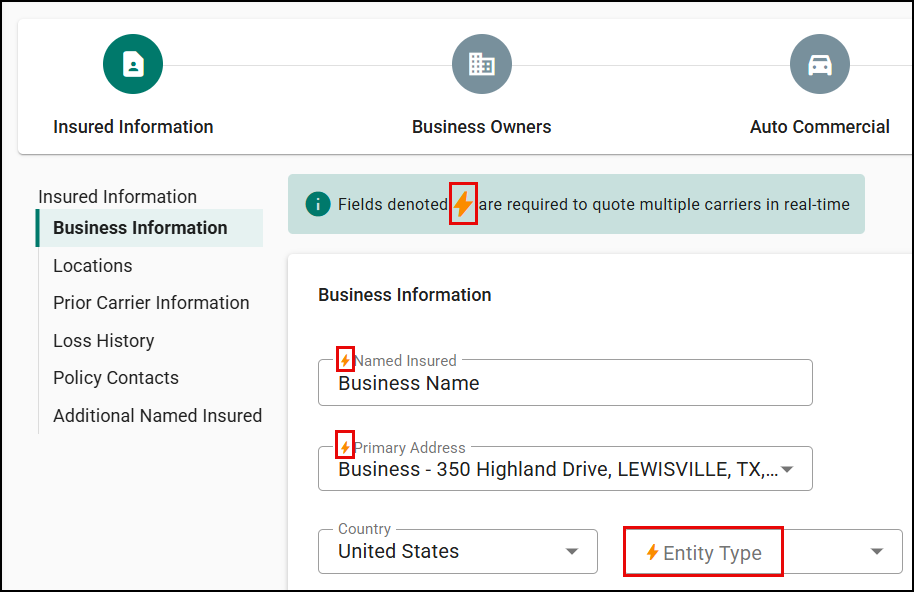
As you move through the application, you'll see that some fields are marked with a gold bolt. These are the fields that our rating engine requires to generate a quote. This smart, guided data entry creates a "fast-track" to quoting. By focusing on these highlighted fields first, you can complete the most crucial information efficiently. Once all the rating-required fields are filled out, you have the option to skip ahead directly to the Carrier Selection step, bypassing other manual submission-related fields if an instant quote is your primary goal. This streamlined approach significantly cuts down on the time it takes to prepare a submission.
Carrier Selection: Finding the Right Market with Speed
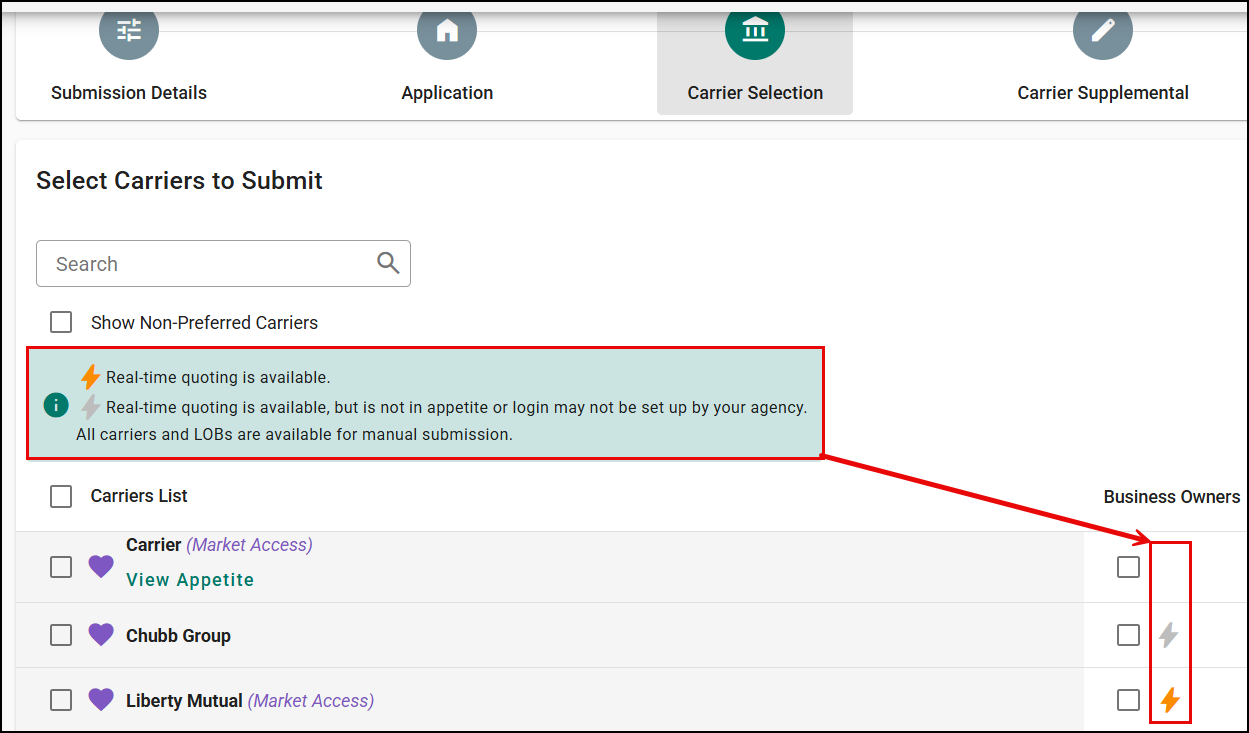
On the Carrier Selection page, you'll see a clear distinction between carriers participating in Instant Commercial Quoting and those that are not. This is where you can quickly determine your best options.
- Gold Bolt Carriers: These carriers are in appetite for this specific business and support commercial rating. They are your top candidates for receiving an instant quote.
- Gray Bolt Carriers: These carriers also support commercial rating but are not in appetite for this particular business. This still provides valuable information, as you know which carriers are technically capable of a rating, even if they aren't the ideal fit for this client. However, you can still select these carriers and submit paper applications to your underwriter.
- No Bolt Carriers: These carriers are still supported for tracking and manual submissions that require paper applications to be submitted to an underwriter.
A descriptive message on the page will provide clarity on this distinction, helping you make an informed decision. After selecting one or more carriers for rating, you will be prompted to choose the producer code you want to use for the rating process before you can continue to the next step.
- Smart Defaults: The system automatically pulls the producer code you marked as "Default" and "Rating Ready," saving you clicks.
- On-the-Fly Flexibility: Need to make a change? You can select, edit, or even add a new producer code directly on the Carrier Selection page without leaving your submission.
Carrier Supplemental Questions
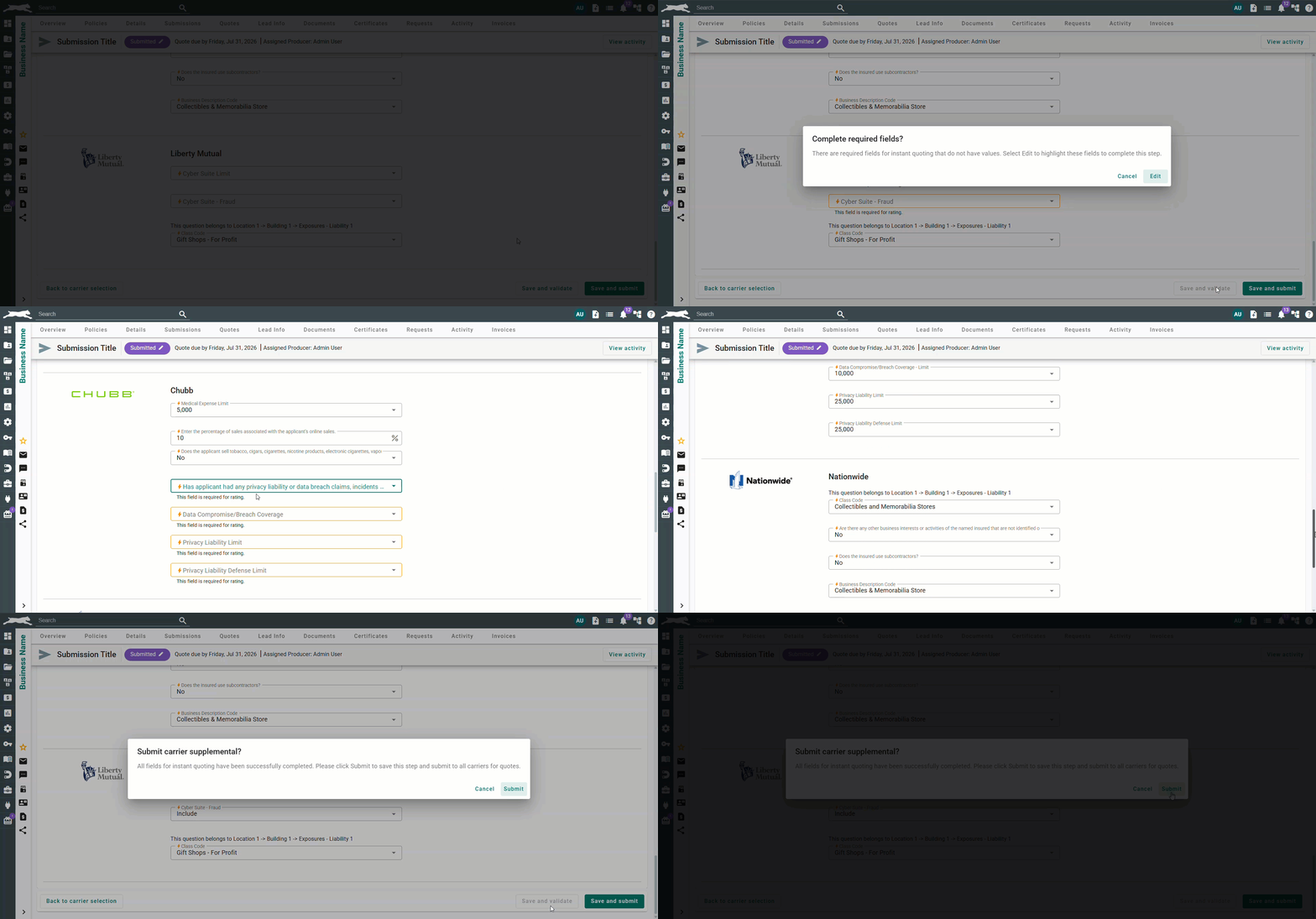
After selecting your carriers, the last step in the workflow: the Carrier Supplemental. Here, you'll find all the additional questions requested by your selected carriers. We've intelligently designed this page to be as clear as possible. Questions that are required, as designated by a gold bolt, by multiple carriers have been grouped together, meaning you only have to answer them once, eliminating redundant data entry. Once you have completed all the supplemental questions, you can select 'Save and submit' to send the submission request to the rating carriers.
Save and Validate
We've added a "Save and Validate" button to the carrier supplemental page — displayed as a non-primary button alongside the existing Save and Submit actions. This feature gives you the confidence to know your submission is complete before sending it to carriers.
How it works: Click "Save and Validate" to check only the fields marked with the gold bolt (rating-required). Non-rating fields are excluded from this validation.
If fields are missing: A dialog appears with the message: "There are required fields for instant quoting that do not have values. Select Edit to highlight these fields to complete this step." Click Edit to jump to the first missing field with all incomplete fields highlighted. Each highlighted field shows helper text: "This field is required for rating."
If all fields are complete: A confirmation dialog appears: "All fields for Instant Quoting have been successfully completed. Please click Submit to save this step and submit to all carriers for quotes." Click Submit to proceed.
Carrier Submissions: The Quote Management page
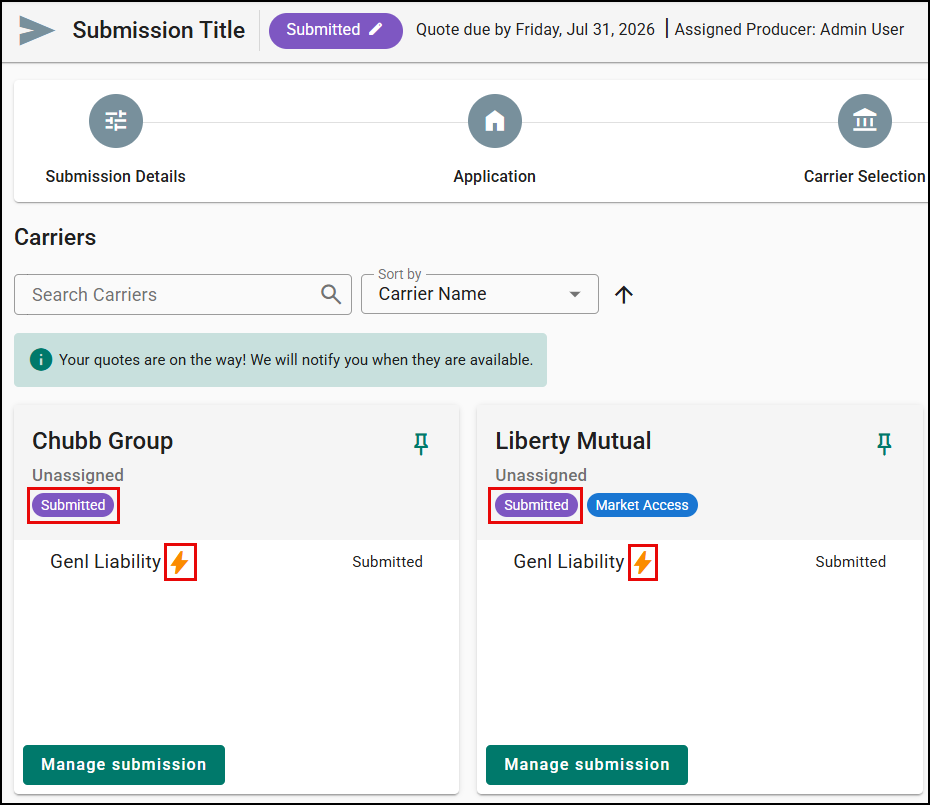
Upon submitting from the carrier supplemental step, you will be taken to the Carrier Submissions page. The LOB, carrier, and submission status will be automatically updated to 'Submitted', indicating that the request is being processed by the carrier's system. Additionally, the LOBs submitted via the rater will have a gold bolt icon next to the LOB name to provide a clear visual indicator.
Returned Quotes
Quotes can take a few moments to return and do not return them all at once. You don't need to stay on the page to wait. We will notify you with a system notification once quotes are received, and this notification will include a direct link that takes you to the specific submission for quick access. To ensure a complete audit trail and full accountability, the entire rating process, including the submission request and the quote return, will be logged in the system. When a quote is successfully received, the LOB and carrier status will automatically update, and the premium will also be automatically entered to the submission. Additionally, to provide a clear visual indicator, a gold bolt will appear in the submission history to signify that a quote was submitted via the rater.
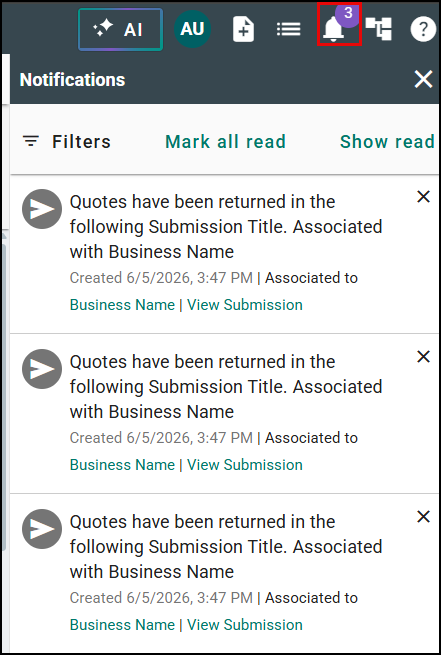
When quotes return, you can find a quote link in the carrier card view by clicking on 'Manage submission' for the carrier. This will take you directly to the carrier's site, allowing you to take further actions on the received quotes.

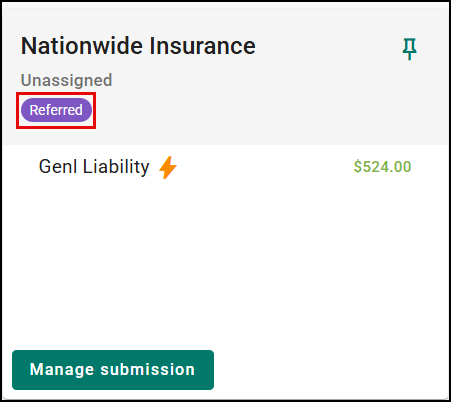
Premium Visibility for Referred Submissions
When a carrier returns a Referred status, premium information is visible directly on the carrier submission detail page:
- The same premium fields shown for Quoted status (Premium, MEP, Fees, Taxes) also appear when the LOB status is Referred.
- The premium field is optional for Referred status — you can save with or without a value.
- When a premium is returned from CL rating with Referred status, it is automatically populated without manual entry.
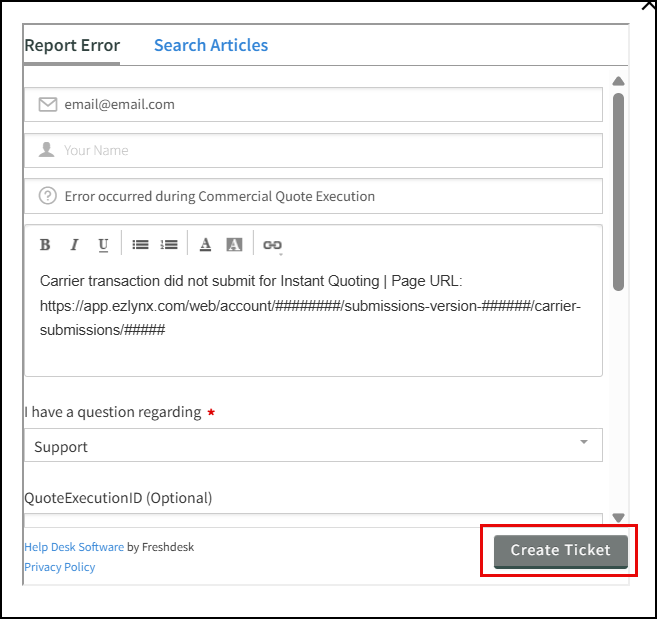
Report Error Workflow
Sometimes, a submission may fail to reach a carrier for real-time quoting. We have made it easier to identify and resolve.
- Error Visibility: If a carrier transaction fails, an error message will be displayed within the carrier card. When the failure originates from EZLynx (carrier in "Not Submitted" status), the error message "Unable to get carrier result" is shown.
- Report Error Button: Just like our PL Rater, we provide the ability to Report Error without having to pick up the phone when a carrier’s submission fails. Click it to open a pop-up widget that pre-fills your email, sets the title to "Error occurred during Commercial Quote Execution," and logs the carrier error message and submission link in the description. You can add additional context before clicking Create Ticket to submit directly to EZLynx Support.
- No status changes: Reporting an error does not change any submission status, LOB status, or carrier status. It is purely informational — it creates a support ticket for investigation without triggering any resubmission.
- The button remains active after submission, so you can report additional context if needed.

Manual Submission After Declination
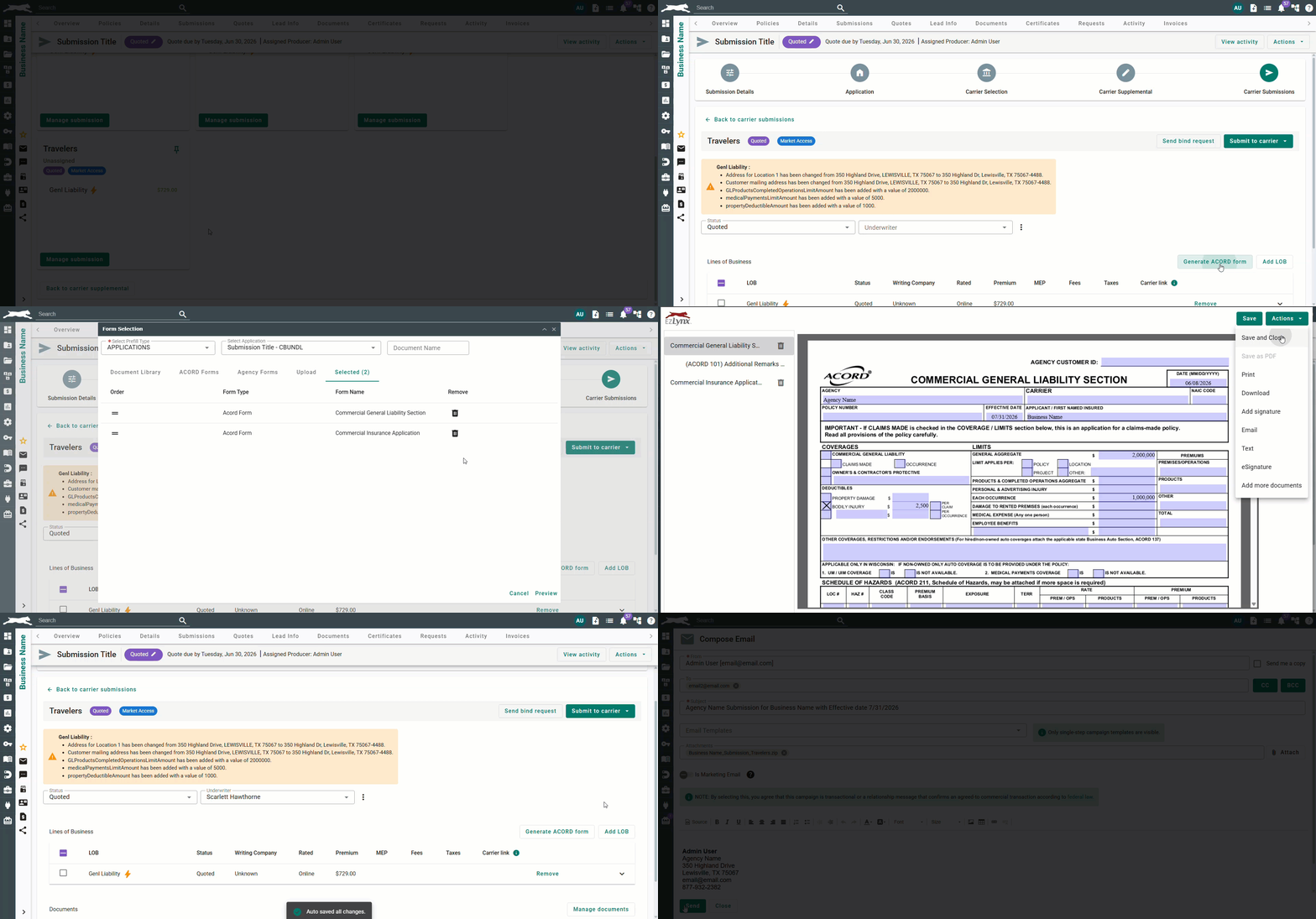
In the event that a carrier returns a declination or you require the ability to submit paper applications to your underwriter, you now have the flexibility to manually submit to that same carrier without creating a duplicate submission. This streamlines your workflow and keeps all data in one place.
- How it works: Navigate to the carrier’s card view, generate an ACORD form and select the option to submit manually to your underwriter.
- Visual Clarity: Once selected, the gold bolt icon (representing an automated process) will be removed from that submission's history. This clearly distinguishes between automated and manual efforts to prevent any confusion.
Check out our Submission Center with Instant Quoting Workflow article for more details!
Practical Applications
Expediting Quotes for a Standard Business: An agent receives a request for General Liability from a new client, a small consulting firm. Since General Liability is a supported LOB, the agent sees the gold bolt icon and knows they can use the rater. Guided by the gold bolt-marked fields in the application, they quickly enter the necessary details and skip directly to the carrier selection. They select a carrier with a gold bolt icon, and within minutes, they are notified that a quote has returned. The premium is already in the system, and they can click the quote link to go to the carrier's portal to finalize the details and bind the policy, all in a fraction of the time a traditional submission would take.
We hope you are excited for this new feature and look forward to our future releases. Please let us know if this article was helpful in learning about the new feature by answering the question below. Check out our related articles on the right-side of the page to learn more about EZLynx!
Did you find it helpful? Yes No
Send feedback