Multi-Policy Invoicing and Installments Pilot
Modified on: Wed, 24 Jun, 2026 at 12:55 PM
We are excited to announce the Pilot for Multi-Policy Invoicing and Installments on the new Create & View Invoice pages, giving you a more flexible way to bill complex accounts. This Pilot is only available for a select group of customers at this time as we do testing and gather feedback, so keep an eye out for updates in future releases.
This pilot adds options to create a single invoice with multiple financed policies or create installments when necessary. These features are designed for agencies that manage bundled policies or allow your insureds to pay in installments.
TABLE OF CONTENTS
 | Did you know? - You can click on the images/gifs in our articles to make them bigger. |
Create Multi-Policy Invoices
With this pilot, you can group multiple related policies onto a single invoice.
- Add up to 10 policies to a single invoice for the same insured
- Add line items associated with the Invoice or a specific policy
- Create multi-policy invoices to match multi-policy financing
To add multiple policies to an invoice:
1. On a customer's Overview screens, select the Actions button.
2. Hover over Additional Actions.
3. Choose Add invoice.
4. On the Create Invoice window, choose Create Invoice.
5. Then, choose one of the policies you want to include on the invoice. You'll add the rest of the policies in the next steps.
6. Select the Create Invoice button.
7. On the Create Invoice page, click the Add Policy button at the top-right. This will open a side-panel.
8. Use the Policy dropdown to choose the next policy you want to include on the invoice. All the fields will be prefilled from the policy details and can be edited as needed.
9. Select the Add button to add the policy to the invoice.
10. Repeat steps 7-9 until all policies are added to the invoice.
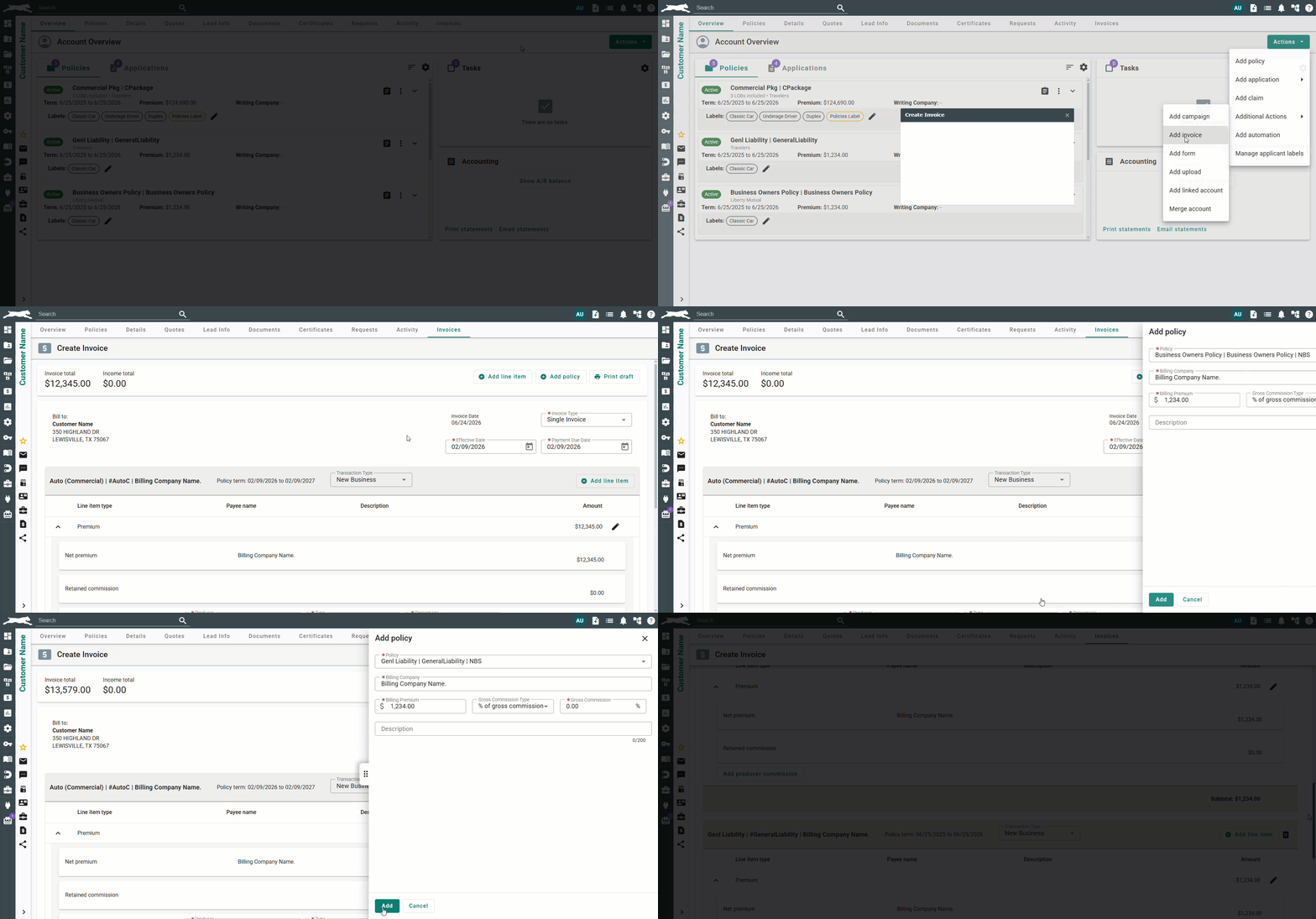
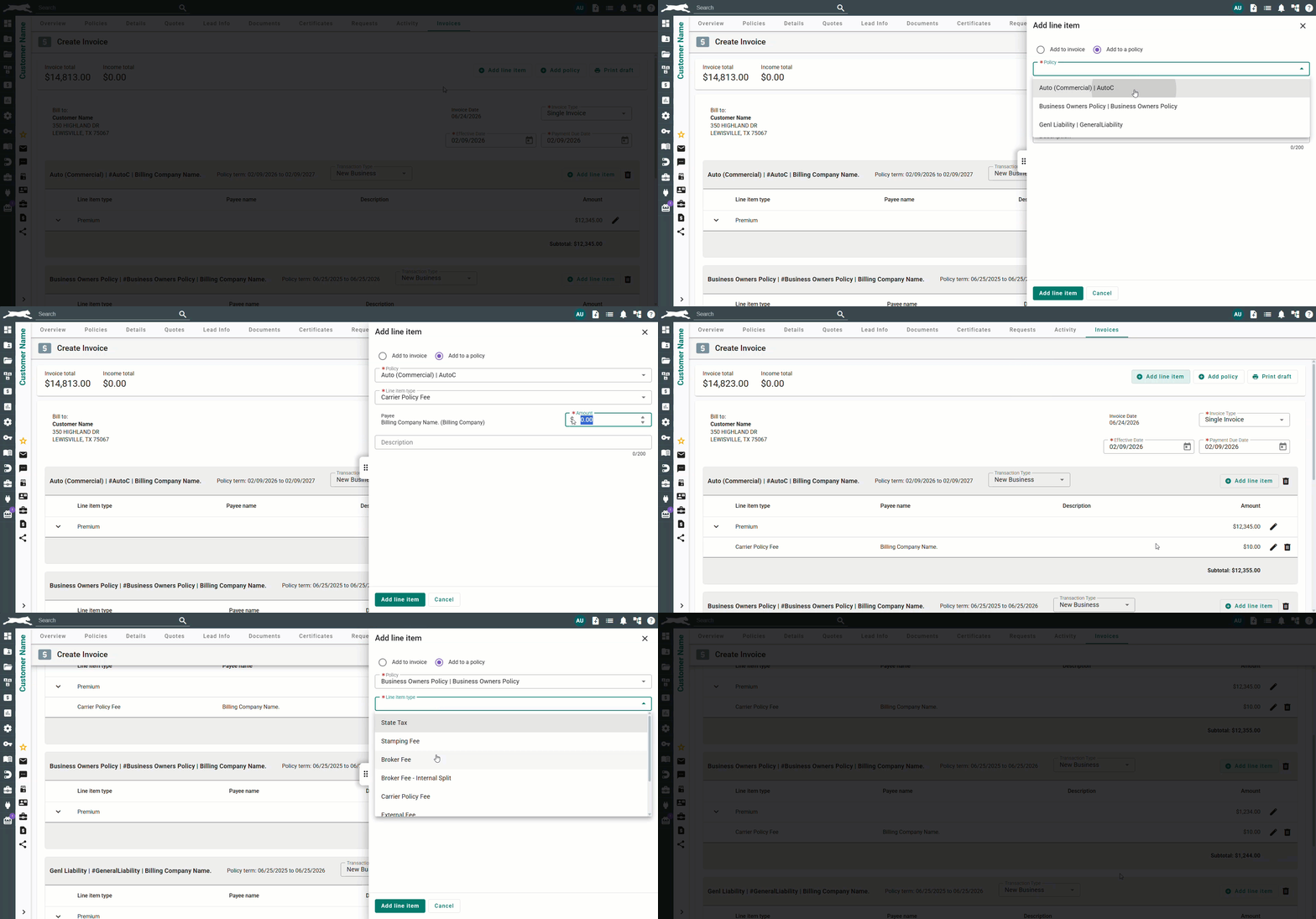
Each policy now has a its own option to add a line item which can be found on the policy header. This will create a line item that is associated with a specific policy. As usual, line items can also be added directly to the Invoice and not applied to a specific policy. Depending on if you are adding a line item directly to the invoice vs. a policy, the fields available will automatically change when on the Add line item side-panel.
Please note, that policies and their associated line items are grouped together on the printed or draft invoices.
To add a line item associated to a specific policy:
1. Select the Add Line Item button on the top of the page or on the policy header. This will open a side-panel.
2. Select Add to a policy.
3. Use Policy dropdown to select the policy you want to add the line item for.
4. Use the Line item type dropdown to select the line item.
5. Input the Amount.
6. Select the Add line item button to add the line item to the invoice.
7. Repeat these steps until all line items have been added to the invoice.
As always make sure to review the invoice's Totals, Commission Splits, Billing Companies, and Line Items before creating the invoice. As usual, you can always click the Save as draft button at the bottom if you need to pause and come back later. Once you are ready to finish creating the multi-policy invoice, click the Create Invoice button.

Multi-Policy Invoice Tips
Down below we've included some best practices to keep in mind with multi-policy invoices.
Financed Invoices
- If a policy is added to the Invoice AFTER the financing has already been set:
- Select the edit button next to the finance line item to update the financing on the added policy.
OR
- Toggle the Invoice type to Single, then change the invoice type back to Premium Finance. This will allow you to add financing to the newly added policy.
Billing Companies
- Be mindful that a multi-policy invoice can have different payees for each policy. Verify the billing companies before creating the invoice and edit the policy net premium when needed.
Policies
- Policies must already exist on the applicant to be added onto an invoice.
- The same policy cannot be added twice to the same invoice.
- Invoices support Package policies.
- If you want the policies in a package to appear separately on the invoice, generate the invoice from one of the policies in the package, then add the additional policies in the package directly on the invoice.
Invoice policy search
- Multi-policy invoices will show a list of all policies in the invoice tables throughout EZLynx Accounting.
- When searching by policy, only the first policy will be associated with the search at this time.
Line Items
- Line Items associated with the Invoice will not display a policy number on receipts or checks since the line item is associated with the invoice only.
- Invoice Line Items that are payables will have a blank policy number field, since it is applied to the invoice and not a specific policy.
- The same line item can be applied to multiple policies on a invoice.
Reporting
- All accounting reports have been updated to support multi-policy
Create Installment Invoices
With this pilot, you can now create installment invoices.
- Add up to 12 installments
- Create Installments for multiple policies on one installment schedule
To create an installment invoice:
1. On the Create Invoice page, use the Invoice type dropdown to choose Installments.
2. Continue adding policies, line items and commission splits.
3. After everything is added, select the Create Installments button at the bottom-left. This will take you to the new Create Installments page.
4. Set the Installment schedule:
- Payment Frequency – Determines the dates of the upcoming installments, however they can still be customized if needed
- No. of payments – The system will count the invoice being created as a ‘down payment’.
- Example: If there are 12 installments, then the No. of payments field should be 11 to create 12 total invoices. The first invoice is not counted in the number of payments field. There is a helpful info icon at the bottom that let's you know how many total invoices will be generated after you click the Generate button.
- Payment arrangement – Determines how the invoice premium and line items will be split amongst the installment invoices
- Equal payments splits the invoice premium and commission evenly among all installments
- Unequal payments requires a percentage down for the down payment invoice then splits the remaining premium and commission evenly among the remaining installments
5. Once ready, select the Generate button. This will generate the installment schedule to show the totals and splits of all the installments. If you make changes to the installment schedule, make sure to select Generate again to apply the changes to the installment schedule.
6. Review the Installments.
- If there is a missing line or incorrect total, return to the create invoice page to make the adjustment by selecting the Back to invoice button.
- On the Leave Page? confirmation, select Yes. When you return to the invoice and make changes, you can easily generate a new installment schedule with the updated values.
7. Review Installment Schedule. Verify that the total per payment (installment) matches what needs to be created.
8. When ready, click the Create invoices button. Above this button, is a helpful info tip that let's you know how many total invoices will be generated.
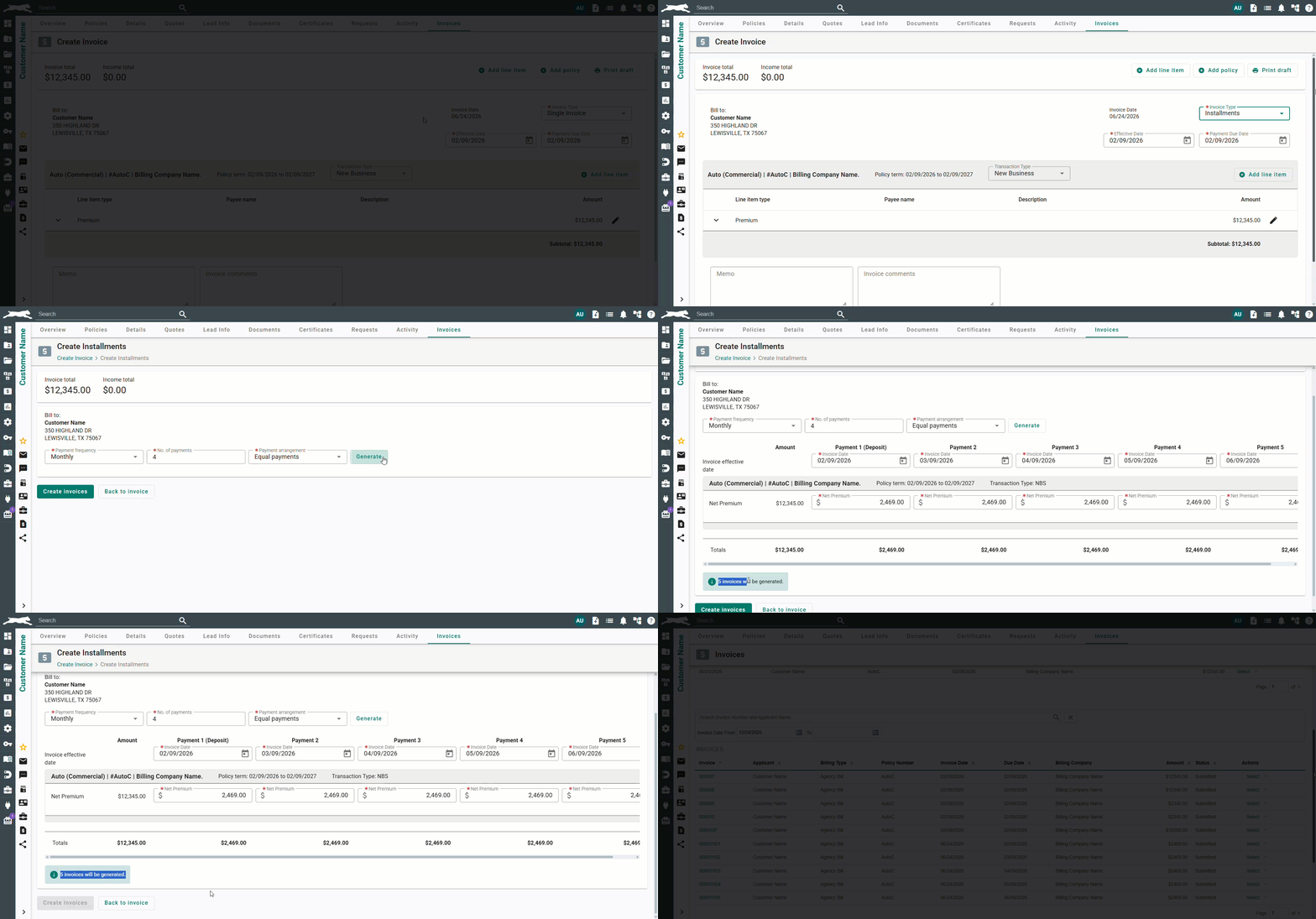
| Did you know? - You can hold the shift key while scrolling with your mouse to view scroll the page left to right making it easier to review the installments left to right. |
Helpful Installment Notes
Down below we've included some best practices to keep in mind with installment invoices.
- Installments can be made for invoices with multiple policies. The policy specific line items will be grouped with the specific policy.
- Invoice line items not associated with a policy, will appear after all the policy grouped line items.
- Added line items will default to have the full value due on the down payment.
- To adjust, type the value needed in the line-item field.
- Notice the alert that the carrier policy fee total is not being met with this adjustment.
- Select Distribute evenly to have the system automatically split the remaining fee balance to the other installments.
- Always verify that the totals for installments are correct. We do not allow for ‘Update Installments’ currently.
Practical Applications
How your agency can apply these updates
- Simplify billing for complex accounts - Create a single invoice for multiple policies with similar due dates
- Improve customer payment flexibility - Let customers pay over time without requiring multiple separate installment invoices per policy
- Reduce administrative overhead - Spend less time creating, tracking, and reconciling separate invoices
We hope this article was helpful in learning how to use the pilot for multi-policy invoicing and installments for accounting. Please let us know if you found this article helpful by answering the question below. Check out our related articles on the right to learn more about EZLynx!
Did you find it helpful? Yes No
Send feedback