EVA Import Recon
Modified on: Thu, 15 Oct, 2026 at 4:29 PM
| Requirements: EVA is part of our Advanced package. You must be an Advanced package user to use EVA Import Recon. |
Manually importing a statement can mean changing the statement to a .csv, mapping the statement or selecting a saved mapping, adding premium and commission totals. It's a lot of steps. Let EVA help make it easier!
- No more retyping: import PDF and Excel commission statements directly into EZLynx instead of keying in commission amounts, policy numbers, and other details by hand.
- Mapping statement columns is no longer necessary. Let EVA match fields based on values — all you have to do is select the Carrier.
- Find your EVA-imported statements at a glance, see which ones are still processing, and get back to reconciling commissions faster.
TABLE OF CONTENTS
|  |
Setting Up Carriers for EVA Recon Import
While EVA Recon Import will automatically be enabled for Advanced packages users that have Commission Statement access, there are some key things to note about carrier setup.
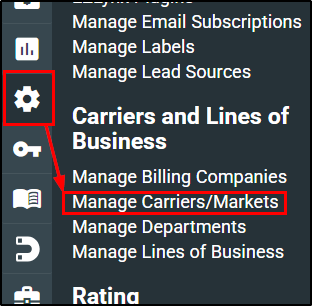
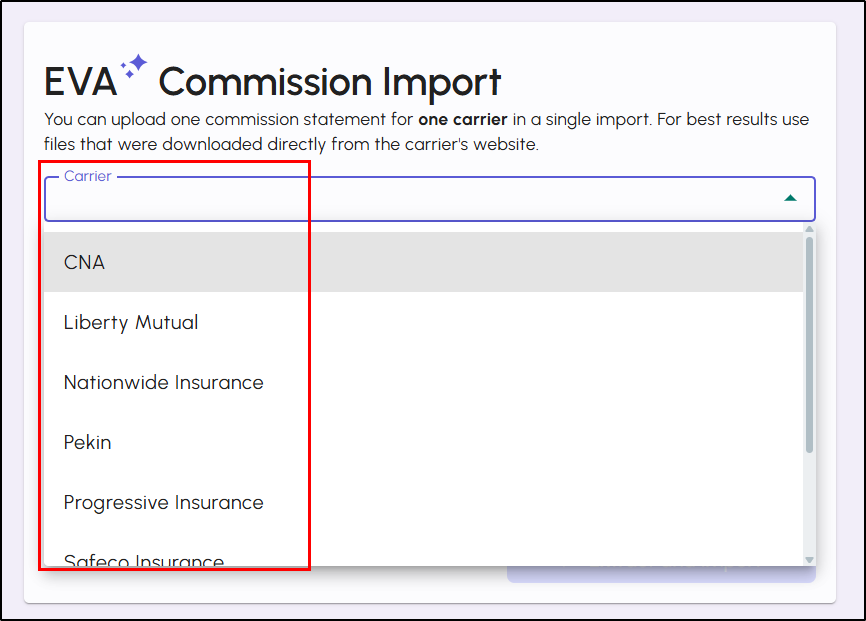
Your agency's Master Carrier List under the Manage Carriers/Markets page is what determines the list of carriers you'll see in the EVA Recon Import Carrier dropdown during carrier selection.
 |  |
 | Please note: Custom created carriers are not supported by EVA Recon Import. The only carriers EVA Recon Import supports are the pre-populated/global carriers on the Master Carrier list. If you'd like to see the supported carrier list, check out our EVA Recon Import tab from our Carrier List. |
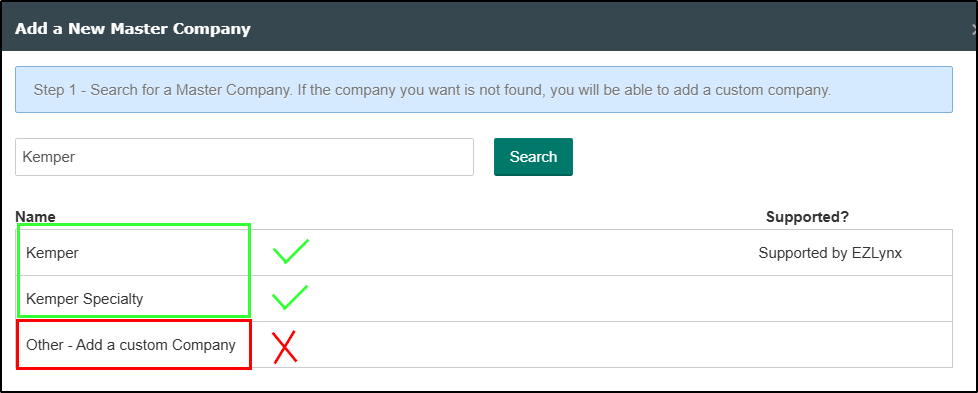
Before you start the import workflow, we highly recommend double-checking that your carrier list is in order and determine which are custom carriers or not.
The best way to tell if a carrier is custom or global if you haven't annotated it in the name is to click the Actions next to a carrier and look for the "Edit Master Company Name" option.
- Edit Master Company Name is visible - This means the carrier is a custom carrier added by your agency and it is not supported by EVA Recon Import at this time. To import a commission statement for a carrier you previously setup as custom, you'll need to setup a global version of this carrier for it to work in EVA Recon Import. Check out the "Update the Master Company List" and "Hide Prior Carrier" sections of our Carrier Name Change? Here's what you need to do in EZLynx article for details.
- Edit Master Company Name is not visible - This means the carrier is not a custom carrier. It is a pre-populated/global version of the carrier and is supported by EVA Import Recon.
Custom Version 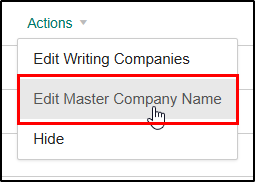 | Global Version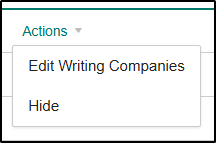 |
If you'd like to see the supported carrier list, check out our EVA Recon Import tab from our Carrier List csv file. This file is updated on a quarterly basis.
Import a Commission Statement
To access the EVA Import you must be an Advanced package User. If you are:
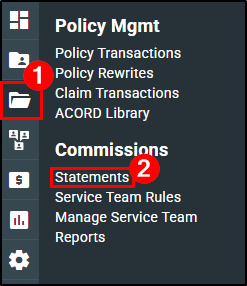
1. Open the Policy Mgmt menu by hovering over the Policy Mgmt icon.
2. Under Commissions, choose Statements.
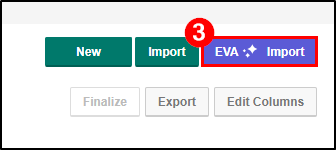
3. On the Statements page, select the ‘EVA Import’ button.
 | Please Note: If you do not see the EVA Import button, you are not an Advanced package user. Please reach out to your Sales Rep to inquire about our Advanced package. |
 |  |
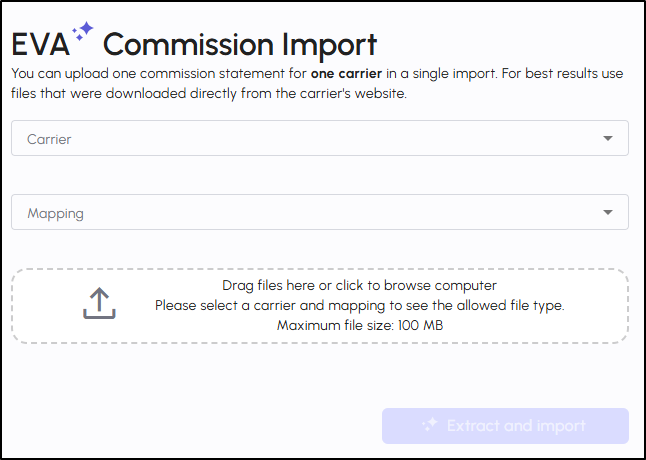
4. Using the Carrier dropdown, choose the Carrier of the statement being imported.
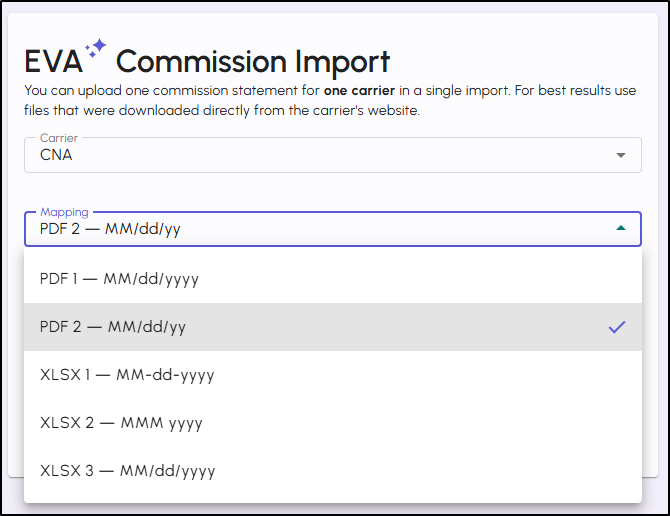
5. Using the Mapping dropdown, select the Mapping type. This means what type of file will you be importing (Excel, CSV, or PDF) and the date format. More on this in the "Things to consider" section below.
6. Either Drag-and-Drop the file from your computer into EZLynx or click on the file box and select it from your file explorer window.
Things to consider:
- Current supported files types are: PDF, Excel, and CSV.
- Current maximum file size supported is 100MB.
- The Mapping dropdown is determined per carrier and looks at the data format on the commissions statement.
- If you aren't sure which mapping to choose, check out our EVA Recon Import tab from our Carrier List csv file as it has columns with the date formats for each file type and which one to choose.
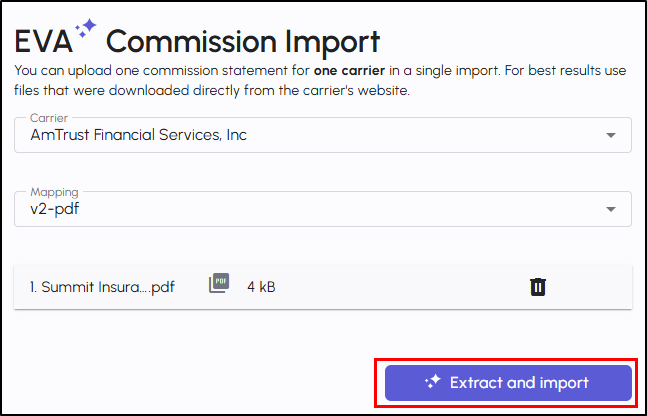
7. Once everything is filled out, select the ‘Extract and import’ button.
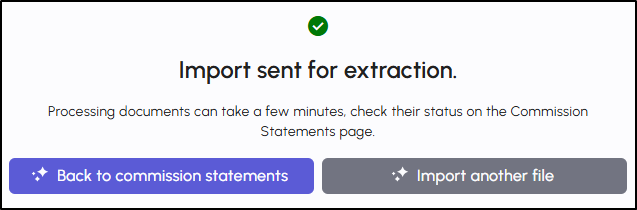
The statement is then sent to be turned into a Commission Statement
- ‘Back to commission statement’ returns to the Commission Statement table
- ‘Import another file’ will return to the ‘EVA Import’ page
Managing Imported Statements
Back on the Commission Statement Page, there is a Type column. All statements imported using EVA Import will have the type listed as "EVA Import". You can quickly find EVA Import statements by filtering the Statement Type to "EVA Import".
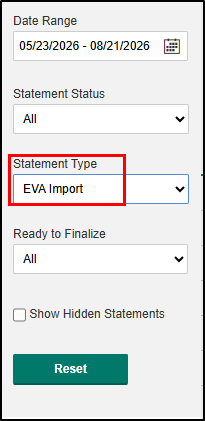
There is also a Status column that let's you know the status of the extraction for EVA Import Types of Statements.
- Processing – this indicates that the imported statement is still being processed to become a commission statement
- Error – there was an issue with the file and it could not be imported.
- Needs Review – indicates that this statement will need to be reviewed before it is converted into a commission statement. More on this in the next section.
If you want to remove an imported statement, you can select Actions and choose Delete.

Review Imported Statements
When EVA is unable to determine a field value from the imported file, the statement will need to be reviewed.
On the Commission Statements page:
- For a statement that needs to be reviewed, select Actions and choose Review Statement. This will take you to the Review Imported Statement page, with every transaction from the file listed.
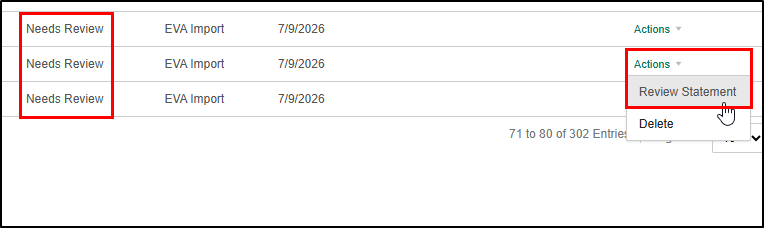
On the Review Imported Statement page:
1. Click on any row with the status ‘Needs Review’. This will open the Edit Transaction panel.
2. Click through and resolve all the errors found for this transaction.
3. Once fixed, select the Update button at the bottom of the panel.
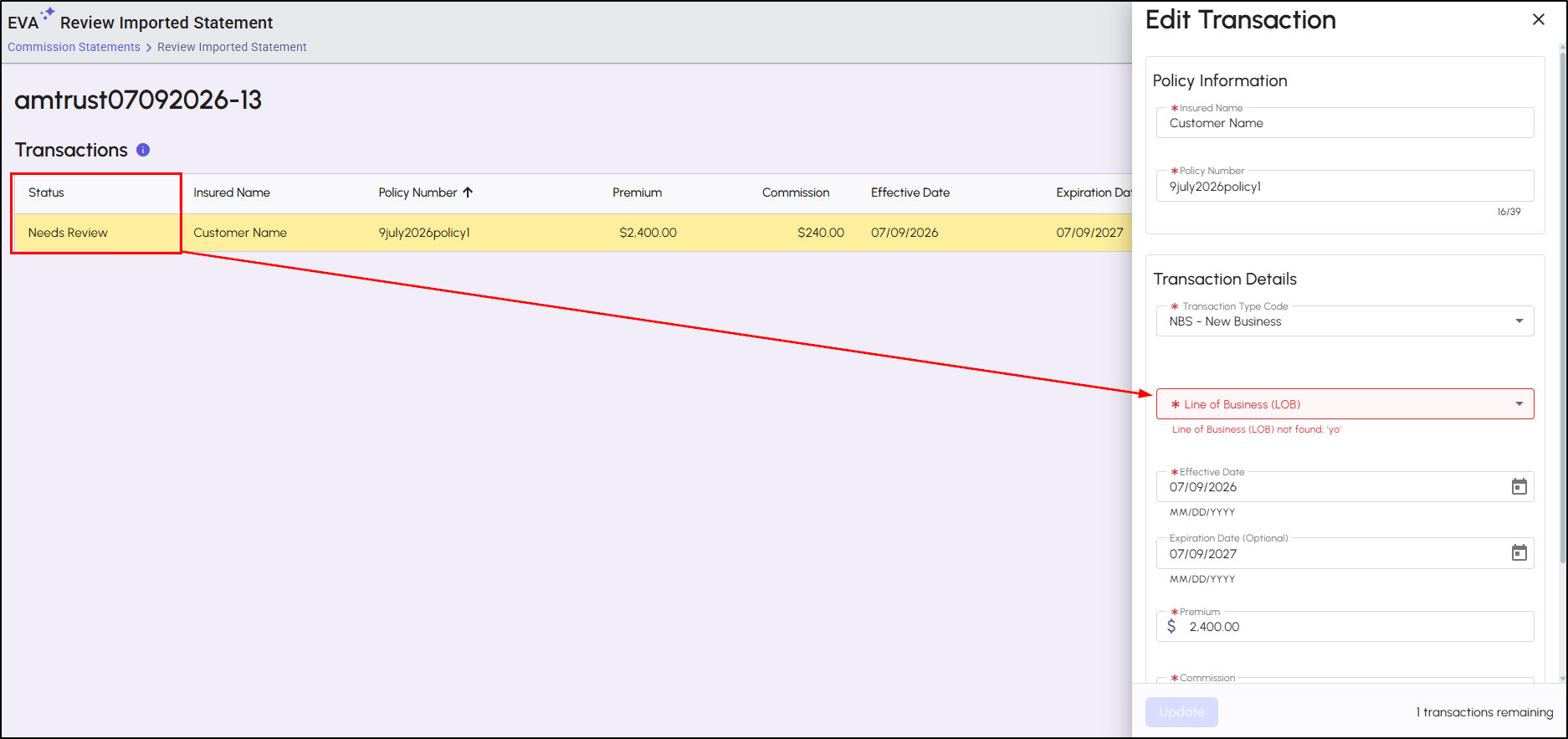
Note the status has now changed from "Needs Review" to "Resolved" on the line item. Repeat these steps until all errors have been corrected.
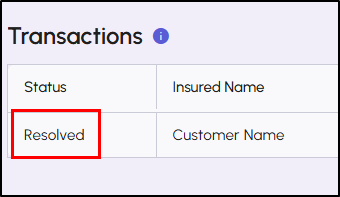
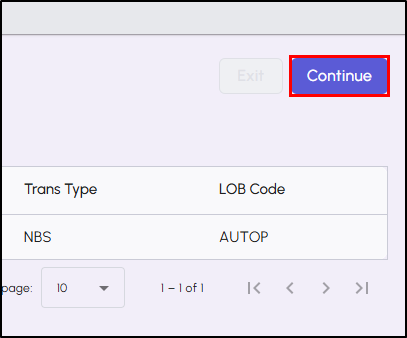
Once all line items are in the "Resolved" status, select the ‘Continue’ button. This sends the statement to be processed and added as a commission statement to your system. Return to the Commission Statement page to begin reviewing your EVA imported statement.
Practical Applications
Imagine it’s the end of the month and you have PDF statements from several carriers waiting to go into EZLynx so you can pay your producers. Instead of building each one as a manual statement, import them all through EVA Import. Select the Carrier, drop in the file, and EVA handles the rest, with no file conversion and no column mapping.
Frequently Asked Questions
Q: How do I get EVA Recon Import?
A: EVA Recon Import is included is part of our EVA AI product. You must be on our Advanced package to access EVA AI features. Please reach out to your Sales Rep if you are interested in our Advanced package.
Q: Who in my agency can use EVA Recon Import?
A: EVA Recon Import helps with commission statements. Therefore, you must have access to the Commissions Statements page to be able to access EVA Recon Import. To access this page, you must have Management System Admin permissions. If you do not have access to Commissions, please reach out to your Agency Admin to request access.
Q: What are the supported carriers for EVA Recon Import?
A: EVA Recon Import is configured for our global/pre-populated carrier records. This means custom carriers are not supported at this time. If you'd like to see the full list of supported carrier records, check out our EVA Recon Import tab from our Carrier List csv file.
Q: My carrier is in our agency list. Why is it not available in EVA Recon Import?
A: The carrier on your agency list might be a custom carrier which is not currently supported. EVA Recon Import is configured for our global/pre-populated carrier records only. Check out our "Setting Up Carriers for EVA Recon Import" section for details on how to confirm if the carrier in question is a custom or global version.
Q: Can a custom carrier be supported?
A: Not currently. If you would like to use the carrier in question for EVA Recon Import, you will need to reconfigure to the corresponding pre-populated/global carrier where one exists. Check out the "Update the Master Company List" and "Hide Prior Carrier" sections of our Carrier Name Change? Here's what you need to do in EZLynx article for details.
Q: I don't see the carrier on the Master Carrier list. Can we request a new carrier?
A: Yes. Please reach out to our Support team at support@ezlynx.com to request a new carrier. Please note, while requests will be reviewed, it does not guarantee it will be added. If a carrier cannot be supported, our Support team will communicate this back. If it is possible, it could take up to 4-6 weeks to get added so we appreciate your patience.
Q: Does Recon Import change commission matching?
A: No. Existing commission matching rules and policies remain separate from the import capability.
We hope this article helped in learning what EVA Import Recon is, how it can help your agency, and how to use it. If this article was helpful, please let us know by answering the question below. Check out our related content on the right to learn more about EZLynx.
Did you find it helpful? Yes No
Send feedback