eSignature: How to Create and Send an eSignature Envelope
Modified on: Thu, 10 Sep, 2026 at 6:10 PM
Our eSignature product is a fast and secure way for you to obtain electronic signatures on multiple documents from one or more recipients. This is great for:
- Managing Complex Commercial Envelopes – For large applications requiring multiple documents and signers, use the "Save as Draft" feature to build the envelope over time as you receive necessary information, then use the "Edit" function to finalize it.
- Last-Minute Corrections – If you reach the "Review and Send" step and notice a missing signature block, simply navigate back to the relevant step, fix the error, and return to the final review without losing any other data.
- Secure Client Onboarding – Use the "Setup Envelope" step to add password protection and specific signing orders, ensuring that sensitive onboarding documents are handled securely and in the correct sequence by all parties.
EZLynx uses AssureSign for its e-sign product for P&C lines of insurance. AssureSign LLC guarantees full compliance with the requirements and standards of both the E-SIGN Act and the Uniform Electronic Transactions Act (UETA) for all of its products. UETA provides that electronic signatures and records have the same validity and enforce-ability in court as manual signatures and paper-based transactions. Also, using eSignature for any other non-P&C forms violates the terms of use of this product.
TABLE OF CONTENTS | Check out our video if you'd like to watch and follow along!  |
 | Did you know? - You can click on the images in our articles to make them bigger! |
Pre-Requisite: Upload PDFs
Before creating an eSignature envelope, you need documents to place in the eSignature envelope.
- The document must be a PDF.
- The document must be available in the customer's Document library.
- Please note, all of the documents in an eSignature envelope cannot exceed 30 MB. Please keep this in mind when you are uploading the necessary PDFs.
You can add PDF documents by:
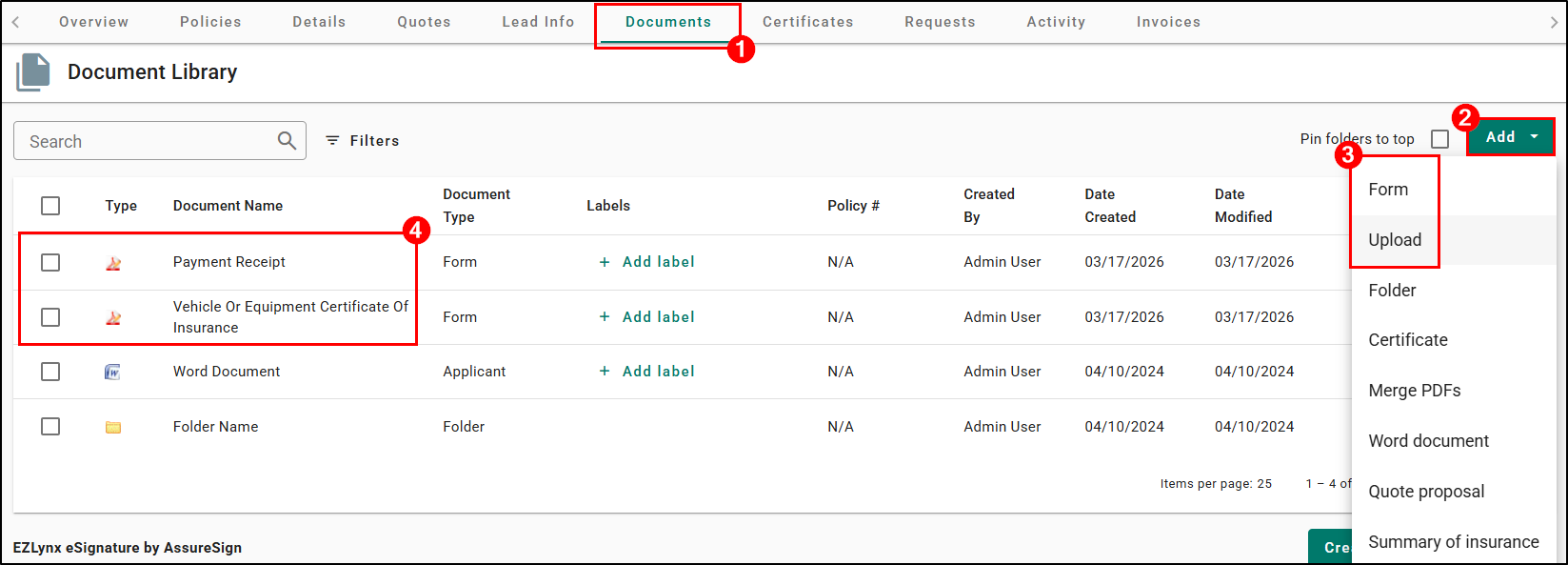
- Adding ACORD Forms via Documents > Add > Form
- Uploading PDFs from your computer via Documents > Add > Upload
Check out our Documents - Upload, Edit, Move, Share, Delete, Email, & More! article for more details.
Accessing eSignature
Once you have the documents in the Document tab, it's time to start making an eSignature envelope!
To start the eSignature Workflow:
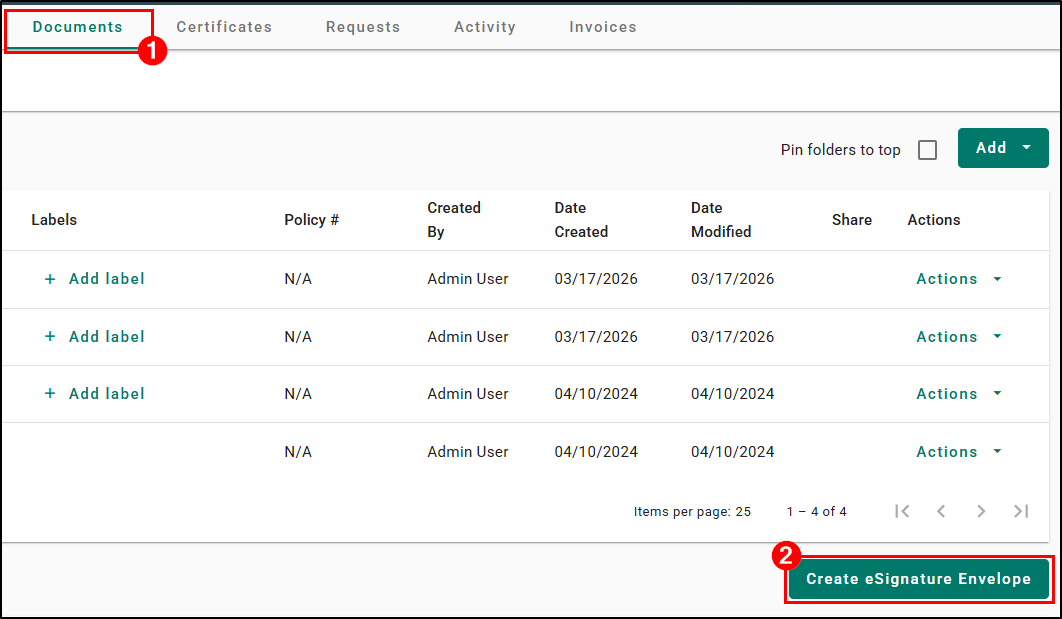
1. Navigate to a customer's Documents tab.
2. Select the Create eSignature Envelope button. This will take you to the eSignature Envelope page.
Add Documents
Now that you have started the eSignature Workflow, we need to add the documents we want electronically signed to the envelope. You can use the Search bar and Column Headers to search and sort to help you find the documents you need easier.
To add documents to the envelope:
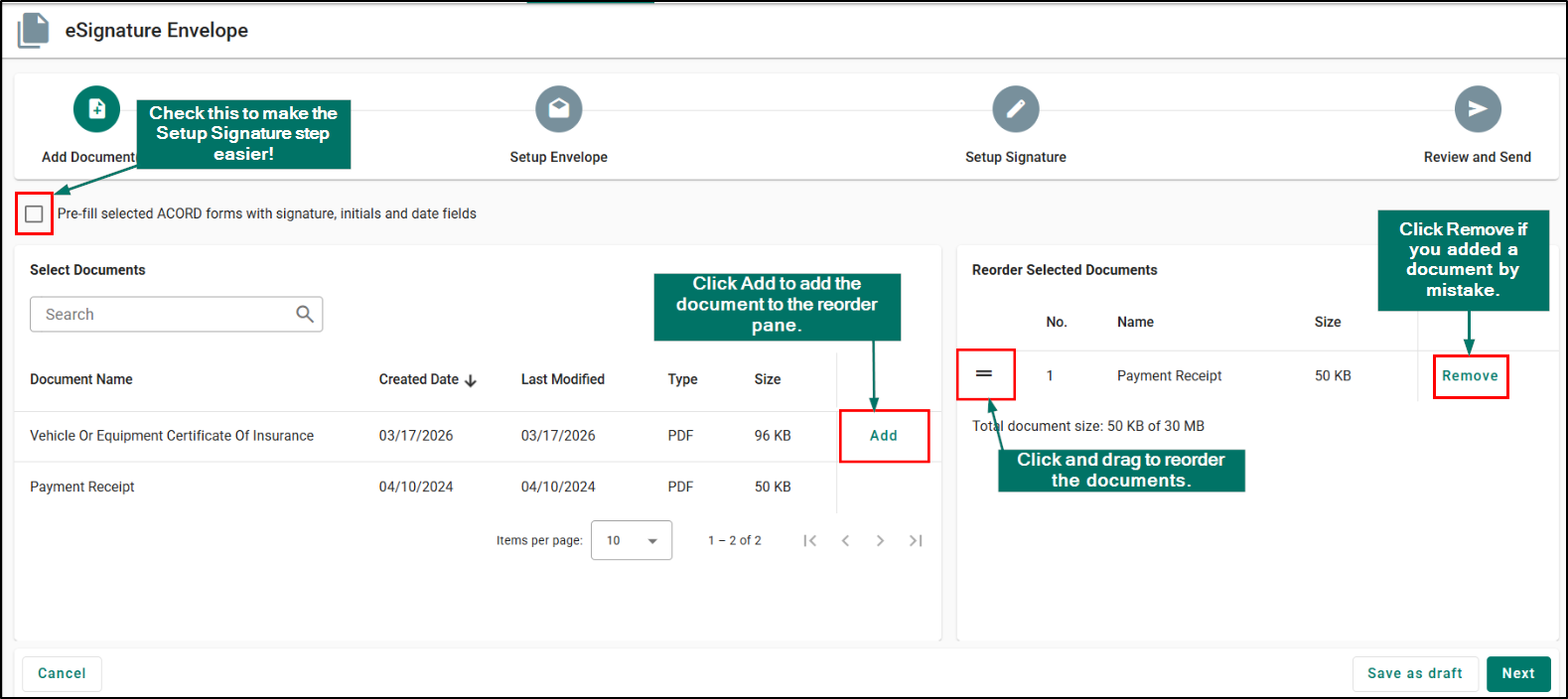
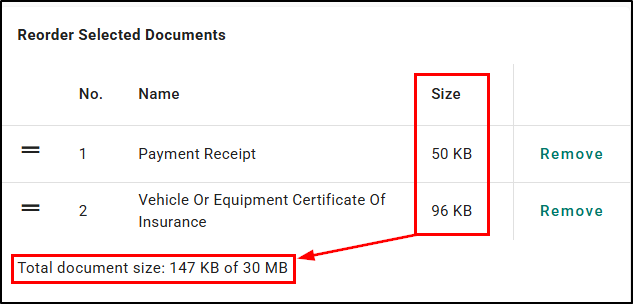
1. Select Add next to the respective document you want signed. This will add the document to the Reorder Selected Documents pane. You can have multiple documents in one eSignature envelope.
2. You can use the Reorder icon (two horizontal lines) to reorder the documents if you have multiple.
If you added a document by mistake, simply select Remove next to the document you no longer want in the envelope.
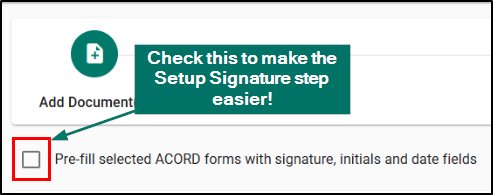
To make the Setup Signature step faster, you can check the box next to 'Prefill selected ACORD forms with signature, initials and date fields'. This will automatically place signature boxes for you in the Setup Signature step saving you time and clicks.
Once you have selected at least one document, you can click Save as Draft. This saves your current progress and allows you to return to the eSignature dashboard later to Edit the draft, make further changes, and send when ready.

Please note, all of the documents in the envelope cannot exceed 30 MB. You can check the size of the documents and the envelope on the Reorder Selected Documents pane.
When your ready to move to the next step, select the Next button or click the next step in the Stepper at the top of the page.
 |  |
Setup Envelope
Now that you have selected the documents you want to include in the eSignature envelope, let's configure the core details of the eSignature envelope.
This includes:
- Naming the envelope
- Selecting the 'Send As' Identity
- Setting password requirements if necessary
- Setting up the Recipients
- Set Reminder and Expiration Dates
Envelope Details
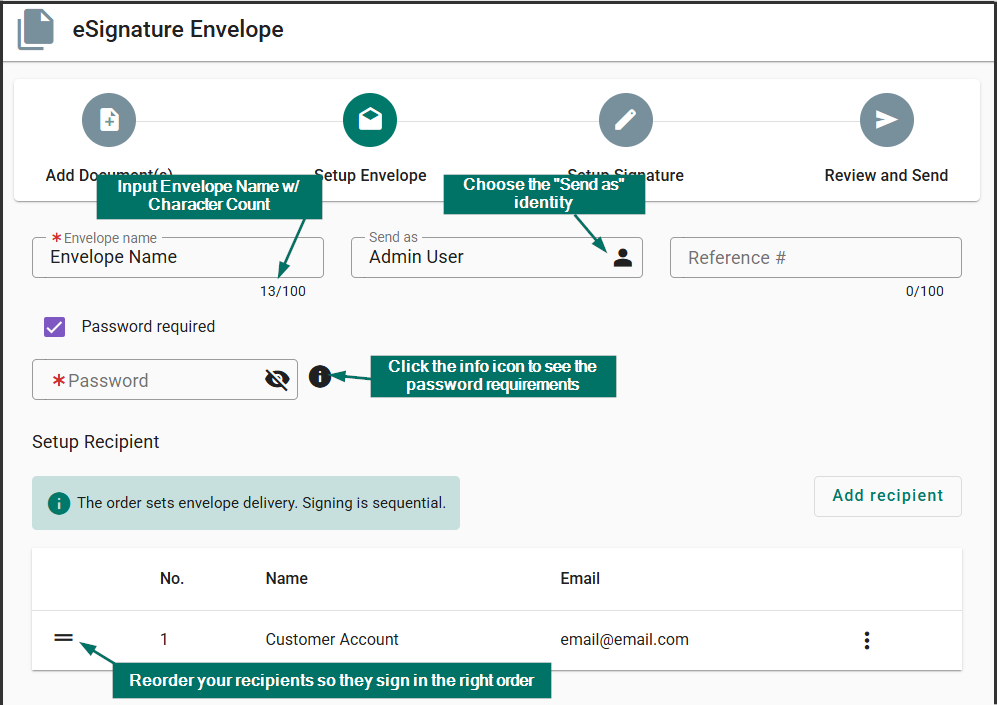
In this section, we'll talk about naming an eSignature envelope, choosing the 'Send As' identity, and setting up reference #'s and passwords.
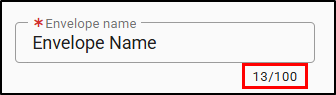
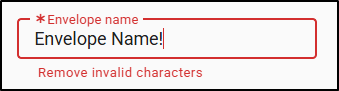
- Envelope Name - The 'Envelope name' is a required field and has a maximum character count of 100. It also only allows for certain special characters such as '&', '( )', and '_'. If you enter a special character that is not allowed, you will see a warning message.
 |  |
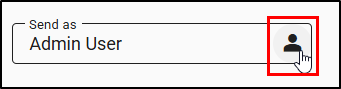
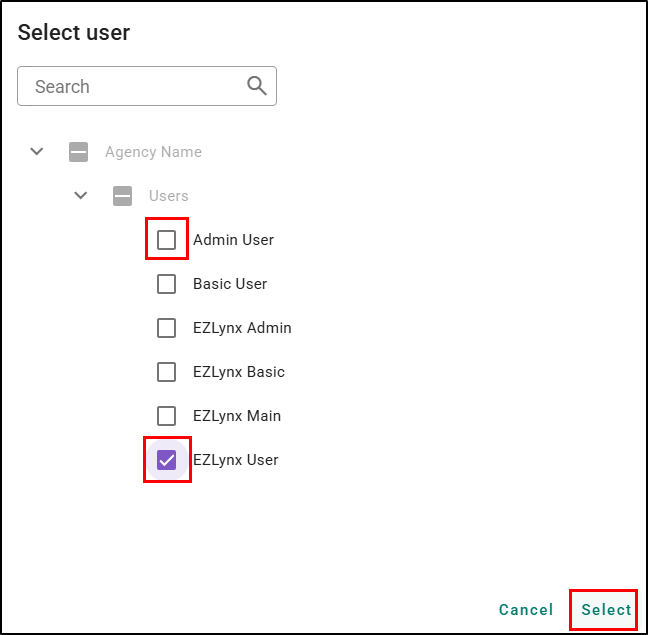
- Send as - By default the 'Send as' identity will automatically choose whoever is creating the envelope. However, you can change the user by clicking on the User icon (person). This will open the Select User window where you can uncheck the box next to the user you don't want to use and check the box next to the user you do want to use as the identity. Simply click Select when you have completed the change.
 |  |
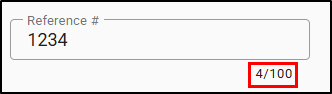
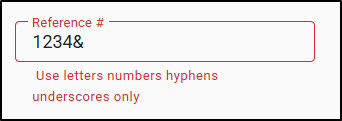
- Reference # - The 'Reference #' is an optional field you can use as another way to easily track and refer to a specific eSignature envelope. The field has a maximum character count of 100. It only allows for letters, numbers, hyphens, and underscores. Any special characters outside of these will result in a warning message.
 |  |
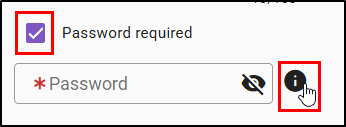
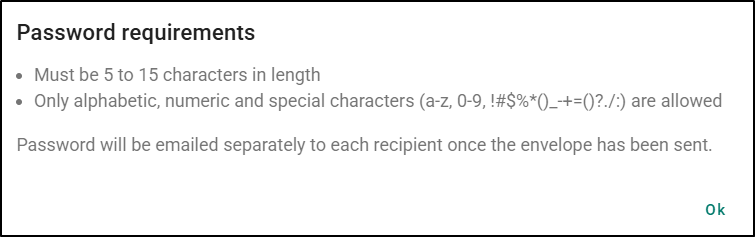
- Password Required - The 'Password Required' checkbox is an optional feature. It allows you to input a password that must be entered in order to access the eSignature Envelope before signing. The Password you input will be emailed separately to each recipient once the envelope has been sent.
- To make an eSignature envelope password required, check the box next to the 'Password Required' option. This will display the Password field which is now a required field.
- The password must meet the following specific requirements which can be found under the info icon have you check the 'Password Required' box.
- The eSignature Envelope password must be 5 - 15 characters in length.
- The eSignature Envelope password can only contain letters, numbers, and special characters.
- You can click on the 'Show Password' (eye icon) to see the password as you create it.
 |  |
Setup Recipients
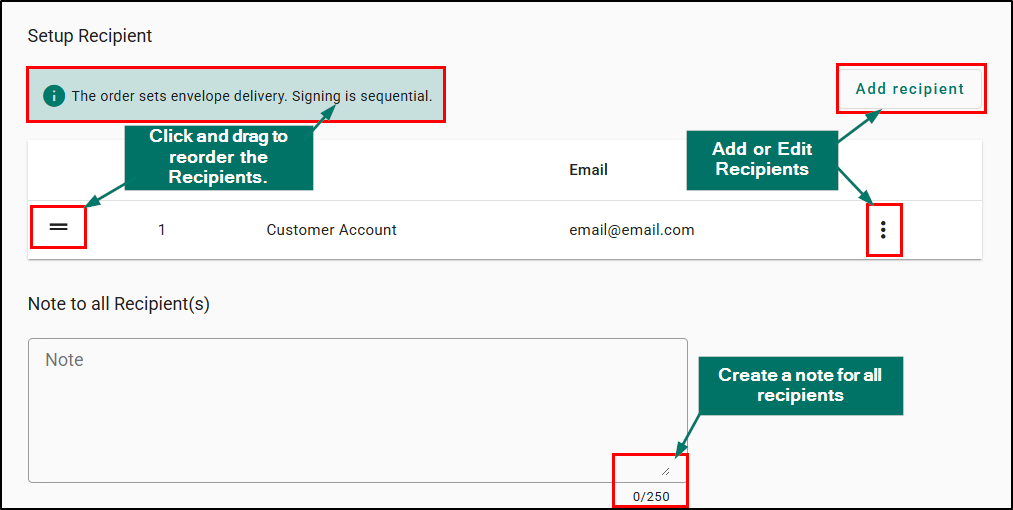
In this section, we'll talk about setting up the recipients who will need to sign the eSignature envelope. This will cover how to add/edit/remove recipients, reorder recipients as signing is sequential, and how to add a note for all recipients to see.
Add/Edit/Remove Recipients
By default, the primary contact will pre-fill in the Setup Recipient section for both Personal Lines (PL) and Commercial Lines (CL) applicants.
Please note, to ensure a valid envelope:
- There must be at least one recipient on the eSignature envelope.
- The system requires at least one signature block per recipient. This means you do not want to include anyone on the Recipient List that will not be singing the document.
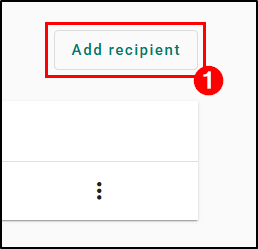
If no primary contact is available, you will need to manually select or enter a contact using the Add recipient button. This will open the Add recipient window.
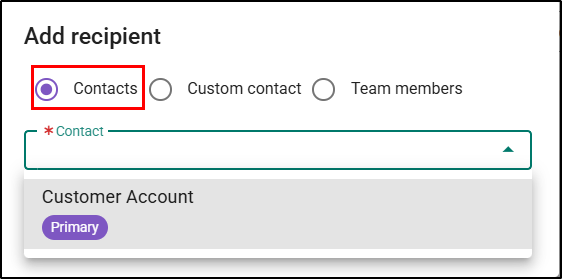
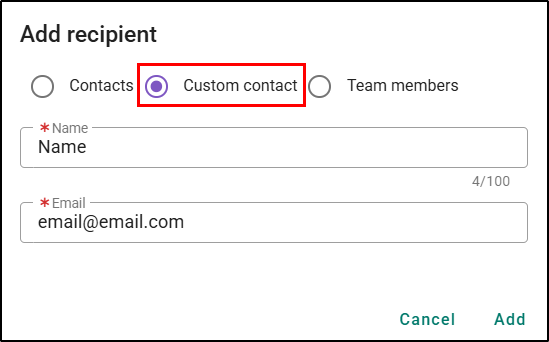
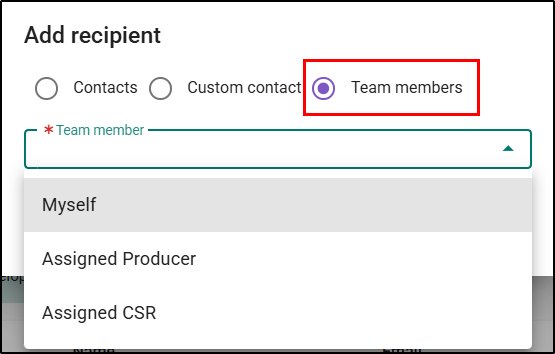
When adding a recipient, can choose from 3 options:
- Contacts – this option will allow you to pick from existing contacts in the applicant's record. Only contacts with email addresses will appear, and if a single contact has multiple email addresses, you can select from the dropdown.
- Custom contact – this option allows you to enter a new signer’s information. Please note, Custom Contacts do not add new contacts to the applicant at this time.
- Team member – this option has 3 selections:
- Myself – this will enter the name and email for the person completing the workflow
- Assigned Producer – this will populate the name and email for the applicant’s assigned producer.
- CSR - this will populate the name and email for the applicant’s CSR.
 |  |  |
To edit a recipient:
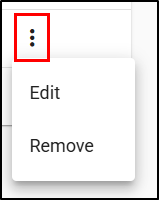
1. Select the Action icon (vertical ellipsis). This will open the Action Menu.
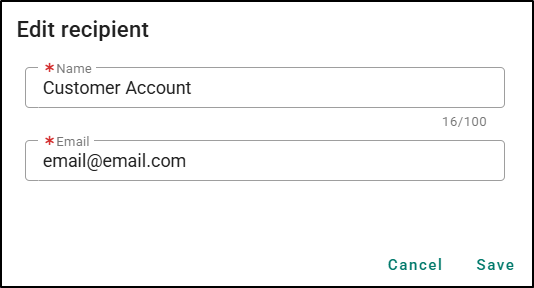
2. Choose Edit. This will open the Edit Recipient window where you can edit the customer's name and email address.
3. Once the edits are made, click Save to finalize them.
Please note, edits made to name and email address on an eSignature Envelope will not write back to the contact at the applicant level.
 |  |
To remove a recipient:
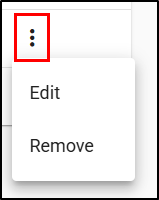
1. Select the Action icon (vertical ellipsis). This will open the Action Menu.
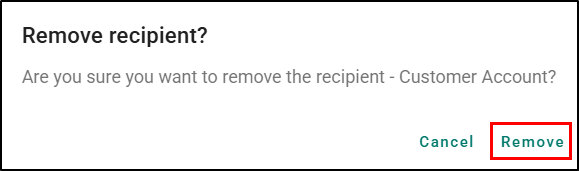
2. Choose Remove. This will open the Remove Recipient window.
3. Click Remove to finalize.
Please note, if there is only one Recipient on the envelope, you will not see the Remove option. There must be at least one recipient on the eSignature envelope.
 |  |
Reorder Recipients
Putting your recipients in the order you wish them to sign is important as signing the eSignature envelope is sequential. This means the second person on the list will not have access to the eSignature until the first person finishes signing the document.
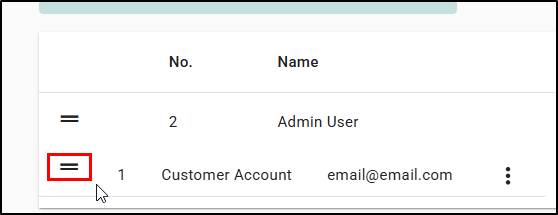
To reorder recipients, click and drag the Reorder icon (two horizontal lines). When you let go, the number column will update so that you can confirm the order.
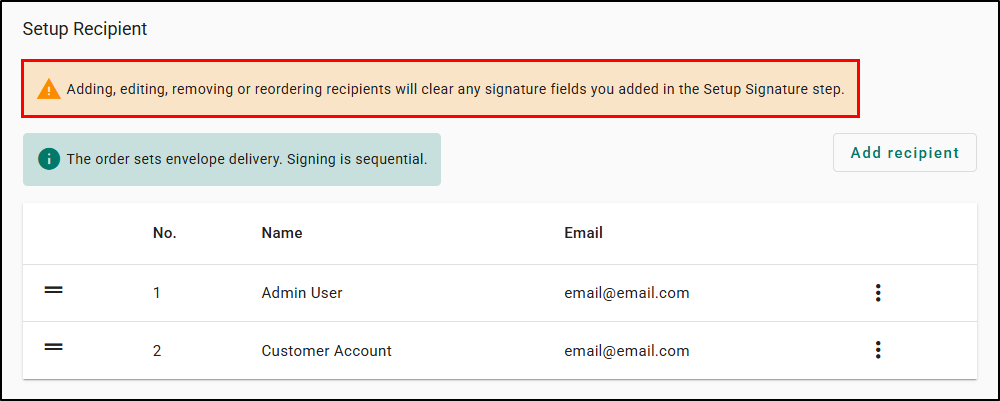
 | Please note: You will have to redo the Setup Signature step if you adjust the Setup Recipient section, so it's best to double-check your recipients are all added and in the right order before you move on to the Setup Signature step. |
Note to all Recipients
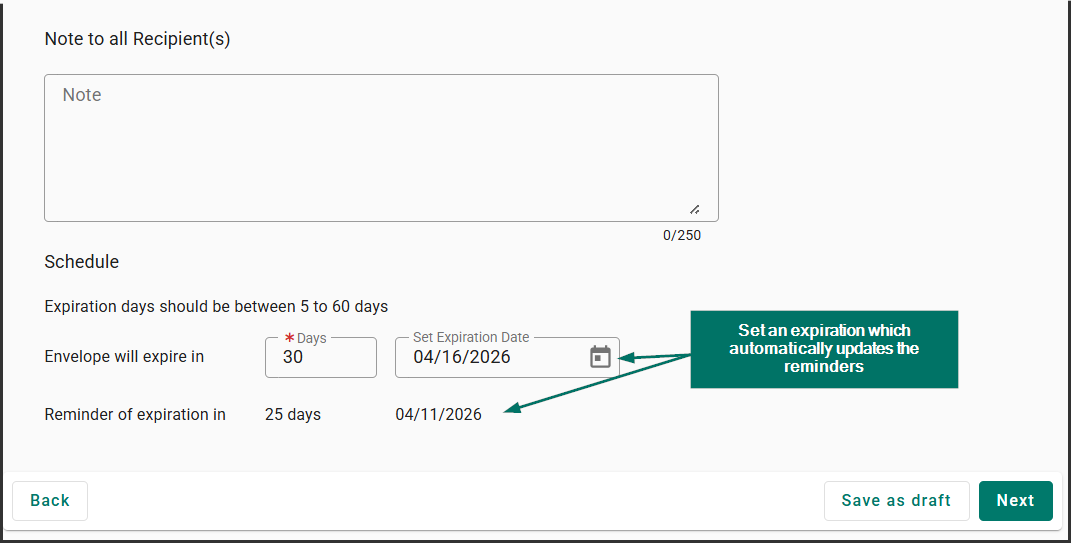
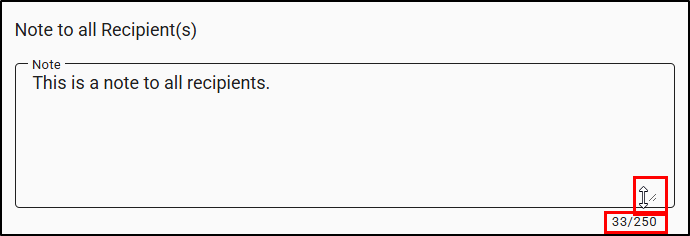
You can input a note in the 'Note to all Recipient(s)' box. This note will be the body of the email that is sent to all recipients. It has a maximum character count of 250. If you are having a hard time seeing everything in the box, you can click and drag the Resize icon (two diagonal lines) in the bottom-right of the box to make the box bigger or smaller.
 | Best Practice Tip - We highly recommend including your contact information in the note to all recipients in case they have questions about the signing process. |
Schedule Details
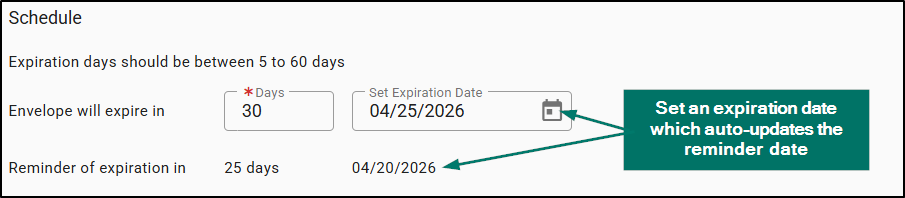
In the Schedule section, you can set the eSignature envelope's expiration date. The expiration days should be between 5 - 60 days. By default, the system sets the expiration to 30 days. However, you can change this in the 'Days' field which is required.
You can also use the 'Set Expiration Date' picker to choose the date you want the eSignature envelope to expire on. This will auto-update the 'Days' field as well as the reminder of expiration date.
The reminder of expiration date email is sent to recipients. By default, the reminder email is set for 5 days before the envelope expiration date.
When your ready to move to the next step, select the Next button or click the next step in the Stepper at the top of the page.
 |  |
Setup Signature
Now it's time to place the blocks for recipients to electronically sign!
- If you checked the box next to the 'Pre-fill selected ACORD form with signature, initials, and date fields' option back on the first step Add Document(s), then you will already see that some blocks have been placed for you.
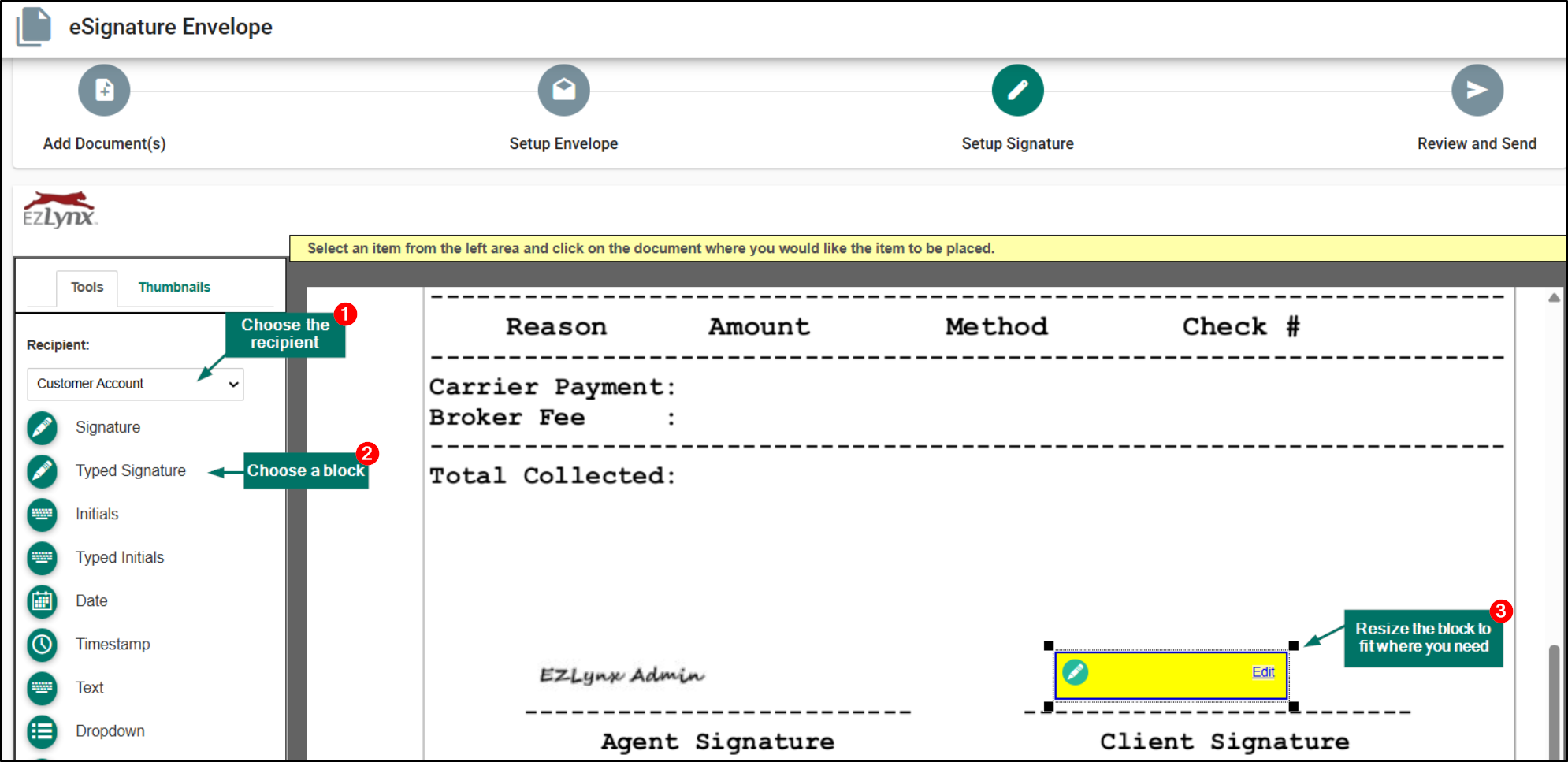
There are several different block options available to use and the best part is you can have multiple on the same eSignature document.
| Block Name | How it works |
|---|---|
| Signature | Recipients will need to use their mouse to write a signature |
| Typed Signature | Recipients will type their signature using the keyboard |
| Initials | Recipients will need to use their mouse to write their initials |
| Typed Initials | Recipients will type their initials using the keyboard |
| Date | Recipients will input the current date |
| Timestamp | Required Universal Time timestamp is automatically added to the document |
| Text | Allows the recipients to input information requested |
| Drop-down | Allows you to add a series of options that the recipients can interact with |
| Multiple Choice | Allows the recipient to mark boxes that apply to them |
To place signature blocks:
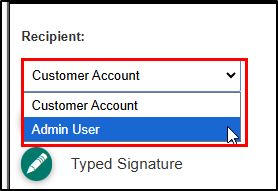
1. Use the Recipient dropdown to choose which recipient you'll be placing blocks for.
2. Choose a block by clicking on an option. You can tell which option is currently chosen by looking for the black outline around the green icon.
3. Then, click the spot on the document you want the signature block to be placed.
4. You can then click and drag the signature block and use the four black corner squares to rearrange and resize the block so it's in the right space.
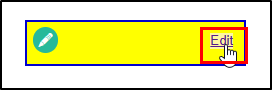
If you want to edit the details of the block, select the 'Edit' option on the block in question. This will open the Edit window for that particular block.
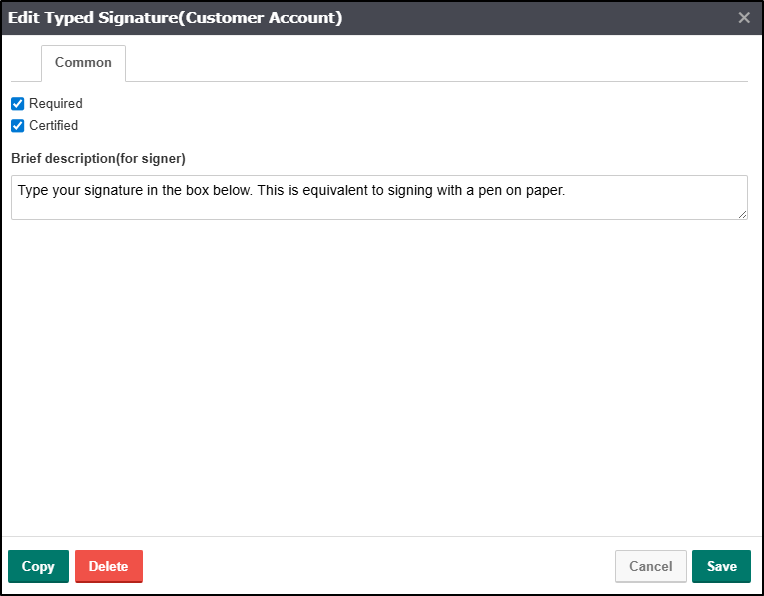
On this Edit Block window, you will find the brief description for signer which is what they'll see when they get to this particular box. You'll also see two check boxes: Required and Certified.
- Required - This will make the box mandatory for the recipient.
- Certified - This renders meta-data in box's frame including the Box's ID, the IP address where the signing occurred, and the Universal Time timestamp (UTC).
You'll also find the options to Delete the block and to Copy the block in case you added the block by mistake or want to make another block with the same settings.
Once you have finished adding all the blocks for the first recipient, if you have multiple recipient you'll want to repeat the steps for the next recipient, using the Recipient dropdown to choose the next one.
Please note, to ensure a valid envelope, the system requires at least one signer block per recipient.
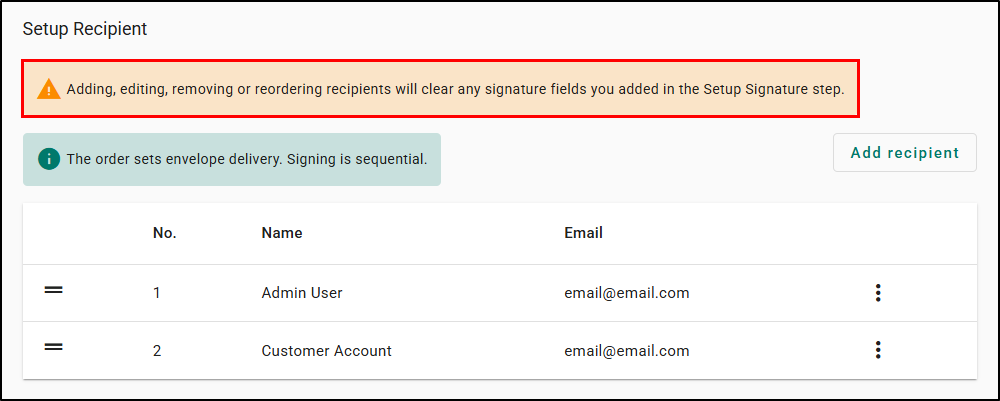
Please note, if you forgot to add a recipient and navigate back to the Setup Envelope step, you will see a warning message that states:
- "Adding, editing, removing, or reordering recipients will clear any signature fields you added in the Setup Signature step."
This means if you adjust the Setup Recipient section after placing signature blocks you will have to redo those blocks. Therefore, it's especially important to double-check all your recipients have been added and are in the right order, before placing signature blocks.
When your ready to move to the next step, select the Next button or click the next step in the Stepper at the top of the page.
 |  |
Review and Send
The Review and Send step allows you to review a summary of all envelope settings and see a full preview of the document with the placed signer blocks. Once you have verified that everything looks correct, click Send in the bottom-right.
Please note:
- When an eSignature is sent out, signing is sequential. This means an email asking to sign the document is only sent to the first recipient on the list. The other recipients on the list will not get an email until it is their turn to sign the document.
- The Custom Domains Email Campaign feature does not change the email address the eSignature emails are sent from. The eSignature emails are always from notifications@assuresign.com.
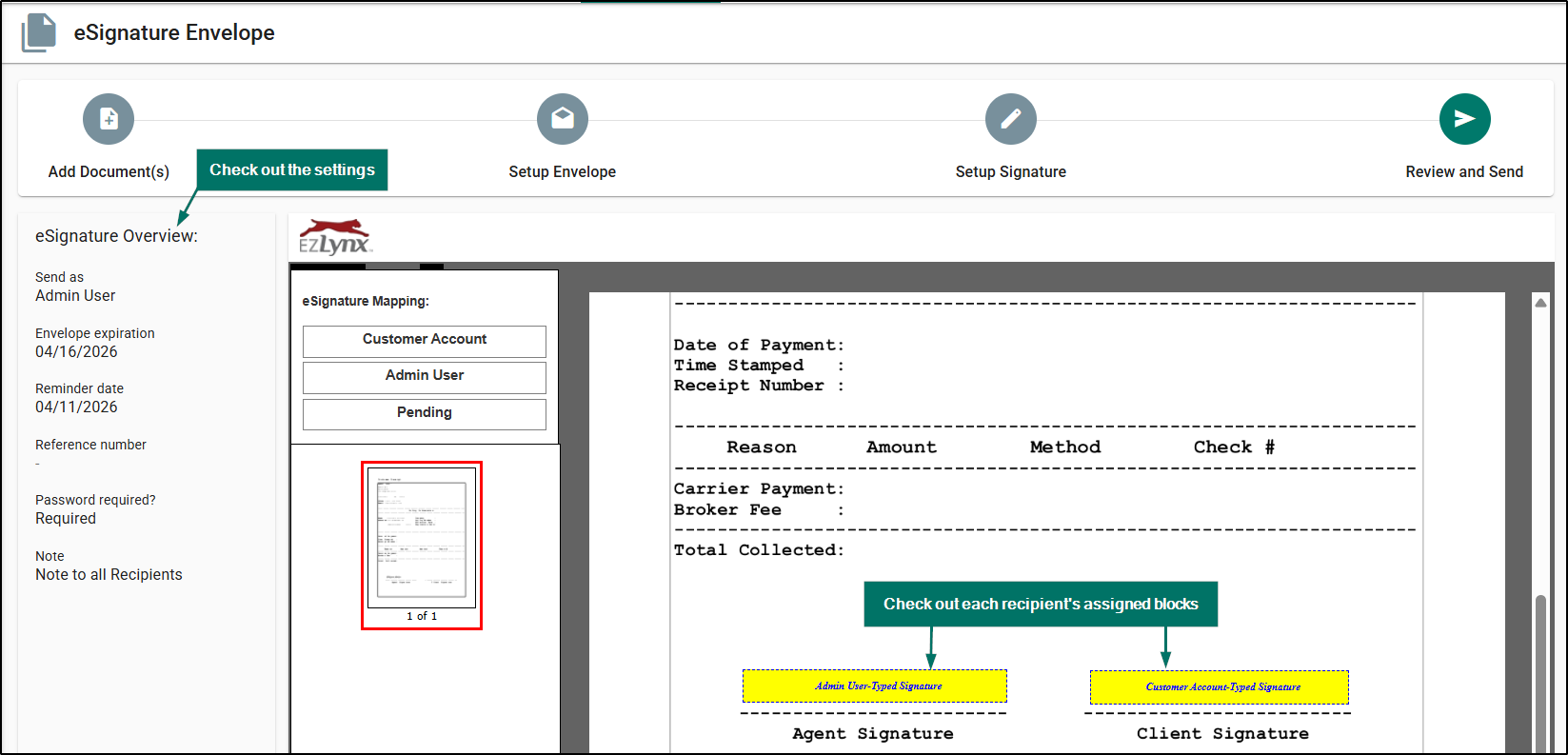
Once you have sent the envelope, you'll be taken back to the Documents tab where you can see a new line item under the EZLynx eSignature by AssureSign section that is in Pending Status. More on statuses in the next section!

Envelope Status & Actions
The EZLynx eSignature by AssureSign section of the Documents tab stores all of the eSignature envelopes that have been created for that particular customer. This is where you can see the status of the envelopes and view, resend, cancel, or email the eSignature.
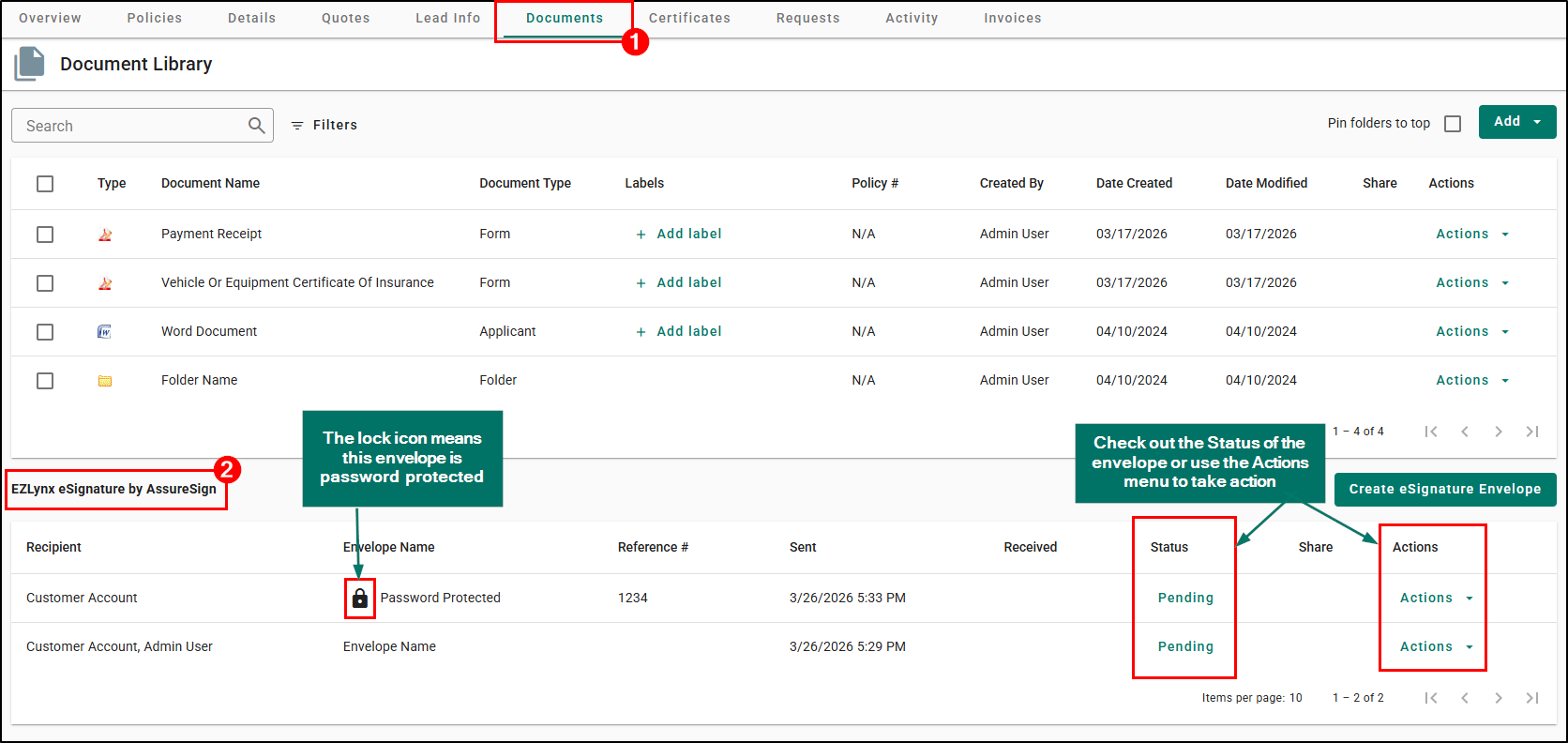
| Did you know? - If an envelope name has a lock icon next to it, it means that eSignature Envelope has a required password that must be entered before the recipients can sign the document. |
The status of the envelope can help you decide where the recipients are at with signing the document and if any action is needed on your end. You can find the status of the envelope under the Status column.
| Status | Description |
|---|---|
| Cancelled | The envelope was cancelled before all recipients signed the document(s). |
| Completed | All recipients have finished signing the document and each has been sent an email with a link to the finished document(s). |
| Expired | The envelope has expired and recipients can no longer sign the document(s). |
| Pending | The envelope is active and recipients are in the process of signing the document(s). |

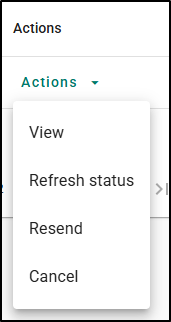
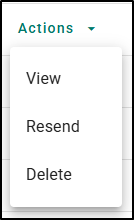
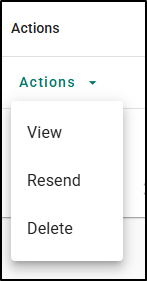
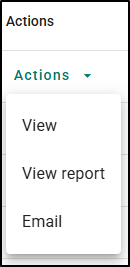
The status of the envelope determines what actions you can take. These options can be found under the Actions column with the Actions menu option.
| Action | Status Available in | What it does |
|---|---|---|
| View | All | View the documents in the envelope. |
| Cancel | Pending | Cancelling an envelope means the recipients can no longer sign the document. |
| Refresh Status | Pending | Sends a manual resync request to AssureSign to check on the status. Useful if you get an email that the document is completed by status still shows Pending. |
| Resend | Pending, Expired, or Cancelled | Resend the envelope to the recipient who is currently in the signing order. |
| Delete | Cancelled or Expired | Allows you to delete the envelope. Please note, this action is not reversible. If an envelope is deleted, you will not be able to retrieve the envelope. |
| Completed | Allows you to email the envelope to anyone now that it is completed. | |
| View Report | Completed | Creates an AssureSign Document Completion Report of the envelope, recipients, documents, and history that you can print or download. |
| Pending | Expired | Cancelled | Completed |
|---|---|---|---|
 |  |  |  |
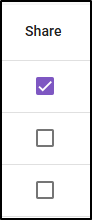
Finally, if your agency has our Client Center product enabled, you can also Share a completed eSignature envelope by checking the box under the Share column next to the envelope in question.
This will make the envelope available to the customer via their Client Center Documents tab. This is a great way for the customer to always have secure access to the file in case they lose the email that allows them to download the documents.
Automatic Storage of Completed Envelopes
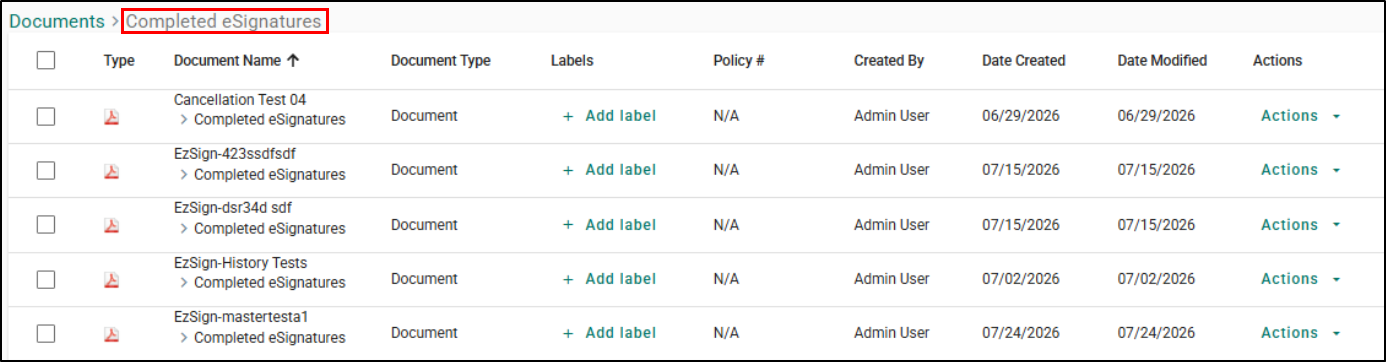
When an eSignature envelope reaches Completed status, EZLynx automatically saves a signed PDF copy to your Document Library - no manual export needed.
| Please Note: If you rename the Completed eSignatures folder, EZLynx won't continue saving to it. A new folder named "Completed eSignature" will be created automatically the next time an envelope is completed so future signed envelopes go there going forward. |
The document is saved to a "Completed eSignatures" folder (created automatically the first time it's needed) and named EzSign - {envelope name}. The saved document reflects all signatures and completed singing content, and it can't be edited - its a permanent record of what was signed.
You can find it the same way you find anything else in the Document Library, using the existing list view and search.
We hope this training article was helpful in learning how to create and send an eSignature envelope for your customers to electronically sign. Please let us know if this article was helpful by answering the question below. Check out our related training articles on the right-side to learn more about how to master EZLynx!
Did you find it helpful? Yes No
Send feedback