Enabling Operational Success with Agency Performance Goals
Modified on: Thu, 15 Jan, 2026 at 7:03 PM
We’re excited to introduce powerful enhancements to Agency Performance Goals that streamline goal setting, improve tracking, and foster accountability. These updates help agencies automate recurring goals and view historical data—all with less manual effort and more actionable insights.
TABLE OF CONTENTS
| Check out our video if you want to watch and follow along!  |
 | Did you know? - You can click on the images in our articles to zoom in. |
What's in it for me?
- Recurring Goals: Save time with recurring goals that are assigned to producers on an ongoing basis.
- Real-Time Performance Tracking: Visual dashboards and instant feedback keep everyone aligned and motivated.
- Increase Revenue: Easier goal management drives sales performance and meets carrier requirements.
Access Agency Performance
To access the Agency Performance feature:
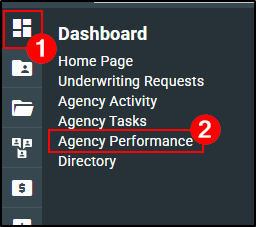
1. Hover over the Dashboard icon (four squares).
2. Choose Agency Performance. This will take you to the Agency Performance page.
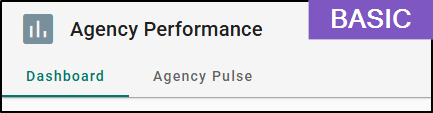
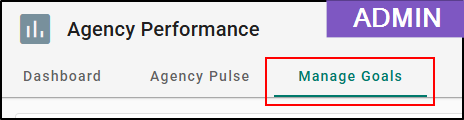
Basic Users will be able to see the Dashboard and Agency Pulse tabs. An Admin User will be able to see the Manage Goals tab which is where most of the new features are located. If you do not see this tab and believe you should, please reach out to your Agency Admin.
 |  |
Recurring Goals
With this release, you can setup a recurring goal which allows for a one-time setup to create multiple occurrences.
Once you are on the Finish Setup step of the workflow:
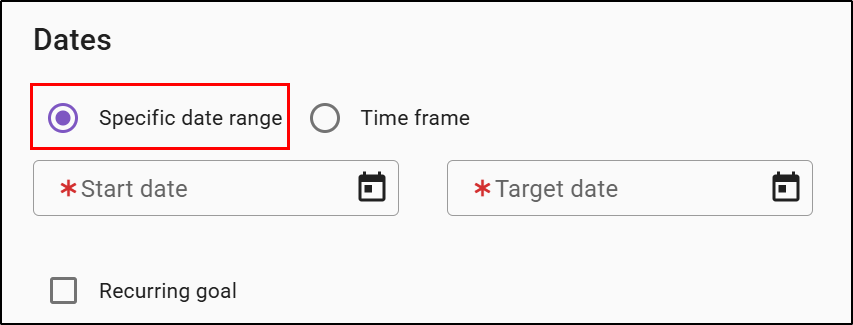
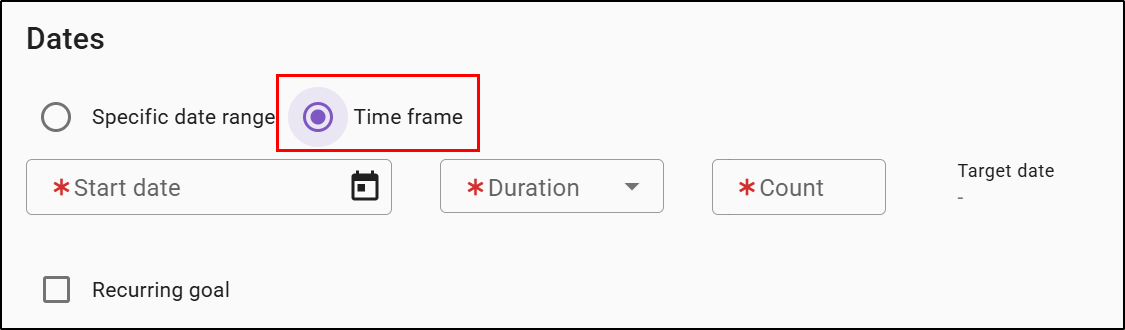
1. Select your specific date range or time frame.
2. Check the box next to the "Recurring goal" option. This will display the Recurrence/Repeat dropdown.
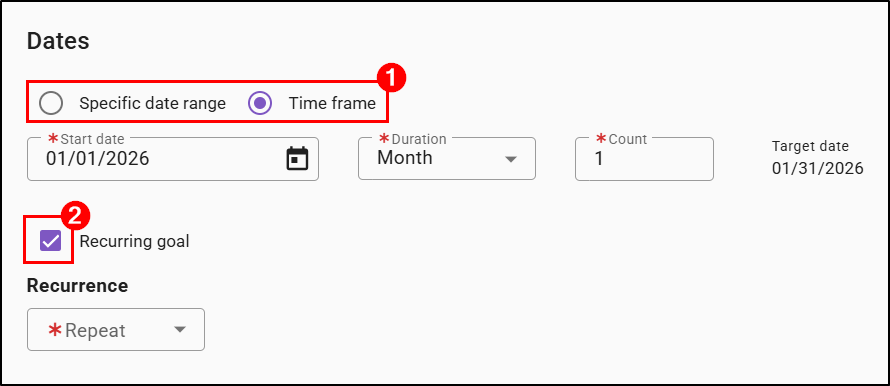
3. Using the Repeat dropdown, choose how many times you want your new goal to repeat. This will display the dates your recurring goals will have for a start and target date. This allows you to see what the dates will be prior to saving your goal.
For example, if we wanted to set a goal for every month of the year, you could choose:
- Time frame
- Start date = First day of the year
- Duration = Month
- Count = 1
- Recurrence/Repeat = 11 times
This will give you 12 different dates (one every month) with the first being the start date you defined earlier in the Start Date field.
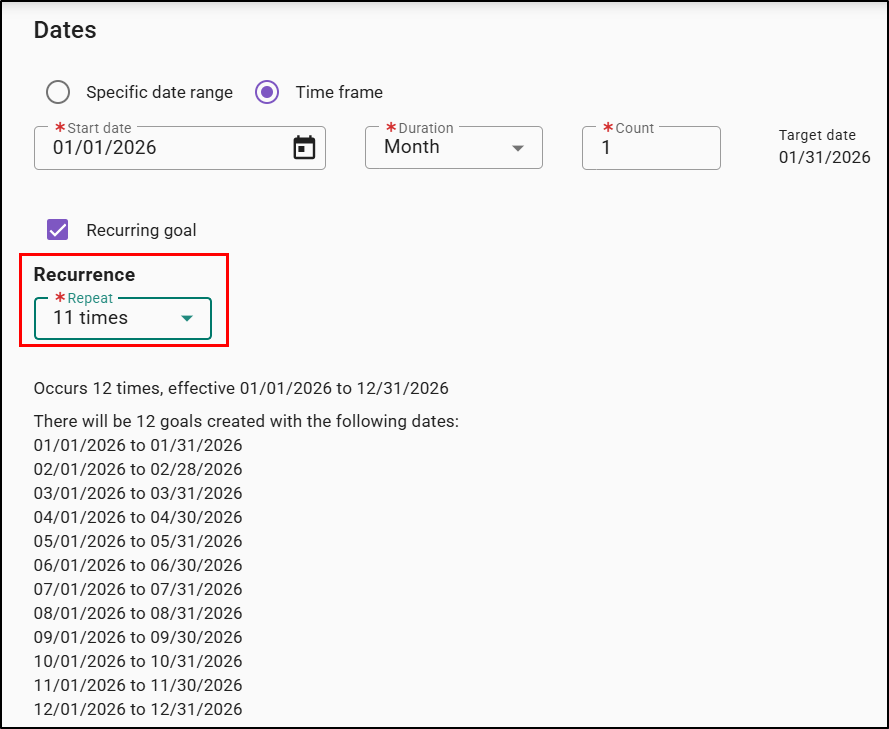
Another example could be a yearly goal for the next five years which would means you would choose:
- Time frame
- Start date = first day of the year
- Duration = Year
- Count = 1
- Recurrence/Repeat = 5
This will give you 5 different dates (one for every year) with the first being the start date you defined earlier in the Start field.
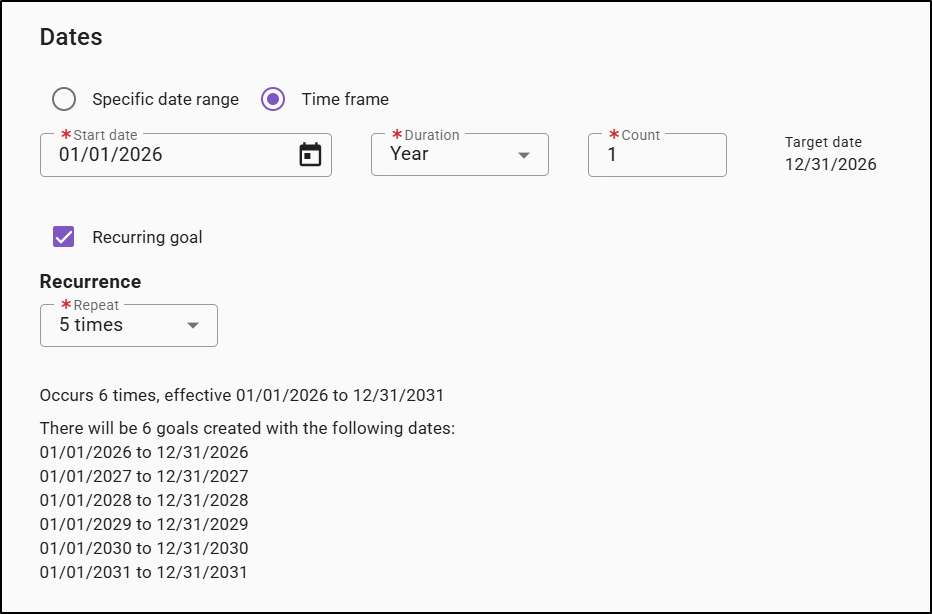
When a recurring goal has been created, it will show in the Manage Goals tab with an indication of it being a recurring goal under the Recurring column.
Expanding the row will give you a summary view of the recurrences of the goal. The status of the goals is updated over time to let you know if an occurrence is expired, in progress, or upcoming.
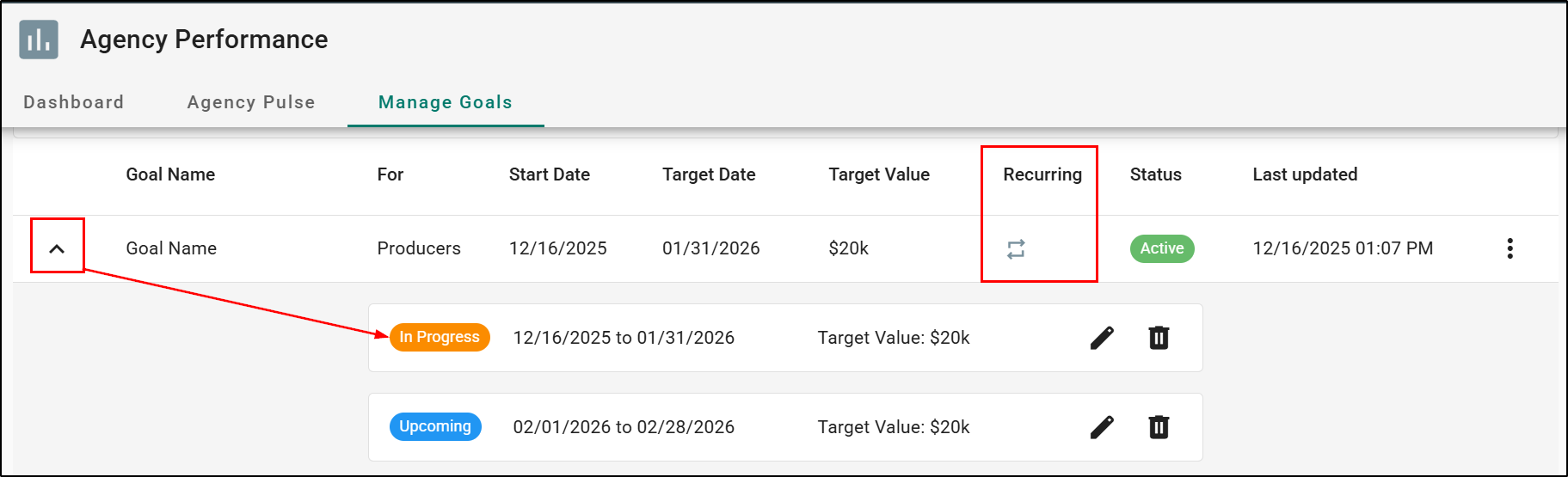
Editing a Recurring Goal
Like before, you can always edit a goal using the Actions icon (vertical ellipses) and Edit option. However, if your goal uses the new Recurring feature, you will only be able to edit certain fields depending on if the goal is Upcoming or In progress.
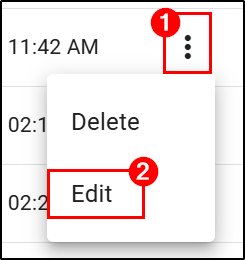
Edits for recurring goals can be made for In Progress and Upcoming goals, but not to any goal that has expired. This is the same if you are deleting goals. Only In Progress or Upcoming occurrences of goals can be deleted. You cannot delete an expired goal.
If you need to make changes to a recurring goal, you can select an individual occurrence or utilize the Edit option mentioned above.
To edit an individual occurrence:
1. Select the down arrow next to the goal to expand it.
2. Select the Edit icon (pencil). This will take you to the limited version of the Goal Edit page where only certain fields are editable.
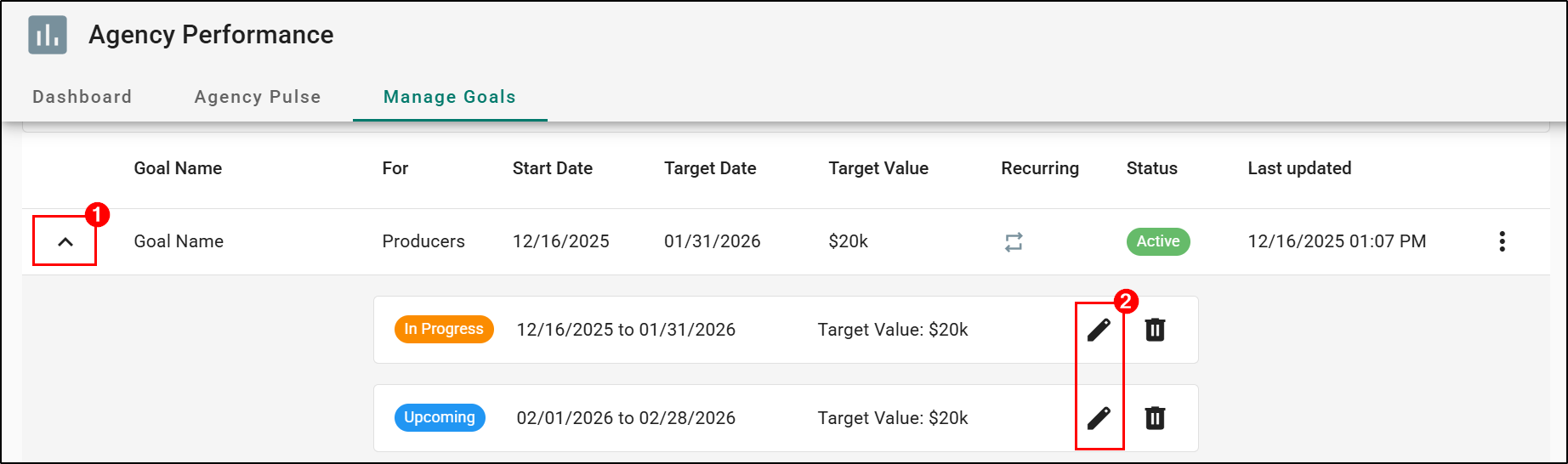
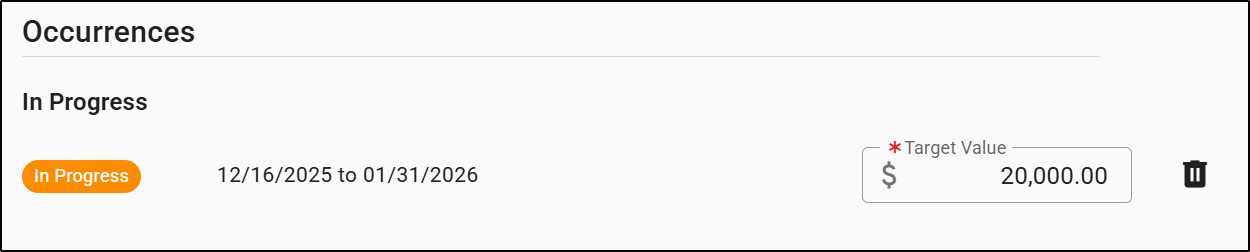
For occurrences that are In Progress, only the Target Value can be updated.
For occurrences that are Upcoming, only the Start date, Target date and Target Value can be updated.

General Updates
In addition to adding the ability to set up a recurring goal, a few updates have been made to assist in your management of Agency Performance Goals.
Viewing expired goals
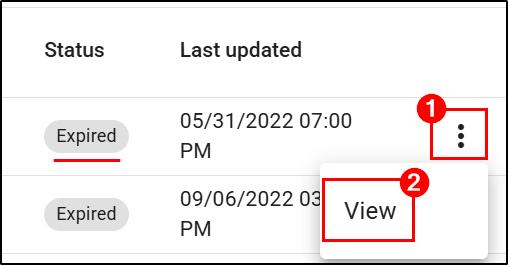
You can now view details of an expired goal by selecting View in the action menu for that goal. This will enable you to see the details of expired goals.
Expiring Soon
An indicator has been added to both the Dashboard and Manage Goals tabs that let you know the goal is about to expire.
- If a goal is within seven days of the Target date and does not have any recurrences, it will display as Expiring soon.
- If a goal has recurrences, it will display as Expiring soon when it is on the last occurrence.
Manage Goals Tab Example 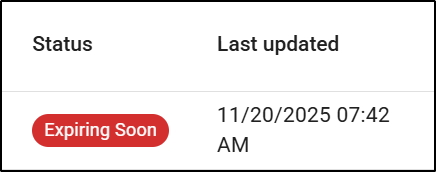 | Dashboard Tab Example 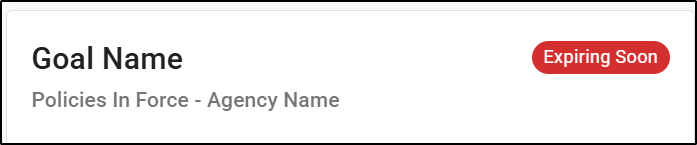 |
Dates
You can now determine if you want to set your goals for a specific date range or time frame. The option for Time frame calculates the End date based on your indicated Start date, duration, and count.
 |  |
Practical Applications
With these enhancements, agencies can move beyond manual tracking and fragmented processes. Here are several ways you can put these new features to work and see immediate benefits in your daily operations:
- Create Recurring Goals to Save Time
Set up monthly or quarterly sales goals once and let the system handle the rest. Recurring goals are automatically generated, freeing managers and producers from repetitive setup and ensuring no goal is missed.
- Act Quickly on Expiring Goals
Visual indicators highlight goals that are about to expire, making it easy for managers and producers to focus their efforts where it matters most and avoid missed opportunities.
We hope you are excited for this new feature and look forward to our future releases. Please let us know if this article was helpful in learning about the new feature by answering the question below. Check out our related articles on the right-side of the page to learn more about EZLynx!
Did you find it helpful? Yes No
Send feedback