Customizing Sales Pipeline for Table View
Modified on: Tue, 20 Jan, 2026 at 1:06 PM
We are pleased to announce that in addition to the existing ability to manage custom pipelines on Card View, you will now be able to have the same functionality within Table View! We recognize that each agency has its own distinctive and effective sales process, and the lack of flexibility to align your pipeline with those workflows is often a challenge. This feature addresses that issue by effortlessly integrating Sales Center into your existing sales process, delivering smooth adaptation with minimal disruption and optimal efficiency.
TABLE OF CONTENTS | Check out our video if you'd rather watch and follow along!  |
 | Did you know? - You can click on the images in our articles to zoom in. |
What's in it for me?
- Boosted Productivity: With a pipeline that truly reflects your team's workflow, you'll experience a smoother, more intuitive sales journey, freeing up time to focus on what matters most: closing deals.
- Effortless Integration: Say goodbye to adapting your proven sales process to fit rigid software. Let Sales Center adapt to you, making implementation a breeze and reducing the learning curve.
- Gain a Competitive Edge: By aligning Sales Center precisely with your successful workflows, you'll optimize your sales efforts and empower your agency to outpace the competition!
With customizable sales pipelines, the possibilities for improving your agency’s sales process are endless. From better opportunity targeting to streamlining workflow and gaining clearer insights, this feature has tools that adapt to your team’s unique needs and priorities.
Here is a practical application example to show how this feature can be a game-changer for your agency.
Example: Tailoring the Sales Pipeline to Match Different Segments
Situation: Your agency serves a wide variety of personal and commercial opportunities Each segment requires you to focus on different things, and the progression of deals varies greatly from one to another. For example, a personal lines opportunity may move quickly through the pipeline, while a commercial opportunity takes longer due to extended regulatory approvals.
How the Feature Helps: You can create multiple custom sales pipelines for distinct client segments. Applying client-specific filters further allows your team to focus on active deals within a specific industry without being bogged down by unrelated opportunities.
Expected Positive Outcome: Your team gains greater clarity and works more efficiently by targeting opportunities within specific segments—closing deals faster and improving customer satisfaction.
Pipeline Visibility
Sales Center Admins have full control to create, edit, view, or delete any pipeline within your organization. This ensures centralized oversight and the ability to standardize best practices across your agency, giving you the flexibility to adapt pipelines as your business evolves.
Meanwhile, Producers can also create their own pipelines and view any pipeline they've been granted access to. This empowers individual agents to tailor their personal sales process while still benefiting from organizational visibility where needed.
Creating a Pipeline
To create a Pipeline:
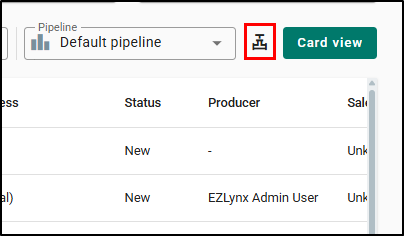
1. Select the Pipeline icon to the left of the Table View button. This will open the Manage Pipelines drawer panel on the right.
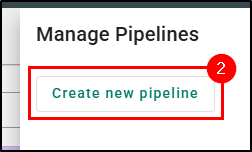
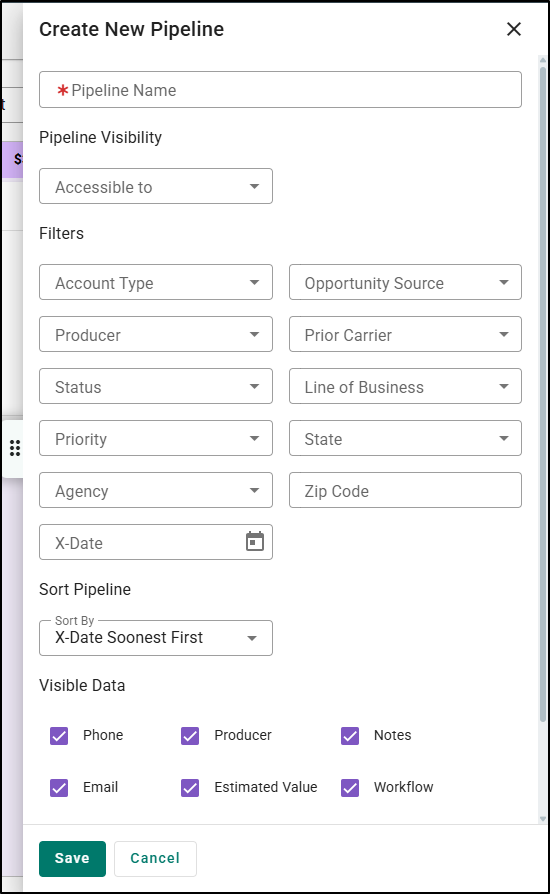
2. Select “Create new pipeline”, then input:
- the Pipeline Name
- the producers you would like to have visibility of that pipeline
- select the appropriate filters for the Pipeline
Click Save to finish creating the pipeline based on your inputs.
 |  |
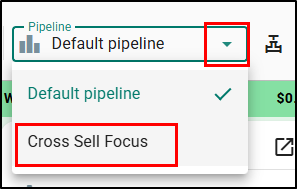
Once created, you will be able to select the Pipeline from the dropdown.
Please note, to exit a Pipeline, you can update your filters or select “Default Pipeline” from the dropdown.
Editing a Pipeline
Your agency's sales approach can evolve, so your pipeline can too. You have the flexibility to easily edit existing pipelines, update status names, change the sorting, or modify visibility as desired.
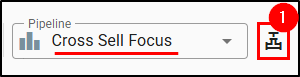
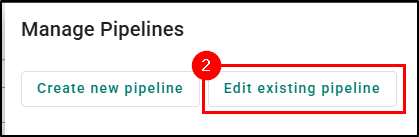
While on the Pipeline you'd like to edit, click the Pipeline icon to access editing options. Then, choose Edit existing pipeline. This will open the Edit Pipeline drawer panel which is similar to the Create New Pipeline drawer panel.
 |  |
To save your changes once you're done, click the Save button at the bottom. To delete a pipeline, begin the editing process and select Delete Pipeline within the edit pane. | 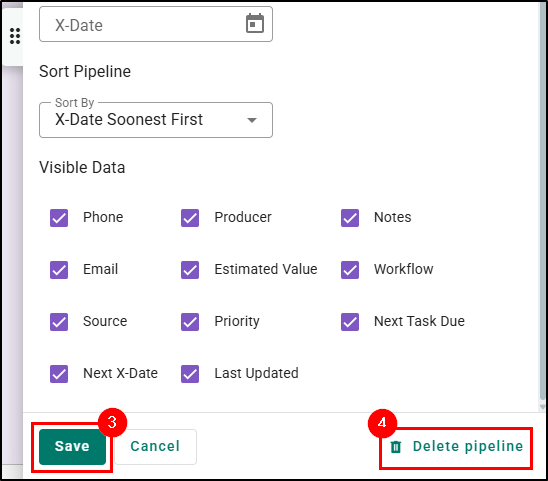 |
 | Did you know? - Agency Admins can customize the name and color of the Statuses. Check out the Status Management section of our Sales Center Settings article to learn more! |
Conclusion
Whether it’s segmenting pipelines, focusing on high-value deals, or managing multiple campaigns, this customizable sales pipeline feature adds flexibility and precision to your workflow. By addressing these practical scenarios, your agency will be more empowered to achieve clarity, efficiency, and faster conversions. Start experimenting with these applications today—and watch your sales process transform!
We hope you are excited for this new feature and look forward to our future releases. Please let us know if this article was helpful in learning about the new feature by answering the question below. Check out our related articles on the right-side of the page to learn more about EZLynx!
Did you find it helpful? Yes No
Send feedback