Streamlining Text Message Management
Modified on: Fri, 27 Mar, 2026 at 9:29 AM
We’re excited to announce that with this release, you are now able to manage text conversations more confidently with clearer delivery status, smarter notifications, and a cleaner texting experience. This update introduces:
- Improved indicators for unread and undelivered messages
- More flexible notification controls
- Refinements in both the conversation and notification panels so your team can respond faster
- Reduce missed client messages, and better see what’s happening with every text you send and receive
TABLE OF CONTENTS
- What's in it for me?
- Notification Filters
- Text Notification Updates
- Text Conversation Updates
- Opt Out/In Workflow Updates
- Voice and Text Settings
- Practical Applications
 | Did you know? - You can click on the images in our articles to zoom in. |
What's in it for me?
- Message Status at a Glance: Stay on top of every client conversation with clear indicators for unread and undelivered messages, so important texts don’t slip through the cracks.
- Delivery Clarity: Save time and reduce frustration with straightforward explanations when a message can’t be delivered, instead of wondering why a message did not go through.
- Targeted Alerts: Make sure the right people are notified for each conversation with more flexible notification controls, while cutting down notification noise for everyone else.
Notification Filters
We've added a new Filters option to the Notifications pane. To access your Notifications:
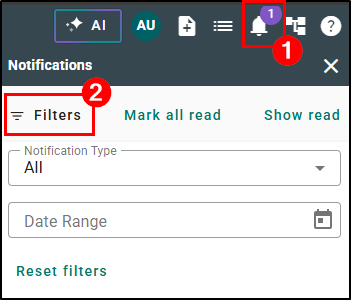
1. Clicking on the Notification (bell) icon at the top right of your screen.
2. When this opens, click on the new Filters option. This will open two new filters that will assist in locating key notifications.
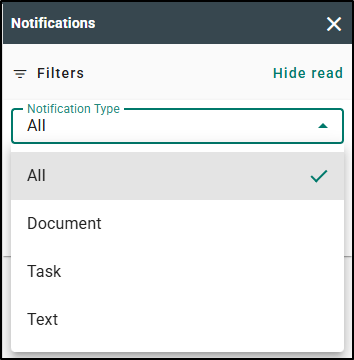
The notification types that are listed are for the notifications you currently have. In the below example, this user has Document, Task, and Text message notifications available to them.
Please note, Notifications no longer show in the Notifications pane if they are more than 60 days since the date of the notification.
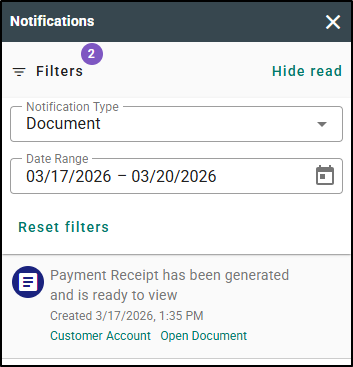
Once a notification type has been selected, you can further filter your notifications by date range.
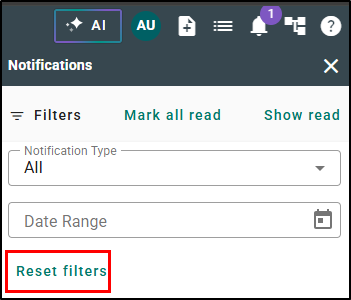
When you have selected filters, your notifications will retain your selection upon closing and returning to view notifications. Selected filters can be cleared by selecting Reset filters.
 |  |
Text Notification Updates
The information provided for incoming text messages has been updated to provide only the necessary information for your quick glance.
| 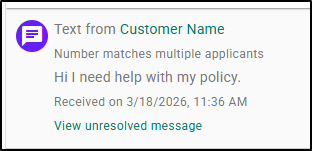 |
We've also added two new indicators for text message notifications to help determine unread and undelivered text messages.
Unread Text Notification
In cases where a Text Message has been received by your agency and the settings are setup so that you receive those incoming message notifications; an indicator will appear for new texts that you have not viewed. This indicator will display as a red dot on the Text Notification icon.
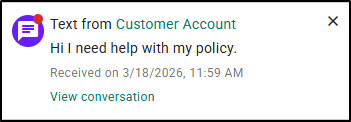
The indicator will remain on a notification until one of the following occurs:
- You have opened the text conversation of an applicant that has any unread Text Notification.
- The Notification containing the indicator is marked as “read”.
- Returning to notifications when you have clicked on “view conversation” within the Text Notification.
Please note, the unread indicator is per user. If another user in your agency has already viewed the conversation, your unread indicator will still remain until you read the message.
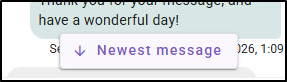
When opting to view a conversation containing an unread message from the Text Message Notification, you will be taken to the oldest of the unread messages within the text conversation. You will be able to scroll to review the messages, or you can opt to view the newest message. This makes it easier to catch up on anything you may have missed and helps ensure important client texts don’t slip through the cracks. If you need to get to the newest message quickly, you can click the Newest message button and it will jump you to the most recent message in the conversation.
Undelivered Text Messages
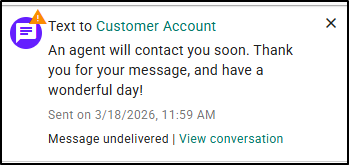
In cases when an outgoing Text Message has not been delivered to the intended recipient, an indicator will display to bring your attention to the message so that you are able to act in those cases to make the necessary adjustments to contact your customer.
This indicator will display as a warning on the Text Notification icon. This allows you to quickly spot messages that did not reach the client so you can review the details and decide on next steps.
Text Conversation Updates
Within a Text Conversation, there are a few updates to take note of:
Finally, we've also added indicators for both Unread Text Messages and Undelivered Text Messages within the Text Conversation pane. | 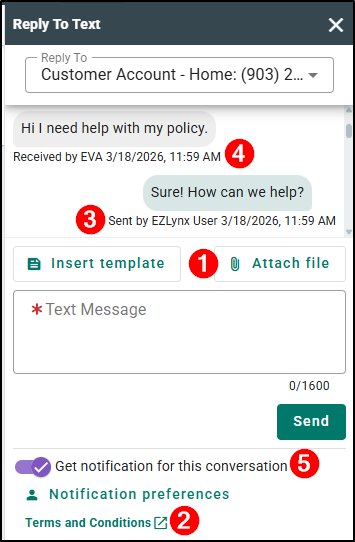 |
Unread Text Messages
When viewing a Text Conversation that contains unread messages, those messages will have a red dot indicator like the one on Text Notifications. This indicator helps you quickly spot where new activity has occurred in the thread.
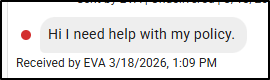
This indicator will no longer appear within the Text Conversation when one of the following occurs:
- You have navigated away from an open conversation that contained unread text messages.
- You have sent a message in response to a message that has the unread message indicator.
- It has been more than 60 days since receiving the message that still has the unread message indicator.
The following actions will not clear the unread message indicator within the Text Conversation:
- Marking a Text Notification as read
- Another user responds to a message that you have not viewed
Undelivered Text Messages
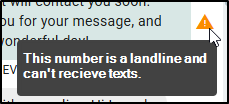
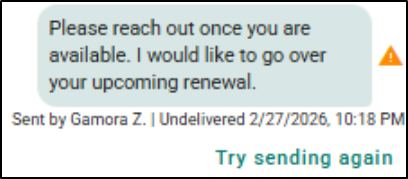
For messages that are being sent from your agency, but do not deliver to your applicant, there will be a warning indicator like the one on the Unread Text Notification. This indicator will provide more details as to why the message was not delivered. This can be viewed by hovering your cursor over the Undelivered Text Message indicator.
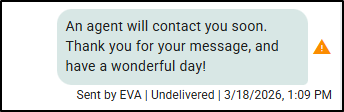 |  |
When the last message you have sent is marked as undelivered, you will have the option to resend this message. It will automatically send the same message to your intended recipient. Please note, this option will no longer appear once a message has been received or an outgoing message was successful.
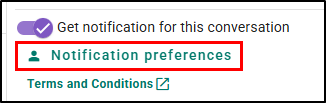
Notification Preferences for individual Text Conversations
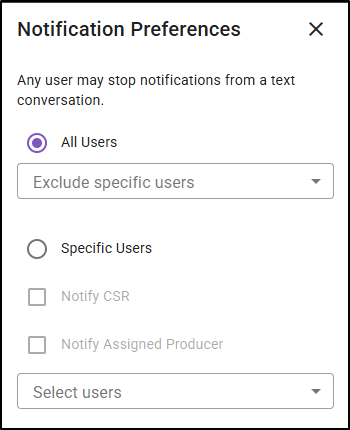
Within each individual conversation, you will now be able to update who receives notifications for incoming messages for each conversation. The default selection will mirror that of your agency’s Notification Rules for Voice & Text.
If you would like to update who at your agency will receive in-app notifications, simply select the Notification Preferences for the desired conversation. Once your selection is saved, the users that were selected will see Text Notifications for that conversation from that point forward or until the preferences are updated.
 |  |
If you would like to only update your own preferences for getting notifications for a specific conversation, you can utilize the option Get notification for this conversation.
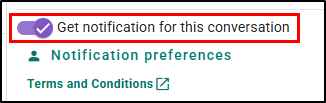
Please note, these notification preferences only affect the in-app notifications. This will not affect the email notification preferences.
Also, there must be at least one user within your agency to receive Text Notifications for a conversation. Because of this, if you are the last or only user available to receive notification, you will not see the options listed above. This safeguard helps prevent conversations from losing all notification recipients, reducing the risk that incoming client messages go unnoticed.
Opt Out/In Workflow Updates
We have updated the opt out keywords to align with TCPA requirements and carrier standards. Please note, all keywords are case insensitive. The following keywords are now supported for both opt out and opt in:
| Opt Out Options | Opt In Options |
| Stop | Start |
| Stopall | Yes |
| Unsubscribe | Unstop |
| End | |
| Quit | |
| Cancel | |
| Revoke | |
| Optout | |
| Opt out |
When an applicant has opted out of receiving text messages from your agency, you will not be able to send that number a text message until they send a text to opt back in.
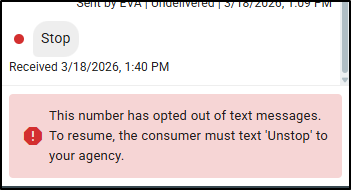
Please note, if the applicant received a message from their carrier letting them know they have opted out of receiving messages from your agency, they will need to use the word that was provided to them from their carrier to successfully opt back in.
Voice and Text Settings
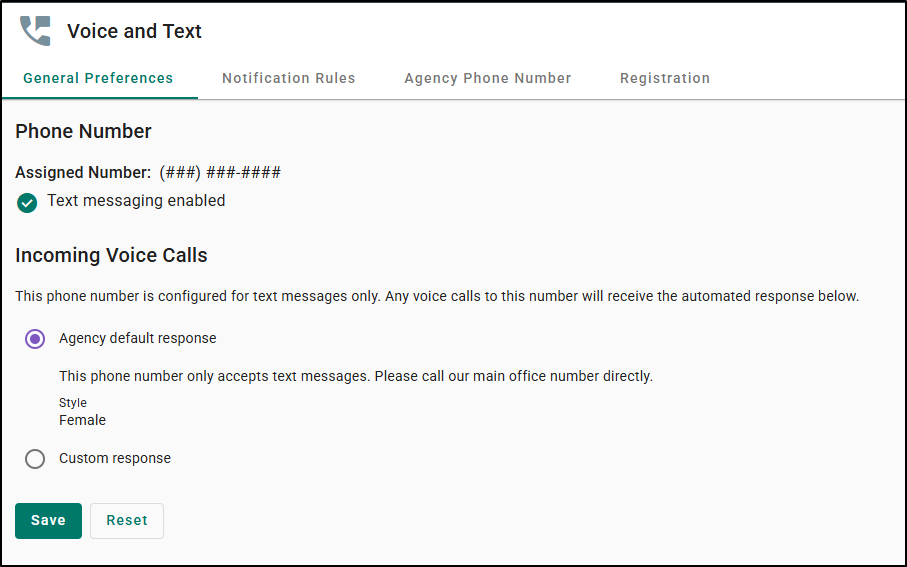
If you are an Admin, you will see we have updated the user interface of the General Preferences page within Voice and Text Settings. This page will now have the more modern look you are familiar with from other areas of the system.
 | Important! - EZLynx will no longer send an automated message to your customers every 6 months when your customers text your agency. The section for an automated response for incoming text messages has been removed, along with the automated message itself. This simplifies your Voice and Text Settings and removes an outdated autoreply option that could cause confusion for clients and staff. |
Practical Applications
Here are 3 ways your agency can make the most out of these Text Management improvements:
Use text status to prioritize follow-ups
- Have your team start their day by opening the Text Conversation panel and scanning for messages marked as unread or undelivered.
- Agents can focus first on unread messages that still need a response, then review undelivered texts to understand what went wrong and decide how to reach out next.
- This simple routine helps teams quickly identify which clients need immediate attention and which conversations may require a phone call or email instead of another text.
Improve ownership on high-touch accounts
- For VIP or complex accounts, use Notification Preferences within each conversation to select exactly who at your agency should receive incoming text notifications.
- Producers can opt out of notifications on conversations they’ve handed off, while CSRs remain on the notification list and manage ongoing communication.
- This keeps the right people informed without overwhelming others with alerts that no longer apply to them.
Quickly diagnose and resolve undelivered messages
- When a message shows as undelivered in the Text Conversation, hover over the indicator to see a clear explanation of why it failed (for example, an invalid number or an optout).
- Staff can then correct the client’s contact information, choose another channel, or, when appropriate, resend the most recent undelivered message using the built in resend option.
- This reduces back and forth with clients, cuts down on guesswork, and helps maintain a professional, reliable texting experience.
We hope you are excited for this new feature and look forward to our future releases. Please let us know if this article was helpful in learning about the new feature by answering the question below. Check out our related articles on the right-side of the page to learn more about EZLynx!
Did you find it helpful? Yes No
Send feedback