Certificate Master Efficiency Update
Modified on: Wed, 18 Mar, 2026 at 5:19 PM
With this release, managing Certificate Masters is faster, clearer, and more efficient than ever. Bulk actions and real‑time previews eliminate manual distribution and formatting guesswork, helping you move through renewal season with confidence. Spend less time on paperwork and more time serving your clients.
- Bulk Actions: Distribute and update certificates for multiple holders in just a few clicks—no more one‑by‑one processing during crunch time.
- Master and Holder Remarks previews: Eliminate guesswork, by viewing the new remarks previews, so what prints on ACORD forms is exactly what you expect—every time.
- Guidance Text: Helps explain what you should be doing on each step of the Certificates Workflow.
- Sortable Columns on Master and Holder Docs tables: Help reduce the time spent searching for documents and make sure you’re attaching the right files for each certificate.
TABLE OF CONTENTS
- What's in it for me?
- Certificate Holders Table
- Certificate - Bulk Distribute and Update Method
- Guidance Text in Workflow
- Master and Holder Remarks Previews
- Add Certificate Holder – Bulk Distribution and Methods
- Add/Edit Master and Holder Documents
- Practical Applications
 | Did you know? - You can click on the images in our articles to zoom in. |
What's in it for me?
- Bulk Updates: Speed up certificate processing by updating distribution methods and distributing to multiple holders at once, instead of adjusting each one individually.
- Smarter Tables: Use improved Master Holder and document tables—with sortable columns, clearer email visibility, and folder support—to quickly find the right holders and documents.
- Remarks Clarity: Rely on accurate character counts, in workflow previews, and clear “See ACORD 101” behavior so you know exactly how Master and Holder Remarks will appear on ACORD forms before you generate certificates.
Certificate Holders Table
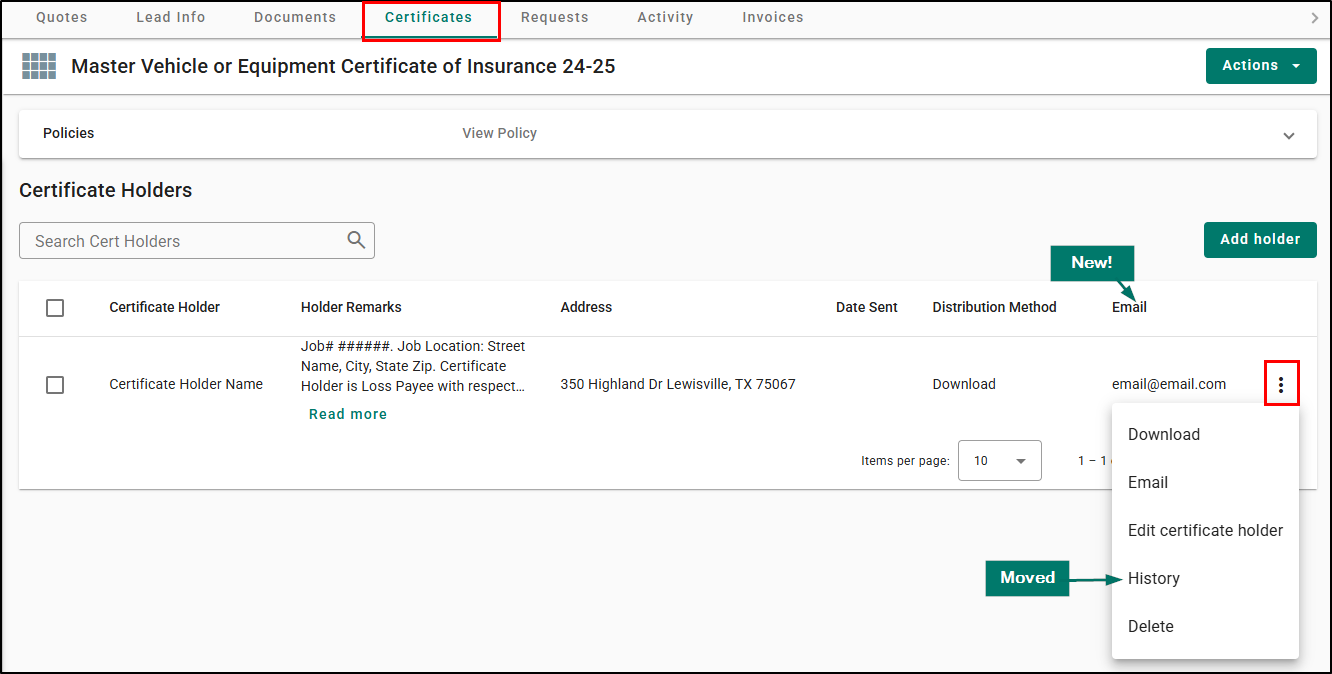
The Certificate Holders table on the Certificates tab has been updated to surface more useful information and reduce clutter.
- The Destination and Phone columns have been removed to create a cleaner view.
- A new Email column has been added so you can quickly see which holders have an email address on file, making it easier to decide whether to set their distribution method to Email.
- The History option has been moved into the Action menu for each holder instead of being displayed as a separate column.
These changes help you quickly identify holders that can receive emailed certificates and keep the main table focused on the most important information.
Certificate - Bulk Distribute and Update Method
From the Certificates tab on a Certificate Master, you can now select one or more certificate holders and apply bulk actions.
Bulk Distribute
To bulk distribute a certificate to multiple holders:
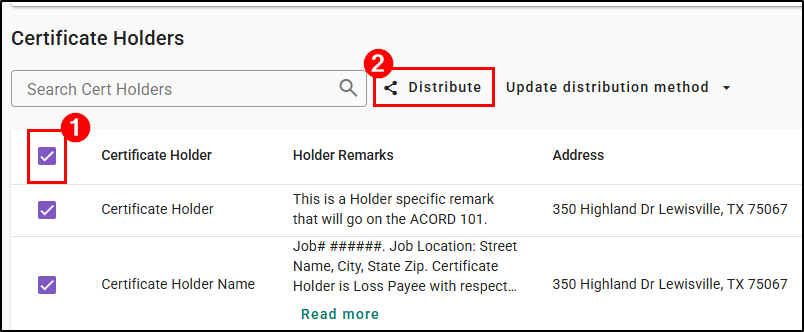
- Select multiple certificate holders using the checkboxes in the list.
- Choose Distribute to start distribution for all selected holders at once.
Distribution behavior (download and email) matches what you already use in the certificate stepper, so the experience stays familiar.
Bulk Update Distribution Method
To bulk update the distribution method for multiple holders:
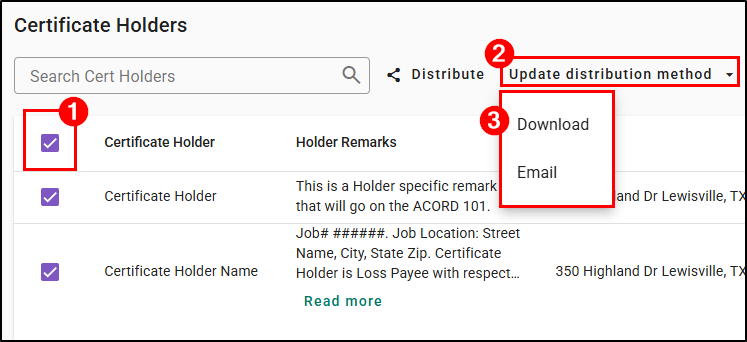
- Select multiple certificate holders using the checkboxes in the list.
- Choose Update distribution method.
- Select Download or Email as the new distribution method for the selected holders.
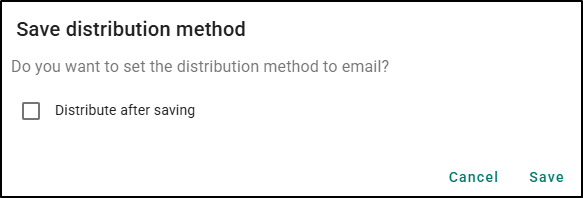
A confirmation message confirms you want to update the holders and in many cases, you’ll have the option to Distribute after saving, allowing you to update the distribution method and send certificates in one step.
Please note, if you set the distribution method to Email:
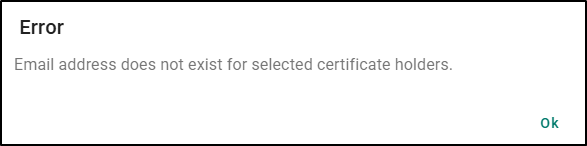
- If none of the selected holders have an email address, you’ll see a clear message explaining that email cannot be set.
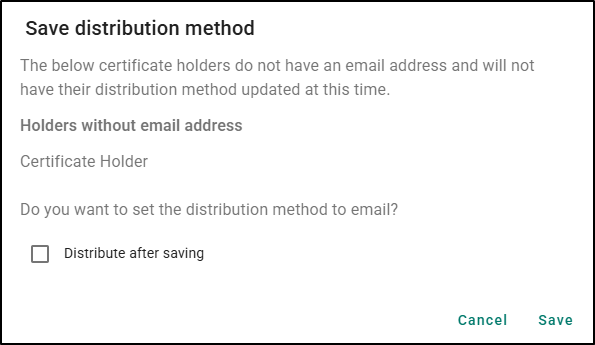
- If only some holders have email addresses, you’ll see a list of holders that will not be updated so you can decide whether to continue.
Guidance Text in Workflow
Across the certificate workflow, new guidance text and tooltips help your team know where to make changes and what each step controls.
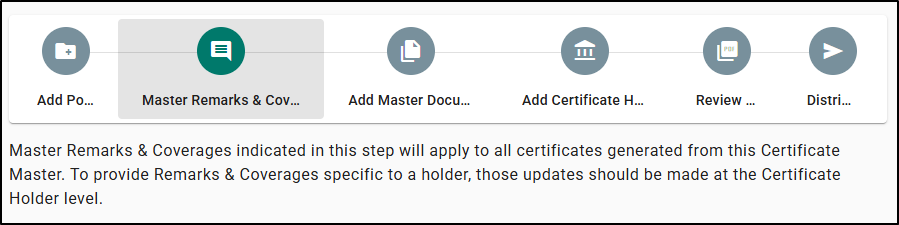
- Master Remarks & Coverages explains that Master Remarks apply across all certificates for the Certificate Master and that holder specific updates belong in Holder Remarks.
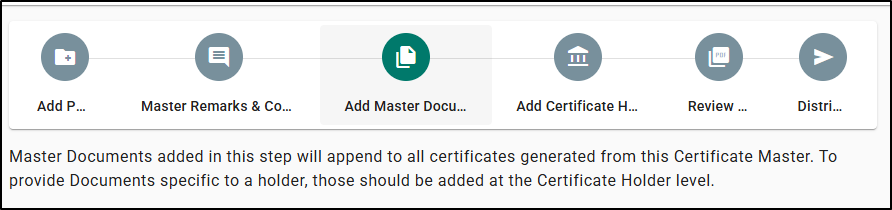
- Add Master Documents clarifies that these documents are attached to all certificates for the master, and that holder specific documents should be added from the holder.
- Add Certificate Holder directs users to “Edit certificate holder” for detailed, holder level changes.
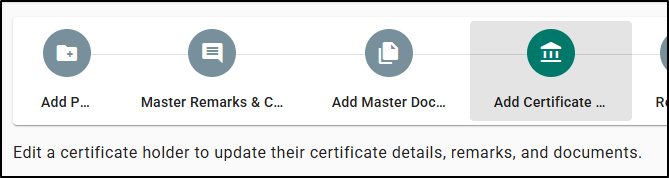
- Review PDF includes updated helper text and hover states to explain which fields are controlled at the master versus holder level and how to use the available actions.
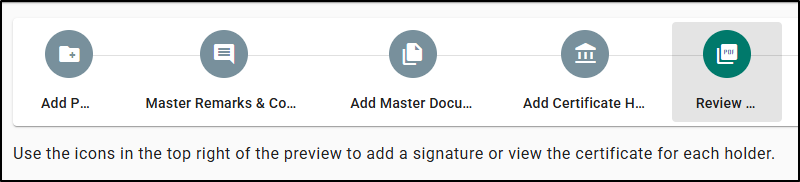
This guidance reduces confusion for CSRs and helps new users move through the certificate process more confidently.
Master and Holder Remarks Previews
Master Remarks Preview
When editing Master Remarks & Coverages for a Certificate Master, you’ll see a new preview panel that shows how Master Remarks will appear on the ACORD form and on ACORD 101. As you enter or edit Master Remarks, the preview updates automatically.
The preview is divided into:
- ACORD Remarks Preview – the text that will appear on the main ACORD form.
- ACORD 101 Preview – any additional text that does not fit on the main form and will print on ACORD 101.
Once you reach the character limit for the selected ACORD form:
- The main form preview shows where “SEE ACORD 101” will appear.
- The ACORD 101 preview displays the overflow text that continues beyond the main form.
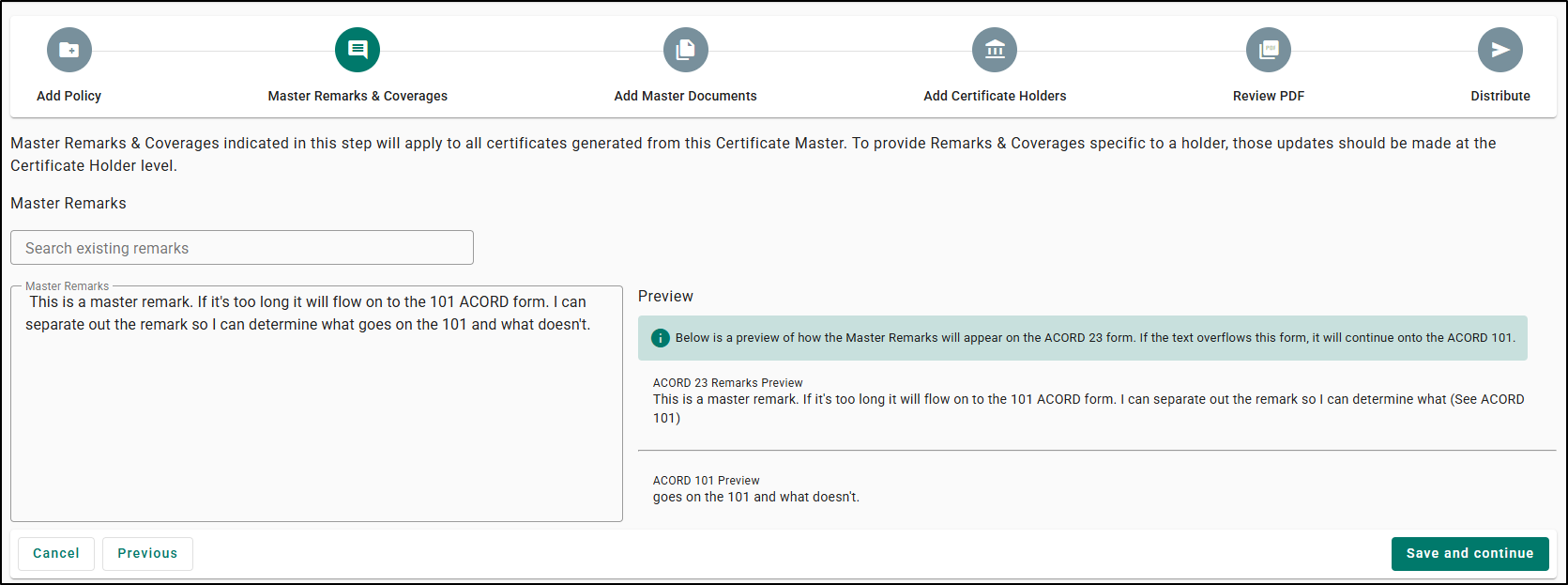
Behind the scenes, character counts have been updated per ACORD form so what you see in the preview matches how the remarks will print on the generated certificate. This gives you a clear picture of how much text can fit on the main form and what will move to ACORD 101, before you generate any certificates.
Master and Holder Remarks Preview
When editing Holder Remarks for a specific certificate holder, you’ll see a similar preview that shows how both Master and Holder Remarks will appear together.
If both Master Remarks and Holder Remarks exist for that holder, the preview shows the combined text as it will print on, the main ACORD form, and ACORD 101 if there is overflow.
The preview again uses:
- ACORD Remarks Preview for what appears on the main certificate form.
- ACORD 101 Preview for any additional text that continues onto ACORD 101.
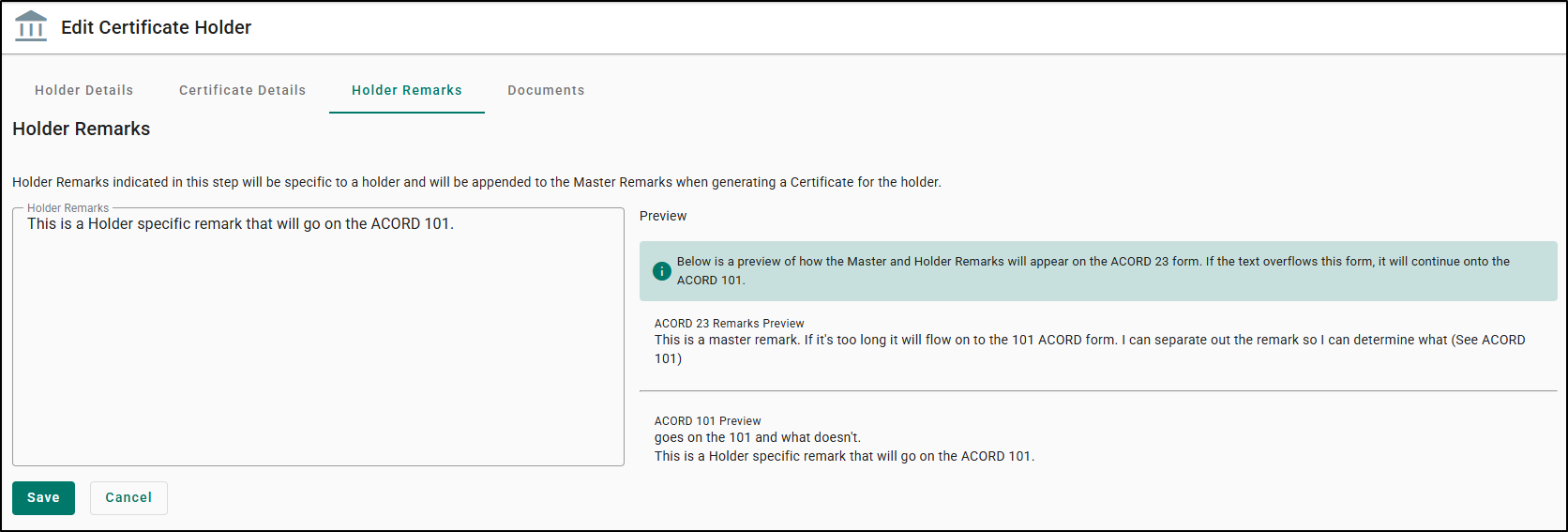
With this combined preview, you can adjust Holder Remarks while seeing the full picture of what the certificate recipient will see, ensuring key information appears in the right place.
Add Certificate Holder – Bulk Distribution and Methods
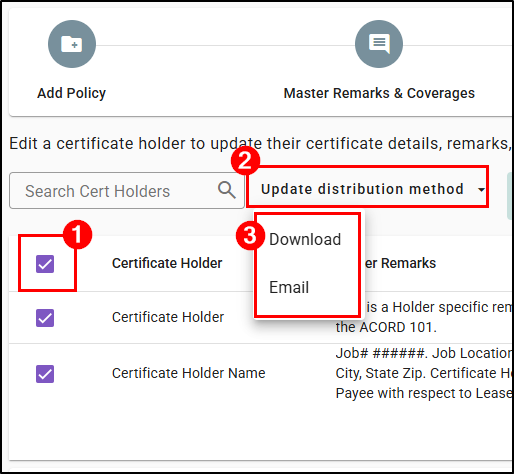
When you’re in the Add Certificate Holder step of the certificate workflow, you’ll see the same bulk distribution method option you have on the Certificates Overview. You can select multiple holders while you’re adding them and set their distribution method to Download or Email in bulk.
The same validation for email addresses applies on this page as well. If some selected holders don’t have emails, they will be clearly listed as not being updated, and you can choose whether to proceed.
This lets you configure distribution settings for many holders before you complete the certificate, reducing cleanup afterward.
Add/Edit Master and Holder Documents
The documents experience in the certificate workflow now makes it easier to find and reuse the right files.
- Sortable columns: In both the Add Master Documents and Edit Certificate Holder > Documents pages, all table columns (such as Name, Type, and Created Date) are sortable. You can click any column header to sort documents, helping you quickly locate the correct template or the latest version.
- Created Date visibility: A Created Date column (MM/DD/YYYY) is available in these views so you can easily identify the most recently added documents.
These updates help reduce the time spent searching for documents and make sure you’re attaching the right files for each certificate.
Practical Applications
Here are 3 ways your agency can make the most out of these Certificate Efficiency updates:
Handle high-volume certificate renewals more quickly
- When processing renewals for many holders, use the bulk update distribution method and bulk distribute options from the Certificates tab to update and send certificates in just a few clicks.
- This significantly reduces repetitive work and speeds up turnaround for large schedules.
Reduce trial and error around remarks and ACORD 101
- Before generating certificates, have your team review the Master and Holder Remarks previews to confirm how much text appears on the main form and what continues to ACORD 101.
- This helps avoid surprise formatting issues and minimizes the need to regenerate certificates after clients receive them.
Quickly locate and reuse the right documents
- Use the sortable document tables, Created Date column, and folder support to find the correct versions of certificate templates and attachments.
- This keeps document selection consistent across the team and reduces time spent searching through long lists of files.
We hope you are excited for this new feature and look forward to our future releases. Please let us know if this article was helpful in learning about the new feature by answering the question below. Check out our related articles on the right-side of the page to learn more about EZLynx!
Did you find it helpful? Yes No
Send feedback