Quoting Consistency & Prefill Improvements
Modified on: Thu, 26 Mar, 2026 at 7:32 PM
Insurance agents rely on EZLynx to quote quickly across multiple carriers. Current quoting flows are slowed down by gathering data from public websites, redundant data entry, inconsistent question displays, and inaccurate premium expectations. This not only increases quoting time but also reduces trust in the platform’s accuracy and usability.
With this release, we've made changes by streamlining data prefill, improving transparency in quote results, and standardizing carrier-specific questions. This let's us significantly enhance quoting speed, agent satisfaction, and carrier alignment. Let us go through each of the screens and see what has changed.
TABLE OF CONTENTS
- What's in it for me?
- Quick Links
- Updates to the Prefill Workflow
- New field “Coverage B (Other structures)”
- Personal Property and Loss of Use Updates
- Quote Result Expectation Message
 | Did you know? - You can click on the images in our articles to zoom in! |
What's in it for me?
- Greater Versatility – Fewer duplicate and inconsistent questions make the quoting experience cleaner and less frustrating.
- Increase Efficiency – Reduce time per quote by minimizing data entry and research steps
- Future Scalability – Complete quotes quickly with fewer manual steps by effectively using Rating products
Quick Links
We've added quick links to both the Applicant panel and on the Dwelling page of Home and DF lines of business for property data lookups with the address prefilled such as Google Map, County Assessor, etc.
When clicked on any of these links, it will prefill the address and display the results on the respective options chosen. Please note, when there is a Dwelling Address for Home or a Property Address exists for Dwelling Fire on the application, these addresses will take precedence over the Primary address of the Applicant Details page.
To view the newly added quick links:
- Applicant Panel: Navigate to a customer account, and make sure the Applicant pane is expanded. Here, you'll see the quick links on the left-hand side of the screen.
- Dwelling Page: Navigate to a customer account, and open either a Home or Dwelling Fire application. Then, go to the Dwelling Info page where you'll see the quick links above the fields for the Home Info.
Applicant Panel 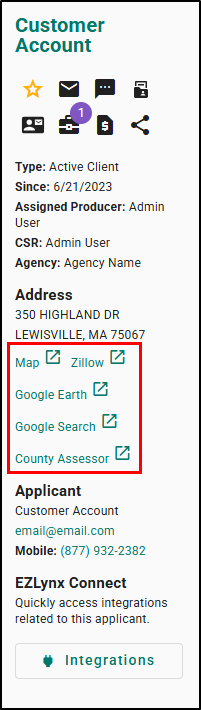 | Home Dwelling Info Page 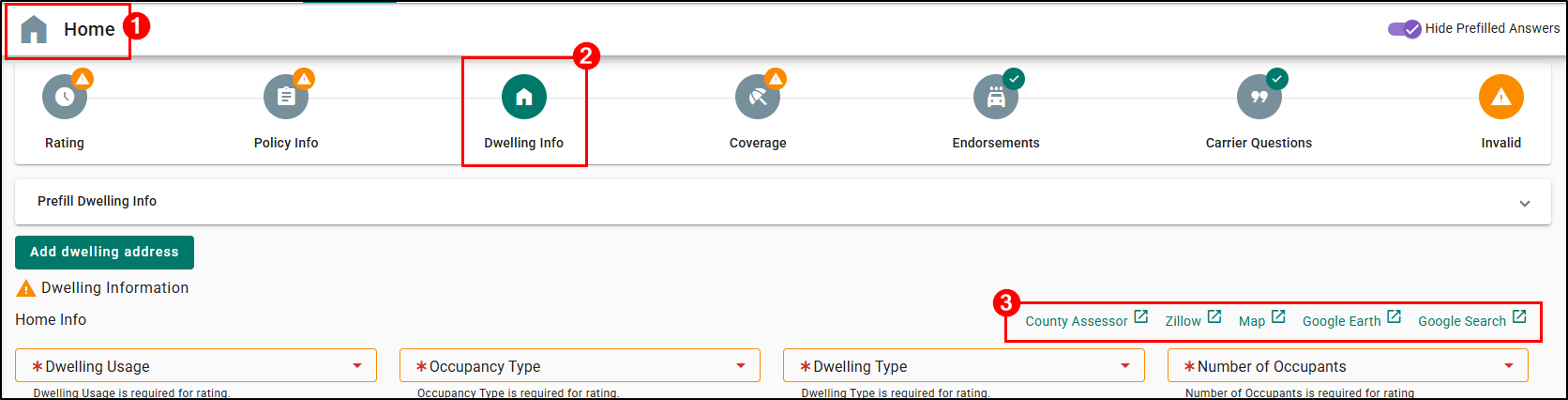 Dwelling Fire Dwelling Info Page 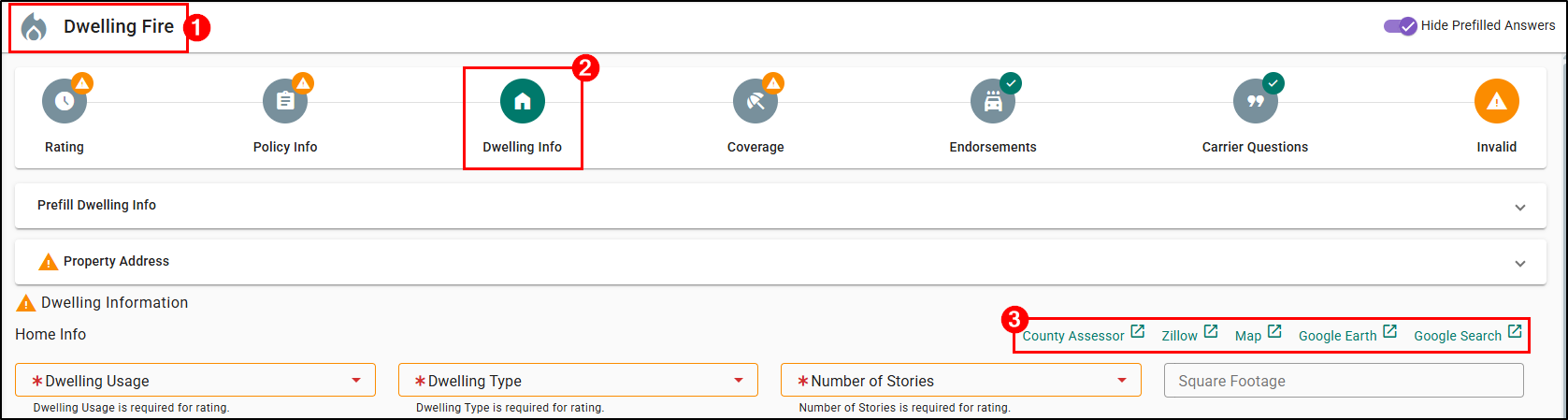 |
Updates to the Prefill Workflow
In the current design, the Prefill Workflow for Drivers, Vehicles, and Property were not clearly visible and due to this, this helpful tool is often skipped over. When used, results returned were not giving a clear enough picture due to modal user interface.
To make the Prefill Workflow more visible and provide you with more confidence while using it, this release we have made the several enhancements to this data enrichment feature on:
- The Details page
- The Drivers & Vehicles page on the Auto LOB
- The Dwelling Info page of the Home
- The Dwelling Fire LOB
Let us look at what has been changed on the respective pages.
Moved the Prefill option to its own panel
On the Applicant Details page, Auto and Home Prefill options are moved from the top right corner of the screen to a collapsible panel ‘Prefill Applicant Info’.
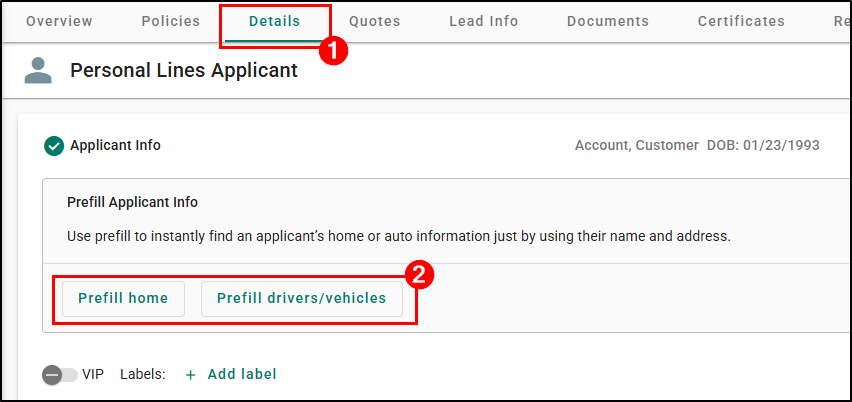
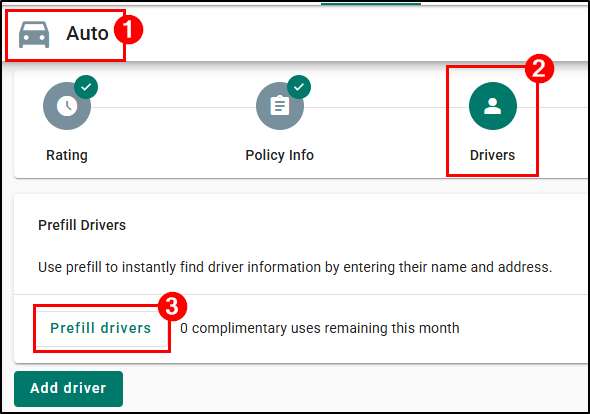
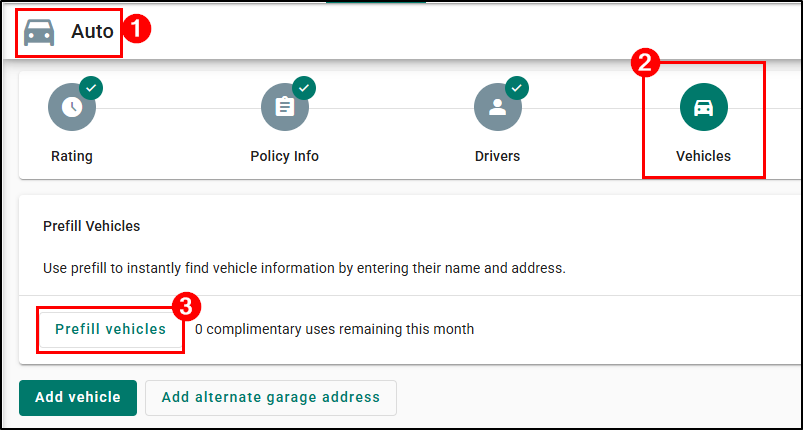
On the Drivers and Vehicles page of the Auto application, the Prefill options moved from the top of the Driver and Vehicle details to a collapsible panel, ‘Prefill Drivers’ and ‘Prefill Vehicles’.
 |  |
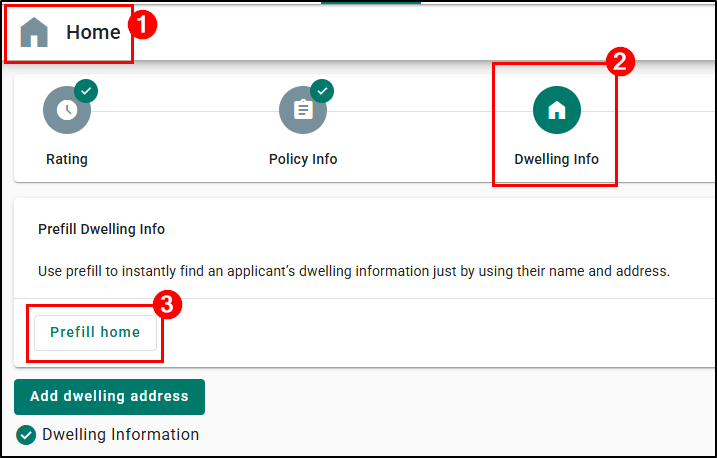
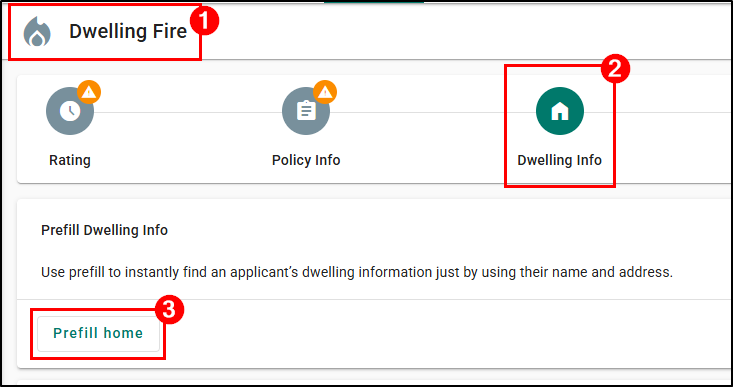
Home Prefill option has been moved from the Policy Info page to the Dwelling Info page on the Home and Dwelling Fire application to a collapsible panel Prefill Dwelling Info.
 |  |
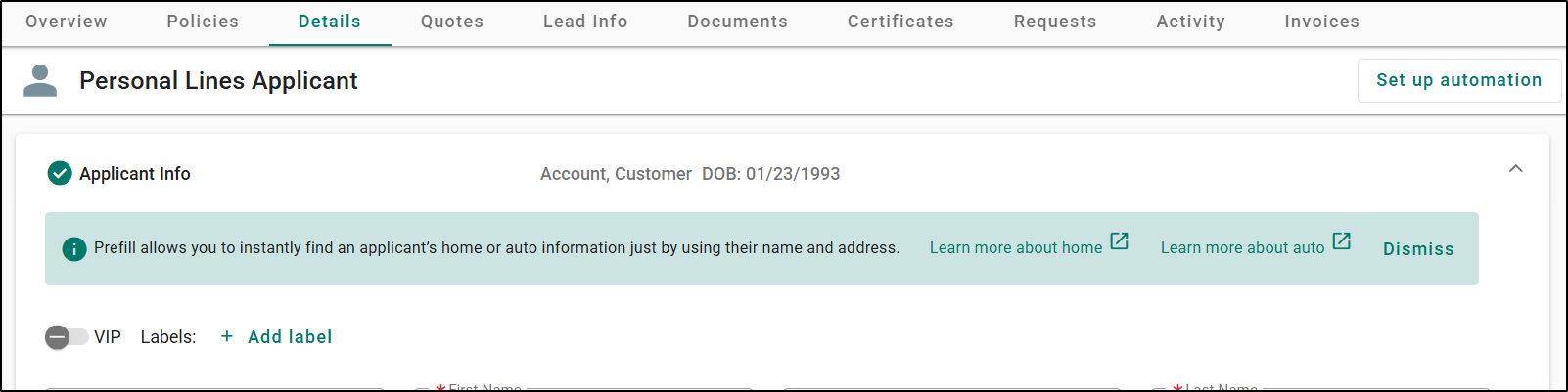
No Data Enrichment Products Enabled
If you do not have any Data Enrichment products enabled, you will see a message and links to learn more. Please note, you can ‘Dismiss’ if they do not want to see the message every time you login. However, the message will re-appear if the products are not configured after 60 days.
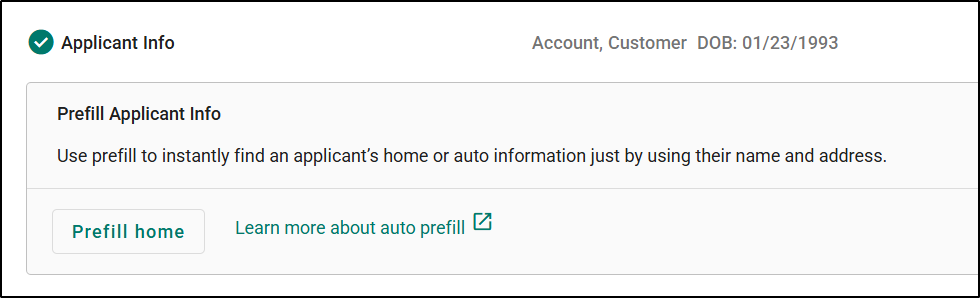
Only One Data Enrichment Product Enabled
If you have one of the Data Enrichment products enabled, you will see the respective button for the product you have enabled, and links to learn more for the product you don't have enabled.
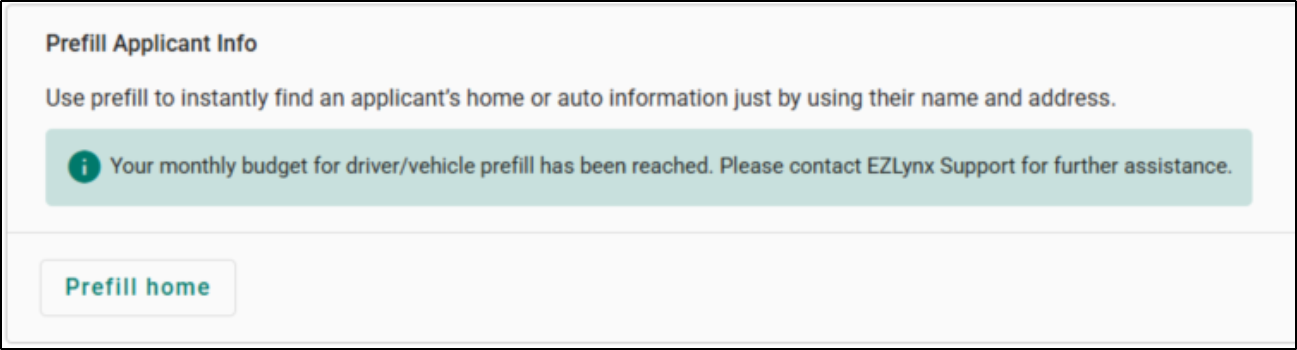
Monthly Budget is Exhausted
When your monthly budget has been exhausted, you will see a message letting you know your monthly budget has been reached for the respective product.
Now, let us look at what has changed from a workflow perspective.
Prefill Workflow
- We have moved from a modal workflow to a page view workflow. This should now mirror the more modern look you are familiar with from other areas of the system.
- Breadcrumbs have been added to the page view, so that you know where you have navigated from and can use to go back to prior pages.
- On the Applicant Details page, the Name and Address fields are made editable either to add a primary address during the prefill workflow, or if they want to use a different address than the prefilled primary address added.
- On the Auto Application > Drivers and Vehicles page, the Name and Address fields are made non-editable.
- On the Home & Dwelling Fire Applications > Dwelling Info Page, the Name and Address fields are made non-editable.
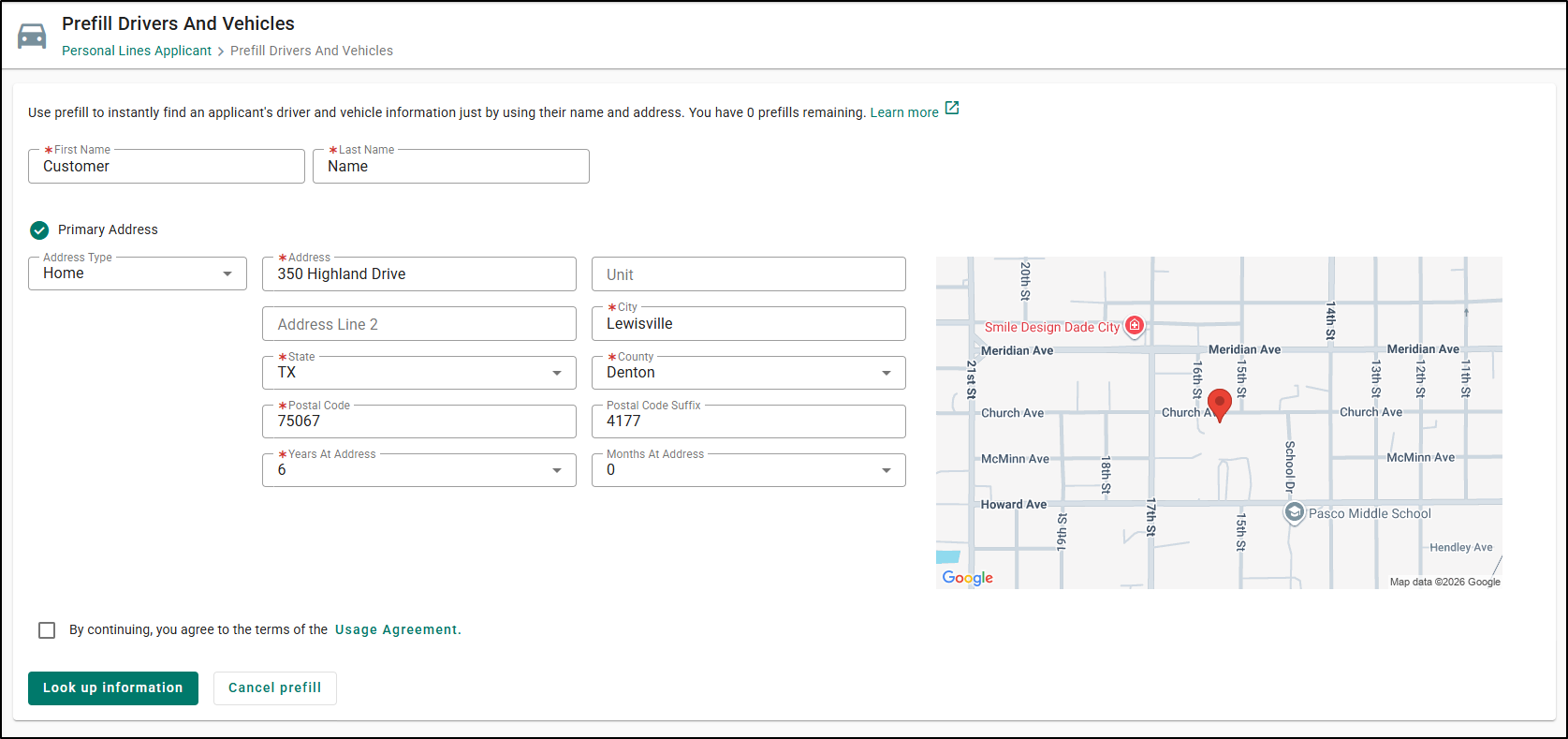
- When there is more than one address on the application, you will have the option to choose the address for performing the lookup on the initial lookup page.
- Prefill Drivers/Vehicles: You will see the Primary Address and the Previous Address as option in the list, with Primary Address being selected by default.
- Prefill Home: You will see the Primary Address and the Dwelling Address as option in the list, with Primary Address being selected by default.
- You will have the option to change the address and run the lookup results again if you are not satisfied with the earlier address used by choosing the other address in the list and clicking the 'Look up information' button that displays after.
Prefill Drivers/Vehicles 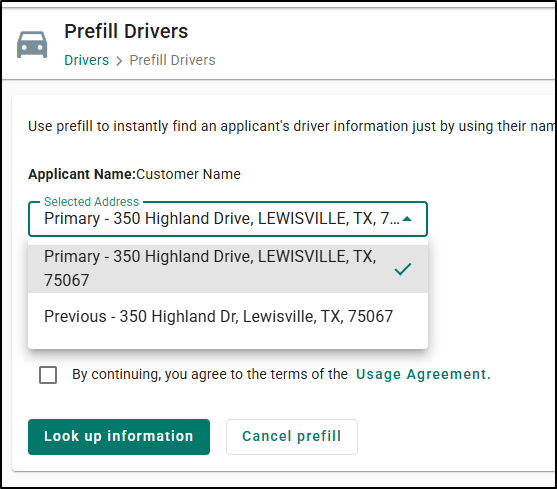 | Prefill Home 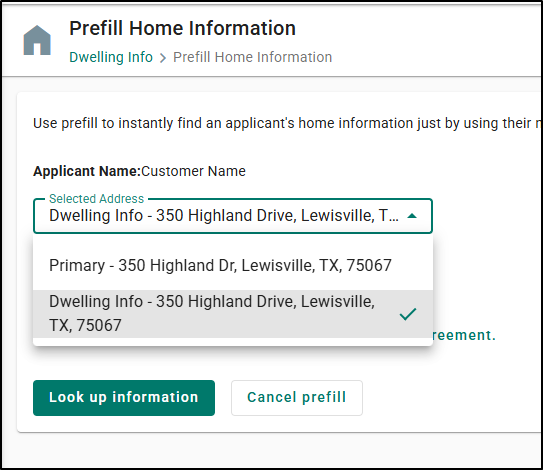 |
Just like before, you will need to agree to the ‘Usage Agreement’ before you can perform the prefill lookup. If you try to do the lookup without agreeing, a warning message explains why you cannot move forward.
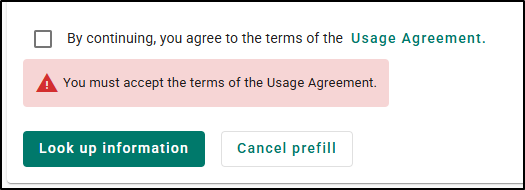
Once the lookup is performed, results will be displayed on the respective pages.
- For all the Result pages, you will have an option to view up to the last three lookups performed using the 'View previous prefills' option in the top-right.
Prefill Drivers/Vehicles Results Page
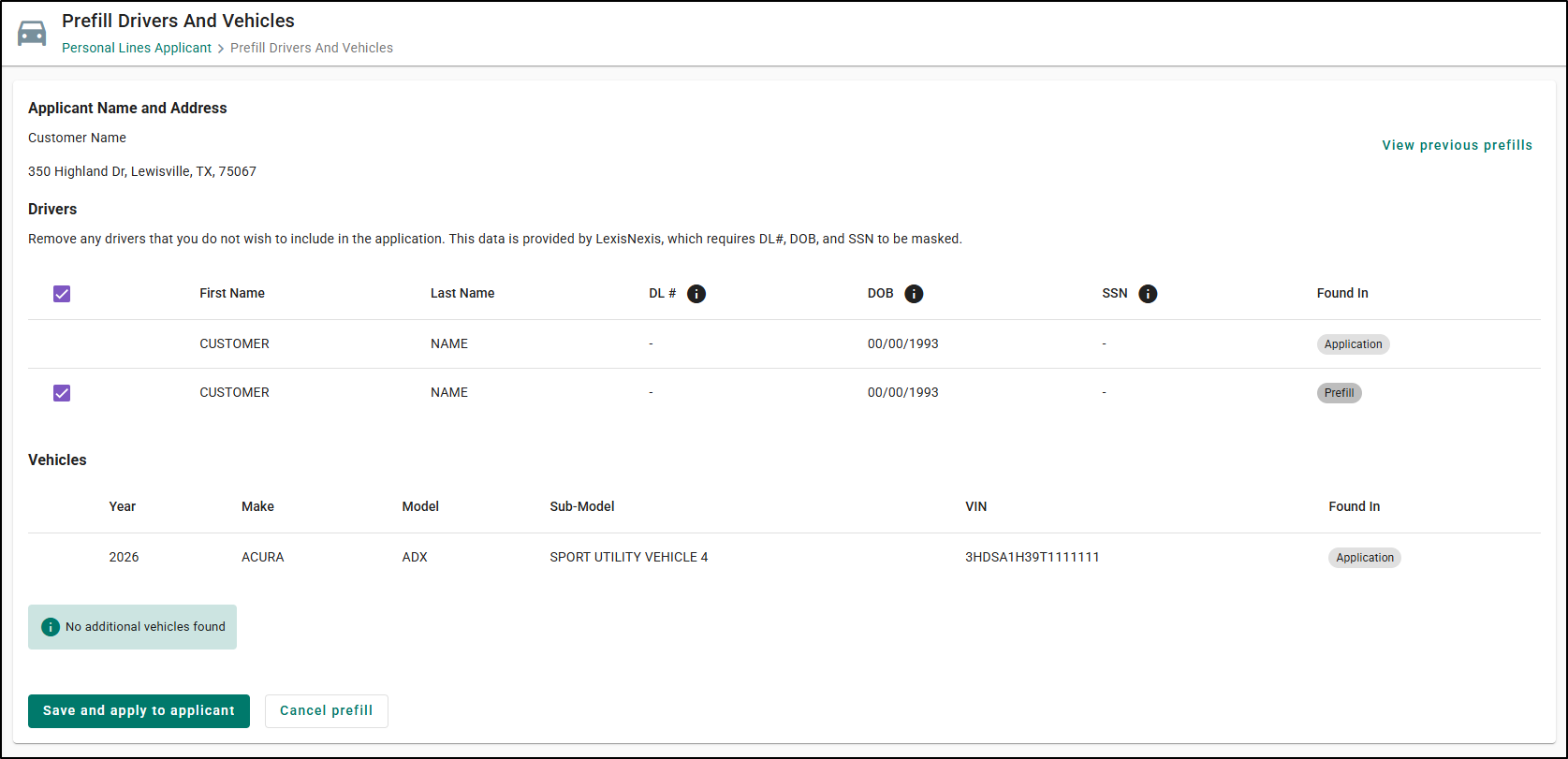
- On the Drivers/Vehicles Results Page, we introduced a new column labeled “Found In” which will show you whether the results found are from the application or if it was returned from the Prefill lookup.
Prefill Home Results Page
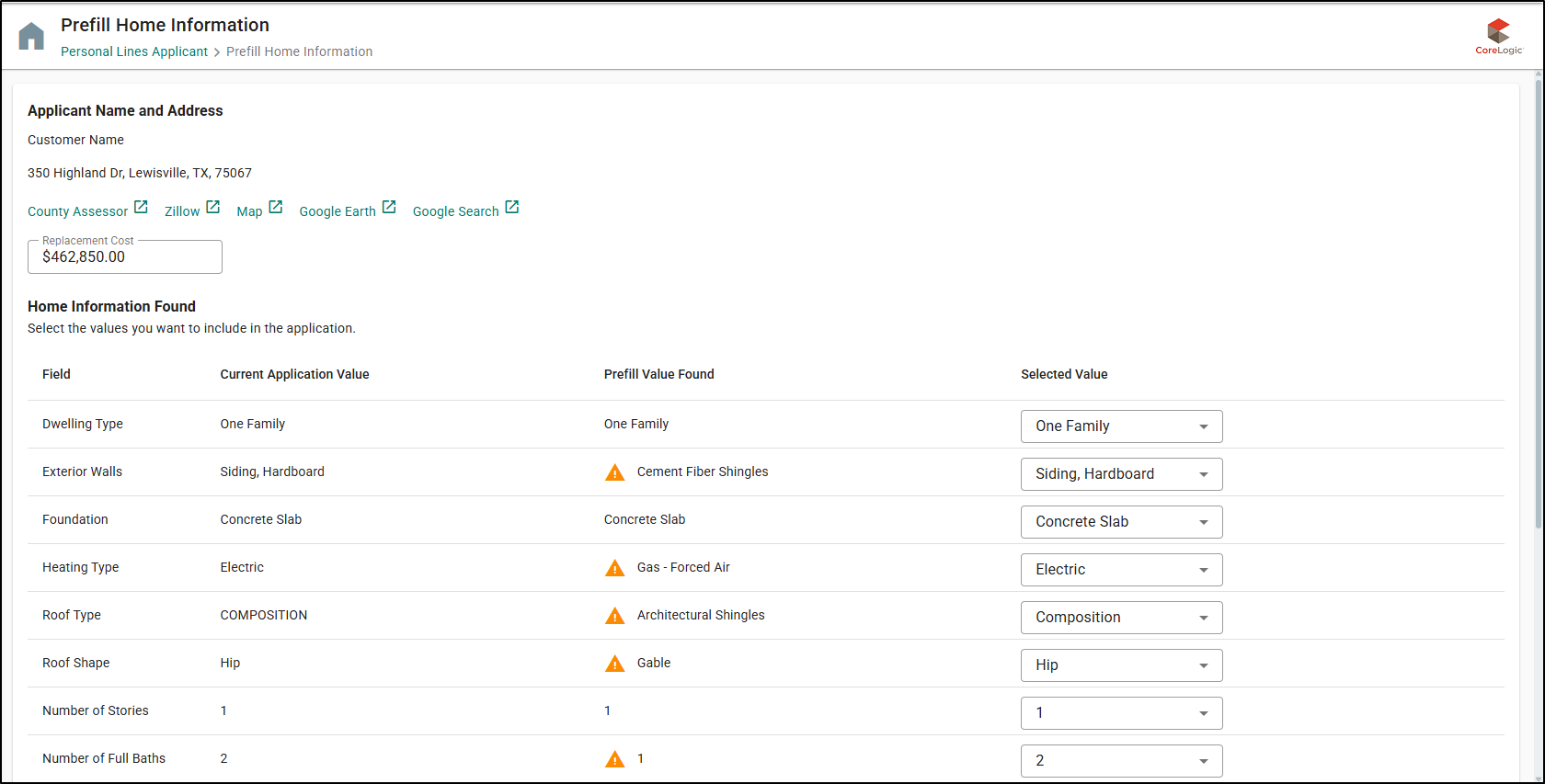
- On the Home Results page, when the data is not present on the application, lookup results will be prefilled into the ‘Selected Value’ column with an option to change the result if you wish to.
- When the data is present on the application, the current application value will be prefilled into the ‘Selected Value’ column. Column ‘Prefill Value Found’ will be displayed with a warning symbol and a tooltip ‘Prefill value conflicts with value in application’. Users will have an option to change if they wish to.
- There is a section called ‘Additional Fields Found’, which typically shows the fields which are returned in the lookup results but are not required data in EZLynx portal.
New field “Coverage B (Other structures)”
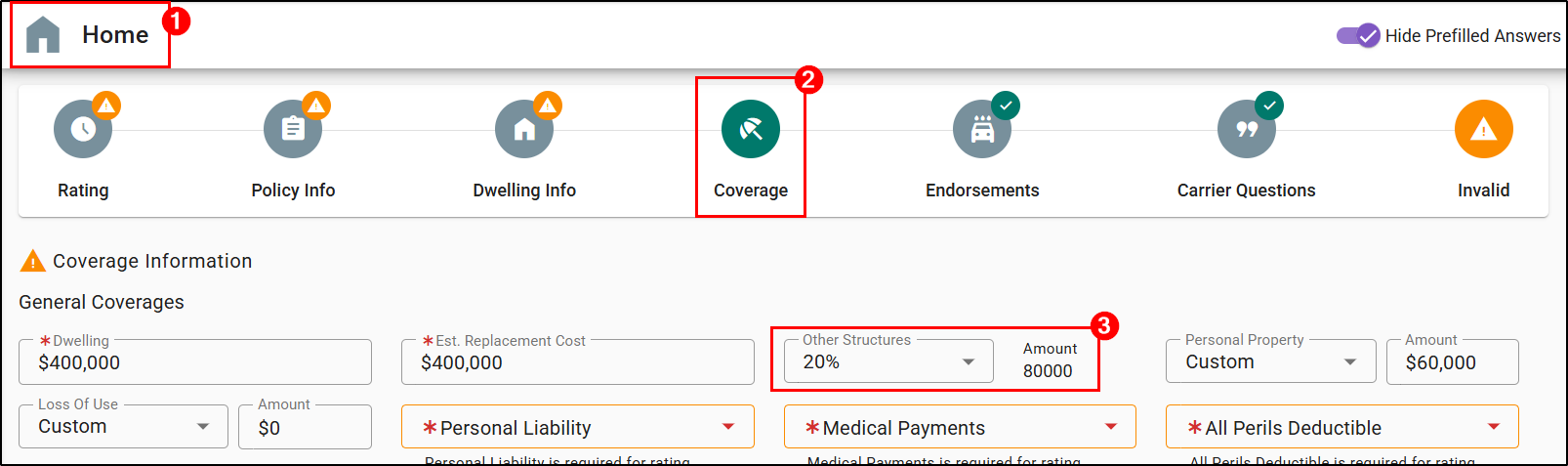
A new field “Other Structures” which is also known as Coverage B has been added to the Coverage page of the Home & DF LOBs.
- This applies only to the H03 & H05 of the Home LOB and on all the policy types of DF LOB.
- You can either choose a percentage value available from the list, or you can choose ‘Custom’ to enter a value of your choice.
- If you choose a percentage value, the ‘Amount’ field will be calculated based on the amount entered in the Dwelling (Coverage A) field.
Please note, when a custom value is entered, if it has an exact match with any of the percentage options in the dropdown, the system will update the value from ‘Custom’ to the matched percentage value.
Personal Property and Loss of Use Updates
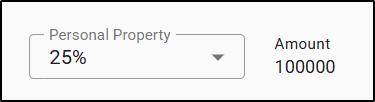
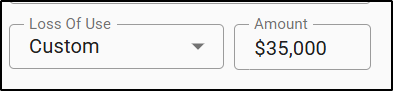
Currently, Personal Property (Coverage C) and Loss of Use (Coverage D) fields are input fields in the system. With this release, we've updated these two fields to be dropdown fields but only for certain Policy/Form Types.
HO3 & HO5
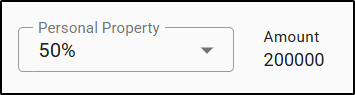
On HO3 and HO5, both Personal Property and Loss of Use fields have been updated to a dropdown field with the list of percentages along with a read only field to show the $ amount. The $ amount will be calculated based on the $ amount entered in the Dwelling (Coverage A) field.
 |  |
HO4 & HO6
On HO4 and HO6, only the Loss of Use field has been updated to a dropdown field with the list of percentages along with a read only field to show the $ amount. The $ amount will be calculated based on the $ amount entered in the Personal Property (Coverage C) field. Personal Property will remain as an input field.

DP1, DP2 & DP3
On Dwelling Fire applications, the Personal Property field has been updated to a dropdown field with the list of percentages along with a read only field to show the $ amount. The $ amount will be calculated based on the $ amount entered in the Dwelling (Coverage A) field.
Quote Result Expectation Message
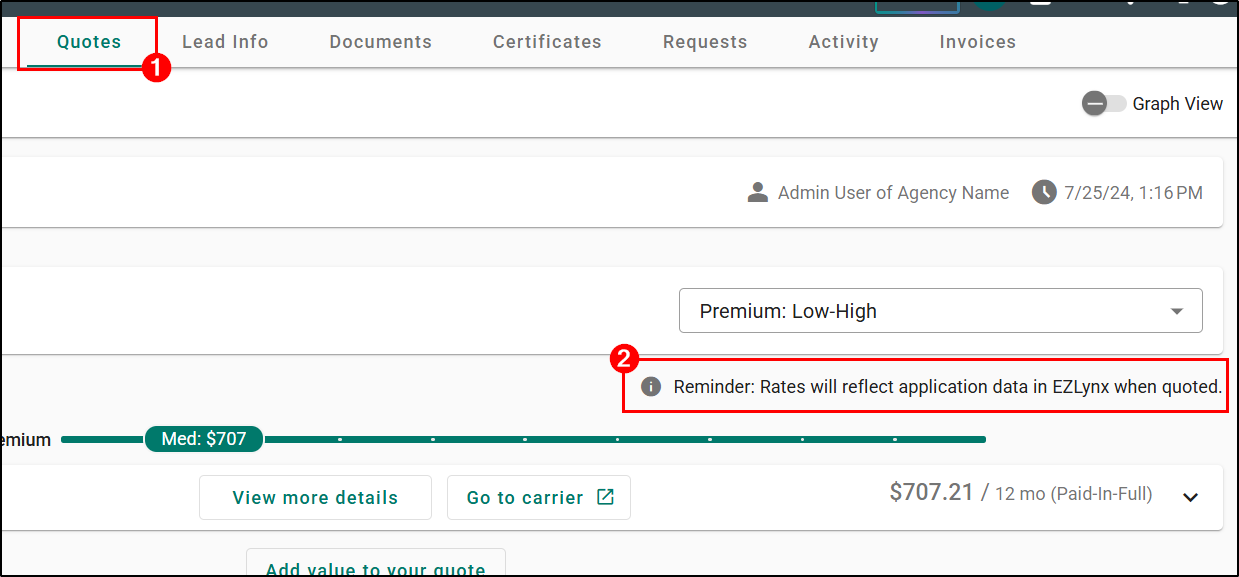
A new message has been added on the Quote Results screen that explains the premium you see in EZLynx is based on the risk information provided in the application. This is normally before any carrier specific reports have been run which can potentially change the premium when run on the carrier site.
We hope you are excited for this new feature and look forward to our future releases. Please let us know if this article was helpful in learning about the new feature by answering the question below. Check out our related articles on the right-side of the page to learn more about EZLynx!
Did you find it helpful? Yes No
Send feedback