Submission Center with Instant Quotes Overview
Modified on: Thu, 24 Sep, 2026 at 11:53 AM
Submission Center with Instant Quotes enables agencies to receive real-time commercial insurance quotes directly from supported carriers. This guide walks through setup, quoting workflow, and troubleshooting at a high level to help you move from configuration to quote delivery efficiently. Check out our more in-depth guides for both setup and workflow if you need more details.
TABLE OF CONTENTS
| Check out our videos if you want to watch and follow along!   |
 | Did you know? - You can click on the images/gifs in our articles to make them bigger! |
Setup Tasks
Before you can start receiving instant quotes, you need to "plug in" to the carriers. We’ve designed a streamlined configuration experience to get your agency "Rating Ready". Please note, only one of these tasks is for everyone at the agency. The rest of the tasks, the Agency Admin must complete.
- Setting up your management system carriers - Agency Admin Only
- Adding your commercial rating carriers - Agency Admin Only
- Entering your logins - Everyone at the Agency UNLESS you use Shared Carrier Logins
- If your agency uses Shared Logins, then the Agency Admin will need to handle this step too.
- Entering your producer codes - Everyone at the Agency
- Submission Center Carrier Management - Agency Admin Only
Setting up your management system carriers
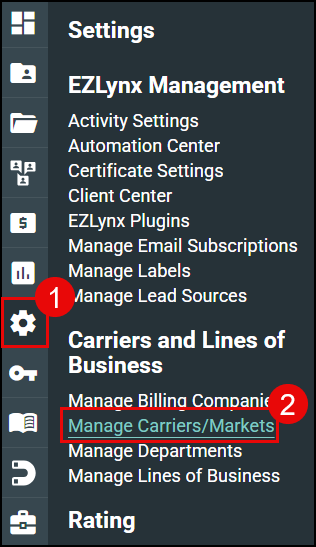
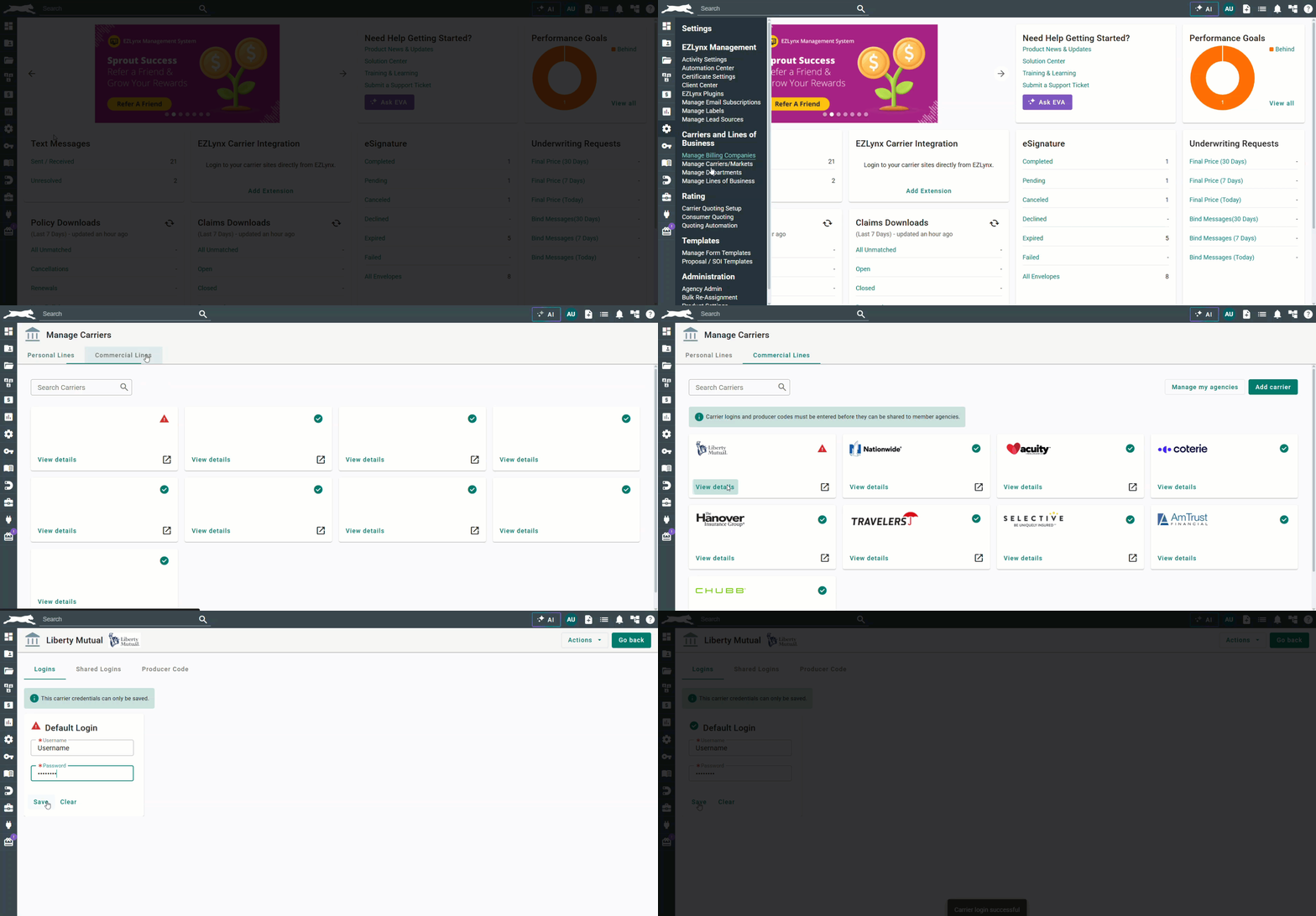
- Enter the "gear" menu and navigate to Manage Carrier/Markets.
- Ensure that the carriers you do business with are enabled in your Management System.
To learn more about the setup tasks, check out our Submission Center with Instant Quotes Setup Tasks article.
Adding your commercial rating carriers
If you want to know which carriers are available for Submission Center with Instant Quotes, check out our Available Carriers for Rating webpage.
Accessing Setup
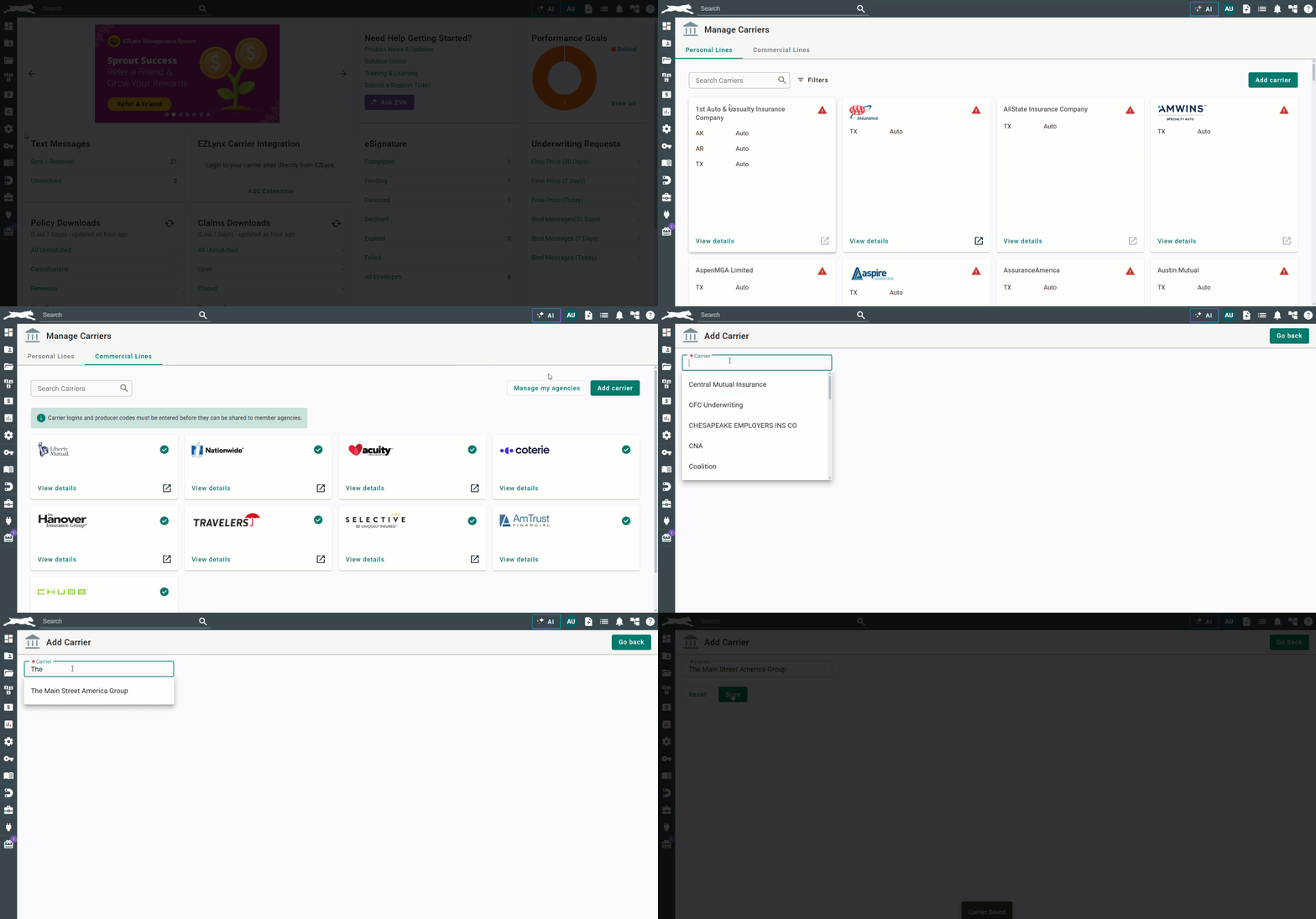
- Navigate to Carrier Quoting Setup → Commercial Lines Tab.
- Visible only for agencies enabled for Commercial Lines Rating.
Adding Carriers
- Click Add Carrier to select available carriers
- Use Reset to add multiple carriers quickly
Credential Management
- Enter carrier login credentials
- Use Save and Test (if available) to validate instantly
- Enabled Shared Logins for team-wide access
To quote with AmTrust, users should put in their API Credentials in the Username/Password field. For clarity, these are not the credentials you use to login to the AmTrust portal. Please contact your AmTrust representative if you do not have one or do not know where to find it.
To learn more about the setup tasks, check out our Submission Center with Instant Quotes Setup Tasks article.
Entering your producer codes
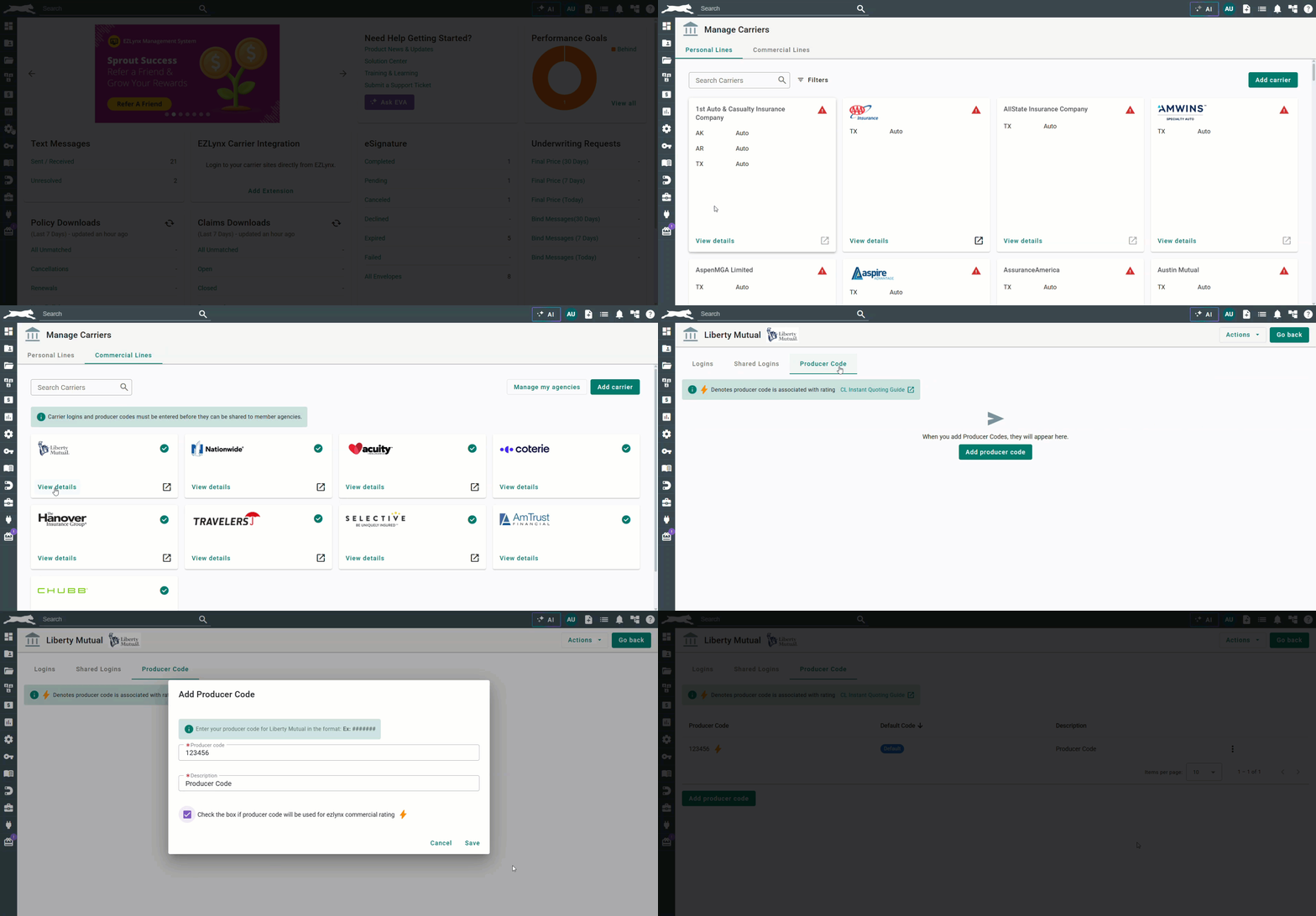
Producer codes are required for successful rating. Check out the Appendix at the bottom of this article for a list of all Producer Code formats.
Key Features
- Centralized Producer Code Table
- Visual indicators for:
- Active Codes
- Default Code
- "Marked for Quoting" codes
Actions Available
- Add, edit, or delete codes
- Set a Default code
- Mark codes as Rating Ready
Special Handling
- Some carriers show "Not Required" (non-editable)
- Guidance is provided for Proper Code Formatting
To quote with Chubb, they require an additional step from EZLynx to activate. Email support@ezlynx.com with your Producer Code for us to complete this step.
To learn more about the setup tasks, check out our Submission Center with Instant Quotes Setup Tasks article.
Submission Center Carrier Management
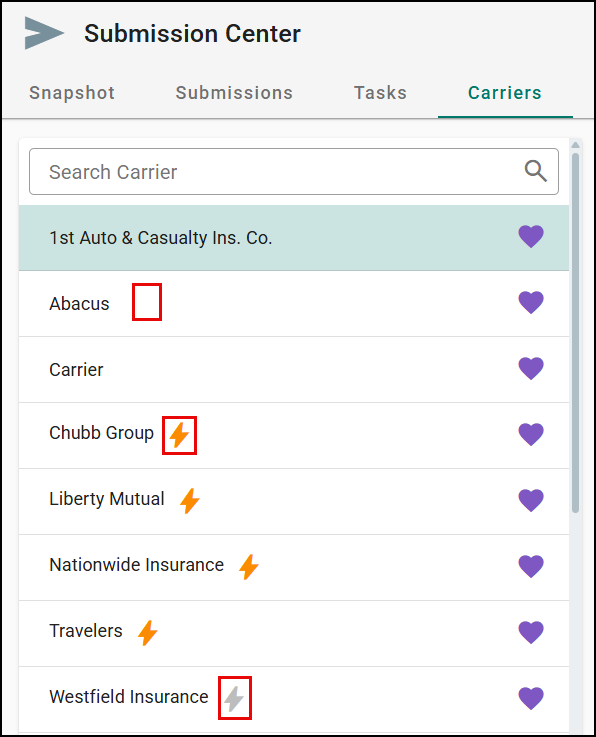
Quickly assess readiness using visual signals:
- Gold Indicator → Logins are set; ready to quote
- Gray Indicator → Logins missing
- No Indicator → Not supported for instant quoting
Producer codes automatically default to your Rating Ready + Default selection.
To learn more about the setup tasks, check out our Submission Center with Instant Quotes Setup Tasks article.
Instant Commercial Quotes Workflow
Now that you've got everything setup, you are "Rating Ready"! Let's get quoting!
- Creating a new commercial applicant
- Starting a new submission and application(s)
- Selecting a carrier to quote
- Completing the carrier supplemental
- Reviewing the results in carrier submissions
- Generate ACORD forms
Creating a new commercial applicant
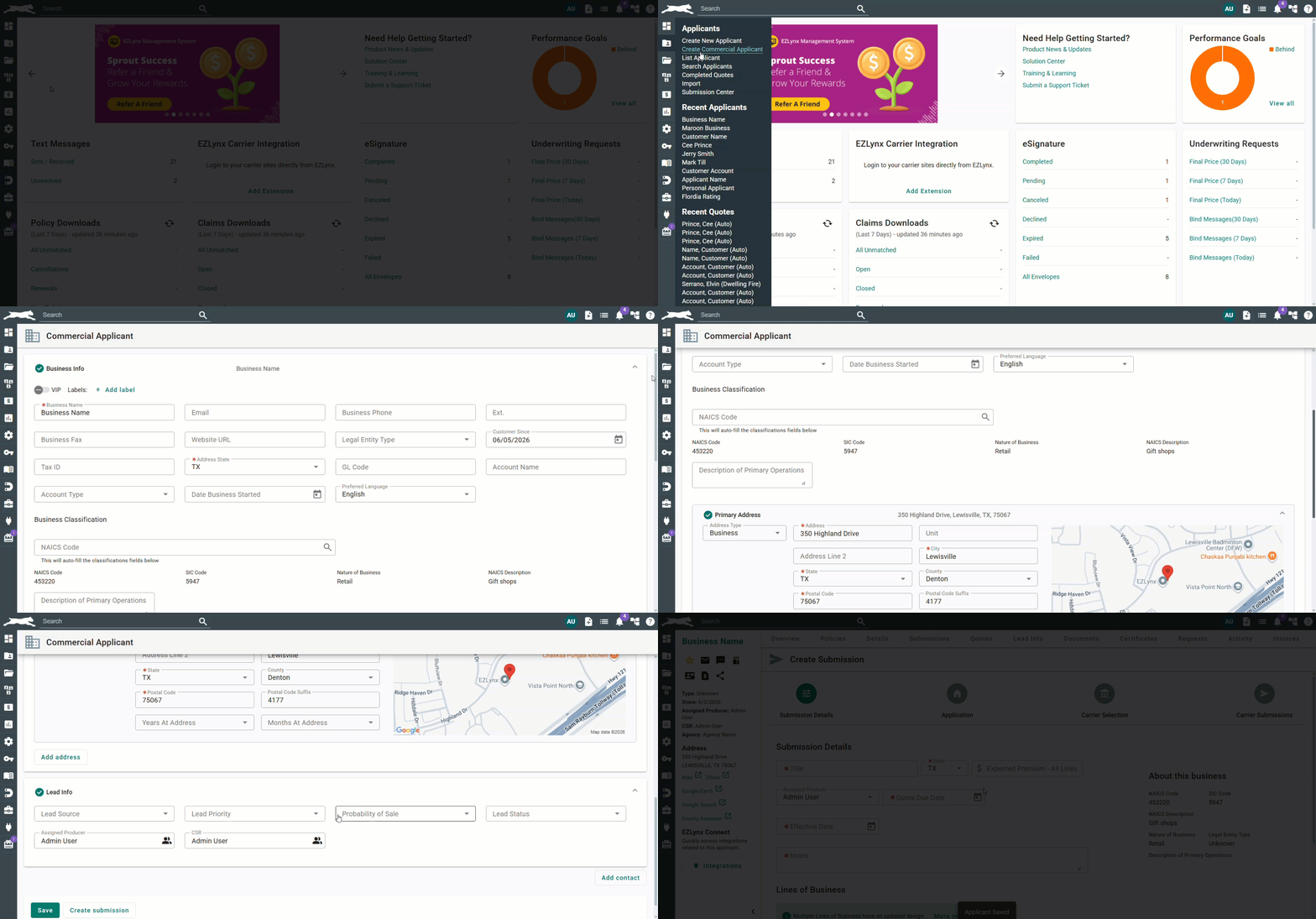
Navigate to the Applicant portal and select Create Commercial Applicant
- Complete the required fields
- Enter the business classification by searching and selecting the relevant NAICS description
- Select Create Submission
To learn more about the workflow, check out our Submission Center with Instant Quoting Workflow article.
Starting a new submission and application(s)
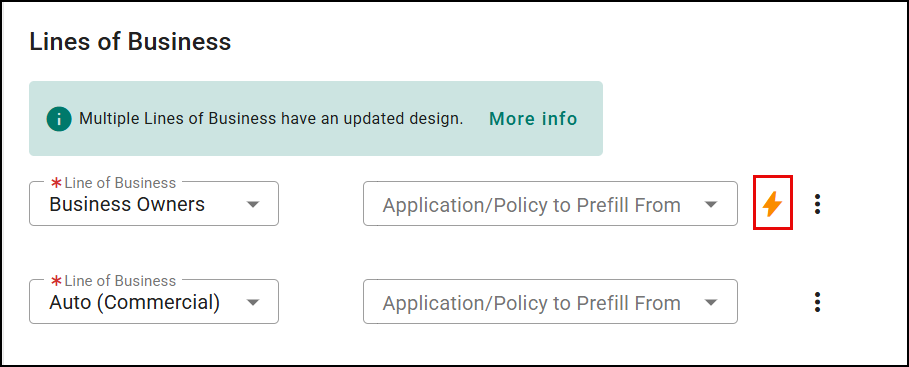
Step 1: Submission Details
- Start a new submission
- A gold indicator appears next to supported Lines of Business (LOBs):
- Business Owners Policy (BOP)
- General Liability (GL)
Step 2: Application Data Entry
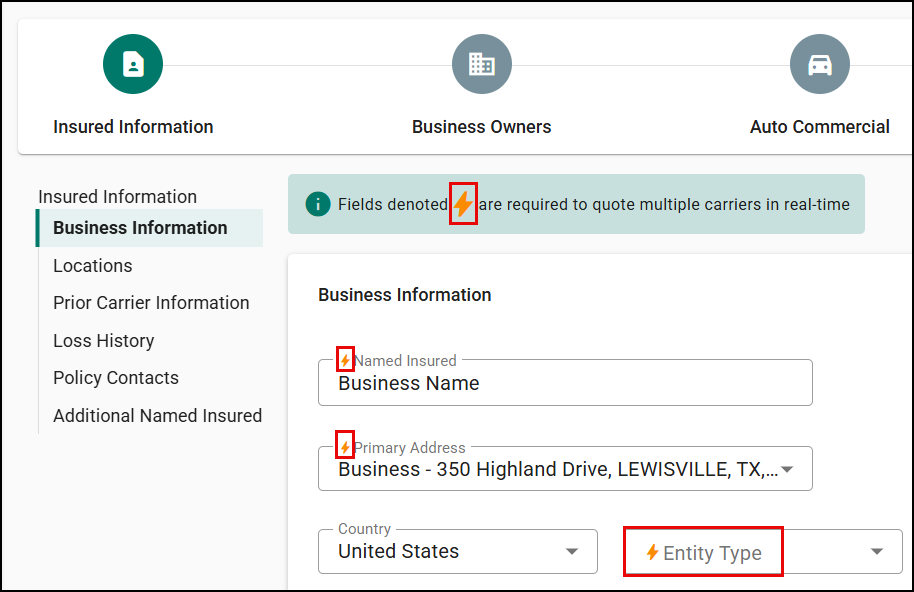
- Fields marked with a gold indicator are required for rating
- Complete these first for faster quoting
- Option to skip non-required fields if your goal is only instant quoting
To learn more about the workflow, check out our Submission Center with Instant Quoting Workflow article.
Selecting a carrier to quote
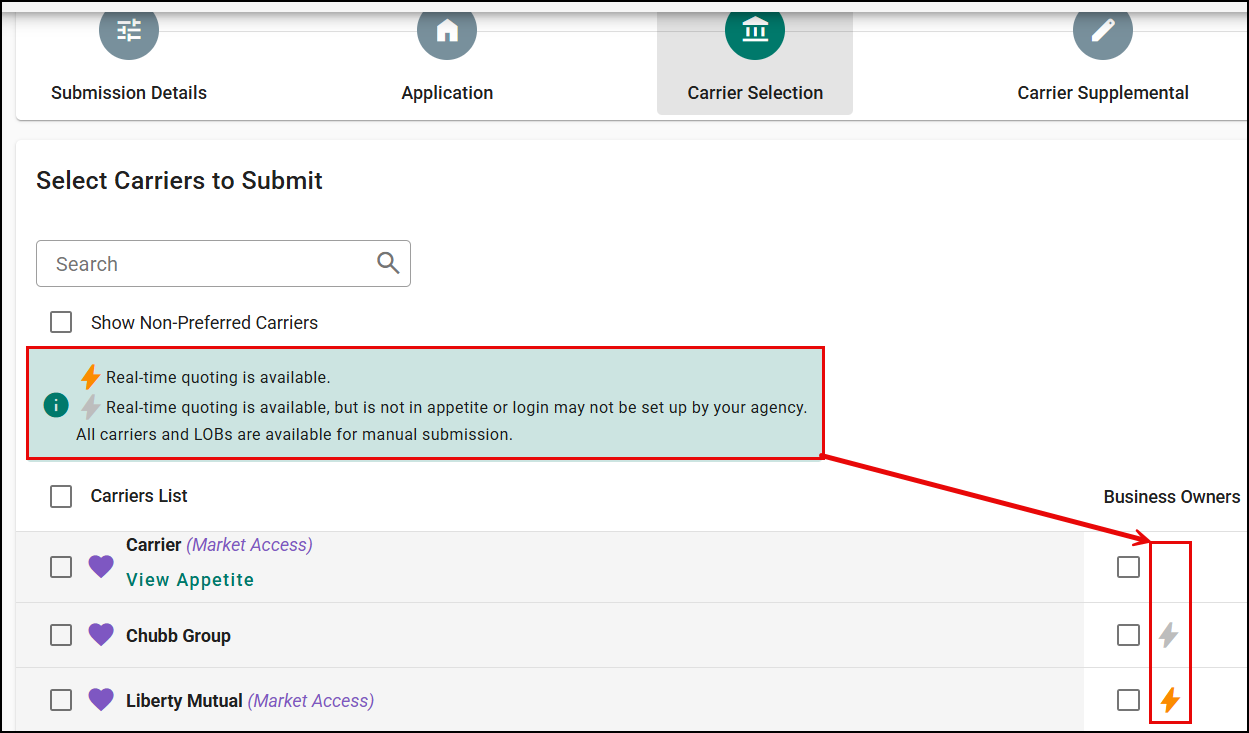
Step 3: Carrier Selection
Carrier Types:
- Gold Indicator → In appetite and supports rating (best option)
- Gray Indicator → Supports rating but not in appetite
- No Indicator → Manual submission only
Capabilities:
- Select multiple carriers
- Choose or modify producer codes inline
- Add or edit codes without leaving the page
To learn more about the workflow, check out our Submission Center with Instant Quoting Workflow article.
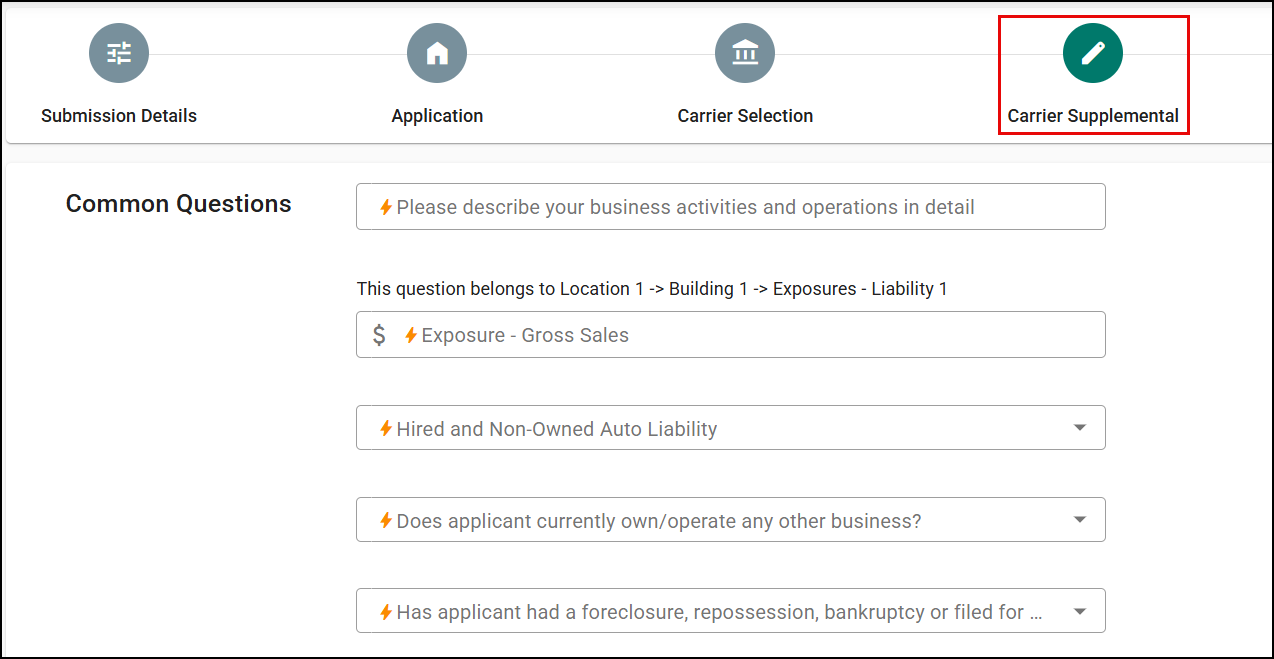
Completing the carrier supplemental
- Questions are grouped across carriers to avoid duplication
- Gold indicator marks required fields
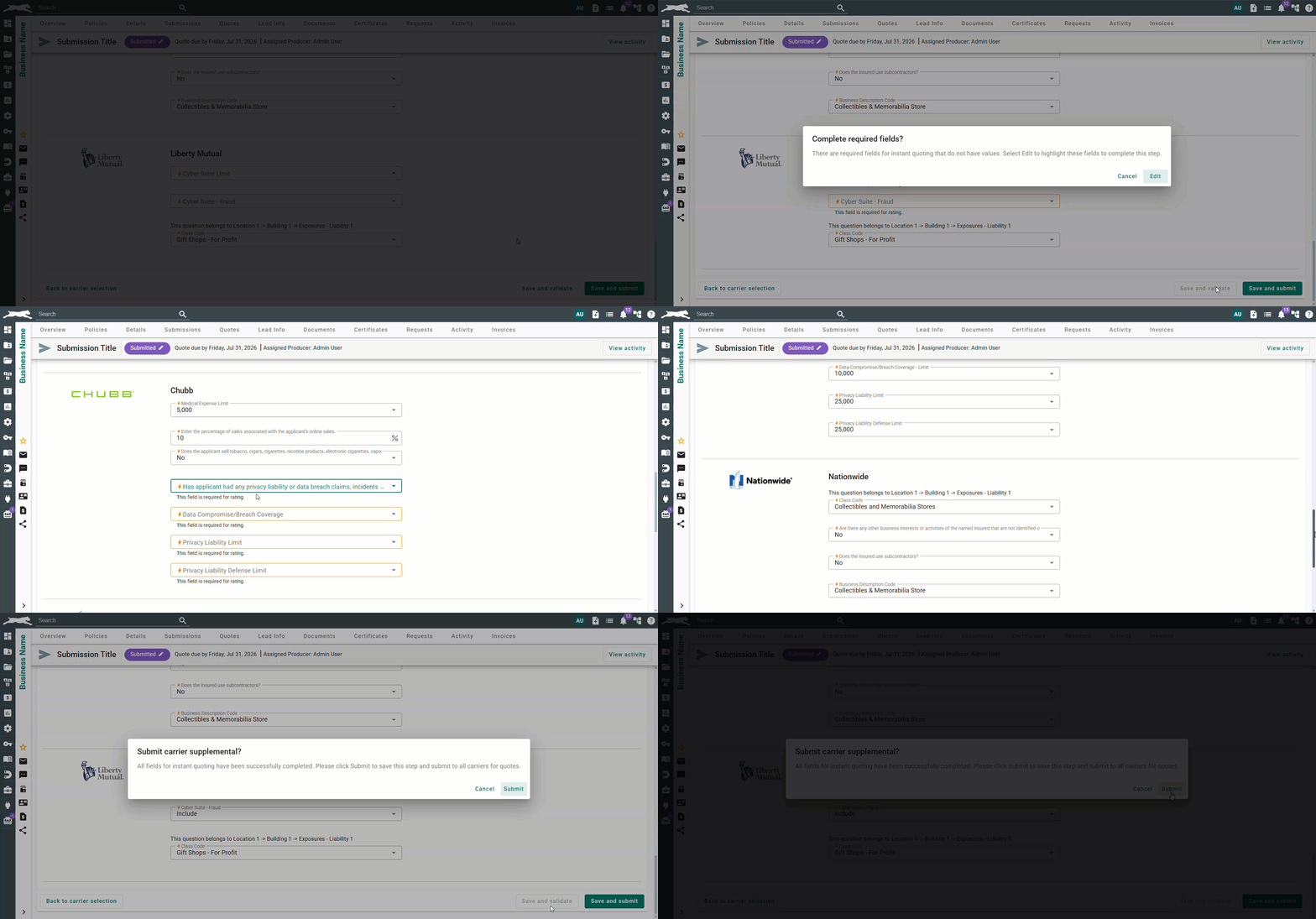
Step 4: Save and Validate Feature
- Validates only rating-required fields

Outcomes:
- Missing fields → guided error with highlighted fields
- All fields complete → confirmation to proceed
Step 5: Submit to Carriers
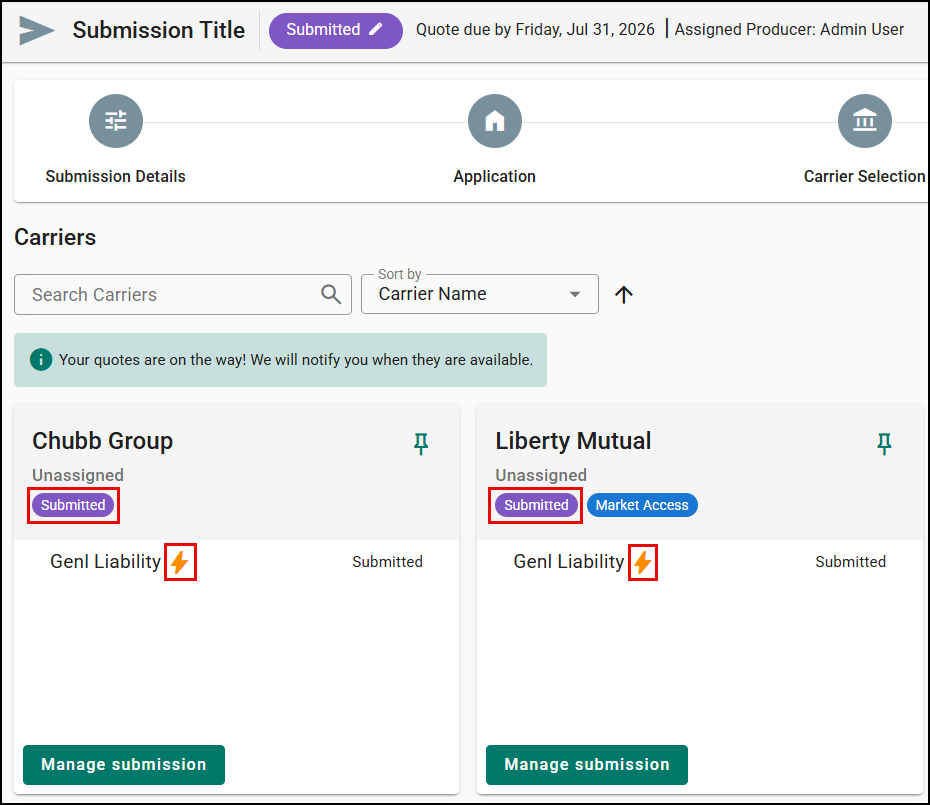
- Click Save and Submit
- Submission status updates to Submitted
- Gold indicator marks rated LOBs
To learn more about the workflow, check out our Submission Center with Instant Quoting Workflow article.
Reviewing the results in carrier submissions
Carrier Submissions Page
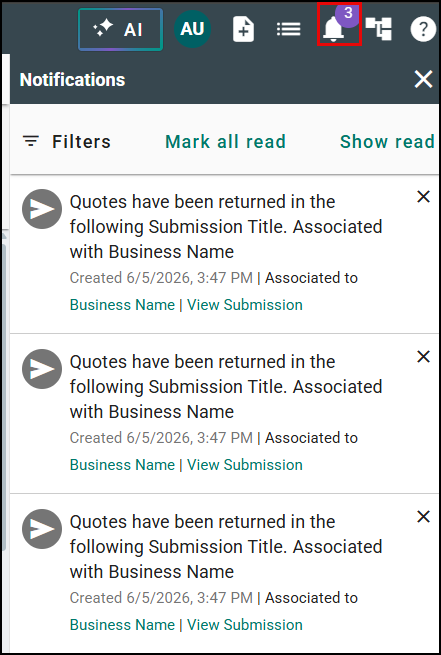
- Real-time status updates
- Quotes return asynchronously
- System notifications include direct links
Quote Details
- Premium is automatically populated
- “Manage Submission” links to the carrier site
- Full audit trail is maintained
Referred Submissions
- Premium fields are visible even when status is Referred
- Premium may be:
- Auto-filled (if returned)
- Manually entered (optional)

To learn more about the workflow, check out our Submission Center with Instant Quoting Workflow article.
Generate ACORD forms
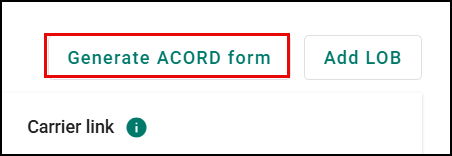
If quoting fails or is declined:
- Generate ACORD forms
- Submit manually to an underwriter
- No need to duplicate the submission
Visual Indicator
- Gold indicator is removed to reflect manual processing
To learn more about the workflow, check out our Submission Center with Instant Quoting Workflow article.
Key Benefits
- Faster quote turnaround
- Reduced manual data entry
- Real-time validation and feedback
- Centralized carrier and credential management
- Clear visual guidance throughout the workflow
Best Practices
- Validate carrier credentials using Save and Test
- Maintain at least one Default + Rating Ready producer code
- Complete required (gold indicator) fields first
- Use Save and Validate before submitting
- Monitor Submission Center indicators for readiness
Appendix
| Carrier | Agency Code Format | Format Samples | Special Configuration Requirements |
|---|---|---|---|
| Coterie | Agency Code not required. | N/A | N/A |
| Hanover | 7 Digit numeric code | Format Examples: ####### | N/A |
| Liberty Mutual | 7 Digit numeric code | Format Examples: ####### | N/A |
| Nationwide Insurance | Agency Code Format is 5 digits. Please include “000” before your code. | Format Example: 000##### | N/A |
| Selective | Agency Code Format is a series of 5 digits. Please include “-00000” after your code. | Format Example: #####-00000 | N/A |
| Travelers | Agency Code Format should Start with a “0”, then series of numbers and letters | Format Examples: 0ABC##, 0AB###, 0A#### | N/A |
Did you find it helpful? Yes No
Send feedback