How to Create & Use eSignature Templates
Modified on: Thu, 10 Sep, 2026 at 6:07 PM
Our eSignature product is a fast and secure way for you to obtain electronic signatures on multiple documents from one or more recipients. This is great for managing complex commercial envelopes, last-minute corrections, and secure client onboarding.
Creating eSignature Templates can help you:
- speed up the process by standardizing your most common documents
- make onboarding new team members faster
- streamline multi-branch operations
In this article, we'll show you how an Agency Admin can create eSignature Templates and how anyone at the agency can use them once created.
Check out our eSignature: How to Create and Send an eSignature Envelope to learn more about the eSignature Envelope workflow.
TABLE OF CONTENTS | Check out our video to watch and follow along!  |
 | Did you know? - You can click on the images/gifs in our articles to make them bigger |
Creating an eSignature Template
To access the eSignature Templates page, you must be an Agency Admin. If you do not see the eSignature templates option in the menu, please reach out to your Agency Admin.
If you do have access, creating an eSignature template is an easy four step process. Let's take a look at how to access and create an eSignature Template.
How to access
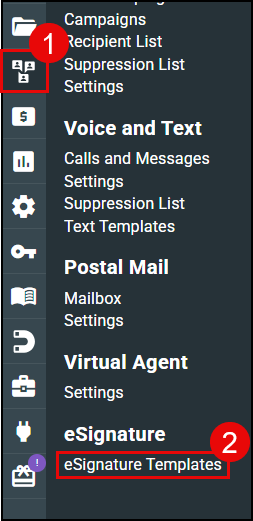
1. Hover over the Communication Center (text bubble) icon.
2. Choose eSignature Templates to access the new eSignature Templates page.
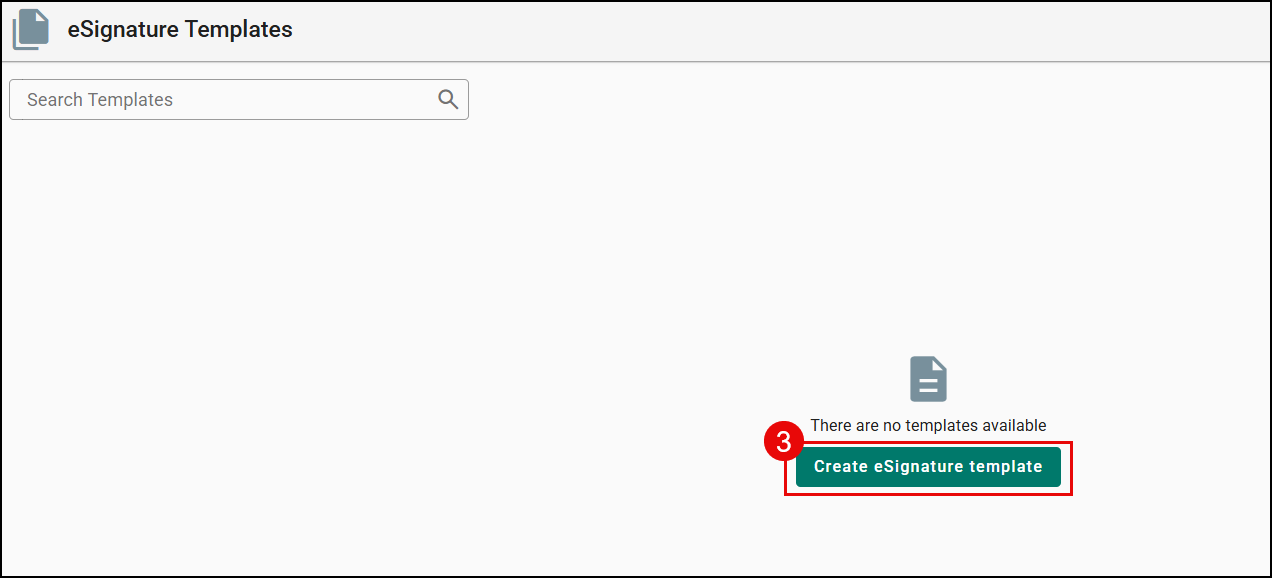
3. Click Create eSignature Template to begin the guided template creation process.
 |  |
How to create
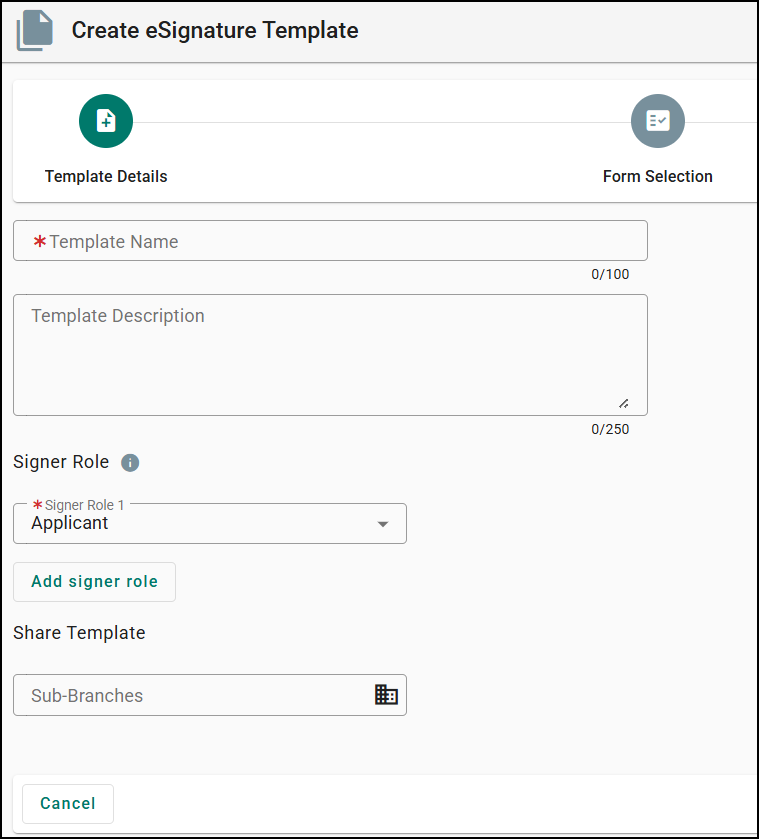
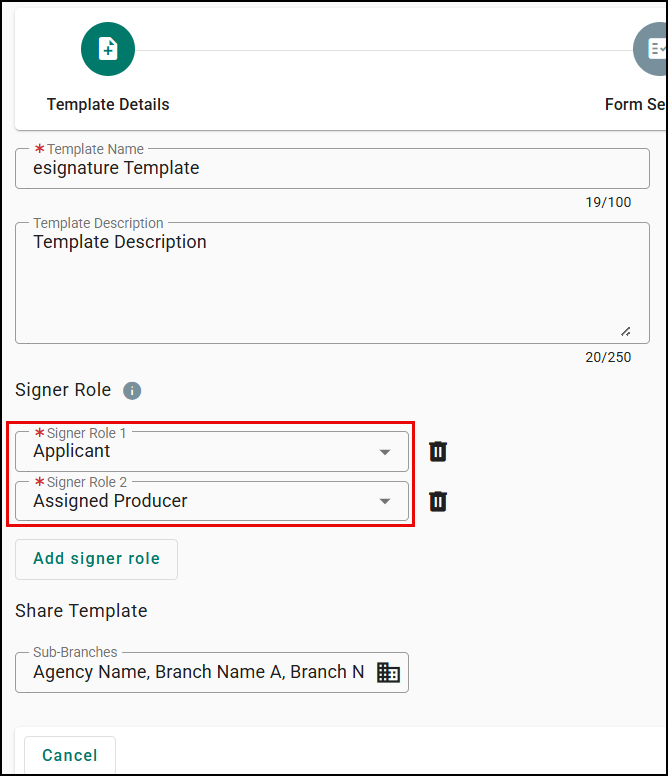
Step 1 - Template Details
- Enter a template name (required, up to 100 characters)
- There is an optional description (up to 250 characters)
- Define your signer roles (e.g., Applicant, Co-Applicant, Assigned Producer, CSR, Agency Owner, or Other). You can add up to six signer roles per template.
- Applicant, Co-Applicant, Assigned Producer, will prepopulate at the time of using the template from an applicant record, if the information is available.
- Agency Owner and Other will require manual entry of the name and email address.
- Choose whether to share the template with specific sub-branches in your organization.
Step 2 - Form Selection
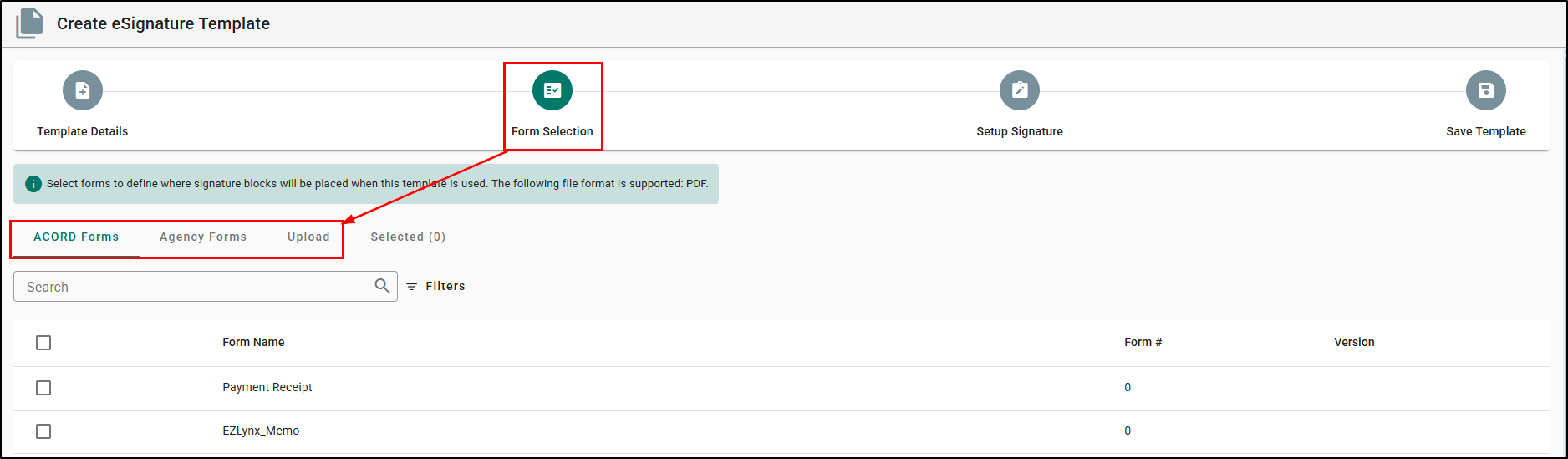
Choose one or more documents for your template from three tabs - Upload, ACORD Forms, or Agency Forms:
- ACORD Forms: Search and select from the standardized ACORD Library. Each entry shows Form Name, Form #, and Version.
- Agency Forms: Search and select from your agency's own document library. Each entry shows Type, Form Name, Document Type, and Created By. Only PDF Files can be selected here. Word Agency Forms aren't supported yet.
- Upload: Upload one or more PDF documents directly, just as before.
Things to consider:
- The document(s) you select here only guide where signature blocks are placed on the template. They aren't stored or edited as part of the template itself. At the applicant level, you'll select the matching completed form from the document library and the template overlays its signature fields onto that version of the document.
- A template can include up to 25 documents total and up to 30 MB combined size across Upload, ACORD Forms, and Agency Forms. If you go over either limit, an alert lets you know exactly what to fix before you continue.
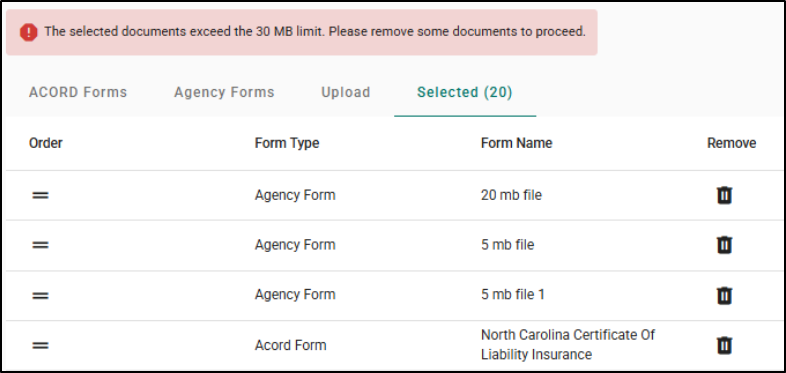
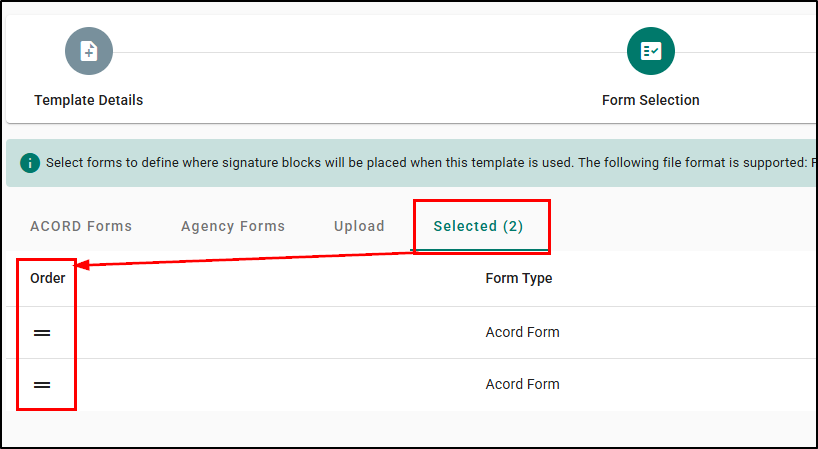
Review, reorder, or remove documents in the Selected tab before proceeding. Reordering is simpler than ever - just grab the drag handle next to any document instead of managing a numbered list.
Step 3 - Setup Signature
Place signature fields on your document and assign each field to the appropriate signer role using the signer role dropdown.
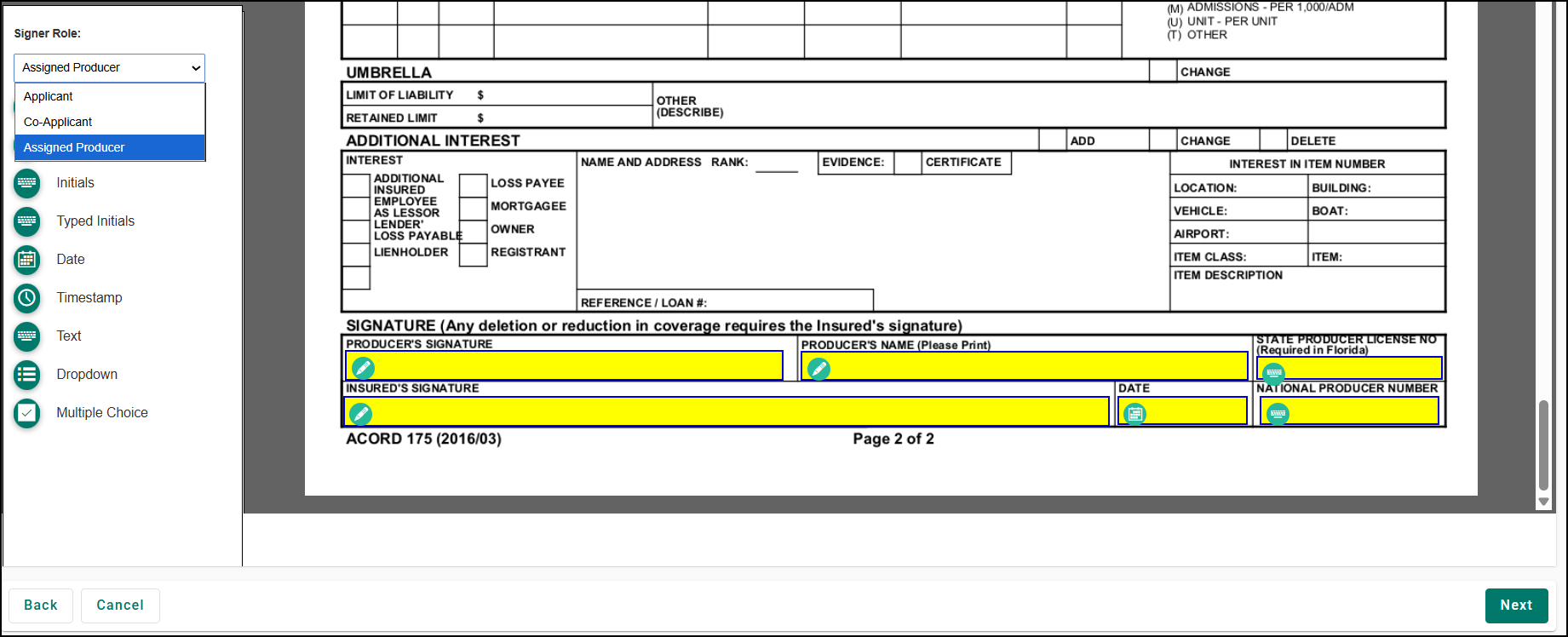
Please note, each signer role must have at least one eSignature field before continuing.

Step 4 - Save Template
Review all template details — including the template name, description, signer roles, sharing settings, and placed signature fields — then click Save. Your template is now ready to use.
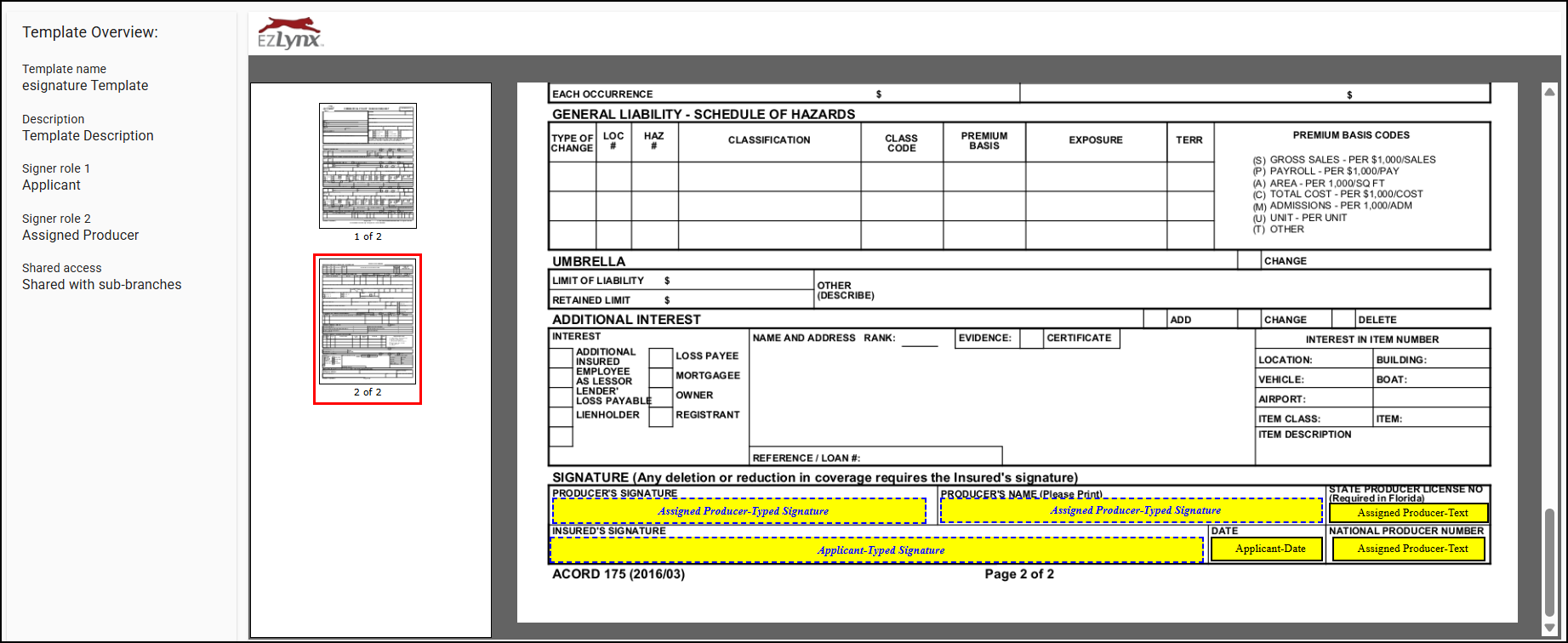
Managing Your Templates
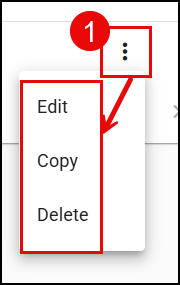
Once you've created an eSignature Template, you can manage them on the eSignature Templates page. Simply, click on the Actions icon (vertical dots) to open the actions menu.
 |
|
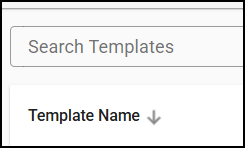
At the top of the page, quickly find templates by name using the "Search Templates" bar. You can also Sort by all of the header columns except for Description.
Using Templates When Creating an Envelope
Once an Agency Admin has created an eSignature Template, anyone at the agency can use it when creating an envelope.
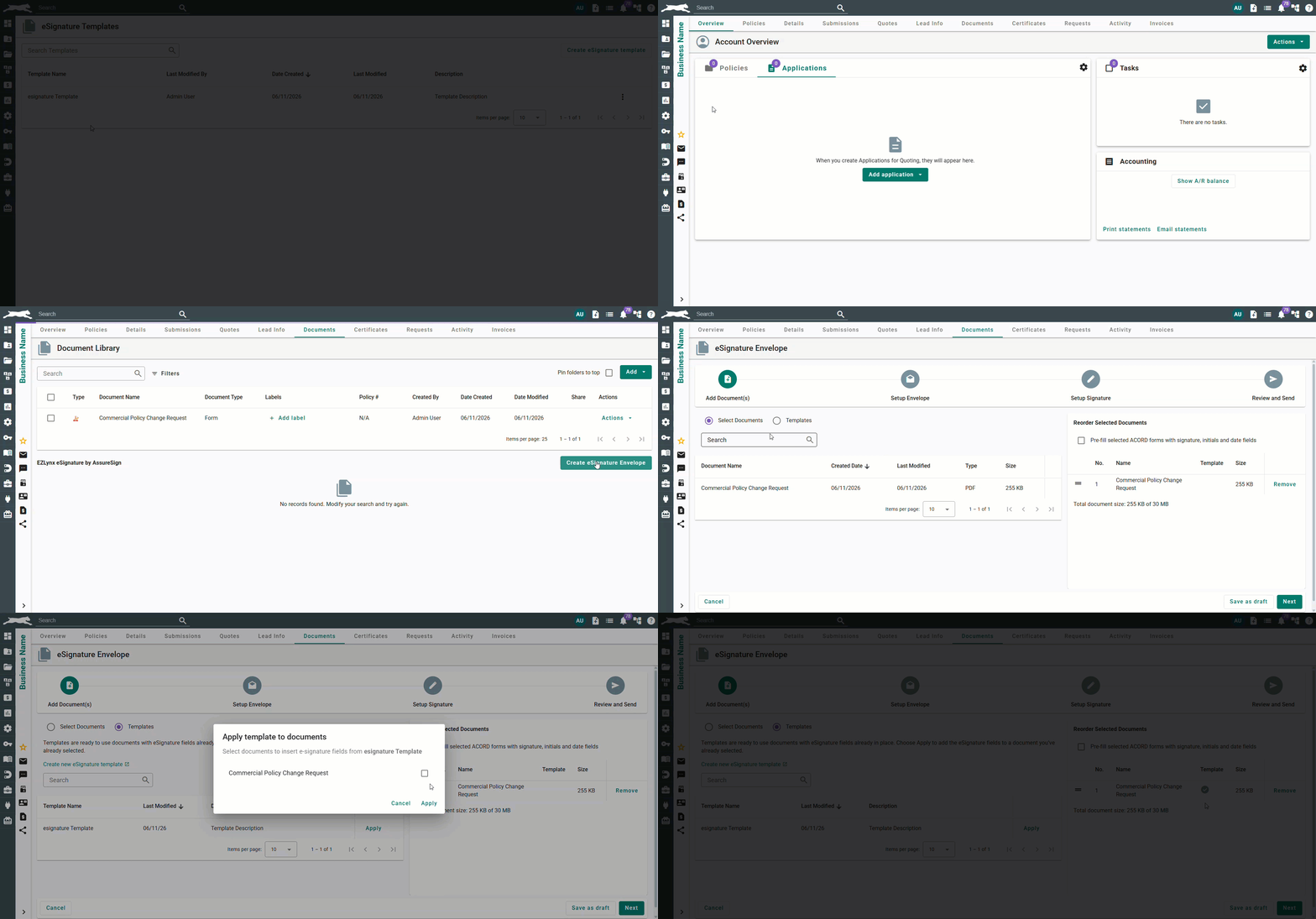
1. Navigate to a customer's Documents tab.
2. Create an eSignature envelope and navigate to the Add Document step.
3. Select the document(s) from the applicant’s document library that will be used in the template.
4. Select the Templates radio button (next to the Select Documents option) to view available templates.
5. Click Apply on any template to map its signature fields onto a document you've already selected.
6. In the Apply window, check the box next to the document(s) which should receive the template's signature fields.
7. Then, click Apply.
A template indicator icon will show in the Reorder Selected Documents panel for any document with an applied template — hover over it to see the template name.
Don't see the template you need? Click Create new eSignature Template to be redirected to the Create eSignature template workflow. Once the new template is saved, you will need to refresh the eSignature envelope page.
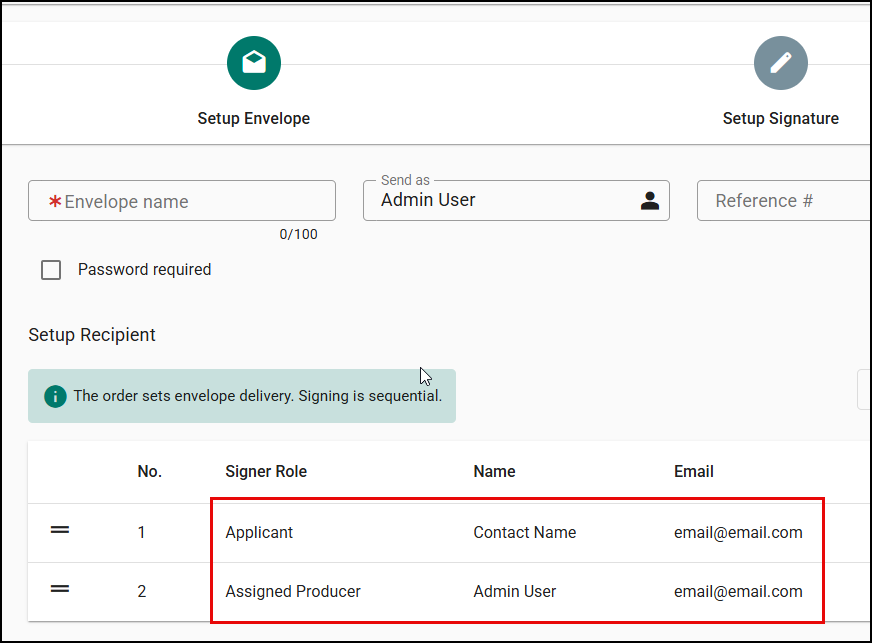
When a template is applied, signer roles automatically prefill in the recipients list on the Setup Envelope step in the Signer Role column.
- Known roles - Applicant, Co-Applicant, Assigned Producer, and CSR - are automatically matched to the corresponding contact, with their name and email address prefilled, if the data ia available on the Applicant.
- Custom signer roles - Agency Owner and Other - can be assigned manually by entering or selecting a contact. All custom roles require a name and email address before you can proceed.
You can edit any recipient — including those auto-assigned by a template — to update the name or email address.
You can remove a recipient associated with a signer role. Please note, removing a recipient also removes all signature fields tied to that signer role from the envelope documents.
 |  |
We hope this article was helpful in learning how to create and use eSignature Templates. Let us know if you found this article helpful in learning about this feature by answering the question below. Check out our other articles on the right to learn more about EZLynx!
Did you find it helpful? Yes No
Send feedback