Certificate Holder Management
Modified on: Fri, 14 Aug, 2026 at 1:29 PM
Certificates of insurance are one of the most frequent, time-sensitive tasks in your agency, and until now the workflow required jumping across tabs, hunting for holder status, and manually cleaning up outdated holders on every renewal.
We're excited to announce that with this release, you are now able to manage certificate holders in EZLynx faster, with fewer clicks, and with far greater visibility into their status and documents.
This release brings certificate holder management into a single, modern, streamlined experience — from building a certificate master, to previewing exactly what each holder will receive, to bulk-updating dozens of holders at once.
TABLE OF CONTENTS
- What's in it for me
- Accessing the Feature
- What's New
- Certificate Holder Status (Active / Inactive)
- Document Visibility
- Cleaner Certificate Holders Table
- Reordered Certificate Categories
- Default Certificate Naming
- Certificate Holder PDF Preview
- Bulk Editing Certificate Holders
- Single-Page Holder Record
- Per-Holder Preview Before You Send
- Share to Client Center
- Certificate Storage
- Practical Applications
What's in it for me
- Faster status visibility: A new Status column (Active/Inactive) on the Certificate Holders table lets you instantly see which holders are eligible for distribution, without opening each record.
- Fewer manual cleanups at renewal: Only active holders now carry forward automatically when you renew a certificate master, so you no longer have to manually remove inactive holders every renewal cycle.
- One page, not four tabs: The Certificate Holder detail page now displays Holder Details, Certificate Details, Holder Remarks, and Documents all on a single scrollable page with a jump-to table of contents — no more tab-switching to complete one holder's record.
- Bulk editing that actually saves time: Update coverages and remarks across many certificate holders at once, with clear checkbox states showing what applies to all, some, or none of your selected holders.
- Preview before you distribute: Access a live Preview PDF starting from Step 1 of building a certificate master, and preview, update, or download any individual holder's certificate without leaving the preview screen.
- Cleaner, more relevant tables: The Address column has been removed from the Certificate Holders table (address data is still fully available on the holder record), and Documents are now flagged directly in the table with a hover tooltip showing the count.
- Self-service access for insureds: Share certificates directly to Client Center from the Distribute step, so insureds can access their own certificates online instead of waiting on an emailed copy.
Accessing the Feature
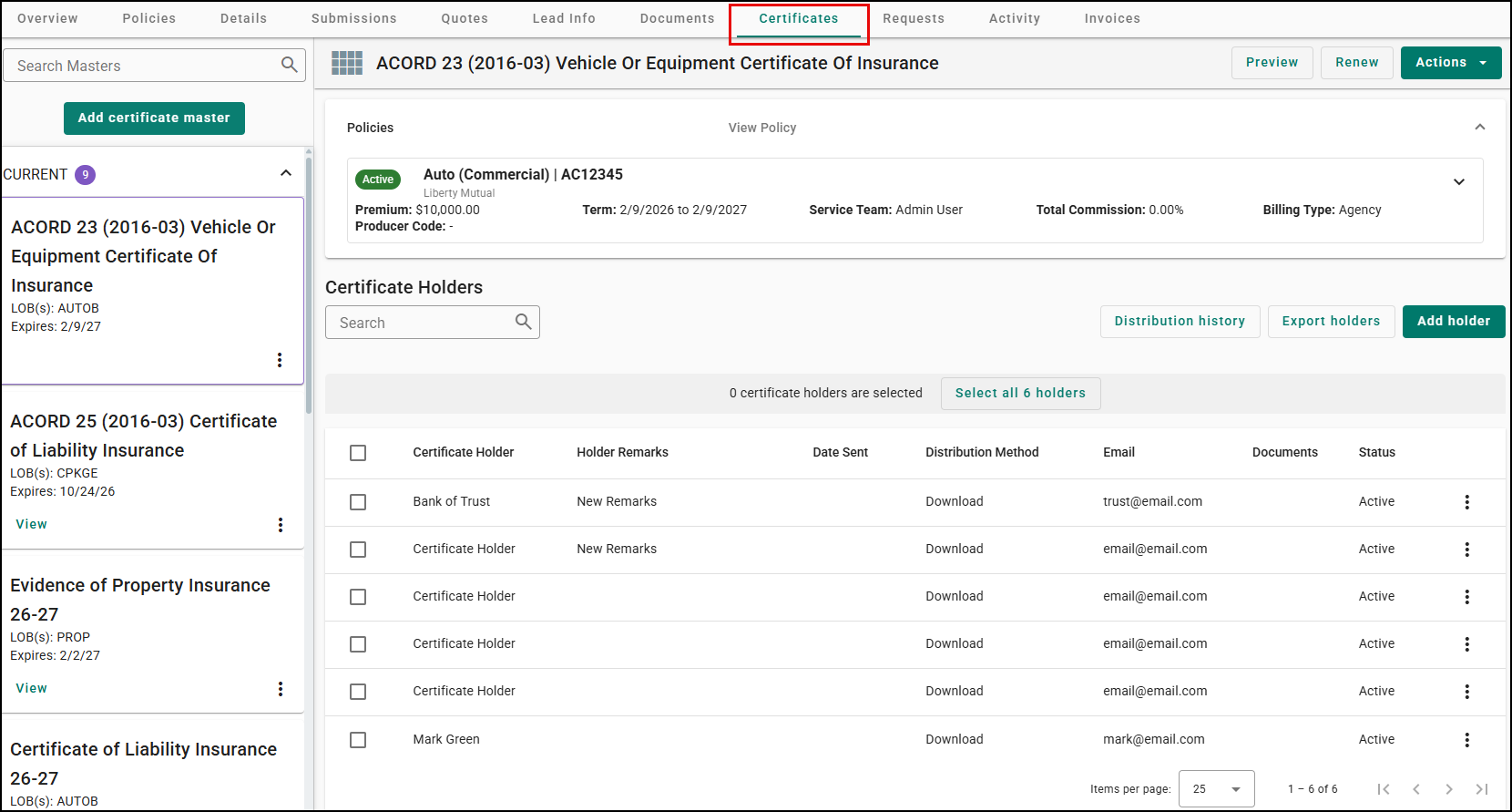
Certificate Holder Management lives in the same place you already issue certificates — start from a client's Certificate Overview page or begin building a new certificate master.
What's New
Whether you're issuing a first certificate or maintaining hundreds of holders across a renewal, you'll notice a cleaner Certificate Overview page, a redesigned holder detail page, and a much faster path from "select holders" to "certificate distributed."
Certificate Holder Status (Active / Inactive)
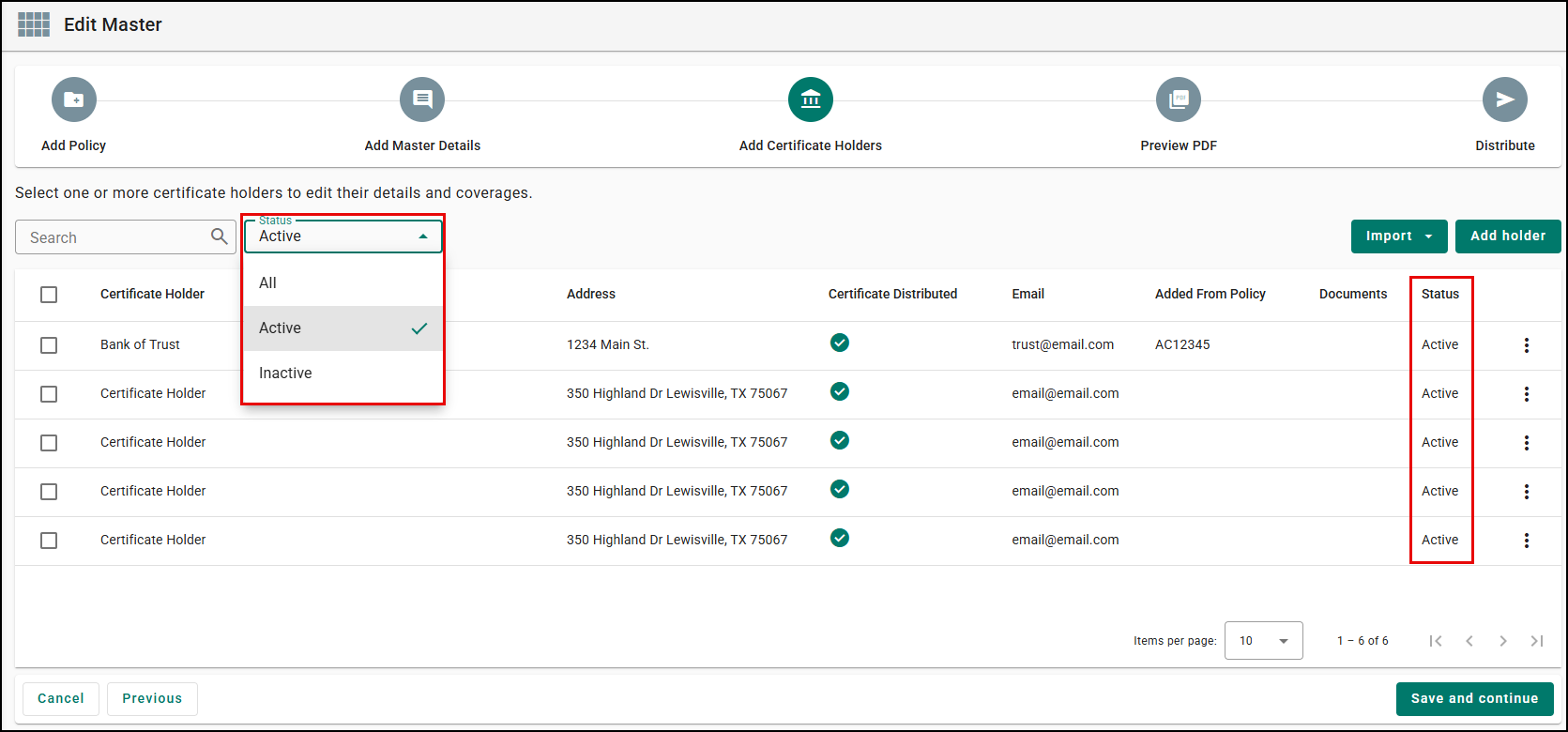
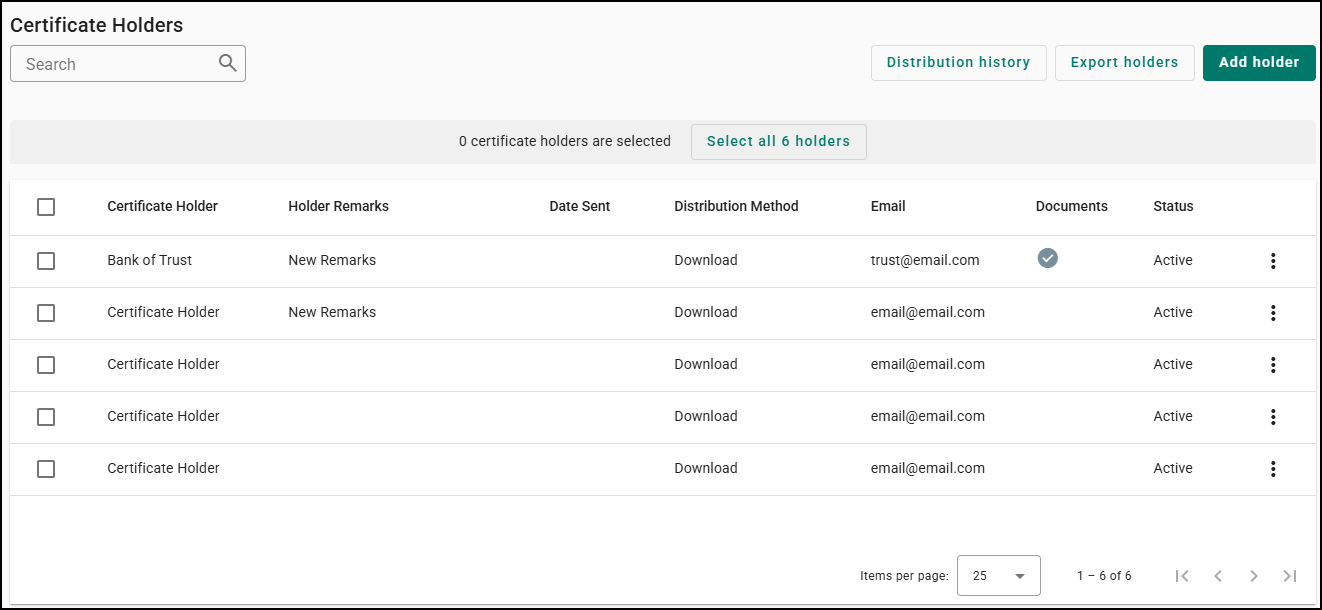
Every certificate holder now carries a status of Active or Inactive, shown in a Status column on the Certificate Holders table so you can see at a glance who is eligible for distribution.
Inactive holders no longer show a selectable checkbox, so they can't accidentally be picked for distribution — and only active holders carry forward when you renew a certificate master or import holders from an existing one, so there's no manual cleanup every renewal cycle.
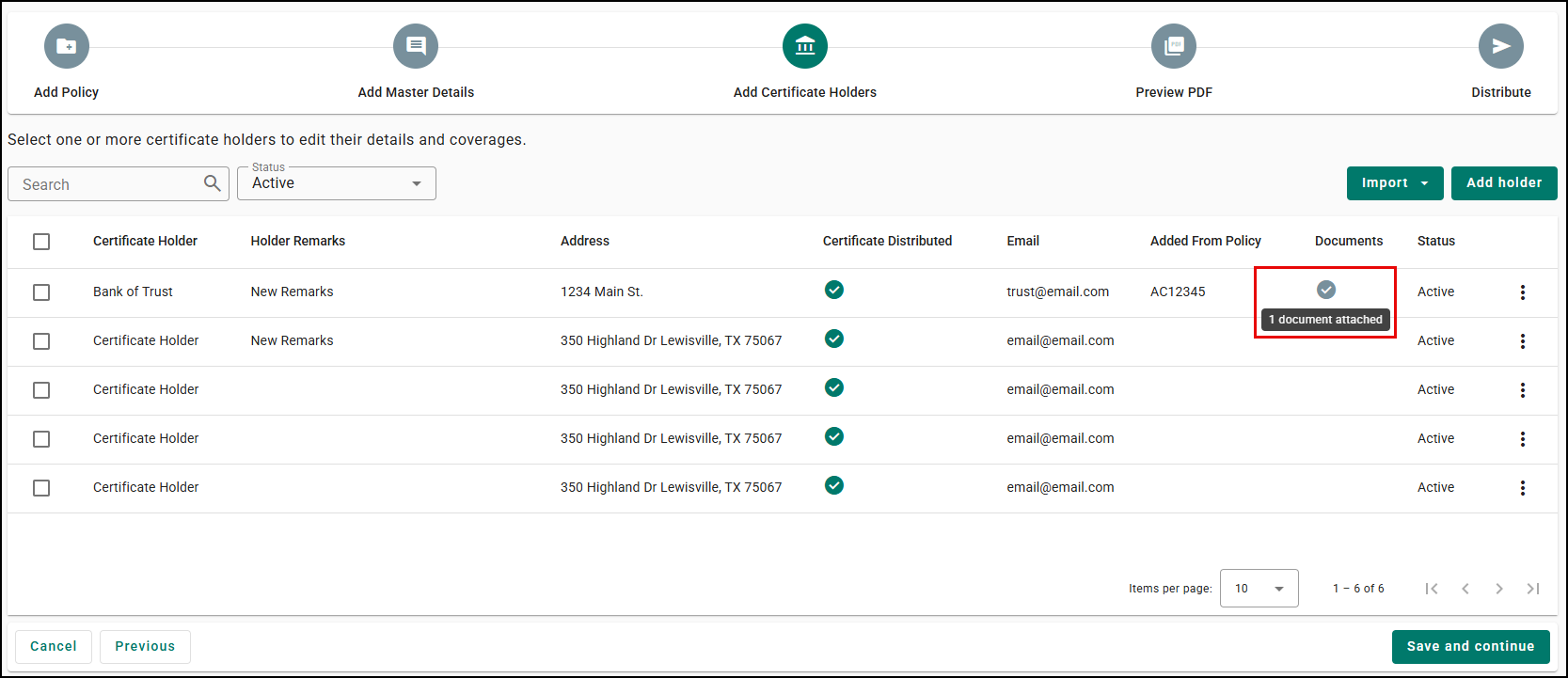
In the Add Certificate Holder Step, a Status filter (All / Active / Inactive, defaulting to Active) has been introduced.
Inactive holders are hidden from the Preview Step, and the Distribution step by default unless a certificate was previously distributed to them. When importing a certificate holder from an existing certificate master, only active certificate holders will be available for selection.
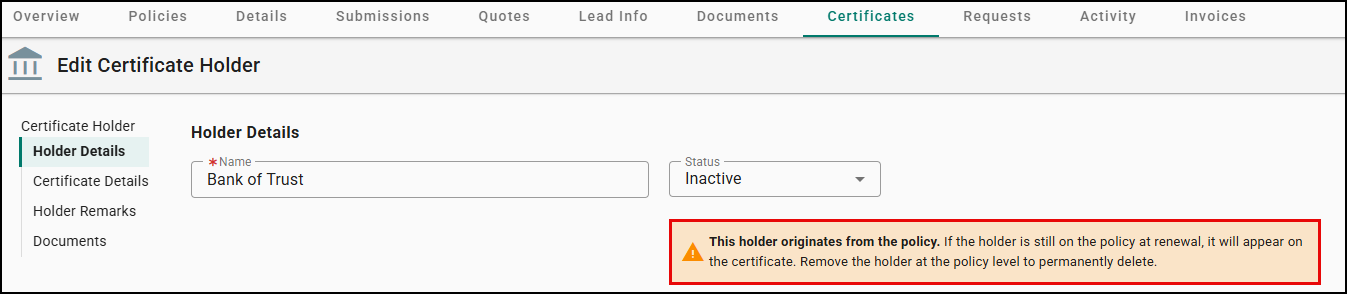
Only active holders will carry over in a certificate master renewal. However, if the certificate holder was added to the Certificate Master from the Policy, the certificate holder will be added again at the time of renewal. If a certificate holder is no longer active, they need to remove it from the policy to prevent this.
This alert will only show if the cert holder was added from the policy, not when it was added manually to the certificate master.
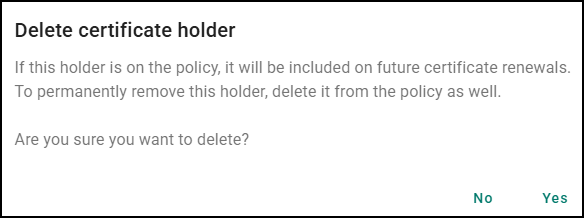
The Delete dialog box has been updated to reflect this and we also alert you at the time of changing a cert holder to inactive.
Document Visibility
A Documents column flags holders with attachments: a checkmark indicates attached documents, and hovering shows "# documents attached." The column appears wherever you work with holders — both the Certificate Holders table and the Add Certificate Holders step.
Cleaner Certificate Holders Table
From the Overview page, the Address column has been removed to keep the table focused on distribution-relevant information — your address data isn't deleted, it's still available on the holder record and from the Add Certificate Holder Step.
Reordered Certificate Categories
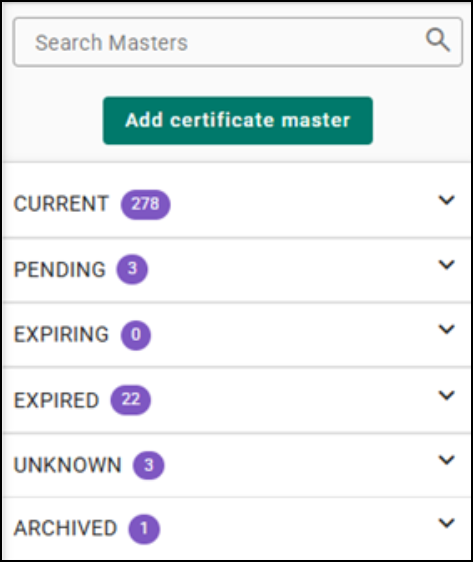
Certificate categories (Current, Pending, Expiring, Expired, Unknown, Archived) are now ordered so Pending certificates surface right after Current, making action-needed items easier to spot.
Default Certificate Naming
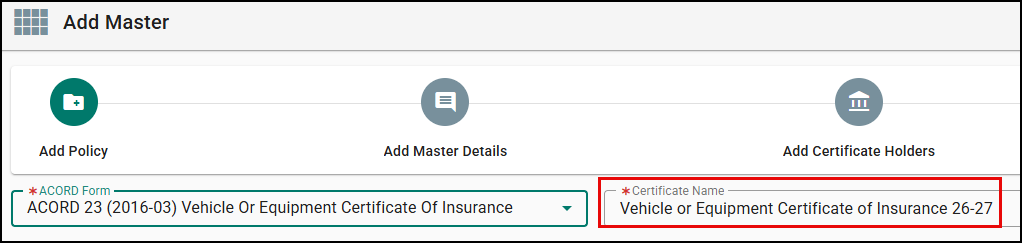
When creating a new certificate master, the system now generates a default certificate name based on the ACORD form you choose (for example, "Certificate of Liability Insurance 26-27") instead of defaulting to "Master…" — this applies to new certificates only.
Certificate Holder PDF Preview
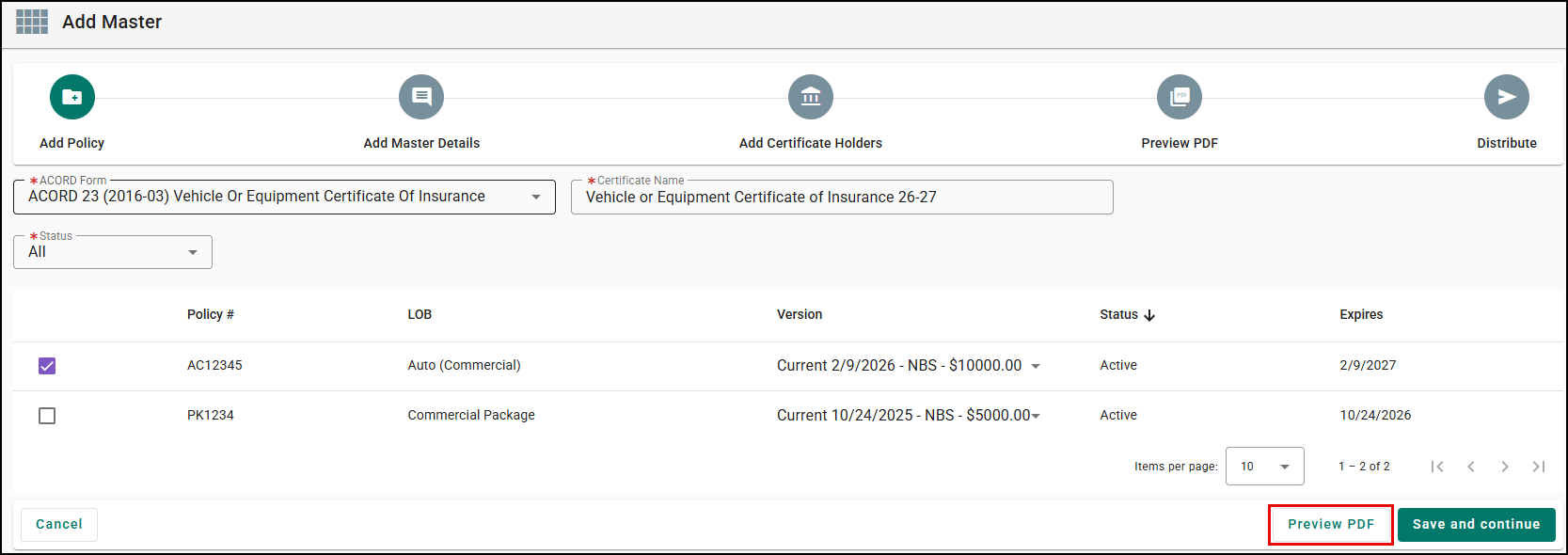
You can access the Certificate Holder Preview PDF as soon as you've selected at least one policy. Allowing you quicker access to the view the certificate form.
Bulk Editing Certificate Holders
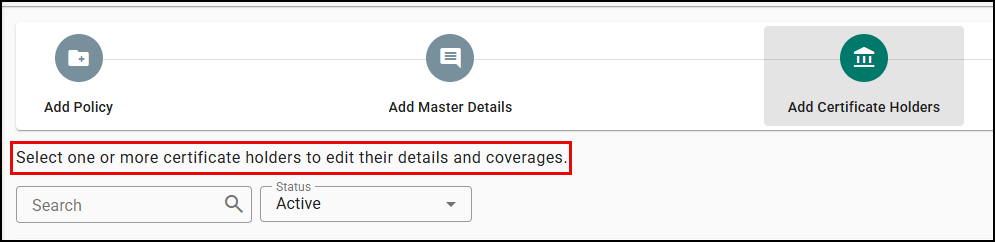
New Guidance text in the Add Certificate Holders steps now tells you to "Select one or more certificate holders to edit their details."
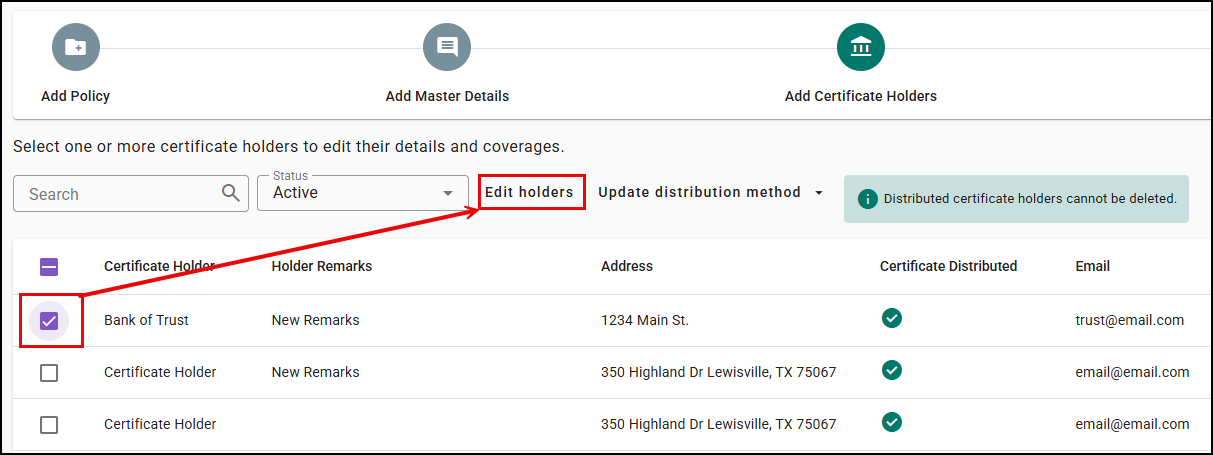
Selecting a single holder and choosing Edit opens the standard Edit Certificate Holder screen with details pre-filled; selecting multiple holders opens the new Bulk Edit experience.
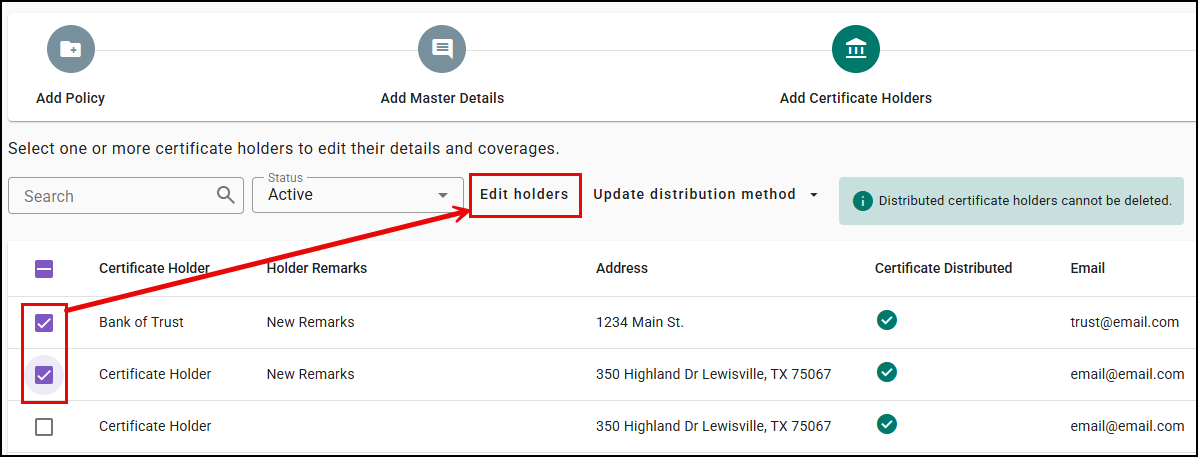
For bulk edits, select multiple holders and then click Edit holders.
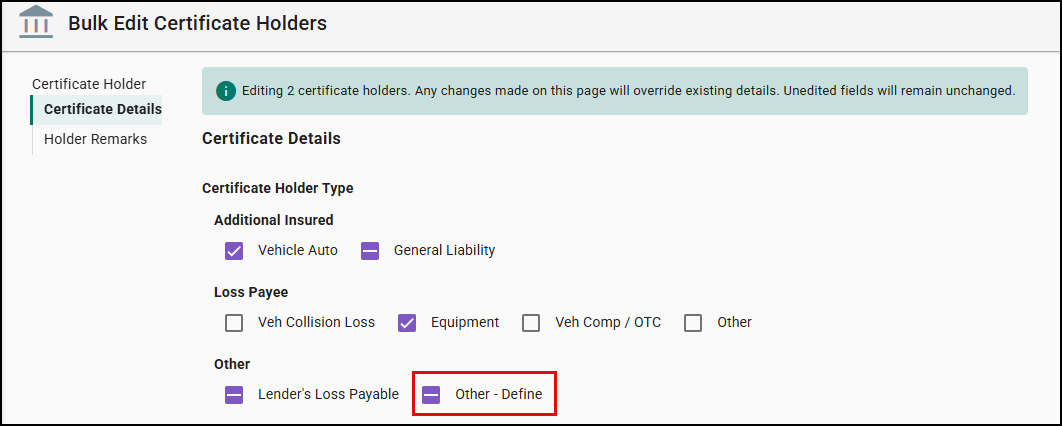
You'll see an informational banner ("Editing XX certificate holders. Any changes made on this page will override existing details. Unedited fields will remain unchanged.")
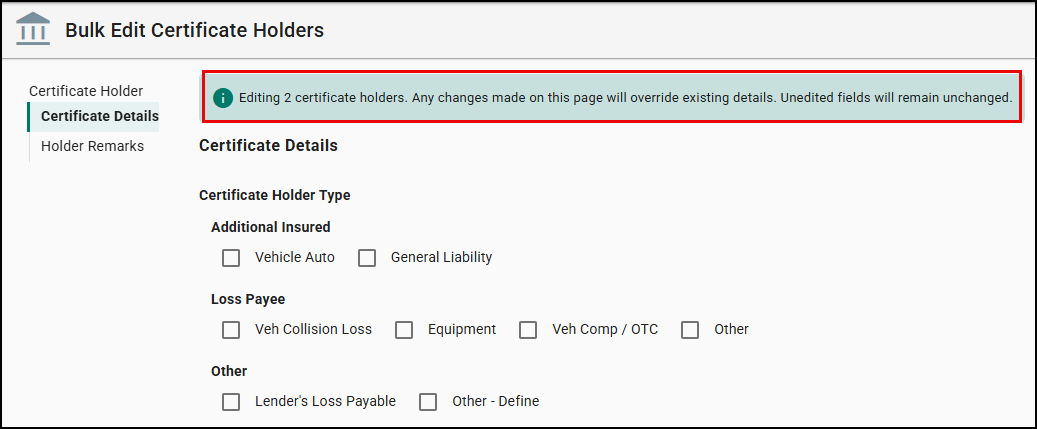
There are also checkboxes that show three states — fully selected, unselected, or partially selected across your chosen holders.
| Example | State | Definition |
|---|---|---|
 | Fully Selected | Indicates that ALL selected certificate holders have the option selected. |
 | Partially Selected | Indicates that SOME of the selected certificate holders have the option selected. |
 | Unselected | Indicates that NONE of the selected certificate holders have the option selected. |
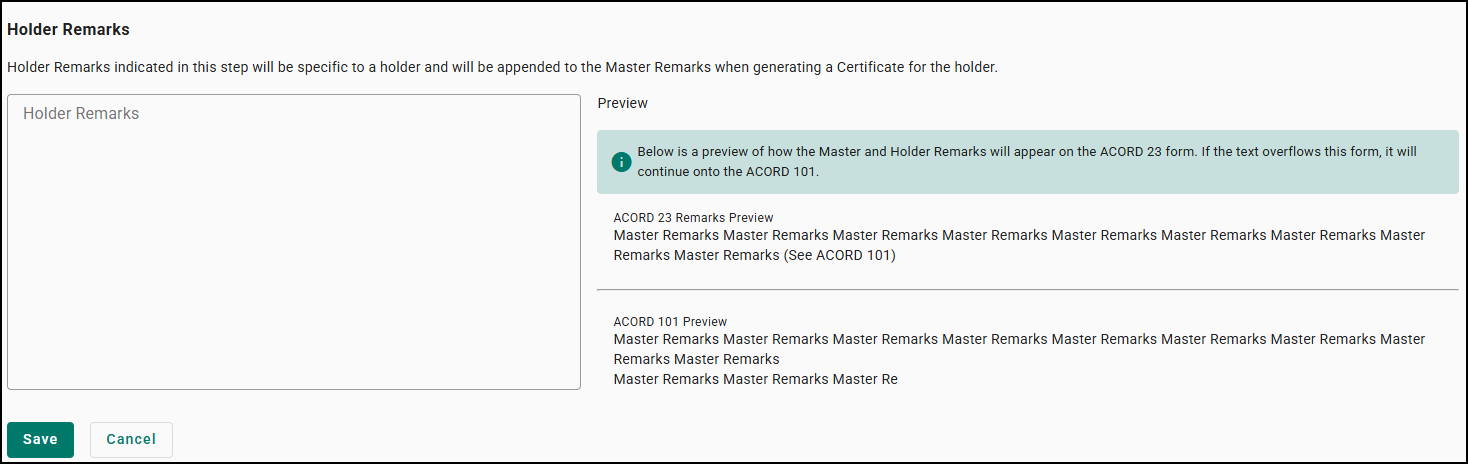
Enter Holder Remarks once to apply them to every selected holder or leave the field blank to leave existing remarks untouched. If there is a textbox like remarks, the text box will show blank regardless of if one of the cert holders has a value in it or not. Any text entered in the textbox will override the remarks for all cert holders being bulk edited.
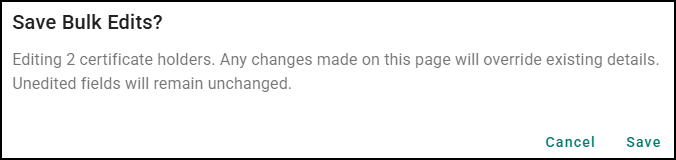
Saving prompts a confirmation dialog summarizing the change before anything is applied.
A few forms, including the ACORD 25, have a Certificate Holder Type of Other. Selecting Other will trigger a textbox.
In the context of bulk editing:
- If ALL have a value in that textbox, whether it’s different text or the same, we will show an empty text box. If the user enters a value that will be the value, we override all cert holders with the bulk action. If they leave it empty, no changes are made.
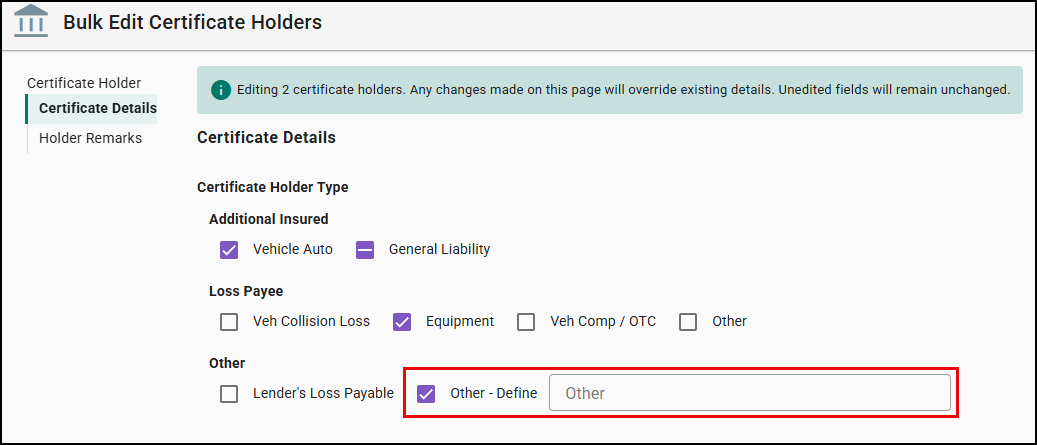
- If SOME have a value in the textbox, then we don’t show it. User will need to select the checkmark to view the box and enter a value.
Single-Page Holder Record
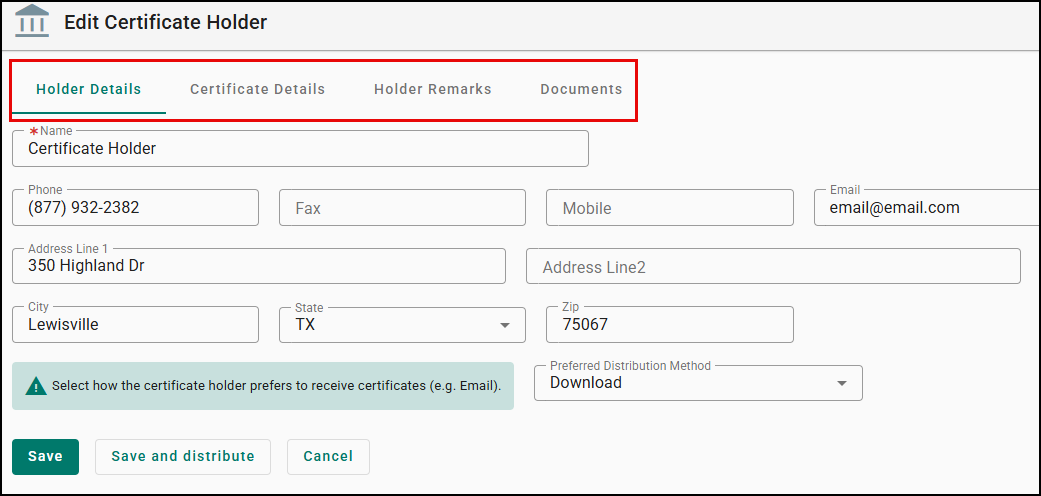
The Certificate Holder detail page has moved from tabs to a single scrollable page, with a table of contents for Holder Details, Certificate Details, Holder Remarks, and Documents to allow users to view all their configuration options at a glance.
- Active holders see Save, Save and Distribute, and Cancel
- Inactive holders see Save and Cancel only, along with a tooltip reminding you that only active holders are eligible for distribution and won't carry over with renewals or imports.
BEFORE
AFTER

Per-Holder Preview Before You Send
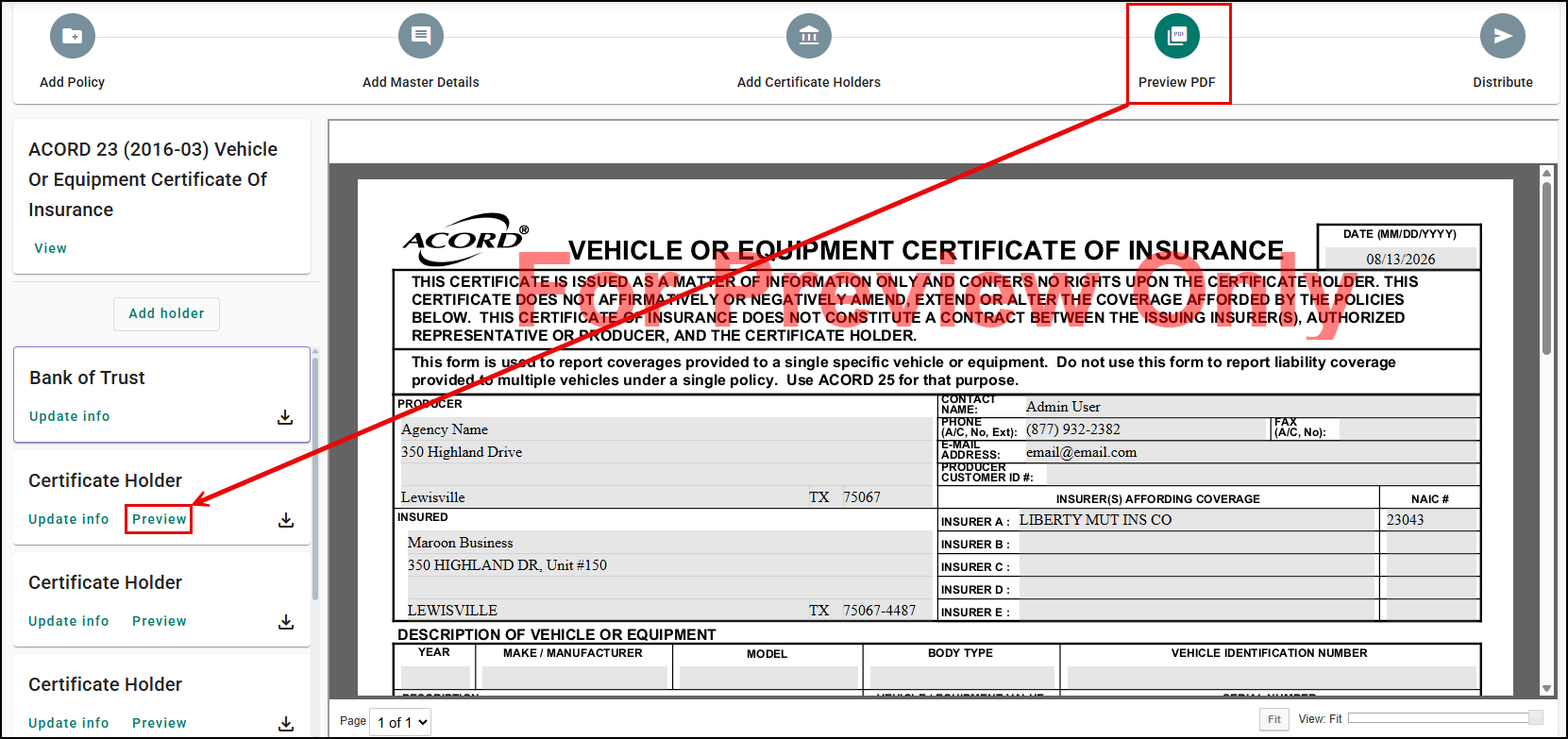
On the Preview PDF step, all active certificate holders are listed alphabetically alongside the certificate preview.
- Select any holder's Preview action to instantly render the PDF with that holder's information (marked with a "FOR PREVIEW ONLY" watermark) without leaving the page or choose Update Info to jump to the Edit Certificate Holder screen and return automatically where you left off from when you save.
- You can also add a new holder directly from this step or download a holder-specific Preview PDF straight to your browser.
- The Download Preview allows users to view the complete certificate including master and cert holder documents, and ACORD 101 without it counting as a distribution or cluttering the document library.
Share to Client Center
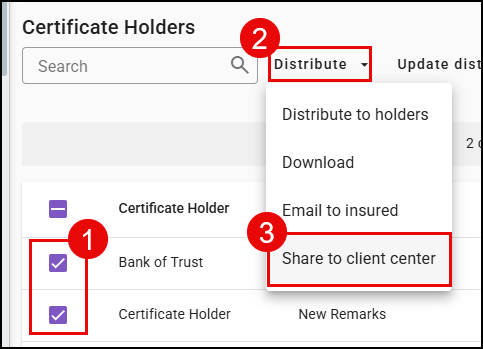
When you're ready to distribute, you can also choose Share to Client Center for one or more selected holders instead of (or alongside) emailing the certificate.
This makes the certificate master available in Client Center according to your existing Client Center rules and is logged as a distribution event just like any other distribution method.
This option is only available for commercial accounts where the Client Center product is enabled for the agency and applicant — it won't appear for personal lines applicants or for agencies/applicants without Client Center enabled.
Certificate Storage
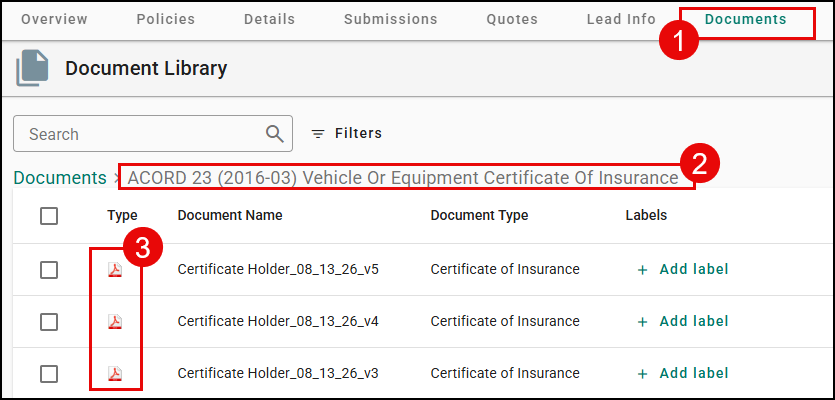
Previously, each distribution of a certificate would generate a subfolder in the corresponding Master Certificate folder in the document library. Searching for Master Certificates would be difficult as you needed to potentially click into different subfolders to locate the copy certificate you were looking for.
In this release, we have removed the subfolder creation. Moving forward all certificates will be stored in the corresponding Master Certificate folder without a subfolder.
Each new version will have the cert holder name, the date of distribution, and the version if the same holder’s certificate was distributed more than once.
Practical Applications
Here are 4 ways your agency can make the most out of this feature:
1. Commercial renewals with turnover in certificate holders: A CSR handling a renewal for a construction client no longer needs to manually delete last year's inactive vendors — only active holders carry forward automatically, cutting renewal prep time and reducing the risk of sending a certificate to a vendor who's no longer part of the job.
2. Large habitational or multi-location accounts with dozens of certificate holders: An account manager overseeing a property management client with 40+ mortgagees and lenders can use Bulk Edit to update coverage selections or holder remarks across every affected holder in one pass, instead of opening 40 individual records.
3. Fast-turnaround certificate requests during binding: When a client needs a certificate issued same-day, a CSR can preview the exact PDF a specific holder will receive — watermarked for internal review — confirm it's correct and download or distribute it without ever leaving the Preview PDF screen.
4. Self-service insureds who prefer to retrieve their own documents: A commercial client who's already active in Client Center can grab their own certificate on demand instead of emailing the agency for a copy, while the CSR still gets a clean distribution record for their files.
We hope this article was helpful in learning about the new features for Certificate Masters. If you found this article helpful, please answer the question below. Check out our other article on the right side to learn more about what's new!
Did you find it helpful? Yes No
Send feedback