Directory Page Improvements
Modified on: Thu, 27 Aug, 2026 at 11:46 AM
You told us what changed for the worse after the new Directory launched, and we moved quickly to put it right.
- Clicking an entry name once again opens a clean, read-only view, so a quick lookup stays a quick lookup.
- The Edit Entry and Add Contact pages have been reorganized into the logical, easy-to-scan layouts you expect,
- The Items per page options are back up to 25, 50, and 100
- The Directory once again remembers your place — save an edit on page 5 and you'll land right back on page 5.
We've also resolved a validation error that blocked entity type changes on entries with commas in the address. These are targeted fixes based directly on your feedback, and there's more coming.
TABLE OF CONTENTS
 | Did you know? - You can click on the images/gifs in our articles to make them bigger. |
What's in it for me
- Your feedback, acted on quickly: Every change here came from issues your agencies reported after the new Directory went live. We prioritized them as a rapid-response scope rather than holding them for a future roadmap cycle.
- Look without touching: Clicking an entry name opens a read-only view, so your team can pull up a carrier phone number or a vendor address without any risk of unintentionally changing the record — the browsing behavior you were used to.
- Find what you need faster: The reorganized Edit Entry page groups related fields together — name and entity type up top, then contact details, then address, then phone numbers — so your eye goes straight to the field you're after.
- Fewer clicks, more entries on screen: With 25, 50, and 100 items per page restored, larger agencies can scan a long carrier or vendor list without paging through it a handful of rows at a time.
- No more losing your place: The Directory remembers your page position through edits, views, adds, and deletes. Cleaning up a long directory no longer means clicking back to page 5 over and over.
- Contacts get room to breathe: Adding a contact to an entry happens on a dedicated Add Contact page with clearly organized fields, and a contacts table on the Edit Entry page shows every contact's name, title, type, email, phone, and address at a glance.
- A frustrating error is gone: Entries whose address lines contained commas previously threw a model validation error when you tried to change the entity type. That's fixed — you can now update the entity type and save successfully, no workaround required.
How it works
Accessing the Directory
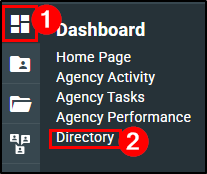
Navigate to the Directory by hovering over the Dashboard icon and choosing Directory. Your entries appear in the familiar list, with one immediate difference: every entry name is a clickable hyperlink again.
Open an entry in read-only view
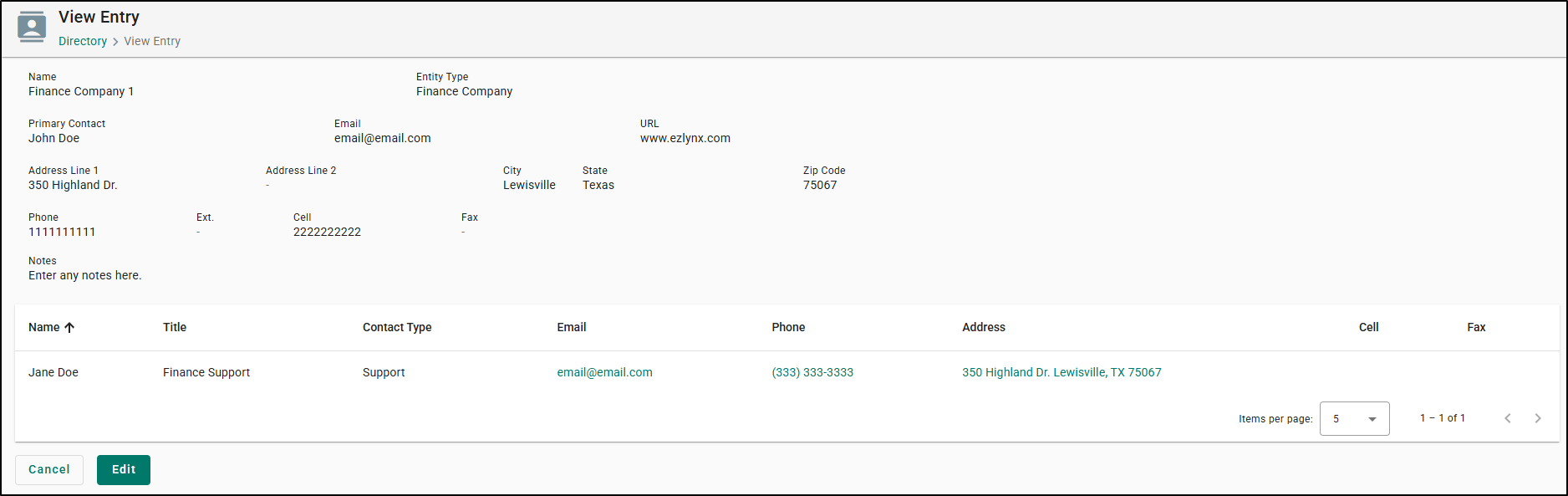
Click any entry name in the list. EZLynx opens a read-only view of that entry showing its full details — contact information, address, phone numbers, notes, and associated contacts — with nothing editable. Look up what you need and navigate back; because nothing was changed, nothing needs to be saved.
Move into edit mode
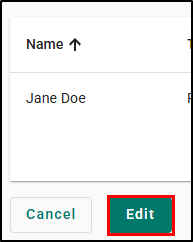
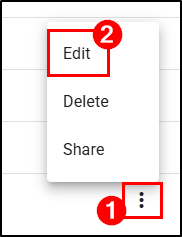
When you do need to make a change, select the Edit button at the bottom of the read-only page. You can also jump straight to editing from the Directory list by selecting the three-dot menu at the end of an entry's row and choosing Edit.
 |  |
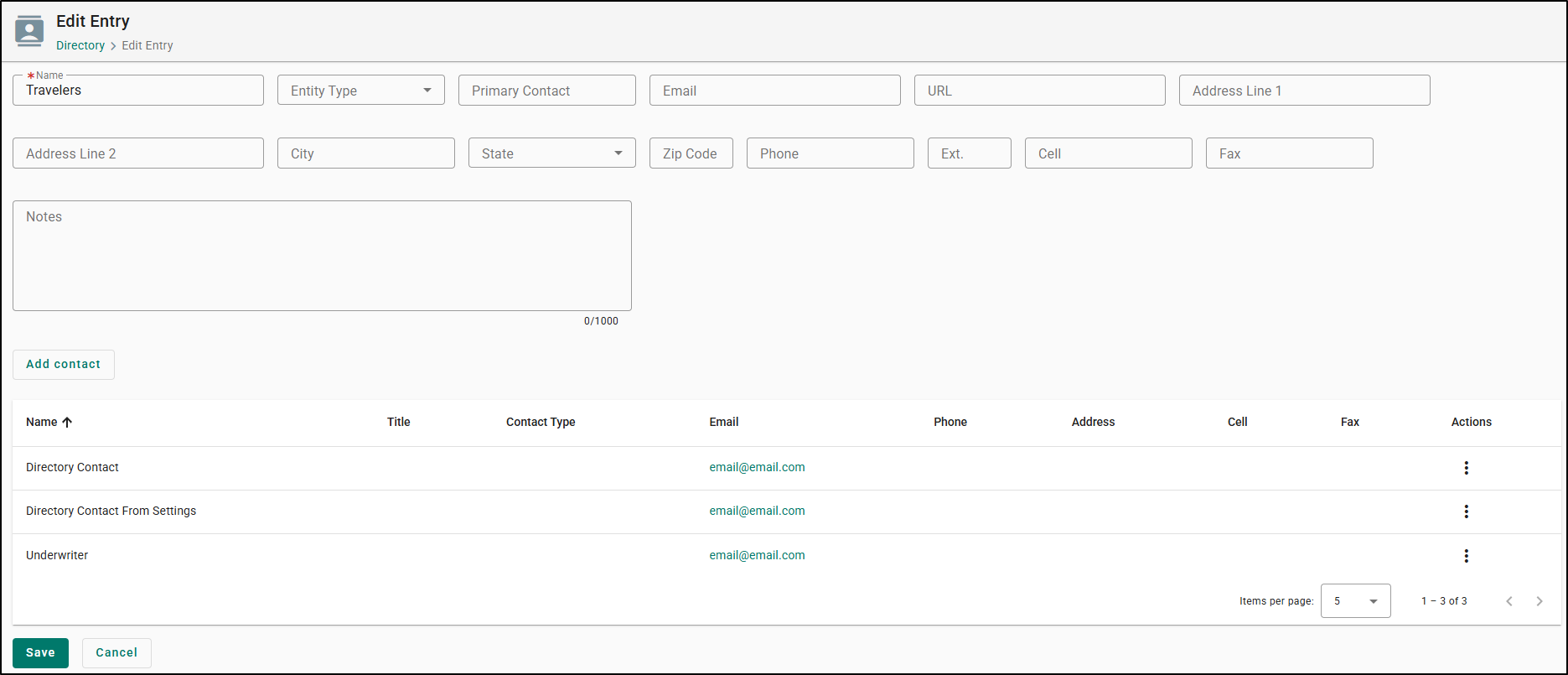
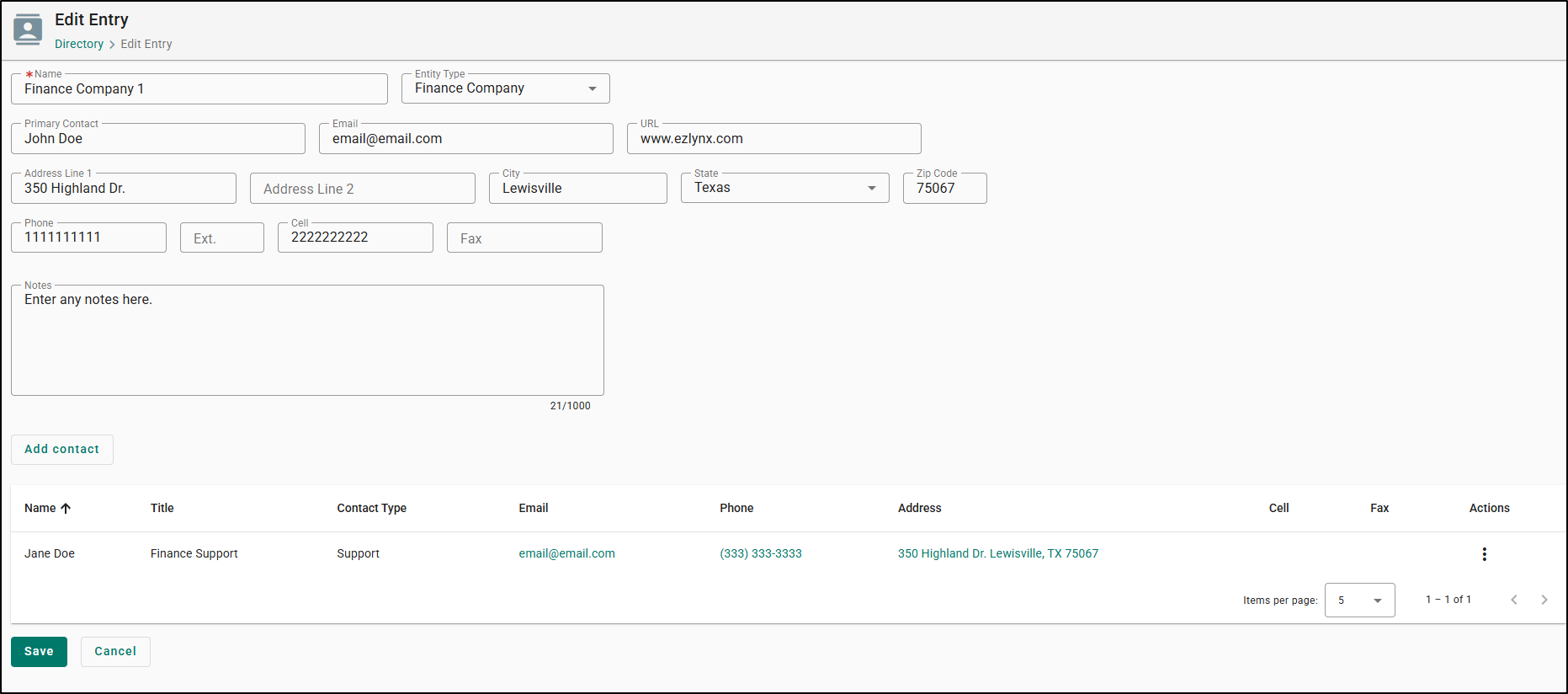
Work in the reorganized Edit Entry page
The Edit Entry page presents fields in a logical top-to-bottom order:
- Row 1: Name, Entity Type
- Row 2: Primary Contact, Email, URL
- Row 3: Address Line 1, Address Line 2, City, State, Postal Code
- Row 4: Phone, Ext., Cell, Fax
Below those fields you'll find a Notes text box, an Add contact button, and the contacts table listing Name, Title, Contact Type, Email, Phone, and Address for every contact attached to the entry.
Before
After
Adding Contacts
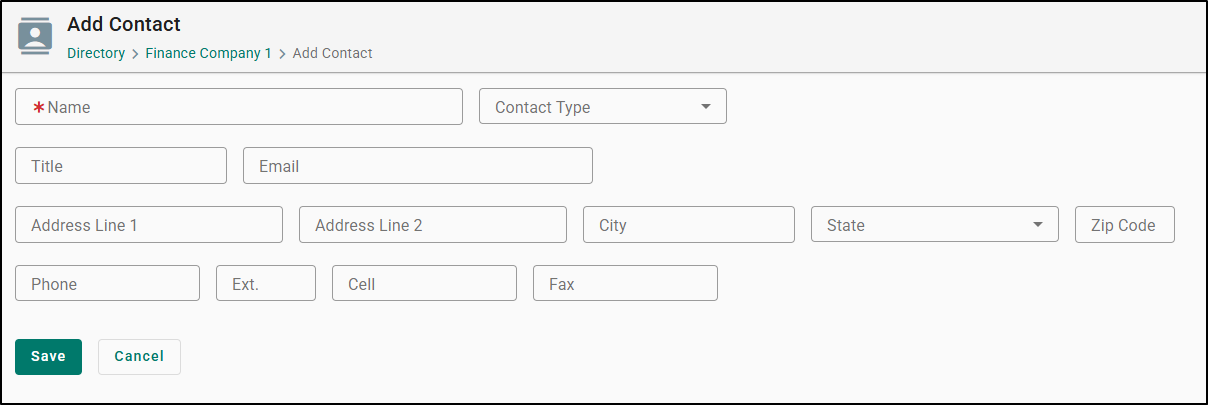
Select Add contact from the Edit Entry page to open the dedicated Add Contact page, organized the same way:
- Row 1: Name, Contact Type
- Row 2: Title, Email
- Row 3: Address Line 1, Address Line 2, City, State, Postal Code
- Row 4: Cell, Fax
Select Save to add the contact to the entry, or Cancel to discard it and return without changes.
Before

After
Set how many entries you see
At the bottom of the Directory list, the Items per page dropdown offers 25, 50, and 100 again. The default is 25. Choose an option and the list immediately redisplays with that number of entries per page.
Before 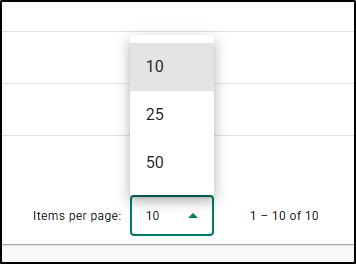 | After 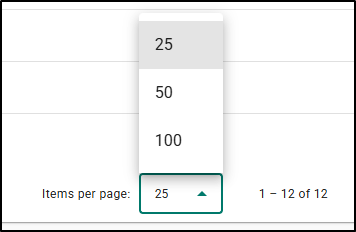 |
Return to where you left off
Whatever you do next — save an edit, view an entry and back out, add a contact, or delete an entry — EZLynx returns you to the same page of the Directory you were working on. Page 5 stays page 5.
A note on entity type changes
Previously, entries with a comma in Address Line 1 or Address Line 2 produced a model validation error when you tried to change the entity type, and the only way around it was to strip the commas out of the address first. That validation issue has been resolved — entity type changes now save cleanly regardless of how the address is punctuated.
Practical Applications
Here are 3 ways your agency can make the most out of these Directory page improvements:
- Safer daily lookups for your service team: Your CSR is on the phone with a client who needs a claims number for their carrier. She clicks the carrier's name in the Directory, reads the number off the read-only view, and moves on — no edit form open, no chance of a stray keystroke changing a phone number that the entire agency relies on. Over hundreds of lookups a week, that's a meaningful reduction in accidental data corruption.
- Faster cleanup of a bloated vendor and carrier list: Your agency principal is auditing a Directory that's grown to several hundred entries after a book roll-in. He sets Items per page to 100, works down the list correcting entity types and outdated addresses, and after each save lands right back on the page he was auditing. What used to be a stop-and-restart chore is now a straight run from top to bottom.
- Building out multi-contact carrier relationships: Your commercial lines manager works with a wholesaler who has separate underwriting, billing, and claims contacts. She opens the entry, clicks Add contact, and records each person with their own title, contact type, email, and phone on the dedicated Add Contact page. The contacts table on the Edit Entry page then gives the whole team one clear view of who to call for what — no more digging through notes fields.
We hope this release article was helpful in learning about the improvements to the Directory page based on your feedback. If this article was helpful, please let us know by answering the question below. Check out our related articles on the right to learn more about EZLynx.
Did you find it helpful? Yes No
Send feedback