EIN Registration UI Updates
Modified on: Tue, 8 Sep, 2026 at 12:23 PM
Registering your agency's texting brand with the carriers can be confusing, and a single mismatched detail (like a business name that doesn't match your IRS paperwork, or an unsecured website link) can get your registration rejected and delay your texting service.
We're excited to announce that with this release, you are now able to get built-in, step-by-step guidance right on the Brand Registration form in Communication Center — no more guessing what carriers expect before you submit.
Now, every key field on the form comes with helpful notes, guided buttons, and pop-up explanations so you can get it right the first time. From locating your EIN to writing a compliant Terms & Conditions page, EZLynx walks you through exactly what carriers are looking for. This means fewer rejections, less back-and-forth, and a faster path to getting your text campaigns live.
TABLE OF CONTENTS
What's in it for me
- Fewer carrier rejections: Clear, in-context guidance on exactly what carriers require for your EIN, business name, and website helps you avoid the most common reasons text campaigns get rejected.
- Faster time to activation: Getting your registration right the first time means you spend less time resubmitting and waiting on carrier review — your texting service goes live sooner.
- No more digging for answers: Guidance on finding your EIN, choosing your business type, and writing compliant Privacy Policy and Terms & Conditions content is now right where you need it, so you don't have to search outside help articles mid-form.
- Cleaner, more consistent design: The Save as Draft button now matches EZLynx's primary button styling for a more polished, consistent experience.
How it works
Accessing the Feature
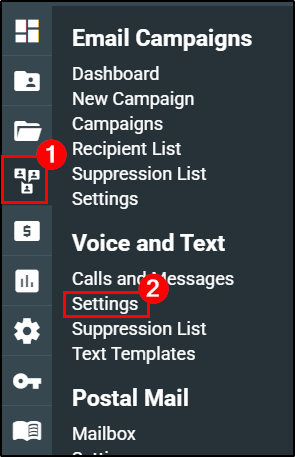
To open the Brand Registration form to begin your text campaign registration:
1. Hover over the Communication Center icon.
2. Choose Settings under Voice and Text. This opens the Text Messaging page.
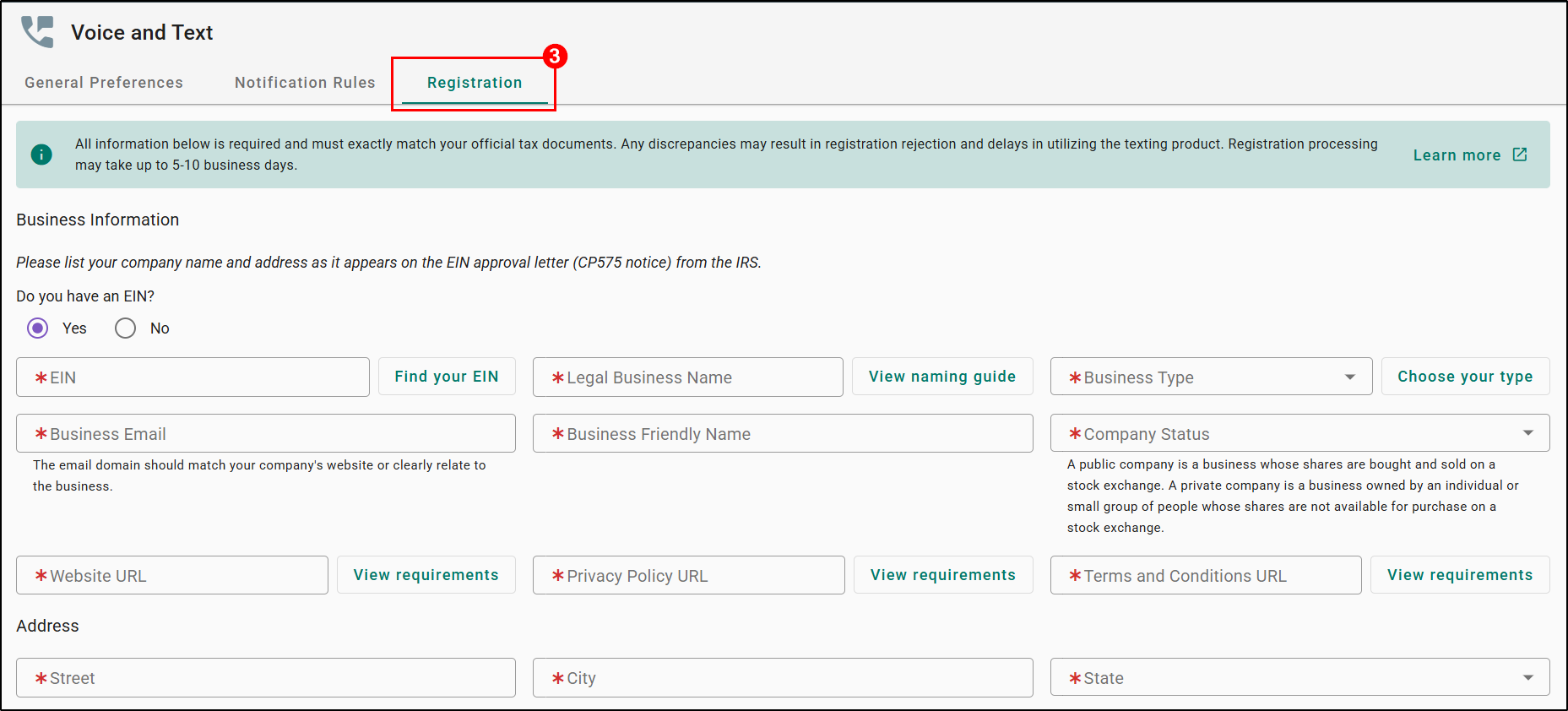
3. Choose the Registration tab.
 |  |
Step 1 — Business Information
Right under the Business Information section title, you'll see a new note reminding you to list your company name and address exactly as it appears on your EIN approval letter (the CP575 notice from the IRS).

Step 2 — Entering your EIN
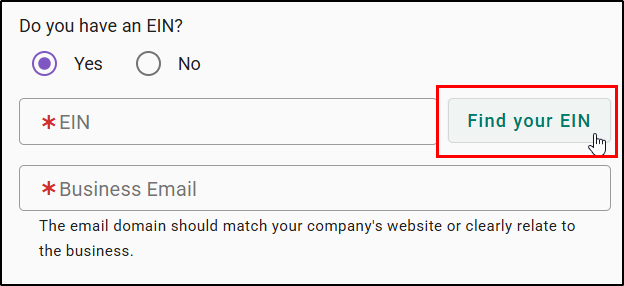
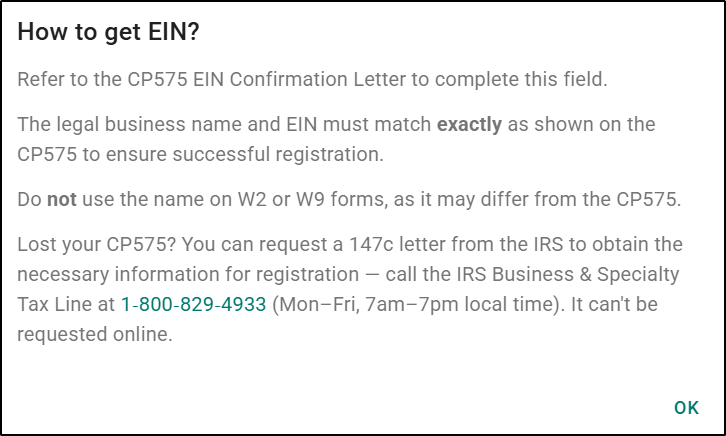
Next to the EIN field, click Find your EIN to open a guide explaining how to locate it on your CP575 letter, why your legal business name and EIN must match exactly, and what to do if you've lost your CP575 (including the IRS phone number to request a replacement 147c letter).
 |  |
Step 3 — Legal Business Name
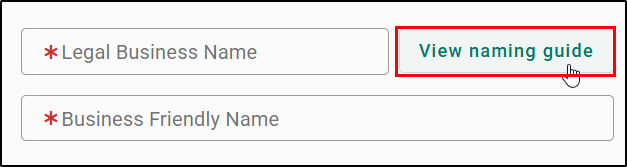
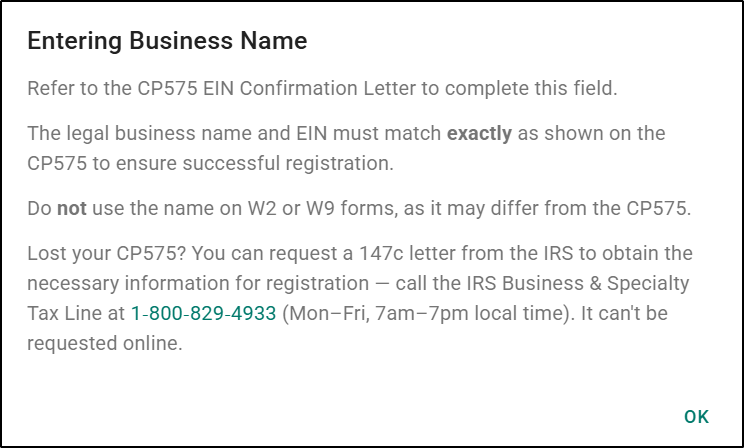
The Business Name field is now relabeled Legal Business Name for clarity. Click View naming guide next to it for guidance on matching this name exactly to your CP575 confirmation letter.
 |  |
Step 4 — Business Type
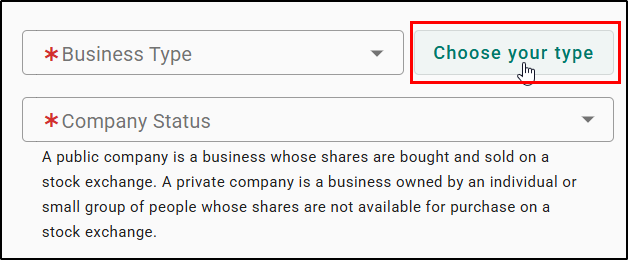
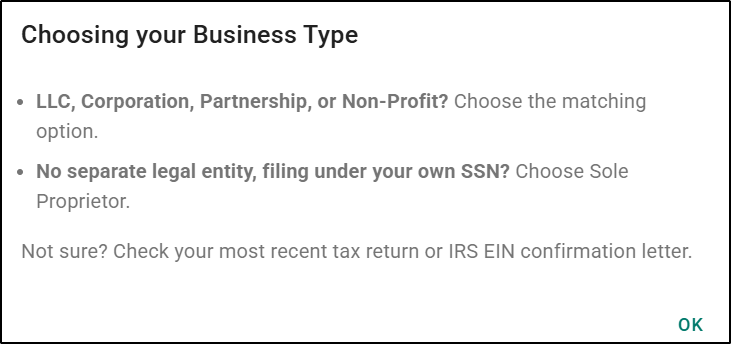
Click Choose your type next to the Business Type field to see guidance on selecting the correct classification — LLC, Corporation, Partnership, Non-Profit, or Sole Proprietor — based on your most recent tax return or EIN confirmation letter.
 |  |
Step 5 — Website URL
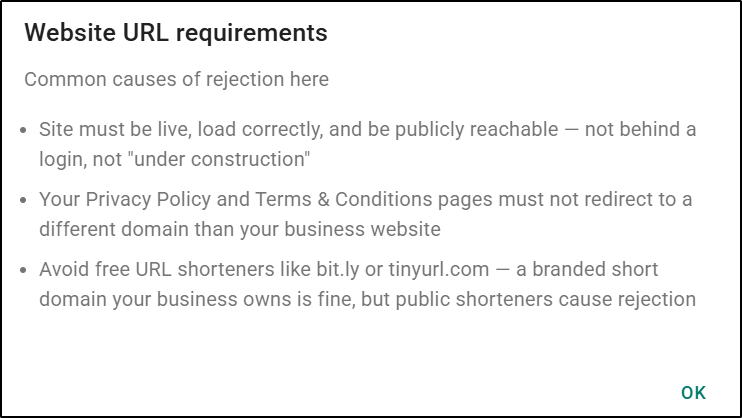
Click View requirements next to the Website URL field to see the most common causes of rejection: sites that aren't live or publicly reachable, Privacy Policy/Terms pages that redirect to a different domain, and the use of public URL shorteners. This field now only accepts secure (https://) URLs.
 |  |
Step 6 — Privacy Policy URL
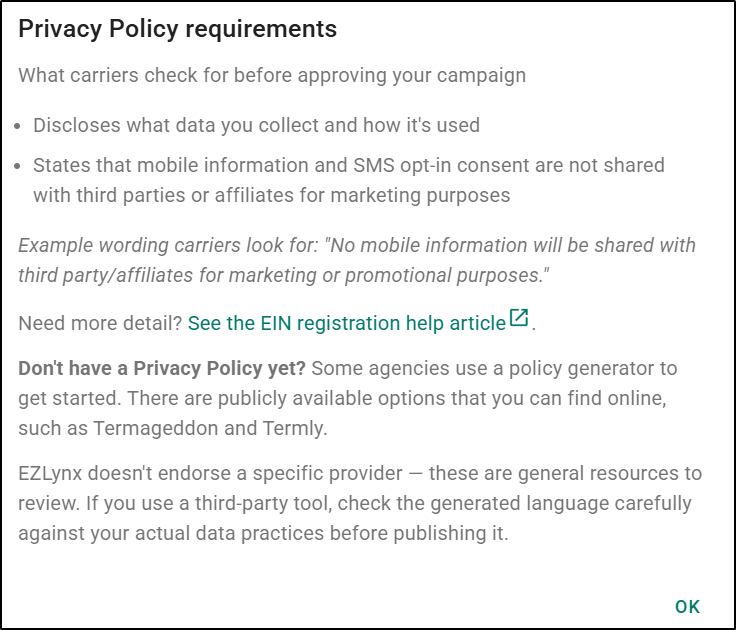
Click View requirements to see what carriers check for, including required data-use disclosures and example wording. This field also only accepts secure URLs, and the previous static helper text below the field has been removed in favor of this guidance.
 |  |
Step 7 — Terms and Conditions URL
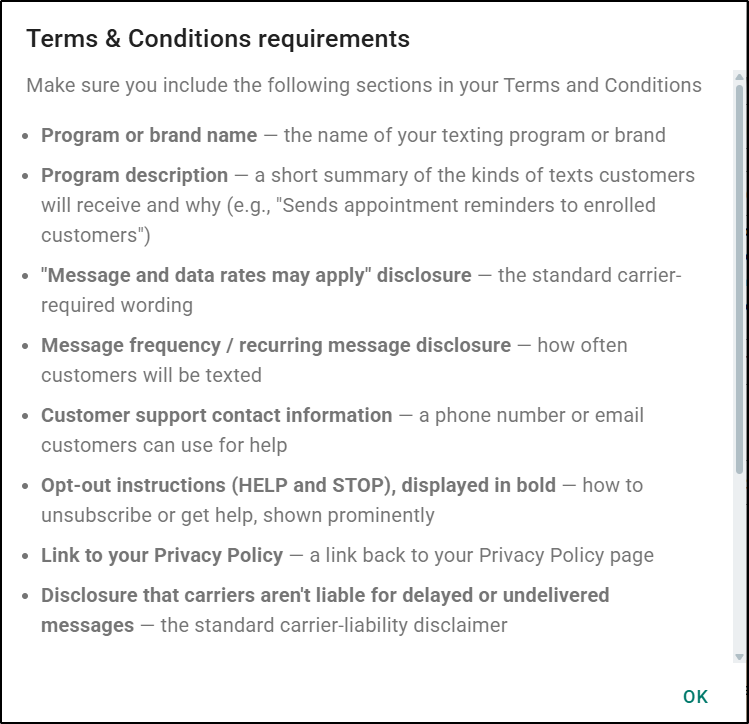
Click View requirements to see the required sections for a compliant Terms & Conditions page — program name and description, message frequency disclosure, opt-out instructions, support contact info, and more. This field also only accepts secure URLs, and its static helper text has been removed in favor of the new guidance.
 |  |
Practical Applications
Here are 3 ways your agency can make the most out of these Text Registration updates:
- New agency registering its first text campaign: A newly onboarded agency is unsure where to find its EIN or how carriers define "Business Type." Instead of contacting support or guessing, staff click the in-context guidance buttons at each step, complete the form correctly, and submit with confidence.
- Agency that was previously rejected: An agency whose campaign was rejected for an insecure or shortened website link can now see the Website URL requirements guidance up front, correct the issue before resubmitting, and avoid another rejection cycle.
- Agency drafting Privacy Policy and Terms & Conditions content for the first time: A smaller agency without existing legal pages uses the new guidance to understand exactly what carriers require (opt-out instructions, message frequency disclosures, etc.) and references the linked resources to build compliant pages before submitting.
We hope you found this release article about the new updates to the EIN Registration page helpful. Let us know by answering the question below. Check out our related articles on the right side to learn more about EZLynx!
Did you find it helpful? Yes No
Send feedback