Instant CL Quoting Enhancements
Modified on: Thu, 10 Sep, 2026 at 11:36 AM
We’re excited to announce that with this release, you are now able to move through Commercial Lines Instant Quoting faster and with more confidence than ever. This round of enhancements makes the instant quoting experience smoother from the first location entry all the way through carrier submission.
You will notice new message alerts on your carrier cards, a clearer Report Error experience when a submission does not go through, smart defaults that cut down on clicks, and search on the Class Codes field.
Behind the scenes, we also improved how your data is matched to carriers, so more of the right carriers stay in appetite and quote for you. The result is fewer manual steps, fewer surprises, and a cleaner path from application to quote.
TABLE OF CONTENTS
What's in it for me
- Never miss a carrier message: A message icon and notification badge now appear on the carrier card whenever a carrier sends a message during instant quoting, and the icon takes you straight to the carrier detail page.
- Know when something needs attention: The Report Error button now also appears when a submission fails before a carrier ever responds, so you can flag issues that used to go unnoticed.
- Fewer clicks, faster entry: Location 1 opens expanded by default and the Loss History question defaults to “No,” so you spend less time setting up the answers you enter most often.
- Find class codes instantly: The Individual Class Code field now supports type-to-search, so you can filter and select the right code without scrolling long lists.
- More of the right carriers quote: Improved value mapping and multiple-profile support mean your applicant data lines up with what carriers accept, reducing cases where a carrier is wrongly dropped from appetite.
How it works
On the Create Submission page
- The old “Multiple Lines of Business have an updated design” message is replaced with a direct link to the CL Instant Quoting Guide. Selecting the link opens the guide in a new browser tab while your submission progress stays exactly where you left it.
BEFORE 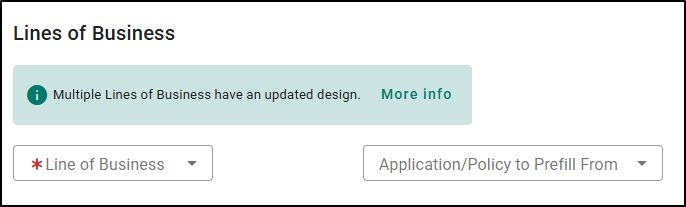 | AFTER 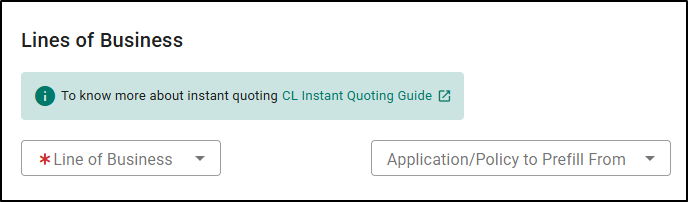 |
Entering the application
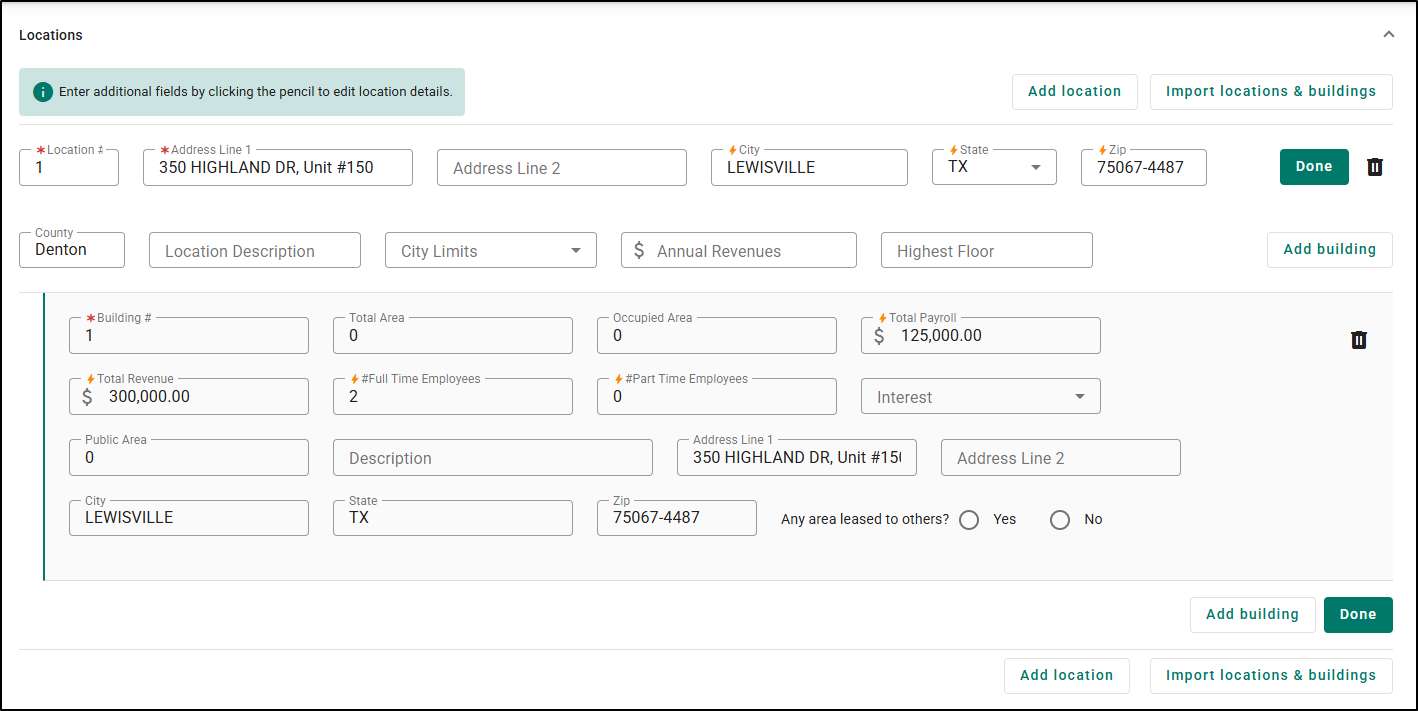
- When you open the Locations section, Location 1 is now expanded by default, with all of its fields visible and ready for input. Additional locations stay collapsed so the page stays manageable, and you can expand them independently.
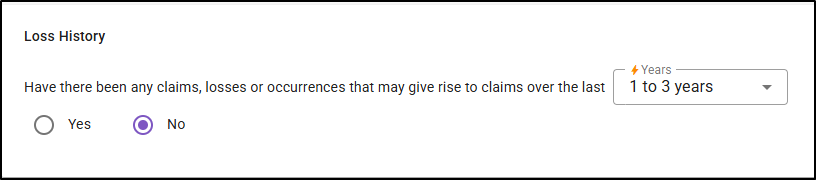
- The Loss History question defaults to “No” the first time you reach it, and any answer you have already saved is preserved on return.
- Location Number and Building Number now accept zero as a valid value, so zero-based numbering no longer blocks your submission.
- When you enter an Other Limit Amount, the system now requires a matching Other Limit Description before you move on to rating, keeping your data complete.
Selecting a class code
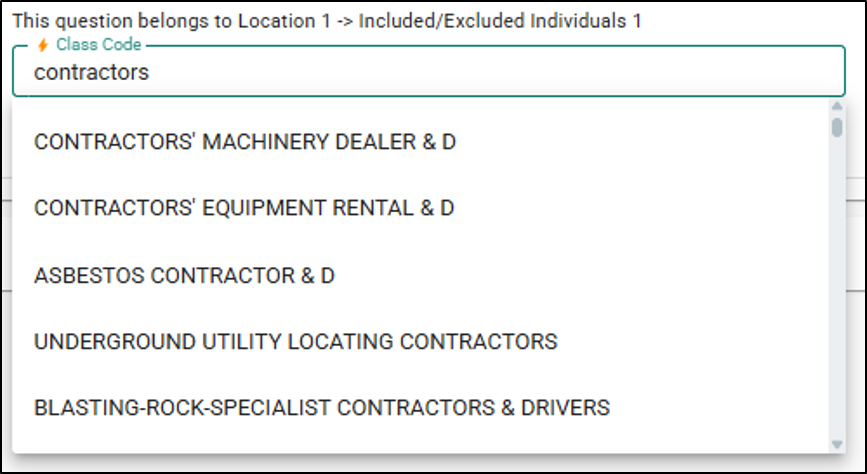
- On the Carrier Supplemental page, the Individual Class Code field now supports search. Start typing and the dropdown filters to matching options (partial matches and case-insensitive), showing the first set of results by default and clear feedback when nothing matches.
Submitting to carriers
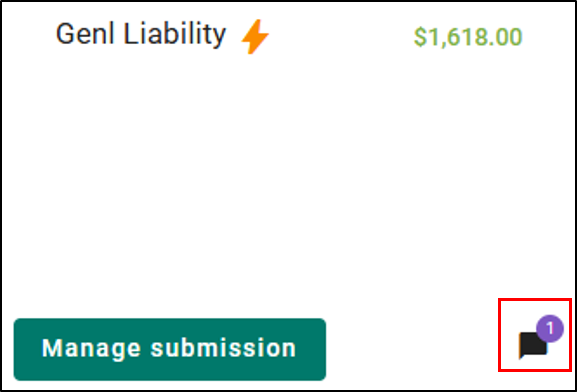
- As carriers respond during instant quoting, a message icon appears on the carrier card whenever a carrier sends a message, along with a notification badge for a new message. The icon is clickable and takes you to that carrier’s detail page, and opening the submission clears the badge while leaving the icon in place if messages still exist.
- If a submission does not go through, the Report Error button now appears not only when a carrier returns an error, but also when EZLynx could not reach that carrier at all, with the alert styled to reflect which kind of failure occurred. Once a resubmission succeeds, the button hides itself automatically.
Behind the scenes
- Your entered values are now mapped more accurately to what carriers support, free-form and unsupported entries are translated to valid values, and carriers that offer more than one product profile can be matched to the right one.
- Fields that a carrier does not actually support, such as certain deductible types, are handled more clearly in the interface so you are not misled about what gets transmitted.
Practical Applications
Here are 3 ways your agency can make the most out of this feature:
- Quoting a BOP account across multiple carriers: An agent submits a Business Owners Policy to carriers like Coterie, Acuity, and Liberty Mutual through instant quoting. As responses come back, message icons and badges surface on the carrier cards so the agent immediately sees which carriers have something to say, clicks straight through to the detail page, and keeps the whole account moving without hunting for updates.
- Cleaning up a CGL submission that used to fall out of appetite: A CSR building a General Liability quote enters values that previously did not line up with carrier requirements and quietly removed carriers from appetite. With improved value mapping and the required Other Limit Description, the data now matches what carriers accept, so more carriers stay in and return quotes on the first pass.
- Fast new-business intake: A commercial lines producer starting a fresh submission lands on a Locations section that is already expanded, a Loss History question already set to the most common answer, and a searchable Class Code field. They enter the account in far fewer clicks and reach carrier selection faster.
We hope this release article was helpful in learning about the enhancements to Instant CL Quoting. Let us know if it was helpful by answering the question below. Check out our related articles to learn more about EZLynx.
Did you find it helpful? Yes No
Send feedback