Dashboard Overview
Modified on: Wed, 23 Sep, 2026 at 1:49 PM
The Dashboard Overview is the first page you see when you log into EZLynx. It's your home base. Its cards give you a quick look at what's happening across your agency, and they link you straight to the work that needs your attention.
This article walks you through each Dashboard card: what it shows, what the numbers mean, and which totals to keep an eye on every day.
If you're looking for help with the pages these cards link to check out Working Unmatched Downloads, Managing Unresolved Text Messages, and Sending an eSignature Envelope.
| TABLE OF CONTENTS |
 | Did you know? - You can click on the images and GIFs in our articles to zoom in! |
Getting to the Dashboard
The Dashboard opens automatically when you log in. You can get back to it from anywhere in EZLynx in either of these ways:
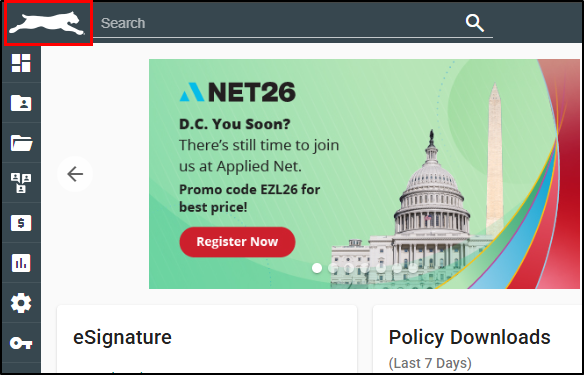
- Click the EZLynx logo in the top left corner.
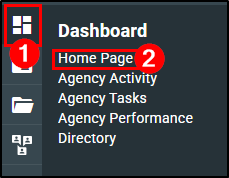
- Or hover over the Dashboard icon in the left navigation bar and select Home Page.
 |  |
Before you Start: How the Dashboard Works
A few things apply to every card on the page:
| What to know | Why it matters |
|---|---|
| The Dashboard is not customizable | You can't add, remove, or rearrange cards. |
| Your cards depend on your products | Your agency's EZLynx products decide which cards are available so your Dashboard may not match the screenshots in this article. |
| Your totals depend on your role | Your user permissions and role decide which cards and totals you see. Everyone with the same role sees the same layout. |
| Green text is a link | Click any green text to go straight to that area of EZLynx. |
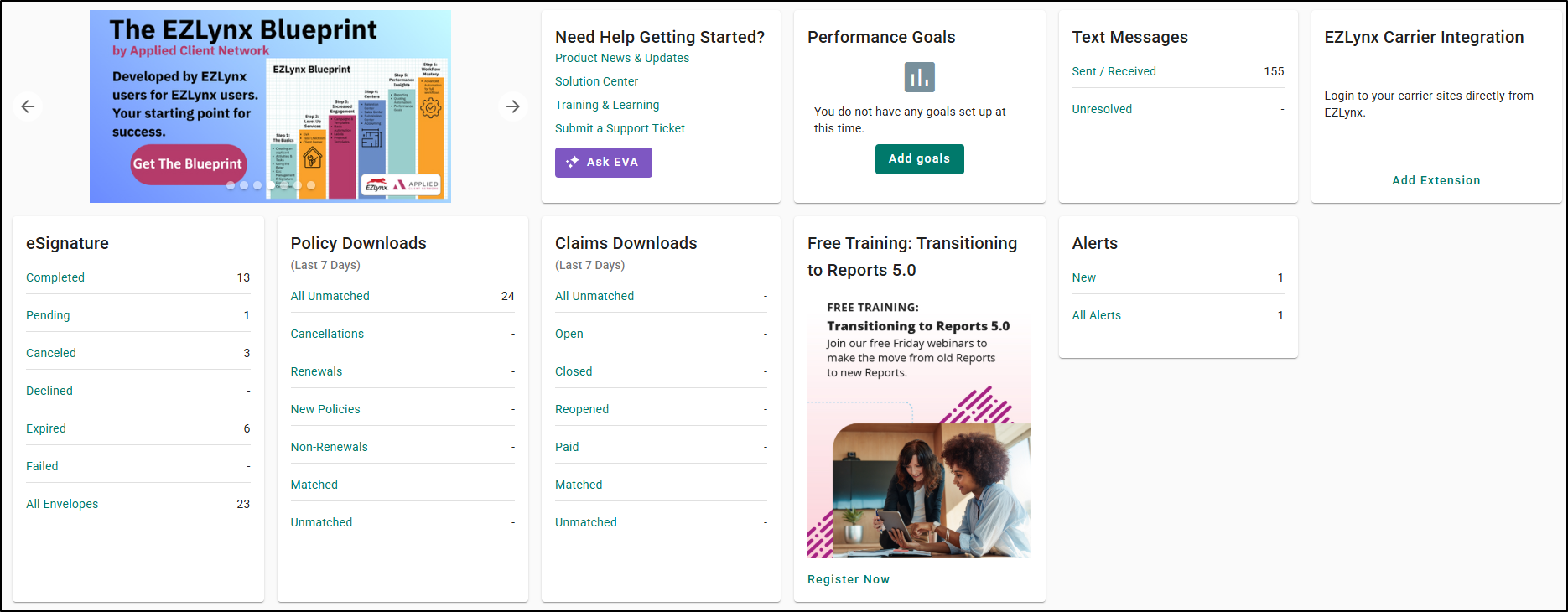
Need Help Getting Started?
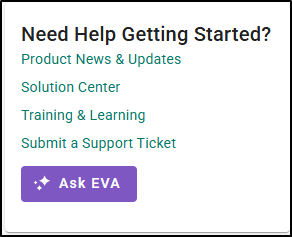
This card links you to support resources:
- Product News & Updates
- Solution Center
- Training & Learning
- Submit a Support Ticket
- Ask EVA, the EZLynx Virtual Assistant (only available with the Advanced Package)
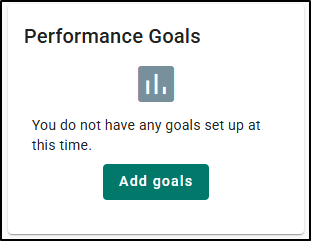
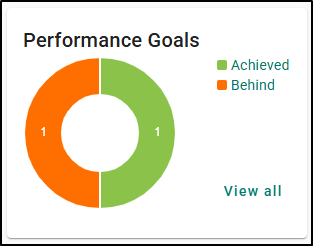
Performance Goals
If your agency has goals set up, this card shows your overall status:
- Achieved
- On Track
- Behind
- Failed
If not goals are set up yet, you'll see an Add Goals button.
 |  |
Text Messages
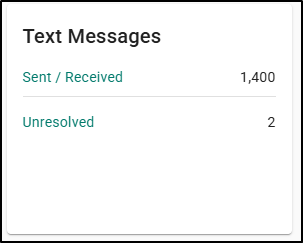
This card shows two totals for texts sent to and from your agency's text number:
- Sent / Received: your outbound and inbound text history.
- Unresolved: texts from phone numbers that EZLynx can't match to a customer.
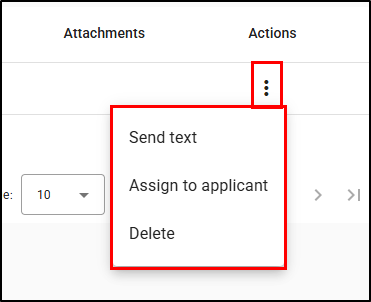
Click Unresolved to open the Calls and Messages page on the Unresolved tab. Click the vertical dots icon in the Actions column to choose one of the three options:
- Send text: reply to the sender.
- Assign to applicant: match the text to the correct account.
- Delete: remove the text.
 | Best Practice Tip - Your goal is to keep the Unresolved total at zero. Unresolved texts aren't tied to any account, so they're easy to miss. Check this total often and work through any that come in. |
EZLynx Carrier Integration
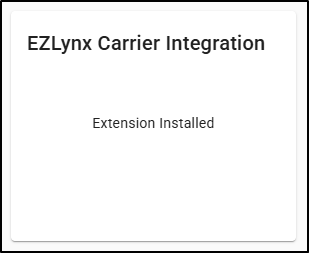
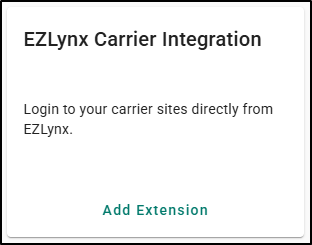
This card tells you whether you have the EZLynx Carrier Integration browser extension installed:
- Extension Installed: you're all set.
- Add extension link: you don't have it yet. Click the link to install it.
 |  |
| Best Practice Tip - Install the Carrier Integration extension to get the most out of your rater and management system. Check out Rating & Management - EZLogin Button to learn more. |
Alerts
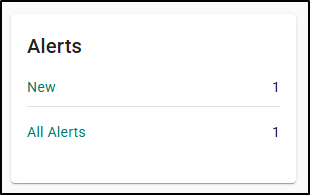
The Alerts card shows you New and All Alerts totals. Alerts help you spot activity on the accounts assigned to you, and they're where service tasks and system notifications are located.
eSignature
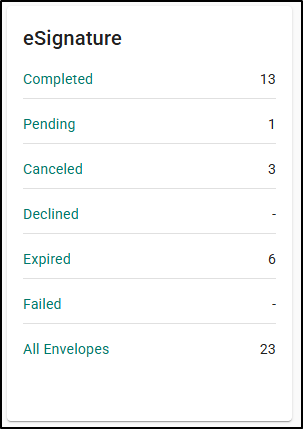
This card tracks your eSignature envelopes at every stage:
- Completed
- Pending
- Canceled
- Declined
- Expired
- Failed
- All Envelopes
Click any total to see the envelopes in that status.
Policy Downloads
This card shows totals for the policy downloads you've received over the last 7 days, broken out by type:
- All Unmatched
- Cancellations
- Renewals
- New Policies
- Non-Renewals
- Matched
- Unmatched
The card updates periodically and tells you when it was last updated (for example "updated 22 minutes ago"). To refresh the totals yourself, click the update icon in the top right corner of the card. Please note, if you don't see the update icon, refresh your web browser page first.
Click Unmatched to go directly to the unmatched downloads folder.
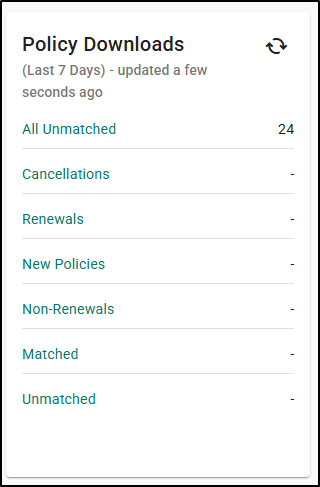
 | Watch out for this - Unmatched downloads sit in limbo until someone resolves them. If you're an Agency Admin, aim to keep your Unmatched total at zero. Check and work your unmatched downloads at least once a day to keep your management system accurate. |
Claims Downloads
Claims Downloads work the same way as Policy Downloads. It shows your last 7 days of claim downloads in these categories:
- All Unmatched
- Open
- Closed
- Reopened
- Paid
- Matched
- Unmatched
As with policies, you'll want to keep your Unmatched claims total as close to zero as possible.
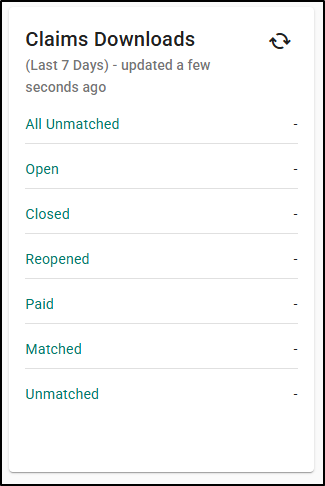
| Good to know - Any carrier-level change to a claim triggers a new download, even a small one like correcting a payment amount by $1, so you may see what looks like duplicate downloads when only a minor detail changed. |
Quick Reference: Cards at a Glance
| Card | What it shows | Your target |
|---|---|---|
| Need Help Getting Started? | Links to support, training, and EVA | - |
| Performance Goals | Overall goal status | Achieved / On Track |
| Text Messages | Sent/Received and Unresolved texts | Unresolved = 0 |
| EZLynx Carrier Integration | Whether the extension is installed | Extension installed |
| Alerts | New and All Alerts | Review new alerts regularly |
| eSignature | Envelope Status totals | Follow up on Pending, Declined, Expired, and Failed |
| Policy Downloads | Last 7 days of policy downloads | Unmatched = 0 (check daily) |
| Claims Downloads | Last 7 days of claim downloads | Unmatched = 0 |
We hope this overview helps you get the most out of your Dashboard every day. To learn more, check out our Solution Center or Training & Learning links in the Need Help Getting Started? card.
Did you find it helpful? Yes No
Send feedback