How to Request Google Reviews from your clients
Modified on: Thu, 18 Jun, 2026 at 4:10 PM
Requirements:
|
Statistics say 90% of shoppers read at least one online review before deciding to visit a business. This means that whatever your industry, having a positive online presence gives you several key advantages, which is why it's becoming a key part of branding.
The best-case scenario for agencies is to be proactive about their online reputation and use Google Reviews as a free platform to draw in new customers. Frequent positive reviews tell the Google algorithm (as well as customers) that you're trustworthy and show how you stand out from the competition.
In this article we'll show you, step-by-step, how to send a Google Review request via text message or email to your client from their Applicant account in EZLynx.
- If your agency has our Gold Website, EZLynx will configure Automated Google Review requests to be sent out when a new policy is sold. However, if your agency is adding applicants or policies manually or if they have a client who has completed a renewal and has never left a Google Review before, you should follow the steps outlined in this article to request a Google Review manually.
There are some prerequisites before you get started:
- Your agency must have Client Center.
- Your agency must have your Text Messaging EIN Registration completed to use the text option.
- Your must have setup the Google Reviews integration.
| TABLE OF CONTENTS | Check out our video if you want to watch and follow along!  |
 | Did you know? - You can click on the images/gifs in our articles to make them bigger! |
Send a Google Review via Share Button
You can also send a customer a Google Review request from inside of EZLynx.
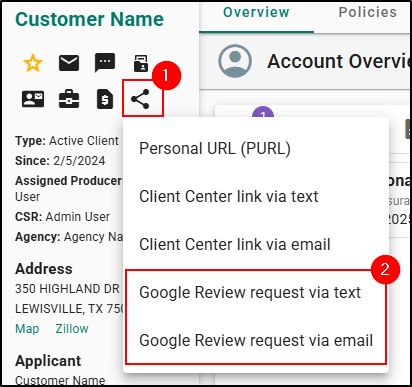
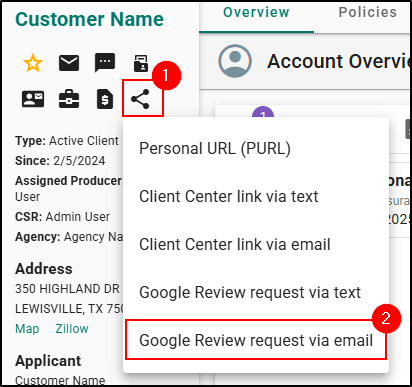
1. From the Applicant Overview page, select the Share icon. This will open the Share menu.
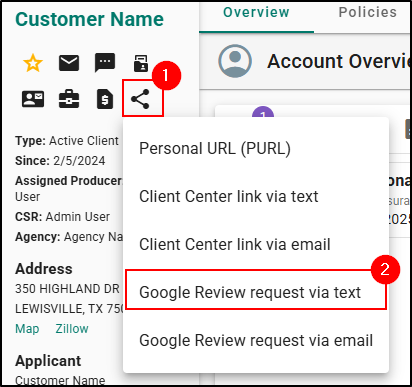
2. Choose either Google Review request via text or Google Review request via email.
 | Best Practices! - Google Review requests via text have a much higher success rate than email so we recommend using text messaging if possible for your agency and client. |
Google Review request via text
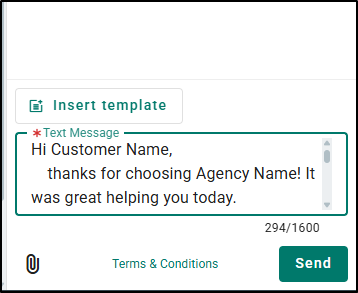
When you choose Google Review request via text, the Text Message pane will open on the right side with a default text message pre-filled in the Text Message box. You can customize the message before sending it if needed, but be sure not to remove the Google Review link at the end of the text message.
 |  |
Google Review request via email
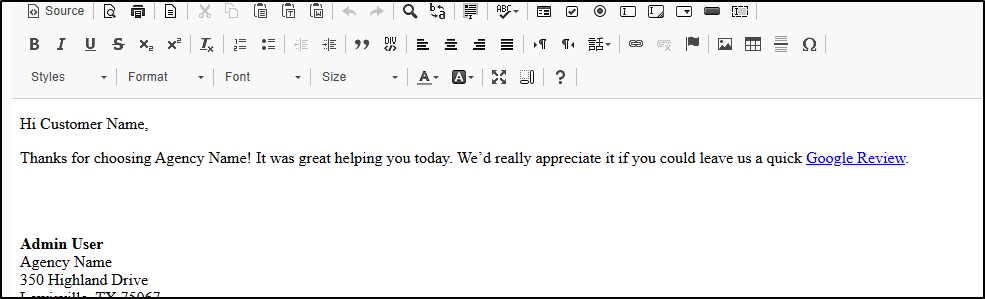
When you choose Google Review request via email, a new tab will open to the Compose Email page with a default message pre-filled in the body of the email. You can customize the message before sending it if needed, but be sure not to remove the Google Review link at the end of the email.
 |  |
We hope this article was helpful in learning how to request Google Reviews from your clients. Please let us know if this article was helpful using the question below. Check out our recommend articles on the right to learn more about EZLynx!
Did you find it helpful? Yes No
Send feedback